Copyright
This document is Copyright © 2026 by the LibreOffice Documentation Team. Contributors are listed below. This document may be distributed and/or modified under the terms of either the GNU General Public License (https://www.gnu.org/licenses/gpl.html), version 3 or later, or the Creative Commons Attribution License (https://creativecommons.org/licenses/by/4.0/), version 4.0 or later. All trademarks within this guide belong to their legitimate owners.
Contributors
To this edition
Peter Schofield
To previous editions
Elzett Kotze, Jean Hollis Weber, John A Smith, , John Cleland, Kees Kriek, Martin Fox, Peter Schofield, Rachel Kartch, Regina Henschel, Socks Eight, Vipul Gupta.
Feedback
Please direct any comments or suggestions about this document to the Documentation Team Forum at https://community.documentfoundation.org/c/documentation/loguides/ (registration is required) or send an email to: loguides@community.documentfoundation.org.
-
Note
Everything sent to a forum, including email addresses and any other personal information that is written in the message, is publicly archived and cannot be deleted. Emails sent to the forum are moderated.
Publication date and software version
Published April 2026. Based on LibreOffice 26.2
Other versions of LibreOffice may differ in appearance and functionality.
Introduction
Draw is the vector graphics drawing module available as part of LibreOffice office application. Draw is used for creating and updating a wide format of graphic images, including raster graphics (pixels). Vector graphics store and display images as assemblies of simple geometric elements such as lines, circles, and polygons, rather than a collection of pixels (points on the screen), allowing for easier storage and image scaling.
Draw is fully integrated into LibreOffice simplifying an exchange of graphics between all LibreOffice modules. If an image is created in Draw, reusing it in a Writer document is relatively easy. For example, select and copy a drawing in Draw, then paste the copied image directly into a Writer document. Also, drawings can be worked on directly from within Writer or Impress, using a subset functions and tools from Draw.
Draw functionality is extensive, but is not designed to rival high-end graphics applications. However, Draw has more functionality than drawing tools that are available in the majority of other office software suites. A few examples of drawing functions are as follows:
-
Layer management
-
Magnetic grid-point system
-
Dimensions and measurement display
-
Connectors for making organization charts and other diagrams
-
3D functions for creating small three-dimensional drawings
-
Drawing and page-style integration
-
Bézier curves
The Draw user guide is not a course book, but a reference work used as guidance when creating graphics describing the functions associated with Draw. Some concepts, such as file management, or the way the LibreOffice works, are mentioned briefly, but are covered in more detail in the Getting Started Guide.
The New icon displayed on the Standard toolbar depends on which LibreOffice module is opened when creating a new document, presentation, spreadsheet, or drawing.
-
Note
When LibreOffice is installed on a computer, a menu entry for each module is added to the system menu. Exact name and location of menu entries depends on the operating system and user interface being used.
Main window
Pages pane
In Draw, drawings can be split over several pages using multi-page drawings. These multi-page drawings are normally used in presentations. The Pages pane, on the left side of the main window, provides an overview pages created in a drawing. If the Pages pane is not visible, select View > Page Pane on the Menu bar. To change the page order, simply drag and drop one or more pages displayed in the Pages pane.
Workspace
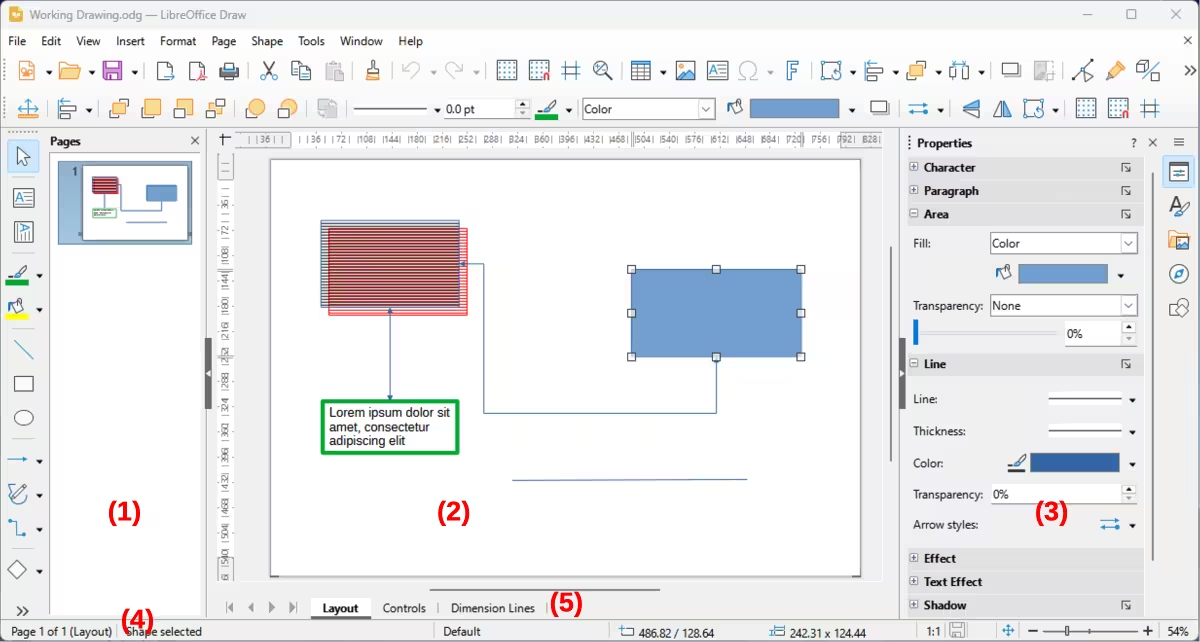
Center of the main window (Figure 1) is the Workspace area where drawings are created and is surrounded with toolbars and information areas. Quantity and position of tools varies with the task being carried out, user preferences, and computer setup.
The maximum size of a Draw drawing page is limited by computer setup and the page size that that can be set and used in a printer connected to the computer.
Figure 1: Draw main window
|
|
|
Sidebar
The Draw Sidebar has five main decks and is similar to Sidebars in other LibreOffice modules. To open a deck, click on its icon on the right of the Sidebar, or click on Sidebar Settings at the top of the Sidebar and select a deck from the drop-down list. If the Sidebar is not visible, select View > Sidebar on the Menu bar, or use the keyboard shortcut Ctrl+F5 (macOS ⌘+F5).
Properties
|
Page |
Character |
Paragraph |
Image |
Area |
|
Line |
Effect |
Shadow |
Position and Size |
Text Attributes |
Styles
Gallery
|
Arrows |
Backgrounds |
BPMN |
Bullets |
Diagrams |
|
Flow chart |
Icons |
Network |
Shapes |
Sounds |
Navigator
Shapes
|
Lines and Arrows |
Curves and Polygons |
Connectors |
Symbol Shapes |
|
Block Arrows |
Flowchart |
Callouts |
3D Objects |
Status bar
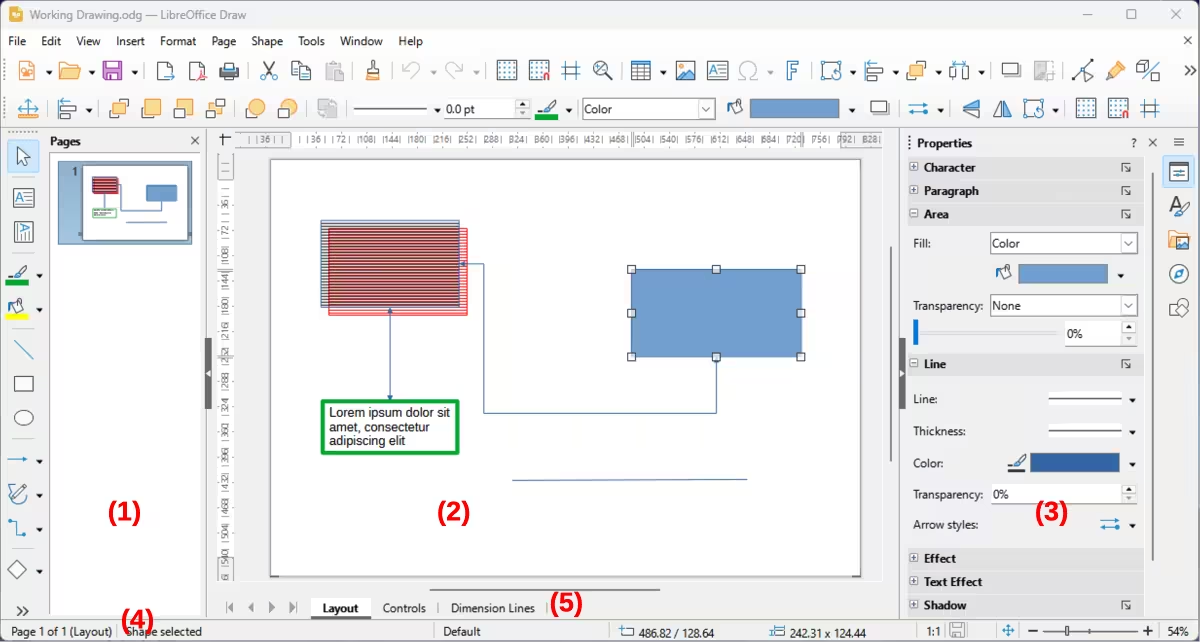
The Status Bar (Figure 2) is located at the bottom of the Workspace in all LibreOffice modules. To hide the Status Bar, select View on the Menu bar and deselect Status Bar from the submenu.
-
Note
The measurement units displayed on the Status Bar are set by going to Tools > Options > LibreOffice Draw > General (macOS LibreOffice > Preferences > LibreOffice > General) on the Menu bar. These measurement units can be different to the measurement units set for the rulers displayed in the Draw main window.
Slide (drawing) number
Information area
Master drawing
Cursor position/Selected object size
-
When no object is selected, the position numbers show the current position (X and Y coordinates) of the cursor.
-
When an object is selected and being resized, the object size numbers show the object size (width and height).
-
If an object is selected, the position numbers shows the X and Y coordinates of the upper-left corner and the object size number pair displays the object size. These numbers do not relate to the object itself, but to the selection outline, which is the smallest possible rectangle that can contain the visible object part or parts. See Chapter 3, Working with Objects and Object Points for more information.
-
When an object is selected, clicking in either of these areas opens the Position and Size dialog. See Chapter 4, Changing Object Attributes for more information.
Figure 2: Draw Status Bar
|
|
|
Document scaling factor
Unsaved changes
Digital signature
Fit drawing
Zoom slider/Zoom percentage
Layers bar
A layer is a workplace where drawing elements and objects can be inserted. By default, the Workspace consists of three layers, which are Layout, Controls and Dimension Lines. Tabs for the default layers appear at the bottom of the Workspace. Default layers cannot be deleted or renamed, but layers can be added as and when necessary.
Tabs for layers appear in the Layers bar at the bottom of the Workspace. Use the Layers bar to navigate between layers, add layers as required, or delete layers that have been created. For more information on layers, see Chapter 11, Advanced Draw Techniques.
Rulers
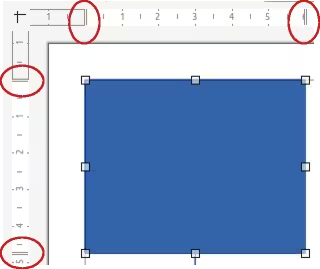
Rulers are positioned at the upper and left-hand sides of the Workspace. If the rulers are not visible, select View > Rulers in the Menu bar, or use the keyboard shortcut Ctrl+Shift+R (macOS ⌘+Shift+R). The rulers show the size of a selected object on the page using double lines (highlighted in Figure 3).
Figure 3: Example of rulers showing object size

Figure 4: Example of ruler measurement units
Page margins in the drawing area are represented on the rulers. Change the margins directly on the rulers by dragging with the cursor. Margin areas are normally indicated by a grayed out area on the rulers, but this indication does depend on computer and operating system setup.
To change the ruler measurement units, right-click on a ruler and select the measurement unit from the drop down list, as shown in Figure 4 for the horizontal ruler. Measurement units for the horizontal and vertical rulers can be different measurement units.
Toolbars
To display or hide the Draw toolbars, select View > Toolbars on the Menu bar and select the required toolbar from the submenu. For example, Standard and Drawing toolbars are shown by default, but Line and Filling, and Text Formatting toolbars are not shown.
Appearance of tool icons on toolbars depends on the computer operating system and the selection of icon style and size in Tools > Options > LibreOffice > View (macOS LibreOffice > Preferences > LibreOffice > View).
The tools available on a toolbar are indicated, either, by highlighting around the tool icon, or a check mark as shown by the example in Figure 5. For more information about working with toolbars, see Appendix B, Toolbars and the Getting Started Guide. The four main toolbars used in Draw are as follows:
Standard toolbar
Drawing toolbar
Line and Filling toolbar
Figure 5: Example of visible toolbar icons on a toolbar
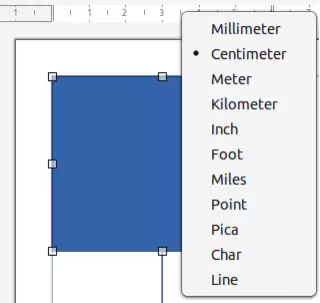
Figure 6: Standard toolbar
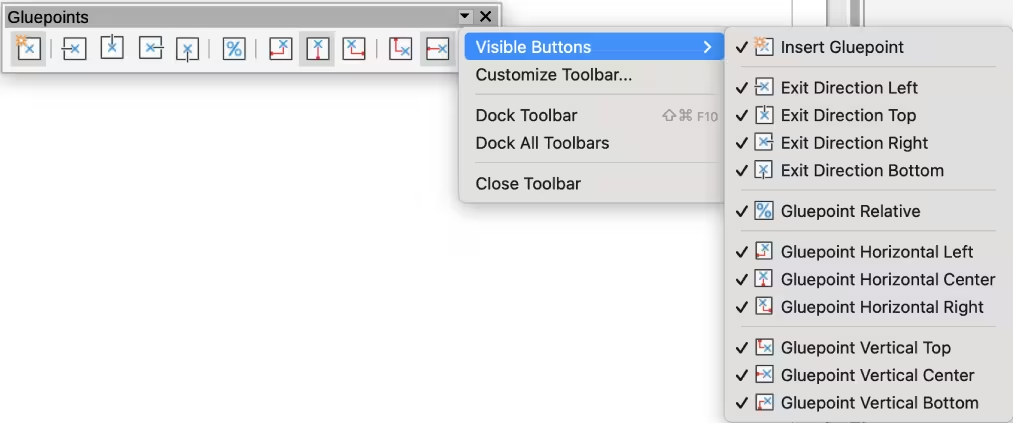
Figure 7: Drawing toolbar
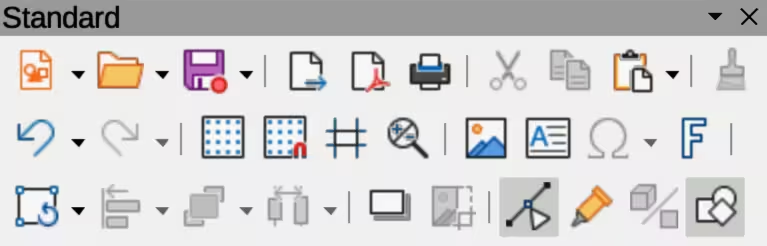
Figure 8: Line and Filling toolbar

Figure 9: Text Formatting toolbar
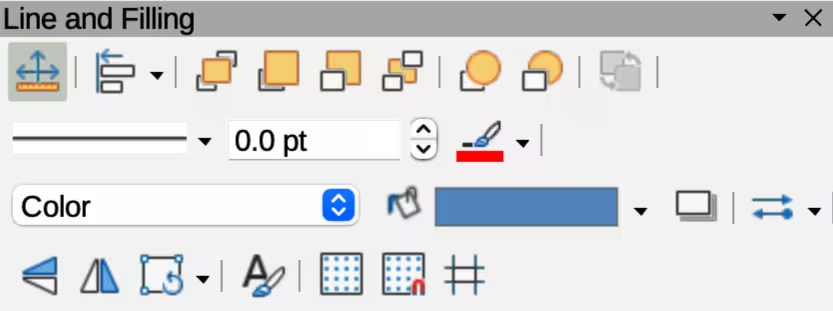
Text Formatting toolbar
-
Notes
For more information on the available tools that can be added to a toolbar, see Appendix B, Toolbars and the Getting Started Guide. When a tool is added to a toolbar, its position on the toolbar (from left to right) is the same as its listed position in the Visible Buttons context menu.
When a sub toolbar is made into a floating toolbar, the tool on the existing toolbar remains in the toolbar and always shows the last tool used. This means that the tool icon on a screen may differ from the tool icon shown in this guide.
Make sure that all toolbars are docked into the required position in the LibreOffice window before using Lock Toolbars or Lock Toolbar Position. There is no selection indication on Lock Toolbars when used to lock and unlock the toolbars. The locking indication is only indicated by the dotted toolbar handles.
Adding and removing tools using Visible Buttons
-
Right-click in an empty area on the toolbar, or click on the triangle ▼ in the toolbar title and select Visible Buttons from the context menu to a submenu of available tools.
-
Click on a tool name in the submenu to add or remove the tool.
Available toolsets
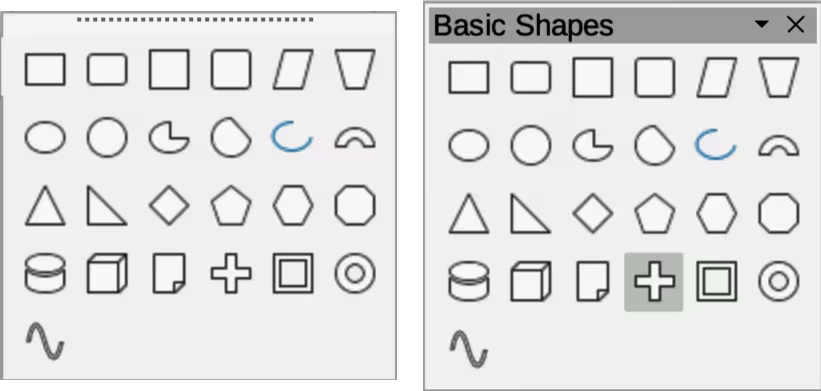
Some tools on a toolbar have a triangle ▼ on the right side of the tool icon indicating that the tool has additional tools available in a sub‑toolbar. Clicking on this triangle ▼ opens a palette, or sub‑toolbar, of available tools (Figure 10).This palette, or sub‑toolbar, can be turned into a floating toolbar as follows:
-
Click on the dotted line at the top of the toolset.
-
Drag the toolset across the screen to a convenient location, then release the cursor to create a floating toolbar.
-
To close a floating toolbar, click on the X on the right of the toolbar title.
-
Tip
If a tool is repeatedly used, double-click on the selected tool. The tool becomes active and remains active. To exit from repeat use mode, press the Esc key, or select another tool. Please note that this may not work for every tool.
Figure 10: Example of available toolsets
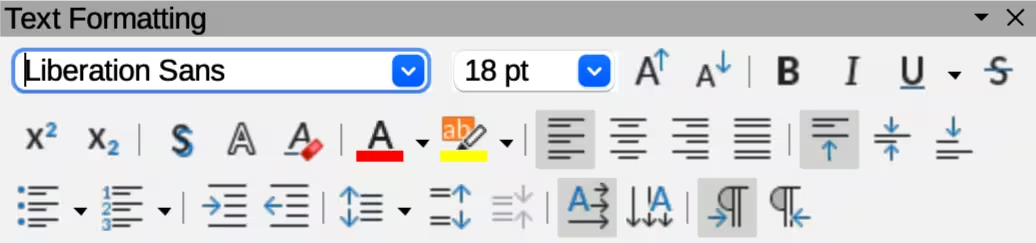
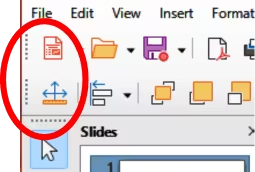
Figure 11: Example of toolbar handles
Unlocking and locking individual toolbars
By default, docked toolbars are locked into position and have to be unlocked before becoming floating toolbars, or repositioned on the main window. The locking status of toolbars is indicated by dotted handles at the left end of horizontal toolbars (highlighted in Figure 11). For vertically positioned toolbars, these dotted handles are positioned at the toolbar top.
-
To unlock a toolbar, right-click in a blank area on the toolbar and select Lock Toolbar Position from the context menu. A toolbar handle appears at the end of the toolbar, indicating that the toolbar is unlocked and can be moved.
-
To lock a toolbar into position, dock the toolbar into position, then right-click in a blank area on the toolbar and select Lock Toolbar Position from the context menu. The toolbar handle disappears from the end of the toolbar.
-
Note
Before unlocking or locking individual toolbars, make sure that ALL toolbars are unlocked.
Unlocking and locking all toolbars
All toolbars available in LibreOffice can also be locked into position, which overrides any individual unlocking and locking of toolbars.
Unlocking toolbars
-
Make sure all LibreOffice documents are saved before unlocking or locking all toolbars.
-
To unlock all toolbars, go to View > Toolbars on the Menu bar and select Lock Toolbars from the context menu.
-
Select Restart Now from the warning message that opens and all toolbars can now be individually unlocked. Toolbar handles appear on individual toolbars that are NOT individually locked.
Locking all toolbars
-
To lock all toolbars, go to View > Toolbars on the Menu bar and select Lock Toolbars from the context menu.
-
Select Restart Now from the warning message that opens and all toolbars are now locked into position. Toolbar handles are no longer displayed on all toolbars.
Undocking toolbars
When Draw is opened, by default, the Standard and Drawing toolbars are already docked into their positions at the top of the main window. These toolbars and any other open toolbar can be undocked to create floating toolbars as follows:
-
Make sure the toolbar handle is displayed indicating that the toolbar is unlocked. If there is no toolbar handle displayed, see “Unlocking and locking individual toolbars” and "Unlocking and locking all toolbars" for more information.
-
Move the cursor over the toolbar handle. The cursor changes shape, normally to a grabbing hand, depending on computer setup and operating system.
-
Click on the toolbar handle and drag the toolbar until it is undocked and becomes a floating toolbar. This floating toolbar capability is common to all LibreOffice modules.
Docking toolbars
To dock a floating toolbar, use one of the following methods:
-
Press and hold the Ctrl key (macOS ⌘), then double click on the toolbar title. The toolbar moves into available space at the top of the Draw main window.
-
Click in the toolbar title and drag the toolbar to the docked position required. This can be the top, bottom or one of the sides of the Draw main window.
Customizing toolbars
Draw toolbars can be customized by adding or removing commands to or from a toolbar. Also, customization allows creation of toolbars for specific purposes. Customizing toolbars is additional to using “Adding and removing tools using Visible Buttons” above. For more information on adding customizing toolbars, see Appendix B, Toolbars and the Getting Started Guide.
Choosing and defining colors
Color palette
The Color Palette (Figure 12 ) is a standard set of colors to use for objects and text in a drawing.
-
Go to View on the Menu bar and select Color Bar to open the Color Palette. The Color Palette appears in the main window, next to the Sidebar.
-
Select an object or text.
-
Left click on the color required for the area fill, or text, and change the object or text colour.
Figure 12: Color Bar (Color Palette)
-
Right click on the color required for the object, or text box border, and change border color.
-
Go to View on the Menu bar and deselect Color Bar to close the Color Palette.
-
Note
Selecting the X at the bottom left of the Color Palette corresponds to no color for an object, text, or border.
Specialized color palettes
In addition to the Color Palette, Draw has several specialized color palettes providing a selection of color for objects and text; for example chart-palettes, rectangles, arrows, and so on. After selecting an object, or text, in a drawing, use one of the following options to access the specialized color palettes.
-
For area or fill color use Color page in the Area dialog, Fill Color on the Drawing or Line and Filling toolbar, or Fill in the Area panel in the Properties deck on the Sidebar.
-
For line color use Line page in the Line dialog, Line Color on the Drawing or Line and Filling toolbar, or Color in the Line panel in the Properties deck on the Sidebar.
-
For text color use Font Color tool on the Text Formatting toolbar, or Font Color in the Character panel in the Properties deck on the Sidebar.
For more information on selecting a color and a color palette for an object, or text, see Chapter 4, Changing Object Attributes, Chapter 9, Adding and Formatting Text, and Chapter 11, Advanced Draw Techniques.
Custom colors
In Draw, custom colors can be created using the Color Picker dialog, CMYK values, or RGB values to match color schemes used; for example a company color scheme. For more detailed information on creating custom colors, color palettes, CMYK settings, RGB settings, and HSB settings, refer to Chapter 11, Advanced Draw Techniques.
Grid, snap guides, and helplines
The grid, snap guides, and helplines in Draw act as drawing aids when moving and positioning objects in a drawing. These drawing aids can be turned on or off using one of the following options:
-
For the Line and Filling toolbar click on Display Grid, or Helplines While Moving to turn the grid or helplines on or off.
-
For the Options toolbar click on Display Grid, Display Snap Guides, or Helplines While Moving to turn the grid, snap guides, or helplines on or off.
-
Go to View > Grid and Helplines on the Menu bar and select, or deselect Display Grid, or Helplines While Moving on the submenu.
-
Go to View > Snap Guides on the Menu bar and select, or deselect Display Snap Guides on the submenu.
The grid and snap guides are displayed only on the screen and are not printed on a drawing, or displayed when the drawing is used in another LibreOffice module. The color, spacing and resolution of the grid points can be individually chosen for each axis. Draw also has several snap functions to position objects precisely in a drawing.
Helplines show the object position while moving and makes positioning an object much easier. If this function is activated, pairs of vertical and horizontal lines enclosing the object are shown while moving the object. These helplines extend to the drawing area edges.
For more information on the grid, snap guides, snap functions, and helplines, see Chapter 3, Working with Objects and Object Points.