Copyright
This document is Copyright © 2026 by the LibreOffice Documentation Team. Contributors are listed below. This document may be distributed and/or modified under the terms of either the GNU General Public License (https://www.gnu.org/licenses/gpl.html), version 3 or later, or the Creative Commons Attribution License (https://creativecommons.org/licenses/by/4.0/), version 4.0 or later. All trademarks within this guide belong to their legitimate owners.
Contributors
Contributors for this edition:
Peter Schofield
Contributors for previous editions:
Claire Wood, Elzett Kotze, Jean Hollis Weber, John A Smith, John Cleland, Martin Fox, Peter Schofield, Regina Henschel
Feedback
Please direct any comments or suggestions about this document to the Documentation Team Forum at https://community.documentfoundation.org/c/documentation/loguides/ (registration is required) or send an email to: loguides@community.documentfoundation.org.
-
Note
Everything sent to a forum, including email addresses and any other personal information that is written in the message, is publicly archived and cannot be deleted. Emails sent to the forum are moderated.
Publication date and software version
Published April 2026. Based on LibreOffice 26.2.
Other versions of LibreOffice may differ in appearance and functionality.
Introduction
Draw is used for creating 2D and 3D objects and this chapter explains how to create 2D objects. For more information on 3D objects, see Chapter 7, Working with 3D Objects. All rectangles, lines, and shapes are called objects, which is a common notation in vector drawing software.
Frequently used drawing tools are on the Drawing toolbar (Figure 1) and is normally docked on the left side of the main window. If the toolbar is not visible, go to View > Toolbars on the Menu bar and select Drawing from the available options. The Drawing toolbar can be unlocked and used as a floating toolbar. Toolbars can also be configured by adding, moving, hiding, or deleting tools. See Chapter 1, Introducing Draw for information.
Drawing basic shapes
Basic shapes, including text, are treated as objects in Draw. The default set of tools available for drawing basic shapes on the Drawing toolbar are shown in Figure 1. To add more tools to the Drawing toolbar, see Appendix B, Toolbars and the Getting Started Guide for information.
Some tool icons on the Drawing toolbar change shape according to the last tool used from the selection of available tools. Each tool that has a triangle ▼ next to the tool icon indicates that more tools are available. See “Drawing geometric shapes” on page 16 for information on the available shapes.
When a shape is created, an object selected for editing, or text added to the drawing, the information field in the Status Bar (Figure 2) changes to reflect the action taken or in progress. See Chapter 1, Introducing Draw for information on the Status Bar.
-
Note
When a basic shape is drawn, or selected for editing, the information area at the left side in the Status Bar changes to reflect the present action. For example Line created, Text frame xxyy selected, and so on.
Figure 1: Drawing toolbar

Figure 2: Draw Status Bar

|
|
|
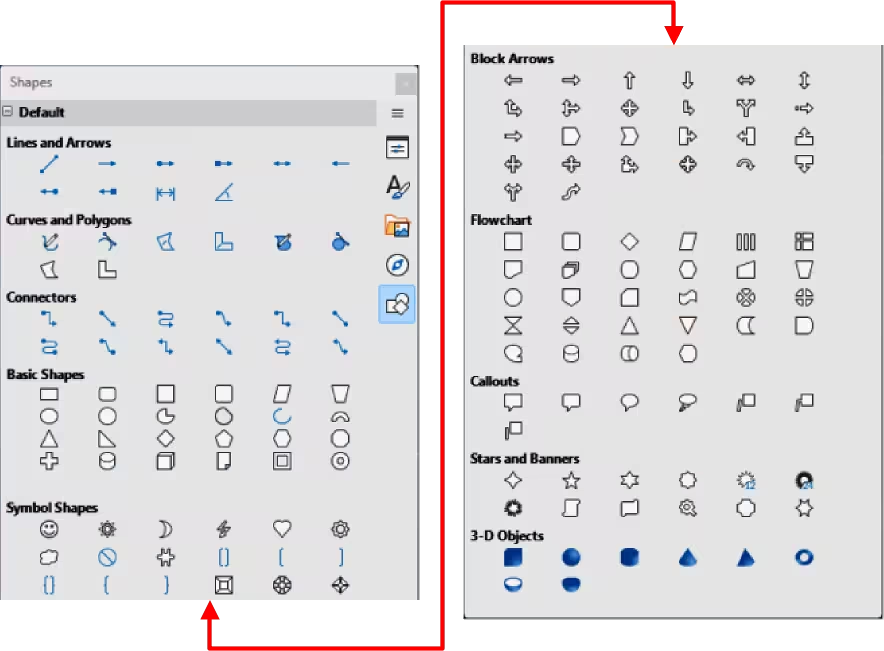
Figure 3: Shapes deck on Sidebar
-
Notes
If the option View > Snap Guides > Snap to Grid on the Menu bar has been selected, holding down the Ctrl (macOS ⌘) key while drawing a straight line temporarily deactivates the Snap to Grid option.
If When creating or moving objects in the Constrain Objects section of Tools > Options > LibreOffice Draw > Grid (macOS LibreOffice > Preferences > LibreOffice Draw > Grid) has been selected, holding down the Shift key temporarily deactivates this restriction.
Draw classifies both lines and arrows as lines and are created in the same way as straight lines. Hovering the cursor over each tool in the Lines and Arrows sub‑toolbar (Figure 8 below), or the Line and Arrows panel in the Shapes deck on the Sidebar, indicates what type of line or arrow each tool draws. The information field on the Status Bar shows them only as lines.
Creating lines
A straight line is the simplest element or object to create using Draw.
-
Use one of the following options to draw a straight line:
-
Click Insert Line on the Drawing toolbar (Figure 1).
-
Click on the triangle ▼ next to Lines and Arrows on the Drawing toolbar (Figure 1) and select Insert Line from the options available.
-
Click Insert Line in the Line and Arrows panel of the Shapes deck on the Sidebar (Figure 3).
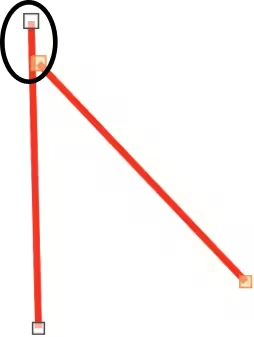
Figure 4: Example of line starting point (highlighted)
-
Place the cursor at the starting point on the drawing, then click and drag the cursor to draw a straight line.
-
Release the cursor when the required line length is reached and a straight line is created. A selection handle appears at each line end. The selection handle at the starting point of a line is slightly larger than the selection handle at the end point (highlighted in Figure 4).
-
To snap ends of a straight line to the nearest grid point, hold down the Ctrl (macOS ⌘) key while drawing a straight line. This is the default behavior of the Ctrl (macOS ⌘) key.
-
To restrict the drawing angle of a straight line to multiples of 45 degrees (0, 45, 90, 135, and so on), hold down the Shift key while drawing a straight line. This is default behavior of the Shift key.
-
To draw a straight line symmetrically outwards in both directions from the start point, hold down the Alt (macOS ⌥) key to draw a straight line from the line center.
Formatting lines
When a line is drawn, it uses default attributes for line style, line color, line width and transparency. To change any of these attributes to the drawing requirements is as follows:
-
Select the straight line by clicking on it to display the selection handles.
-
To format line style, line color, line width, or transparency select an available option using one of the following methods:
-
Click on a line selection handle and drag it to increase or decrease the line length.
-
Go to Format > Line on the Menu bar to open the Line dialog (Figure 5).
-
Use Line Style, Line Width and Line Color on the Line and Filling toolbar (Figure 6).
-
Right-click on the line and select Line from the submenu to open the Line dialog.
-
Open the Line panel in the Properties deck on the Sidebar (Figure 7).
Figure 5: Line dialog — Line page
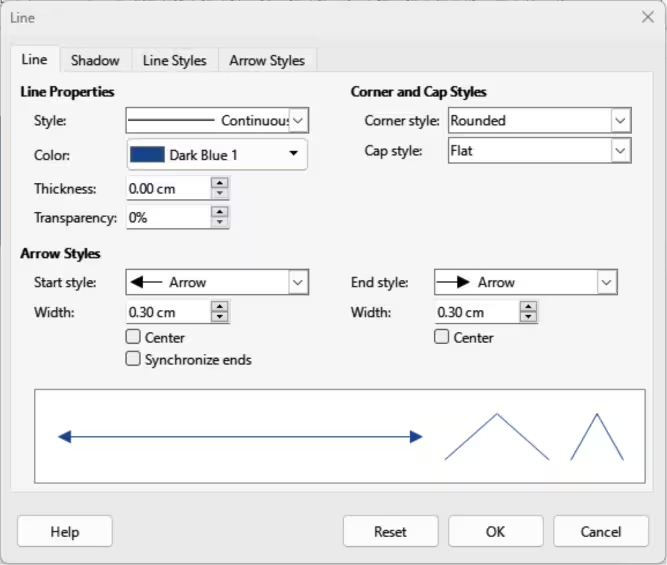
Figure 6: Line and Filling toolbar

Figure 7: Line panel in Properties deck on Sidebar
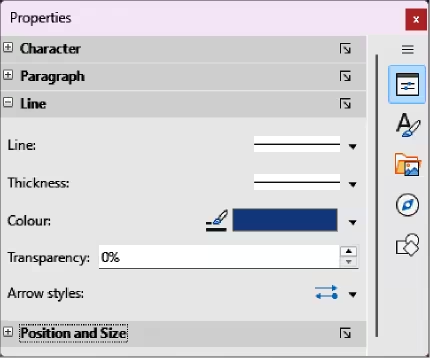
Figure 8: Lines and Arrows sub‑toolbar

Creating arrows
-
Use one of the following methods to create an arrow:
-
Select the type of line or arrow required in the Lines and Arrows panel of the Shapes deck on the Sidebar (Figure 3 above).
-
Click on the triangle ▼ next to Lines and Arrows on the Drawing toolbar and select the type of line and arrow required from the options in the Lines and Arrows sub‑toolbar (Figure 8).
-
Place the cursor at the starting point for the line or arrow, then click and drag the cursor. The arrowheads are drawn at the line ends when the line is completed.
-
For more information on creating lines and arrows, see “Creating lines” above.
Formatting arrows
-
Format the line used for an arrow, see “Formatting lines” above for more information.
-
To format an arrow using the same arrowhead style for both arrow ends:
-
Select the arrow so that the selection handles are displayed.
-
Go to Format > Line on the Menu bar or right-click on the arrow to open the Line dialog (Figure 5 above).
-
Click on Arrow Styles to open the Arrow Styles page in the Line dialog (Figure 9) and select an arrow style from the options available in the Arrow style drop-down list.
-
Click OK to apply the arrow style and close the Line dialog.
-
Click in an empty space on the drawing to deselect the arrow.
-
To format an arrow using different arrowhead styles for each arrow end:
-
Select the arrow so that the selection handles are displayed.
-
Open the Line panel on the Properties deck of the Sidebar (Figure 7 above).
-
In the Line panel, click on Arrow Style to open a drop-down list for arrowhead styles.
-
On the Line and Filling toolbar (Figure 6 above), select an arrowhead style from the left-hand list of arrowhead styles for the arrow start point.
-
On the Line and Filling toolbar (Figure 6 above), select an arrowhead style from the right-hand list of arrowhead styles for the arrow end point.
-
Click in an empty space on the drawing to deselect the arrow.
-
Note
The option for selecting different arrowhead styles at each end of an arrow is not available in the macOS version of the Line panel on the Properties deck in the Sidebar.
Figure 9: Line dialog — Arrow Styles page
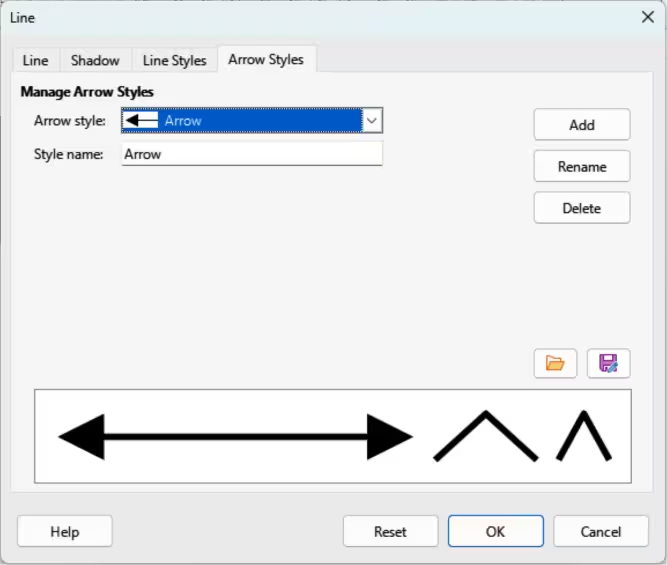
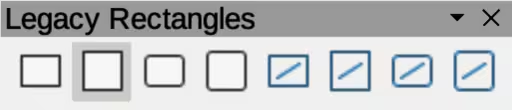
Figure 10: Legacy Rectangles toolbar
Rectangles or squares
-
Use one of the following methods to start drawing a rectangle or square:
-
Click on Rectangle on the Drawing toolbar.
-
Select the type of rectangle or square in the Basic Shapes panel in the Shapes deck on the Sidebar (Figure 3 above).
-
Click on the triangle ▼ next to Basic Shapes on the Drawing toolbar (Figure 1 above) and select type of rectangle or square required from the available options.
-
Select the type of rectangle or square on the Legacy Rectangles toolbar (Figure 10). To display the Legacy Rectangles toolbar, go to View > Toolbars on the Menu bar and select it.
-
Place the cursor at the starting point for the rectangle or square, then click and drag the cursor until the required size is drawn. The rectangle or square is drawn from the starting point using the bottom right corner as the anchor point for the cursor.
-
If necessary, use one of the following options to draw a rectangle or square:
-
If a rectangle option is selected, hold down the Shift key while dragging the cursor to draw a square.
-
If a rectangle option is selected, hold down the Alt key while dragging the cursor to draw a rectangle from its center.
-
If a rectangle option is selected, hold down the Shift and Alt keys while dragging the cursor to draw a square from its center.
-
If a square option is selected, hold down the Shift key while dragging the cursor to draw a rectangle.
-
If a square option is selected, hold down the Alt key while dragging the cursor to draw a square from its center.
-
Note
If the option When creating or moving objects is selected in the Constrain Object section of Tools > Options > LibreOffice Draw > Grid (macOS LibreOffice> Preferences > LibreOffice Draw > Grid), Shift key action is reversed. A square is drawn instead of a rectangle. Holding down the Shift key a rectangle is drawn. Shift key action reversal also applies to ellipses, circles, arcs, and segments.
Ellipses or circles
-
Use one of the following methods to start drawing an ellipse or circle:
-
Click on Ellipse on the Drawing toolbar.
-
Select the type of ellipse or circle in the Basic Shapes panel in Shapes deck on the Sidebar (Figure 3 above).
-
Click on the triangle ▼ next to Basic Shapes on the Drawing toolbar (Figure 1 above) and select the type of ellipse or circle required from the drop-down list.
-
Select the type of ellipse or circle on the Legacy Circles and Ovals toolbar (Figure 11). To display the Legacy Circles and Ovals toolbar, go to View > Toolbars on the Menu bar and select it.
-
Place the cursor at the starting point for the ellipse or circle, then click and drag the cursor until the required size is drawn. The ellipse or circle is drawn from the starting point using the bottom right corner as the anchor point for the cursor.
-
If necessary, use one of the following options while drawing an ellipse or circle:
-
If an ellipse option is selected, hold down the Shift key while dragging the cursor to draw a circle.
-
If an ellipse option is selected, hold down the Alt key while dragging the cursor to draw an ellipse from its center.
-
If an ellipse option is selected, hold down the Shift and Alt keys while dragging the cursor to draw a circle from its center.
-
If a circle option is selected, hold down the Shift key while dragging the cursor to draw an ellipse.
-
If a circle option is selected, hold down the Alt key while dragging the cursor to draw a circle from its center.
Figure 11: Legacy Circles and Ovals toolbar

-
Tip
To quickly insert an object, press and hold down the Ctrl (macOS ⌘) key, then click on an object tool on the Drawing toolbar (Figure 1 above). A standard sized object of the selected object is drawn automatically in the center of the Workspace. The size, shape, and color used are default settings. These settings can be changed to match the drawing requirements. See Chapter 4, Changing Object Attributes for more information.
Dimension lines
Dimension lines display a measurement of an object in the drawing, as shown by the example in Figure 12. A dimension line does not belong to an object, but is positioned close to it. An object can have as many dimension lines as necessary indicating dimensions of all object.
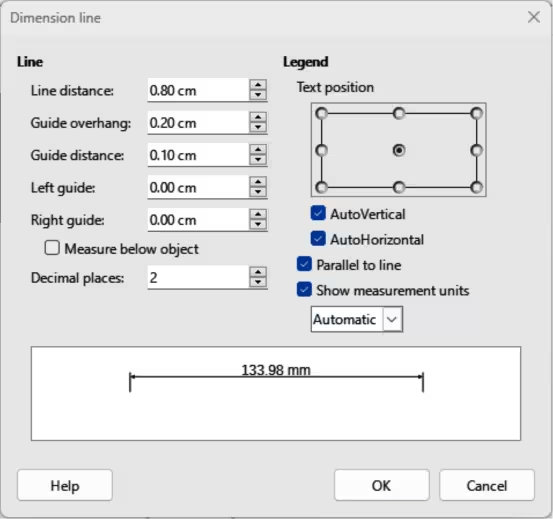
To format the display of a dimension line and its components, right-click on the dimension line and select Dimensions from the context menu to open the Dimension line dialog (Figure 13).
Figure 12: Example of object dimension lines
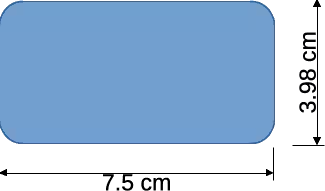
Figure 13: Dimension Line dialog
-
Note
The measurement units used for dimension lines can be changed. Go to Tools > Options > LibreOffice Draw > Grid > General (macOS LibreOffice > Preferences > LibreOffice Draw > Grid > General) on the Menu bar and select a measurement unit from the available options in the Units of measurement drop‑down list.
-
Tip
To help in accurately positioning dimension lines on an object, it is recommended to use the horizontal and vertical guide lines. It is also recommended to use the Snap to grid option to accurately position objects and dimension lines.
Dimensions are created in a drawing using the following procedure:
-
Use one of the following methods to start drawing a dimension line:
-
Click on the triangle ▼ next to Lines and Arrows on the Drawing toolbar and select Dimension Line from the drop-down list.
-
Click on Dimension Line in the Lines and Arrows panel on Sidebar Shapes deck.
-
Place the cursor at the point close to the object to position the dimension line start.
-
Click and drag to draw the dimension line. As the dimension line is drawn, the dimension is displayed and automatically calculated.
-
Select the dimension line, then right-click on the dimension line and select Dimensions from the context menu to open the Dimension Line dialog.
-
Format the dimension line using the options available in the Dimension Line dialog. For more information, see Chapter 11, Advanced Draw Techniques.
-
Click OK to save the changes and close the Dimension Line dialog.
-
Click in an empty space on the drawing to deselect the dimension line.
Arcs and segments
Arcs and segments are created in a drawing using the following procedure:
-
Use one of the following methods to start drawing an arc or segment:
-
Select the type of arc or segment in Curves and Polygon panel in the Shapes deck on the Sidebar (Figure 3 above).
-
Click on the triangle ▼ next to Basic Shapes on the Drawing toolbar (Figure 1 above) and select the type of arc or segment required from the drop-down list.
-
Select the type of arc or segment from the Legacy Circles and Ovals toolbar (Figure 11 above). To display the Legacy Circles and Ovals toolbar, go to View > Toolbars on the Menu bar and select it.
-
Click on and drag the cursor to start creating an arc or segment. Release when the required object size is reached.
-
Move the cursor to the position where the arc or segment starts and click to start drawing the arc or segment. The Status Bar indicates the angle in degrees.
-
Move the cursor to the end position of where the arc or segment finishes. The Status Bar shows the angle in degrees.
-
Click again to complete the arc or segment.
Curves
Curves are created in a drawing using the following procedure:
-
Select the type of curve required using one of the following methods:
-
Click on the triangle ▼ next to Curves and Polygons on the Drawing toolbar (Figure 1 above) and select the type of curve from the drop-down list.
-
Select the type of curve in the Curve and Polygons panel in the Shapes deck on the Sidebar (Figure 3 above).
-
Click, hold and drag the cursor from the starting point to draw a line.
-
Release and continue to drag the cursor to bend the line into the required curve shape.
-
Click to set the curve and position end point of the curve on the drawing.
-
Continue dragging the cursor to draw straight lines at the curve end. Each click sets a corner point and allows drawing of another straight line from each corner point.
-
Double-click to end the drawing of a curve and straight lines.
-
Note
A filled curve and filled polygon automatically joins the last point to the first point closing the object. The selected fill type then fill the object. A curve or polygon without filling is not closed at the end of the drawing.
Polygons
Polygons are created in a drawing using the following procedure:
-
Select the type of polygon required using one of the following methods:
-
Click on the triangle ▼ next to Curves and Polygons on the Drawing toolbar (Figure 1 above) and select the type of curve from the drop-down list.
-
Select the type of curve in the Curve and Polygons panel in the Shapes deck on the Sidebar (Figure 3 above).
-
Click, hold and drag the cursor to draw a line between the first and second corner points.
-
Click again to end the drawing between the first and second corner points of the polygon.
-
Move the cursor to draw the next line and click to finish drawing to the next corner point. Each click sets a corner point and draws another line.
-
Double-click to end the drawing of a polygon.
Polygons 45°
Like ordinary polygons, these are formed from lines, but the angles between lines are restricted to 45 or 90 degrees. If required, hold down the Shift key as the line is drawn so that the line is drawn at an angle other than 45 or 90 degrees.
Freeform lines
Using freeform line tools is similar to drawing with a pencil on paper and are created as follows:
-
Click, hold and drag the cursor to the line shape required, then release to complete the freeform line drawing.
-
If Freeform Line Filled is selected, the end point is joined automatically to the start point and the object is filled with the selected fill.
-
Note
The points in curves, polygons and freeform lines can be moved and edited. See Chapter 3, Working with Objects and Chapter 11, Advanced Draw Techniques for more information.
Gluepoints and connectors
Gluepoints
All Draw objects have gluepoints, which are not normally displayed, and only become visible when Connectors is selected on the Drawing toolbar, or a connector tool is selected in the Connectors panel on the Shapes deck in the Sidebar.
Most objects have four gluepoints, as shown in the example in Figure 14. More gluepoints can be added and customized using the Gluepoints toolbar (Figure 15). Go to View > Toolbars > Gluepoints on the Menu bar to open the toolbar.
Gluepoints are not the same as the selection handles of an object. Selection handles are for moving or changing the shape of an object. Gluepoints are used to fix or glue a connector to an object so that when the object moves, the connector stays fixed to the object. For a more detailed description on the use of gluepoints, see Chapter 3, Working with Objects, or Chapter 8, Connections, Flowcharts, and Organization Charts.
Figure 14: Example of object gluepoints
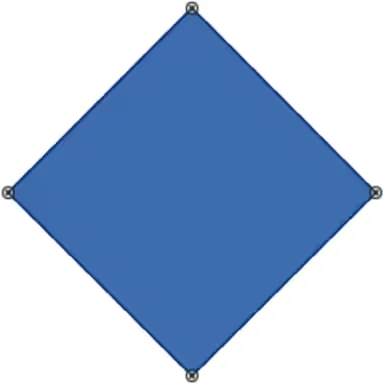
Figure 15: Gluepoints toolbar

Figure 16: Example of connectors between objects
Connectors
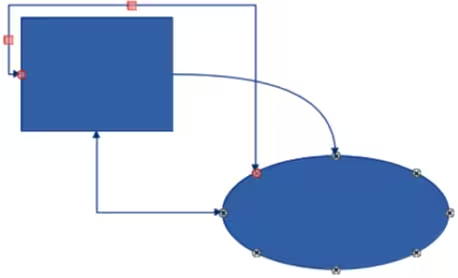
Connectors are lines or arrows whose ends automatically snap to a gluepoint of an object. Connectors are not the same as lines and arrows. When objects are moved or reordered, the connectors remain attached to a gluepoint. Figure 16 shows an example of two objects and connectors between the objects.
Draw has several different connectors and connector functions. On the Drawing toolbar, click on the triangle ▼ next to Connectors and select a connector type from the drop‑down list, or select a connector from the Connectors panel in the Shapes deck on the Sidebar. For a more detailed description using connectors, see Chapter 8, Connections, Flowcharts, and Organization Charts.
Drawing geometric shapes
The tools for drawing geometric shapes are located on the Drawing toolbar (Figure 1 above) and the Shapes deck in the Sidebar (Figure 3 above). The use of these tools for geometric shapes is similar to the tools used for drawing rectangles and squares, or ellipses and circles. For more information, see “Drawing basic shapes” above.
Clicking on the triangle ▼ to the right of a tool icon on the Drawing toolbar opens a drop‑down list giving access to the toolset for that shape. If necessary, this drop-down list can be “torn off” to create a floating sub‑toolbar.
-
Click and hold on the dotted line at the toolset top (highlighted in Figure 17), then drag it across the screen to the Workspace and release to create a floating sub‑toolbar
-
To close a floating sub‑toolbar, click on the X on the right of the sub‑toolbar title.
3D Objects
Clicking on the triangle ▼ to the right of 3D Objects on the Drawing toolbar opens the 3D‑Objects sub‑toolbar (Figure 18). Alternatively, select the required tool from the 3D‑Objects panel in the Shapes deck on the Sidebar.
-
Note
The 3D-Objects sub‑toolbar is identical to the 3D-Objects toolbar available at View > Toolbars on the Menu bar.
Figure 17: Example of creating a floating sub‑toolbar
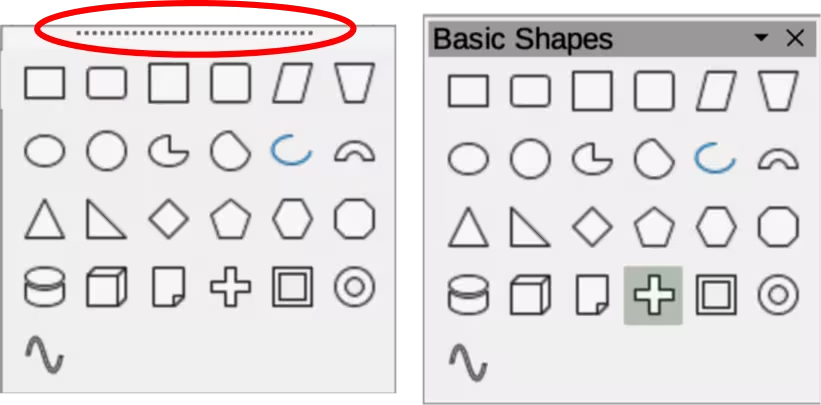
Figure 18: 3D-Objects sub‑toolbar
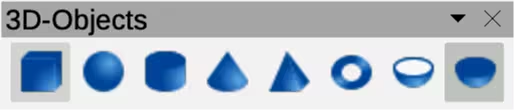
Figure 19: Basic Shapes sub‑toolbar
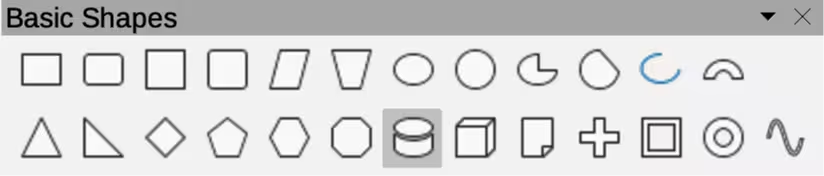
Figure 20: Block Arrows sub‑toolbar

Basic shapes
Clicking on the triangle ▼ to the right of Basic Shapes on the Drawing toolbar opens the Basic Shapes sub‑toolbar (Figure 19). This sub‑toolbar also includes rectangle and ellipse tools that are identical to the ones already displayed on the Drawing toolbar. Alternatively, select the required tool from the Basic Shapes panel in the Shapes deck on the Sidebar.
Block arrows
Clicking on the triangle ▼ to the right of Block Arrows on the Drawing toolbar opens the Block Arrows sub‑toolbar (Figure 20). Alternatively, select the required tool from the Block Arrows panel in the Shapes deck on the Sidebar.
Callouts
Clicking on the triangle ▼ to the right of Callout on the Drawing toolbar opens the Callouts sub‑toolbar (Figure 21). Alternatively, select the required tool from the Callouts panel in the Shapes deck on the Sidebar.
Figure 21: Callouts sub‑toolbar
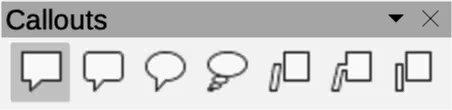
Figure 22: Flowchart sub‑toolbar
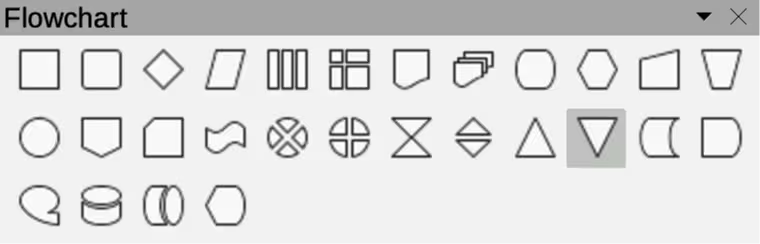
Figure 23: Stars and Banners sub‑toolbar

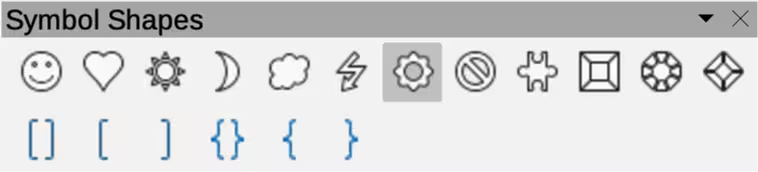
Figure 24: Symbol Shapes sub‑toolbar
Flowcharts
Clicking on the triangle ▼ to the right of Flowchart on the Drawing toolbar opens the Flowchart sub‑toolbar (Figure 22) for symbols. Alternatively, select the required tool from the Flowchart panel in the Shapes deck on the Sidebar. For more information on the creation of flowcharts, organization charts, and similar planning tools, see Chapter 8 Connections, Flowcharts and Organization Charts.
Stars and banners
Clicking on the triangle ▼ to the right of Stars and Banners on the Drawing toolbar opens the Stars and Banners sub‑toolbar (Figure 23). Alternatively, select the required tool from the Stars and Banners panel in the Shapes deck on the Sidebar.
Symbol shapes
Clicking on the triangle ▼ to the right of Symbol Shapes on the Drawing toolbar opens the Symbol Shapes sub‑toolbar (Figure 24). Alternatively, select the required tool from the Symbol Shapes panel in the Shapes deck on the Sidebar.
Adding, inserting and formatting text
In Draw text can be added, inserted, and formatted to in text boxes, objects, and shapes. For more information on how to add, insert, and format text in a drawing, see Chapter 9, Adding and Formatting Text.