Copyright
This document is Copyright © 2026 by the LibreOffice Documentation Team. Contributors are listed below. This document may be distributed and/or modified under the terms of either the GNU General Public License (https://www.gnu.org/licenses/gpl.html), version 3 or later, or the Creative Commons Attribution License (https://creativecommons.org/licenses/by/4.0/), version 4.0 or later. All trademarks within this guide belong to their legitimate owners.
Contributors
Contributors for this edition:
Peter Schofield
Contributors for previous editions:
Claire Wood, Dave Barton, Elzett Kotze, , Hazel Russman, Jean Hollis Weber, John A Smith, John Cleland, Kees Kriek, Martin Fox, Peter Schofield.
Feedback
Please direct any comments or suggestions about this document to the Documentation Team Forum at https://community.documentfoundation.org/c/documentation/loguides/ (registration is required) or send an email to: loguides@community.documentfoundation.org.
-
Note
Everything sent to a forum, including email addresses and any other personal information that is written in the message, is publicly archived and cannot be deleted. Emails sent to the forum are moderated.
Publication date and software version
Published April 2026. Based on LibreOffice 26.2.
Other versions of LibreOffice may differ in appearance and functionality.
Formatting lines
In Draw, the term Line indicates a freestanding segment (line), outer edge or border of a shape, or an arrow. The properties of a line that can be modified are style, width, color, and type of arrowhead.
-
Note
For more information on using color when formatting lines, line styles, arrows, and arrow styles, see “Working with area fills” below.
Line and Filling toolbar
-
Select a line in the drawing.
-
If necessary, go to View > Toolbars on the Menu bar and select Line and Filling from the drop-down list to open the Line and Filling toolbar (Figure 1).
-
Click on the triangle ▼ to the right of Line Style and select a line style from one of the options in the drop-down list.
-
Either type the line width in the Line Thickness text box, or use the up and down arrows to change the line width.
-
Click on the triangle ▼ to the right of Line Color and select a color from one of the available color palettes.
-
If necessary, click on Shadow to add a shadow to the line. The shadow applied uses the settings set in the Shadow page of the Line dialog (Figure 6).
-
If necessary, select from the Select start and end arrowheads for lines drop-down list the arrowhead type for each end of the line and change the line into an arrow. The left drop-down list adds an arrow head to the beginning of the line. The right drop-down list adds an arrow head to the end of the line.
-
Deselect the line to save the changes to the line.
Sidebar
-
Select a line in the drawing.
-
Click on Properties on the Sidebar to open the Properties deck.
-
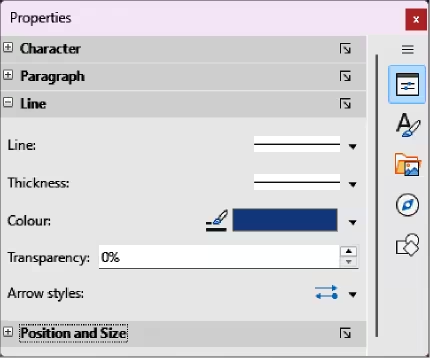
Click on Line to open the Line panel (Figure 2).
-
In Line, click on Select start and end arrowheads for lines to open the drop‑down lists for arrowhead types for each end of the line and change the line into an arrow.
Figure 1: Line and Filling toolbar
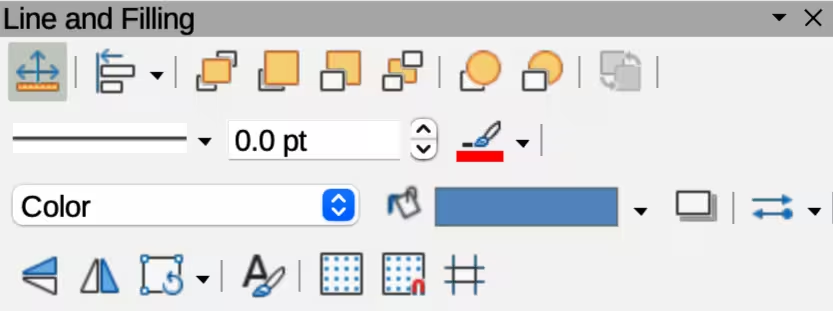
Figure 2: Line panel in Properties deck on Sidebar
-
Left drop‑down list adds an arrowhead to the beginning of the line.
-
Right drop‑down list adds an arrowhead to the end of the line.
-
In Line, select the type of line required from the Line Style drop-down list.
-
In Thickness, select a line width from the options available in the Select the width of the line drop-down list, or enter a width in the Custom Line Thickness text box.
-
In Color, click on the triangle ▼ to the right of Line Color and select a color from one of the available color palettes.
-
If required, in Transparency enter a percentage amount for line transparency.
-
If required, in Corner style select a corner style for the line from the drop-down list.
-
If required, in Cap style select a cap style for line ends from the drop-down list.
-
Deselect the line to save changes made to the line.
-
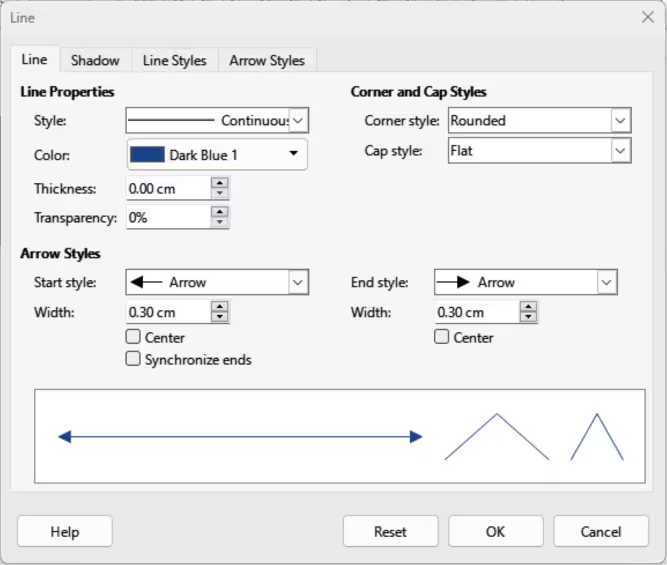
If necessary, click on More Options on the right of the title bar and open the Line dialog (Figure 3) for more control over formatting lines.
Line dialog
-
Make sure a line is selected on a drawing.
-
Open the Line dialog (Figure 3) using one of the following methods:
-
Go to Format > Line on the Menu bar.
-
Right-click on the line and select Line from the context menu.
-
Click on More Options on the right of the Line panel title on the Sidebar.
-
Format the line using the options available in the Line dialog. A preview box at the bottom of the dialog shows the effect of the changes on a line.
-
Click OK to save the changes and close the dialog.
Figure 3: Line dialog — Line page
Line properties
The Line page in the Line dialog is where the basic parameters of the line are set. It is divided into three sections as follows.
Line properties
Style
Select a line style from the drop-down list.
Color
Select a predefined color from one of the available color palettes.
Thickness
Specifies the thickness of the line.
Transparency
Sets the transparency of a line. Figure 4 is an example of the effects of different percentages in transparency levels to lines when placed over an object.
Arrow Styles
Start style
Select from the drop-down list an arrow style or arrowhead for the start of a line.
End style
Select from the drop-down list an arrow style or arrowhead for the end of a line.
Width
Specifies the thickness of the arrow endings.
Figure 4: Example of line transparencies
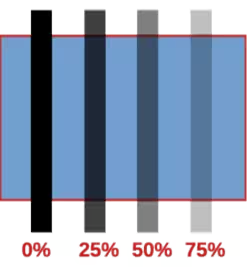
Figure 5: Example of arrow endings
|
|
Center
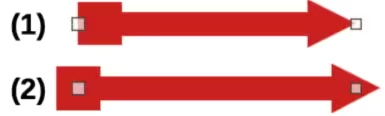
Moves the center of the arrow endings to the end point of the line. Figure 5 is an example of the effects of selecting this option.
Synchronize ends
Makes the two line ends identical.
Corner and Cap Styles
Corner style
Select the shape to be used at the corners of the line. For a small angle between lines, a mitered shape is replaced with a beveled shape.
Cap style
Select the style of the line end caps. The caps are added to inner dashes as well.
Line shadows
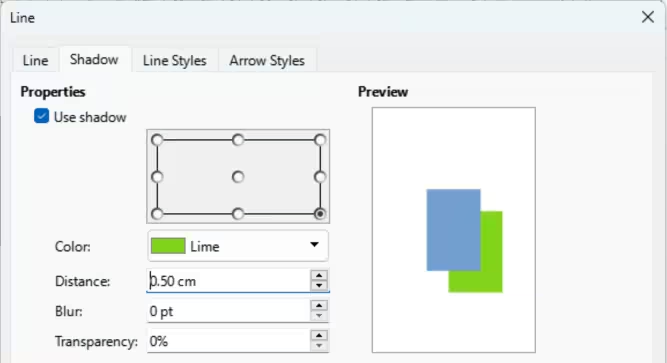
The Shadow page of the Line dialog (Figure 6) provides options to add and format a shadow for a selected line. The settings on this dialog page are also used for shadows applied to other objects. See “Working with shadows” below for more information.
To quickly apply a shadow to a line, click on Shadow on the Line and Filling toolbar. Using the Shadow tool creates a shadow using the settings from the Shadow page of the Line dialog.
Line styles
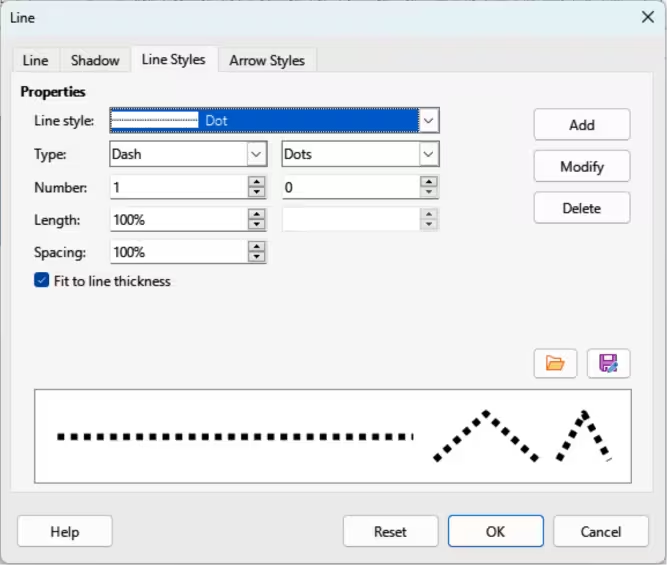
When creating several lines in a drawing with the same format, using line styles reduce the requirement of formatting individual lines. LibreOffice includes line styles for use drawings. Line styles can be created, saved, or deleted. The Line Styles page in the Line dialog (Figure 7) provides the options for using LibreOffice line styles and for creating, or changing line styles.
Figure 6: Line dialog — Shadow page
Creating line styles
-
Create a line in a drawing.
-
Open the Line dialog using one of the following methods:
Figure 7: Line dialog — Line Styles page
-
Go to Format > Line on the Menu bar.
-
Right-click on the line and select Line from the context menu.
-
Click on Line Styles in the Line dialog to open the Line Styles page.
-
In the Line style drop-down list, select a pre-defined line style to use as a starting point for creating a line style. An example of the line style appears in the box at the bottom of the dialog page. This example changes as changes are made to a line style.
-
In the Type drop-down menus, select either Dots or Dash.
-
For one line type, select the same type in both Type boxes.
-
For alternate line types within a single line, select different types in each Type box.
-
In the Number boxes, specify the number of dots or dashes selected in Type. For different sized groups of dots or dashes, set a different quantity in each Number box.
-
In the Length boxes, specify the Dash length as a percentage of the line. The Length option is not available for Dots.
-
In the Spacing box, specify the spacing between the dashes and/or dots as a percentage of the line. The Spacing option is not available if the option Fit to line width is selected.
-
If required, select Fit to line width so that the new style fits the line width when used in a drawing.
-
For the current document only, create a new line style, or modify a line style as follows:
-
Click on Add or Modify to open the Name dialog.
-
Enter a unique name for the new or modified line style.
-
Click on OK to save the new or modified line style and close the Name dialog.
-
Click on OK to close the Line dialog and the new line style is ready for use in the current drawing only.
-
Notes
To use the new or modified line style in other drawings, the line style must be saved using Save Line Styles.
When creating or modifying line styles, it is recommended to use a unique name for the line style. This prevents a LibreOffice line style from being overwritten and causing formatting problems in other drawings or documents that use LibreOffice line styles.
Saving line styles
-
Create a new line style, but do not close the Line dialog.
-
Click on Save Line Styles on the Line Styles page to open a file browser window at the correct location for saving line styles.
-
Enter a unique filename using file extension SOD for the line style in the Name box.
-
Click on Save to save the line style and close the file browser window. The new line style is now available for use in new drawings and documents.
Importing line styles
LibreOffice line styles are installed during the installation of LibreOffice. Compatible line styles can also be imported and used in LibreOffice. Any line styles added to LibreOffice must use the file extension SOD for the style to be recognized by LibreOffice.
-
Create a line in a drawing.
-
Open the Line dialog and click on Line Styles to open the Line Styles page.
-
Click on Load Line Styles at the bottom right of the Line Styles page to open a file browser window at the correct location for line styles.
-
Select a style from the list of saved styles in the file browser window. The file extension for line styles is SOD.
-
Click Open to load the line style into LibreOffice. The line style becomes available for other LibreOffice drawings and documents.
-
Click OK to close the Line dialog and save any changes made.
Deleting line styles
-
Open the Line dialog and click on Line Styles to open the Line Styles page.
-
Select the line style for deletion from the Line style drop-down list.
-
Click on Delete and confirm the deletion by clicking on Yes in the confirmation dialog.
-
Click OK to close the Line dialog and save any changes made.
-
Note
When deleting line styles, make sure the line style is not used in another document. It is recommended to only delete line styles that have been created, or imported. DO NOT delete LibreOffice line styles. This prevents any formatting problems in other documents where a LibreOffice line style has been used.
Arrow styles
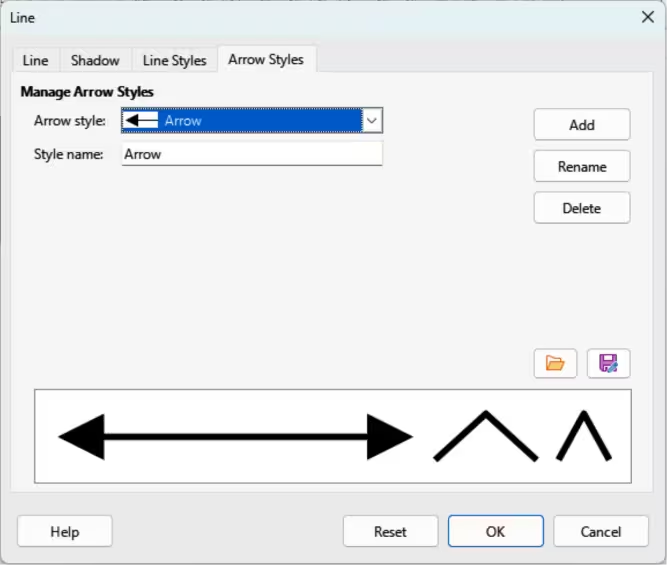
Use the Arrow Styles page (Figure 8) in the Line dialog to create new arrow styles, modify existing arrow styles, or load previously saved arrow styles.
Figure 8: Line dialog — Arrow Styles page
Creating arrow styles
Any shape can be used as an arrowhead, but the shape must be convertible to a curve. A curve is something drawn without lifting a pencil. For example, a star can be converted to a curve, but a smiley face cannot.
-
Select a shape, or create a shape that can be converted to a curve for use as a new arrowhead. The part of the shape that is going to be point of the arrowhead must be at the top of the shape.
-
Select the shape and convert to a curve using one of the following methods:
-
Right-click on the shape and select Convert > To Curve from context menu.
-
Go to Shape > Convert > To Curve on the Menu bar.
-
With the shape selected, open the Arrow Styles page in the Line dialog.
-
Click on Add and type a unique name for the new arrow style in the Name dialog that opens, then click OK. The new arrowhead style is displayed in the preview box of the Line dialog and is listed the bottom of the Arrow style drop-down list.
Saving arrow styles
-
Create a new arrow style as described in “Creating arrow styles” above, but do not close the Line dialog.
-
Click on the Save arrow styles icon on the Arrow Styles page to open a file browser window at the correct location for saving arrow styles.
-
Enter a unique filename using the file extension SOE for the arrow style.
-
Click on Save to save the arrow style and close the file browser window. The new arrow style is now available for use in new documents.
-
Click OK to save the changes and close the Line dialog. The new arrow style is available only in the current document.
-
Notes
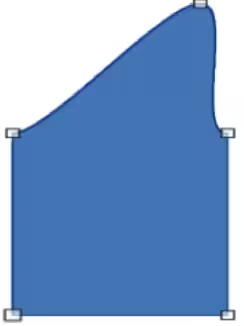
The point in an arrowhead being created must be positioned at the top of the shape. If necessary, rotate the shape until the point is at the top of the shape as shown in Figure 9.
Some shapes cannot be used as an arrowhead. This is indicated by rectangular blocks appearing at each end of the line in the preview box on the Line Styles page in the Line dialog.
When creating an arrow style, it is recommended to use a unique name for the arrow style. This prevents one of the LibreOffice arrow styles from being overwritten and causing formatting problems in other drawings that use the LibreOffice arrow styles.
The new arrow style created is available only for use in the current drawing. To use the new arrow style in other drawings, the arrow style must be saved using the Save Arrow Styles option.
Importing arrow styles
LibreOffice provides default arrow styles when installed on a computer. However, compatible arrow styles can be imported and used in LibreOffice. Any arrow styles installed in LibreOffice must use the file extension SOE.
-
Open the Line dialog and click on Arrow Styles to open the Arrow Styles page.
Figure 9: Example of creating an arrowhead
-
Click on the Load arrow styles icon on the Arrow Styles page to open a file browser window at the correct location for arrow styles.
-
Select an arrow style from the list of saved styles in the file browser window
-
Click Open to load the arrow style into the drawing. The arrow style also becomes available for other LibreOffice documents.
-
Click OK to close the Line dialog and save any changes made.
Deleting arrow styles
-
Open the Line dialog and click on Arrow Styles to open the Arrow Styles page.
-
Select the arrow style for deletion from the Arrow style drop-down list.
-
Click on Delete and confirm deletion by clicking on Yes in the confirmation dialog.
-
Click OK to close the Line dialog and save any changes made.
-
Note
When deleting arrow styles, make sure the arrow style is not used in another document. Only delete arrow styles that have been created, or imported. Do not to delete one a LibreOffice predefined arrow styles to prevent formatting problems when using LibreOffice arrow styles.
Area fills
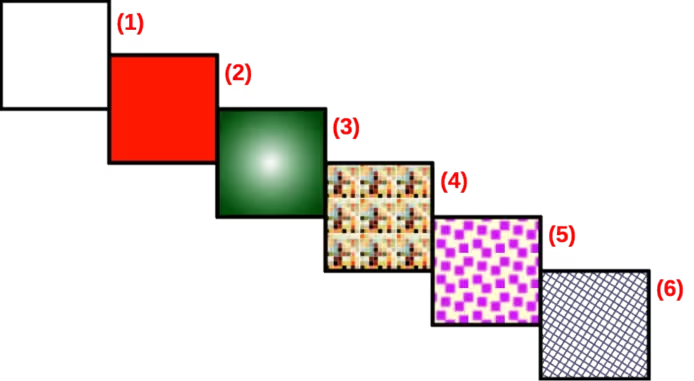
Area fill refers to the inside of an object that has an unbroken border, for example a rectangle, circle, star, pentagon and so on. An area fill can be None, Color, Gradient, Image, Pattern, or Hatch, as shown by the examples in Figure 10. Also, an area fill can be partly or wholly transparent and throw a shadow.
The Area dialog provides tools and options for selecting and editing area fills. Area fills are also available in drop-lists in the Area panel in the Properties deck on the Sidebar and in Area Style/Filling on the Line and Filling toolbar, but have reduced options and different fill types.
Figure 10: Example of area fill types
|
|
|
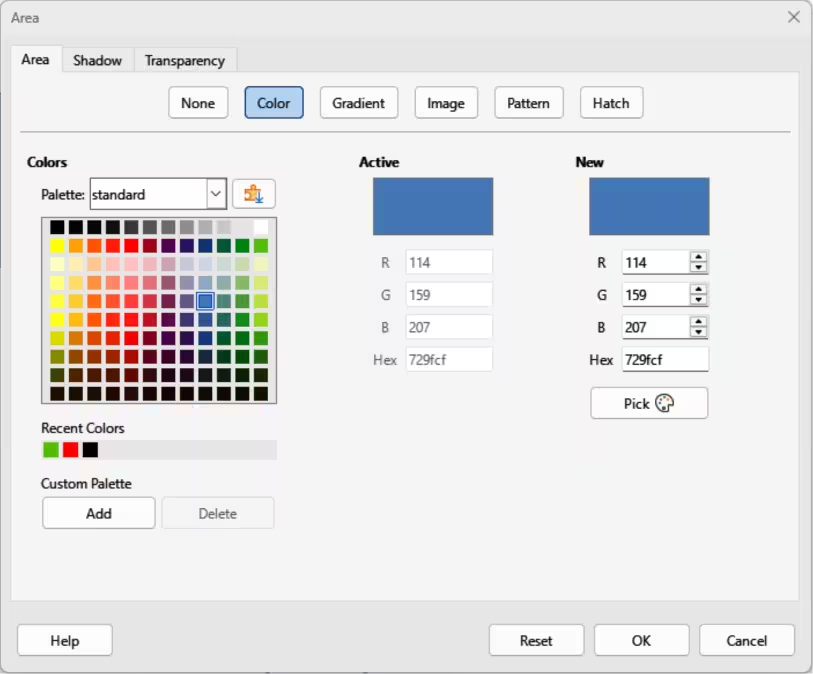
Figure 11: Area dialog — Area Color page
Area dialog formatting
-
Make sure the object is selected in a drawing.
-
Open the Area dialog (Figure 11) using one of the following methods:
-
Go to Format > Area on the Menu bar.
-
Click on Area in the Line and Filling toolbar.
-
Right-click on the selected object and select Area from the context menu.
-
Click on More Options on the right of the Area panel title on the Sidebar.
-
Click on Area to open the Area page.
-
Select the type of area fill from the available options (None, Color, Gradient, Image, Pattern, or Hatch).
-
Select the required area fill options that become available for each type of area fill selected.
-
Click OK to close the Area dialog and save the changes to the area fill.
Sidebar formatting
-
Make sure an object with an area fill is selected in a drawing.
-
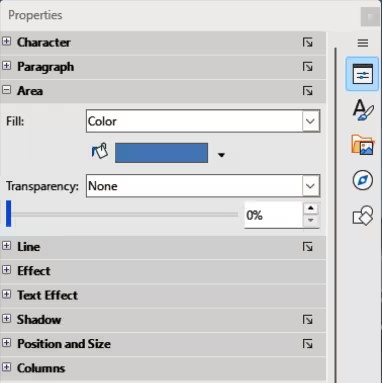
Click on Properties on the Sidebar, then click on the down chevron ˅ on the left of the Area panel titlebar to open the Area panel (Figure 12).
-
Select a fill type (None, Color, Gradient, Hatching, Bitmap, or Pattern) from the Fill: drop‑down list.
-
Select a fill effect from the options available for each fill type from the Fill: drop‑down list.
-
If required, select a transparency type and a transparency percentage from the Transparency drop-down lists.
-
Deselect the object to save the changes to the area fill.
Figure 12: Area panel in Properties deck on Sidebar
-
Note
The type of transparency effect selected for an area fill changes the options available for a transparency in the Area panel on the Sidebar.
Line and Filling toolbar formatting
-
If Line and Filling toolbar (Figure 1) is not open, go to View > Toolbars > Line and Filling on the Menu bar.
-
Select an object so that the selection handles are displayed.
-
Select a fill type (None, Color, Gradient, Hatching, Bitmap, or Pattern) from the Area Style/Filling drop‑down list.
-
Select a fill effect from the options available for each fill type from the drop‑down list. The fill effects available change for each fill type selected.
-
Deselect the object to save the changes to the area fill.
Working with area fills
-
Note
The following instructions for area fills use the Area dialog as the main method of selecting and editing an area fill. Tools and options available in the Area panel in the Properties deck on the Sidebar and on the Line and Filling toolbar are similar, but have reduced options and different names.
Color fills
Selecting color fill
-
Make sure the object is selected in a drawing.
-
Open the Area page on the Area dialog (Figure 11), then click on Color to open the options available for a color fill.
-
In Colors, select the required palette from available options in the Palette drop-down list.
-
Click on the color required in the selected palette. All color fills available are solid colors. The Active preview box shows the present color fill of a selected object. After selecting a color, a preview of the selected color appears in the New preview box.
-
Alternatively, use one of the following methods to select a color.
-
Enter the individual RGB values, on a 0 to 255 scale, in the appropriate text box.
-
Enter the Hex number of a color in the Hex text box.
-
If a color has been used before, then select the required color from the colors available in Recent Colors.
-
To revert back to the original color, click on Reset to remove any changes made.
-
Click OK to close the Area dialog and save the changes.
Creating custom colors using Area dialog
-
Select a filled object to create a color.
-
Open the Area dialog and click on Area to open the Area page, then click on Color to open the options available for a color fill.
-
Create a custom color using one of the following methods:
-
Specify the values of Red (R), Green (G), and Blue (B) on a 0 to 255 scale.
-
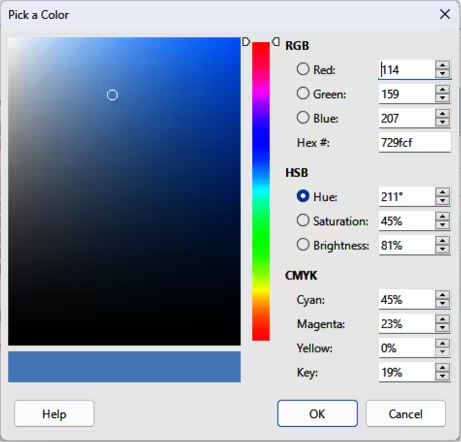
Click on Pick to open the Pick a Color dialog (Figure 13), see “Creating custom colors using Pick a Color dialog”.
Figure 13: Pick a Color dialog
-
Click on Add in Custom Palette and enter a name for the color in the Name dialog that opens.
-
Click OK to close the Name dialog and the color is added to Custom Palette.
-
Click OK to close the Area dialog and save the changes. The new custom color appears as a fill in the selected object and is available for use in other drawings or documents.
Creating custom colors using Pick a Color dialog
-
Select a filled object to create a color.
-
Open the Pick a Color dialog (Figure 13) using one of the following methods:
-
Click on Pick on the Color page of the Area dialog.
-
Click on the triangle ▼ next to Fill Color in the Area panel of the Properties deck on the Sidebar and select Custom Color.
-
Click on the triangle ▼ next to Fill Color on the Line and Filling toolbar and select Custom Color.
-
Create a custom color using one of the following methods.
-
Select a color range from the colored bar, then, using the cursor, move the target in the colored box until the cursor is on the color required.
-
Enter values for Red (R), Green (G), and Blue (B) in the RGB text boxes.
-
Alternatively, if known, enter the Hex# number in the text box. Hex numbers are normally used when a specific color has been created for a company logo or company name.
-
Alternatively, enter values for Hue (H), Saturation (S), and Brightness (B) in the HSB text boxes. HSB values do not change the color, but how a color looks.
-
Alternatively, enter values for Cyan (C), Magenta (M), Yellow (Y), and Key (K) (black) in the CMYK text boxes.
-
Note
A preview of the color being created is shown on the left side of the original color box below the color selection box. Changing one set of color values also changes the color values in the other sets of color values.
-
Click OK to close the Pick a Color dialog and save the changes.
-
Click on Add in Custom Palette and enter a name for the color in the Name dialog that opens.
-
Click OK to close the Name dialog and the color is added to Custom Palette.
-
Click OK to save the changes and close the Area dialog. The new color appears as a fill in the selected object and is available for use in other drawings or documents.
Deleting custom colors
-
Select a filled object that uses the color fill for deletion.
-
Open the Area dialog using one of the following methods:
-
Go to Format > Area on the Menu bar.
-
Right-click on the object and select Area from the context menu.
-
Click on More Options on the right of the Area panel title on the Sidebar.
-
Click on Area, then click on Color to open the Color page.
-
In Colors, select Custom from the Palette drop-down list.
-
Select the color for deletion and click on Delete. There is no confirmation given when deleting a color.
-
Click OK to save the changes and close the Area dialog.
-
Note
Only custom colors available in the custom palette can be deleted using the Area dialog. Colors available in the default LibreOffice color palettes cannot be deleted.
Gradient fills
Several predefined gradients are included when LibreOffice is installed. It is recommended to create custom gradients that match requirements rather than modifying any LibreOffice gradients. LibreOffice gradients may have been used in other drawings or other documents.
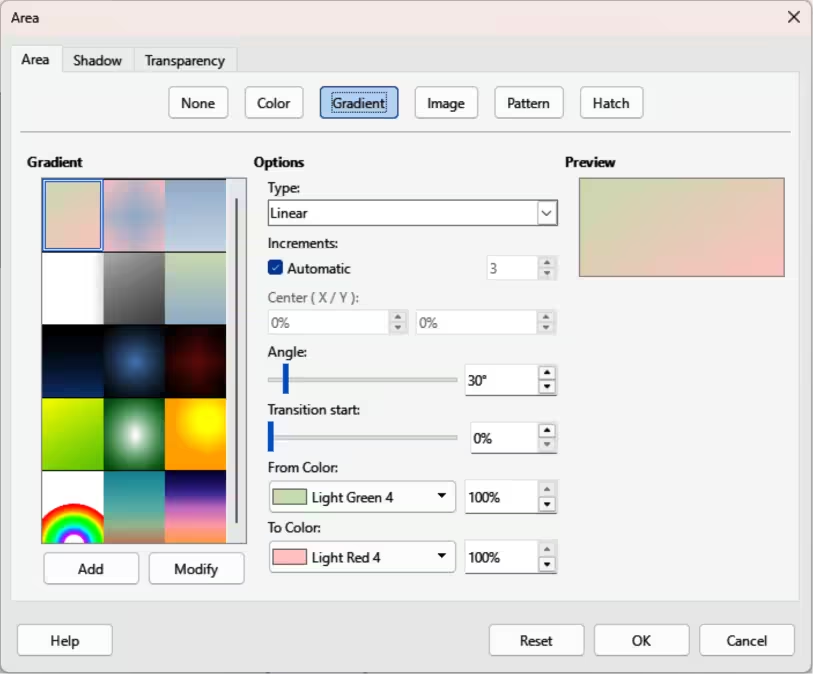
Custom gradients are saved with a unique name allowing the custom gradient to be used in other drawings or documents. Custom gradients are placed at the end of the gradients displayed in the Gradient box on the Gradient page of the Area dialog (Figure 14).
Selecting gradient fills
The following procedure to select a gradient for an area fill uses the Area dialog. Using the tools on the Line and Filling Toolbar, and the Area panel in the Properties deck on the Sidebar is a similar procedure, but the available options are reduced.
-
Make sure the object to be filled is selected in a drawing.
-
Open the Area dialog and click on Area to open the Area page, then click on Gradient to open the options available for a gradient fill.
Figure 14: Area dialog — Area Gradient page
-
In Gradient, select the required gradient from the list of available gradients and the gradient appears in Preview.
-
To override the default gradient transition of a selection, deselect Automatic in Options and then enter the values for Type, Increment, Center, Angle, Border, From Color and To Color to modify the gradient to the requirements. Any changes made, the gradient displayed in Preview also changes indicating how the gradient will look. For more information on gradient options, see Table 1: Gradient options.
-
Click OK to close the Area dialog and save the changes. The gradient area fill then appears in the selected object.
-
Note
Selecting and modifying a gradient only allows the gradient to be used in the drawing being created. If a modified gradient is to be used in other drawings or documents, then create a custom gradient and save it with a unique name. See “Creating custom gradients” below.
Table 1: Gradient options
|
Gradient property |
Meaning |
|
Linear gradient |
The color transitions from the starting color to the end color in a straight line. |
|
Axial gradient |
The color transitions from the starting color to the end color from the object center to the object edges in two opposite directions. |
|
Radial gradient |
The color transitions from the starting color to the end color in a circular pattern. |
|
Ellipsoid gradient |
The color transitions from the starting color to the end color in an elliptical pattern. |
|
Quadratic gradient |
The color transitions from the starting color to the end color from the object edges to the object center in four directions. |
|
Square gradient |
The color transitions from the starting color to the end color from the object edges to the object center in a square pattern. |
|
Increment |
Enter the number of steps for blending the two colors of the gradient. By default this is set to Automatic. |
|
Center X |
For Radial, Ellipsoid, Square and Rectangular gradients, modify these values to set the horizontal offset of the gradient center. |
|
Center Y |
For Radial, Ellipsoid, Square and Rectangular gradients, modify these values to set the vertical offset of the gradient center. |
|
Angle |
For all gradient types, modifies the angle of the gradient axis. |
|
Border |
Increase this value to make the gradient start further away from the border of the shape. |
|
From Color |
The start color for the gradient. In the edit box enter the intensity of the color: 0% corresponds to black, 100% to the full color. |
|
To Color |
The end color for the gradient. In the edit box enter the intensity of the color: 0% corresponds to black, 100% to the full color. |
Creating custom gradients
To use a modified gradient in other drawings or documents, a custom gradient has to be saved with a unique name.
-
Make sure the object is selected in a drawing.
-
Open the Area dialog and click on Area to open the Area page, then click on Gradient to open the options available for a gradient fill.
-
Select a gradient and modify it using the options given in Table 1: Gradient options. As changes are made, the gradient displayed in Preview also changes indicating how the modified gradient looks.
-
Click on Add to open a Name dialog.
-
Enter a unique name for the new gradient, then click OK to close the Name dialog. The custom gradient is placed at the end of the gradients displayed in Gradient and becomes available for use in other drawings and documents.
-
Click OK to close the Area dialog and save the changes.
Modifying custom gradients
-
Make sure the object is selected in a drawing.
-
Open the Area dialog and click on Area to open the Area page, then click on Gradient to open the options available for a gradient fill.
-
Select a custom gradient in Gradient. Custom gradients appear below the predefined gradients in Gradient.
-
Enter the new values for the gradient options that need to be changed. See Table 1: Gradient options for more information on gradient options. Depending on the type of gradient selected, some options may not be available.
-
If necessary and to revert back to the original gradient, click on Reset and any changes made are removed.
-
Click on Modify to permanently change the selected custom gradient. There is no confirmation given when modifying a custom gradient.
-
Click OK to close the Area dialog and save the changes.
-
Note
Using Modify on the Gradient page in the Area dialog permanently changes a gradient and cannot be undone. It is recommended to only modify custom gradients and not the LibreOffice gradients.
Renaming gradients
-
Select the object that uses the gradient that is going to be renamed.
-
Open the Area dialog and click on Area to open the Area page, then click on Gradient to open the options available for a gradient fill.
-
Right-click on the gradient and select Rename from the context menu.
-
Enter a name for the gradient in the Name dialog that opens.
-
Click OK save the change and close the Name dialog.
-
Click OK to save the changes and close the Area dialog.
Deleting custom gradients
-
Select an object that uses a gradient fill.
-
Open the Area page on the Area dialog, then click on Gradient.
-
In the Gradient box, select the custom gradient for deletion.
-
Right click on the gradient and select Delete from the context menu.
-
Click on Yes to confirm the deletion.
-
Click OK to save the changes and close the Area dialog.
-
Note
It is recommended to only rename or delete custom gradients that have been created. Deleting or renaming a predefined gradient that is installed with LibreOffice may cause problems in drawings and documents that use one of the gradients.
Advanced gradient controls
LibreOffice provides gradient controls on the Transformations toolbar (Figure 15).
-
Make sure the object is selected in a drawing.
-
Open the Area page on the Area dialog, then click on Gradient.
-
Go to View > Toolbars > Transformations on the Menu bar, or click on Transformations in the Line and Filling toolbar to open the Transformations toolbar.
Figure 15: Transformations toolbar
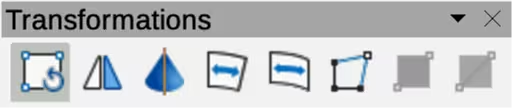
Figure 16: Example of using interactive gradient tool
-
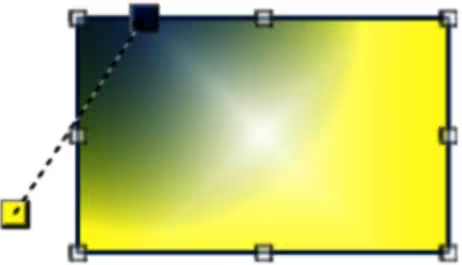
Click on Interactive gradient tool in the Transformations toolbar. This displays a dashed line connecting two colored squares (Figure 16) filled with colors in the From Color and To Color being used for the selected gradient.
-
Select the type of gradient required for the object from the options in the Type drop-down list. Properties available for adjustment depend on the gradient type selected, as explained below. Moving the squares has different effects depending on gradient type, see Table 2: Changing gradient properties for information.
-
Click OK to save the changes and close the Area dialog.
-
Note
Moving the squares creates different effects depending on the type of gradient. For example, for a linear gradient, the start and end squares of the gradient are always situated either side of the center point of the object.
Table 2: Changing gradient properties
|
Gradient type |
Changing gradient properties |
|
Linear |
Move From Color square to change where the gradient starts (border value). Move To Color square to change the orientation (angle value). |
|
Axial |
Move To Color square to change both the angle and border properties of the gradient. Only the To Color square can be moved. |
|
Radial |
Move From Color square to modify the border property to set the width of the gradient circle. Move To Color square to change the point where the gradient ends (Center X and Center Y values). |
|
Ellipsoid |
Move From Color square to modify the border property to set the size of the gradient ellipsoid. Move To Color square to change the angle of the ellipsoid axis and the axis itself. |
|
Quadratic |
Move From Color square to modify the border property to set the size of the gradient square or rectangle and the angle of the gradient shape. Move To Color square to change the center of the gradient. |
|
Square |
Move From Color square to modify the border property to set the size of the gradient square or rectangle and the angle of the gradient shape. Move To Color square to change the center of the gradient. |
Figure 17: Area dialog — Area Image page
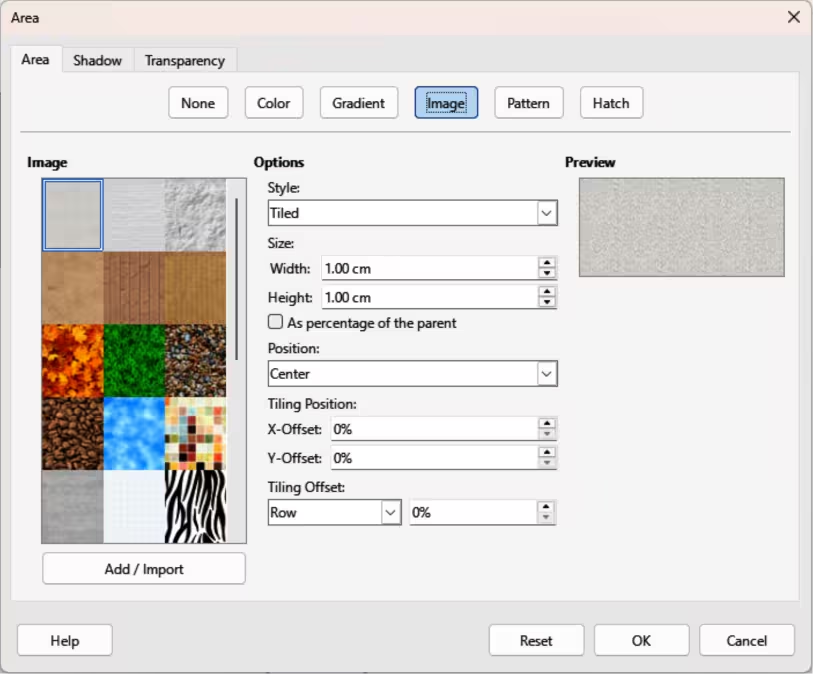
Image fills
Several predefined images are included when LibreOffice is installed on a computer. The content of the supplied images cannot be edited, but the display settings can be changed. Also, images can be imported from other sources.
Selecting images
The following procedure to select an image for an area fill uses the Image page of the Area dialog (Figure 17). Using the tools on the Line and Filling Toolbar, and the Area panel in the Properties deck on the Sidebar is a similar procedure, but available options are reduced.
-
Make sure the object is selected in a drawing.
-
Open the Area dialog and click on Area to open the Area page, then click on Image to open the options available for an image fill.
-
In Image, select the required image from the list of available images and it appears in Preview. Alternatively, click on Add/Import to open a file browser window, then select a file to use as an image fill.
-
If necessary, change the values in Style, Size, Position, Tiling Position, and Tiling Offset to modify the image. For more information on image options, see Table 3: Image options.
-
If necessary and to revert back to the original image, click on Reset and any changes made are removed.
-
Click OK to close the Area dialog and save the changes. The image fill then appears in the selected object.
Table 3: Image options
|
Bitmap option |
Meaning |
|
Style — Custom position/size |
When this option is selected, the position and size of the image in the object can be specified. |
|
Style — Tiled |
When this option is selected, the image is tiled to fill the area. The size of the image used for the tiling is determined by the Size settings |
|
Style — Stretched |
When this option is selected, an image is stretched to fill the object area. |
|
Size — Width |
Sets the width of the image. For example, 100% means that the image is resized to occupy the whole fill area width, 50% means that the width of the image is half that of the fill area. |
|
Size — Height |
Sets the height of the image. For example, 100% means that the image is resized to occupy the whole fill area height, 50% means that the height of the image is half that of the fill area. |
|
Size — Scale |
When selected, image size is given as a percentage for Width and Height. When deselected, the actual size of the image is given for Width and Height. |
|
Position |
Specifies the anchoring point of the image. |
|
Tiling Position — X-Offset |
Sets the offset for the width of the image in percentage values. 50% offset means that LibreOffice Draw places the middle part of the image width at the anchor point and start tiling from there. |
|
Tiling Position — Y-Offset |
Sets the offset for the height of the image in percentage values. 50% offset means that LibreOffice Draw places the middle part of the image height at the anchor point and start tiling from there. |
|
Tiling Offset |
Offsets the columns of tiled images by the percentage entered in the box so that two subsequent columns of images are not aligned. |
Editing images
-
Select an object for editing that contains an image as a fill, or insert an image into a selected object
-
Open the Area dialog and click on Area to open the Area page, then click on Image to open the options available for an image fill.
-
Select an image from the options available in Image to use and edit as a fill. Note that imported images are also available. The selected image appears in Preview.
-
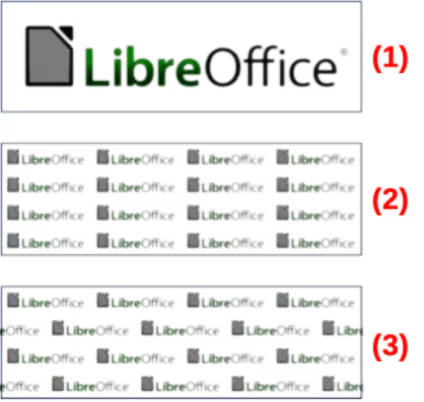
Change the values for Style, Size, Position, Tiling Position, and Tiling Offset to the requirements. For more information on image options, see Table 3: Image options. Examples of image or bitmap fills and the properties used are shown in Figure 18.
-
If necessary and to revert back to the original image, click on Reset and any changes made are removed.
-
Click OK to save the changes and close the Area dialog.
-
Note
Supplied images cannot be edited, but the display settings for placement and tiling can be changed.
Figure 18: Examples of image fill
|
|
|
Importing images
-
Select an object to import an image into the object.
-
Open the Area dialog and click on Area to open the Area page, then click on Image to open the options available for an image fill.
-
Click on Add/Import and a file browser window opens.
-
Navigate to the directory containing the image file, then select the file and click Open.
-
Enter a unique name for the new image in the Name dialog that opens, then click OK to close the Name dialog. The imported image appears at the bottom of the images displayed in Image.
-
Select the imported image in Image.
-
Click OK to save the changes and close the Area dialog. The imported image fill appears in the selected object.
Renaming images
-
Select an object to import an image into the object.
-
Open the Area dialog and click on Area to open the Area page, then click on Image to open the options available for an image fill.
-
Right-click on the selected image and select Rename from the context menu.
-
Enter a new name for the image in the Name dialog that opens.
-
Click OK to save the change and close the Name dialog.
-
Click OK to save the changes and close the Area dialog.
Deleting images
-
Make sure the object containing an image fill is selected in a drawing.
-
Open the Area page on the Area dialog, then click on Image.
-
Right click on the image being deleted, then select Delete from the context menu.
-
Click on Yes to confirm the deletion.
-
Click OK to save the changes and close the Area dialog.
-
Note
It is recommended to only rename or delete images that have been created or imported. Renaming or deleting images installed with LibreOffice may cause problems in documents using one of these images.
Pattern fills
Several LibreOffice pattern fills are installed during a LibreOffice installation. Custom patterns can also be created and modified in LibreOffice.
Selecting pattern fills
The following procedure selects a pattern for an area fill using the Area dialog. The tools on the Line and Filling Toolbar, and the Area panel in the Properties deck on the Sidebar have a similar procedure, but the available options are reduced.
-
Make sure the object is selected in a drawing.
-
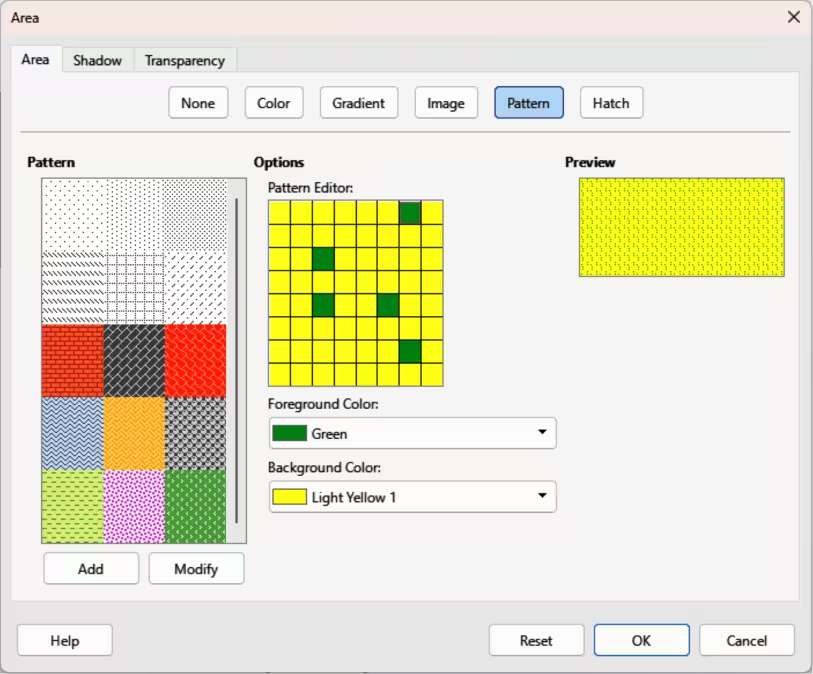
Open the Area dialog and click on Area to open the Area page, then click on Pattern to open the options available for a pattern fill (Figure 19).
-
In Pattern, select the required pattern and the selected pattern appears in Preview.
Figure 19: Area dialog — Area Pattern page
-
If necessary, change the foreground and background colors, or the pattern itself. As changes are made, the pattern displayed in Preview also changes indicating how the pattern will look. Any changes will affect only the object being filled.
-
If necessary and to revert back to the original pattern, click on Reset and any changes made are removed.
-
Click OK to close the Area dialog and save the changes. The pattern fill then appears in the selected object.
Creating custom patterns
-
Make sure the object containing a pattern fill is selected in a drawing, then open the Area dialog and click on Area to open the Area page.
-
Select the required pattern in Pattern to use as a starting point and the selected pattern appears in Preview.
-
In Options, select a color from the available color palettes for the Foreground Color and Background Color. The pattern remains the same, but the colors change.
-
In Pattern Editor, click on individual squares to change the color from Foreground Color to Background Color, or from Background Color to Foreground Color creating a new pattern.
-
In Preview, check the pattern being created to see if the desired effect is being achieved.
-
Click on Add to open a Name dialog.
-
Enter a unique name for the new pattern, then click OK to close the Name dialog. The custom pattern is placed at the end of the patterns displayed in Pattern and becomes available for use in other drawings and documents.
-
If necessary, click on Reset to remove any changes made.
-
Click OK to close the Area dialog and save the changes.
-
Note
To use a modified pattern in other drawings or documents, the custom pattern has to be saved with a unique name. Using the Modify option on the Pattern page in the Area dialog permanently changes a pattern and cannot be undone. It is recommended to only modify custom patterns and not the LibreOffice patterns.
Modifying custom patterns
-
Make sure the object containing a pattern fill is selected in a drawing.
-
Open the Area dialog and click on Area to open the Area page, then click on Pattern.
-
Select a custom pattern from the patterns displayed in Pattern and the selected pattern appears in Preview. Custom patterns are located below predefined patterns in Pattern.
-
In Pattern Editor, click on each square to change the color from Foreground Color to Background Color, or from Background Color to Foreground Color modifying the selected pattern.
-
If necessary, to revert back to the original pattern, click on Reset and any changes made are removed.
-
Click on Modify to permanently change the selected custom pattern. There is no confirmation given when modifying a custom pattern.
-
Click OK to close the Area dialog and save the changes.
Renaming patterns
-
Select an object that contains a pattern, or insert a pattern into the selected object.
-
Open the Area dialog and click on Area to open the Area page, then click on Pattern to open the options available for a pattern fill.
-
Right-click on the pattern for renaming in Preview and select Rename from the context menu.
-
Enter a name for the pattern in the Name dialog that opens.
-
Click OK to save the renaming and close the Name box.
-
Click OK to save the changes and close the Area dialog.
Deleting custom patterns
-
Select an object that contains a pattern, or insert a pattern into the selected object.
-
Open the Area dialog and click on Area to open the Area page, then click on Pattern to open the options available for a pattern fill. The selected pattern appears in Pattern Editor.
-
Right-click on the pattern for deletion in the Preview box and select Delete from the context menu.
-
Click on Yes to confirm the deletion.
-
Click OK to save the changes and close the Area dialog.
-
Note
It is recommended to only modify, delete or rename custom patterns that have been created. Modifying, deleting or renaming one of the LibreOffice patterns that are installed may cause problems in drawings and documents using one of the patterns.
Hatch fills
Hatch fills are similar to pattern fills, but use lines instead of squares. Several predefined hatch fills are included when LibreOffice is installed on a computer. Custom hatch fills can also be created and modified.
Selecting hatch fills
The following procedure to select a hatch for an area fill uses the Area dialog. Using the tools on the Line and Filling Toolbar, and the Area panel in the Properties deck on the Sidebar is similar, but the available options are reduced.
-
Make sure the object is selected in a drawing.
-
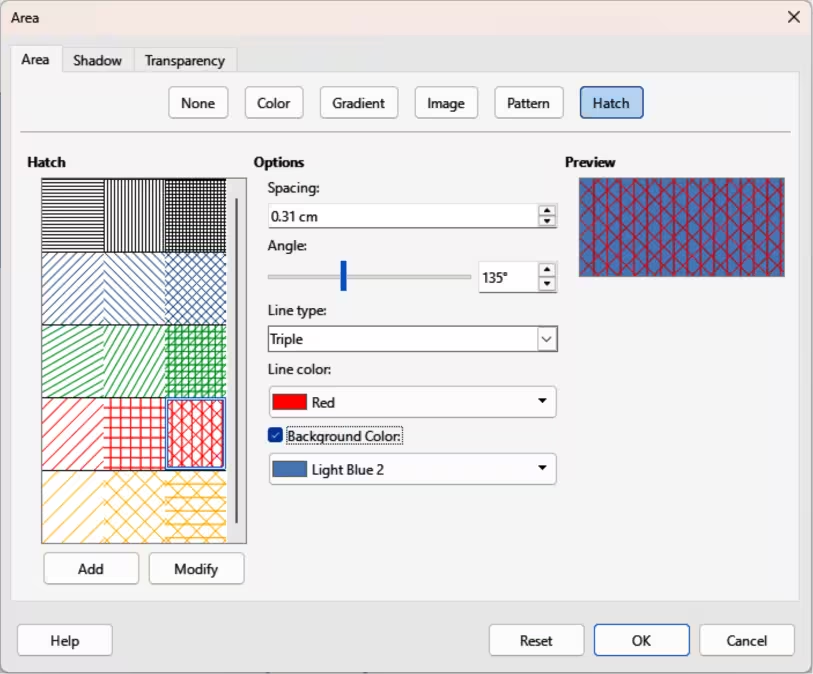
Open the Area dialog and click on Area to open the Area page, then click on Hatch to open the options available for a hatch fill (Figure 20).
-
Select a hatch from the options shown in Hatch and the selected hatch fill appears in Preview.
-
If necessary to revert back to the original hatch fill, click on Reset and any changes made are removed.
-
Click OK to close the Area dialog and save the changes. The hatch fill then appears in the selected object.
Figure 20: Area dialog — Area Hatch page
Creating custom hatch fills
-
Make sure the object is selected in a drawing.
-
Open the Area dialog and click on Area to open the Area page, then click on Hatch to open the options available for a hatch fill.
-
Select the required hatch fill in Hatch as a starting point and the selected hatch fill appears in Preview.
-
Change the values for Spacing, Angle, Line type, Line color, and Background color to edit the hatch fill to the requirements. For more information on hatch fill options, see “Table 4: Hatch fill options”.
-
Click on Add to open a Name dialog.
-
Enter a unique name for the new hatch fill, then click OK to close the Name dialog. The custom hatch fill is placed at the end of the hatch fills displayed in Hatch and becomes available for use in other drawings and documents.
-
Click OK to close the Area dialog and save the changes. The new hatch fill appears in the selected object.
Table 4: Hatch fill options
|
Hatching option |
Meaning |
|
Spacing |
Determines the spacing between two lines of the hatch fill. As the value is changed, the preview window is updated. |
|
Angle |
Use the mini map below the numerical value to quickly set the angle formed by the line to multiples of 45 degrees. If the required angle is not a multiple of 45 degrees, enter the desired value in the edit box. |
|
Line type |
Set single, double, or triple line for the style of the hatch fill. |
|
Line color |
Use the list to select the color of the lines that will form the hatch fill. |
|
Background color |
When selected, adds a color fill behind the lines used for the hatch fill. |
-
Notes
Using the Modify option on the Hatch page in the Area dialog permanently changes a hatch fill and cannot be undone. It is recommended to only modify custom hatches and not the LibreOffice hatches that were installed.
It is recommended to only modify, rename or delete hatch fills that have been created. Modifying, renaming or deleting hatch fills installed with LibreOffice may cause problems in documents using a hatch fills.
Modifying custom hatch fills
-
Make sure the object is selected in a drawing.
-
Open the Area dialog and click on Area to open the Area page, then click on Hatch to open the options available for a hatch fill.
-
Select a custom hatch fill in Hatch and the selected hatch fill appears in Preview. Custom hatch fills are located below the predefined hatch fills in Hatch.
-
Change the values for Spacing, Angle, Line type, Line color, and Background color to edit the hatch fill. For more information on hatch options, see “Table 4: Hatch fill options”.
-
If necessary to revert back to the original hatch fill, click on Reset and any changes made are removed.
-
Click on Modify to permanently change the selected custom hatch fill. There is no confirmation given when modifying a custom hatch fill.
-
Click OK to close the Area dialog and save the changes.
Renaming hatch fills
-
Select the object that contains the hatch fill that is to be renamed.
-
Open the Area dialog and click on Area to open the Area page, then click on Hatch to open the options available for a hatch fill.
-
Right-click on the hatch fill displayed in Hatch and select Rename from the context menu.
-
Enter a name for the hatch fill in the Name dialog that opens.
-
Click OK to save the renaming and close the Name dialog.
-
Click OK to save the changes and close the Area dialog.
Deleting custom hatch fills
-
Select an object that uses the hatch fill for deletion.
-
Open the Area page on the Area dialog, then click on Hatch.
-
In Hatch, select the custom hatch fill for deletion.
-
Right-click on the hatch fill and select Delete from the context menu. Click on Yes to confirm the deletion.
-
Click OK to save the changes and close the Area dialog.
Working with shadows
Shadow options
Shadows can be applied to objects such as lines, shapes and text. The options available for shadows are as follows:
Position
Distance or Angle
Color
Blur
Transparency
-
Note
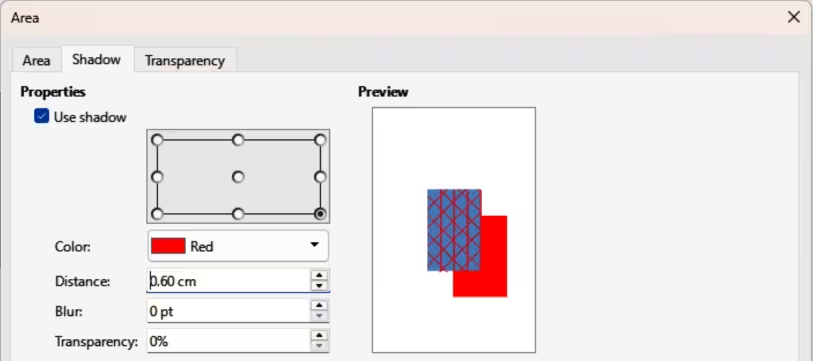
For more control when applying shadows, use the Shadow page in Area or Line dialogs. The following information uses the Shadow page in the Area dialog (Figure 21), but can also be applied to the Shadow page in the Line dialog and the Shadow panel in Properties deck on the Sidebar.
Default shadows
To quickly apply a shadow to an object, select the object and click on Shadow in the Line and Filling toolbar. A shadow applied to an object uses default shadow settings.
Formatting shadows
For a more control when adding shadows to an object, use the Shadow page, as follows, on the Area dialog and Line dialog.
-
Select an object where a shadow is going to be applied.
-
Open the Area dialog and click on Shadow to open the Shadow page (Figure 21).
-
Select Use shadow in Properties and the shadow options become active.
-
Select from one of nine points the direction in which the shadow is going to be cast in relation to the object.
-
In Color, select the color palette from the drop-down list of available palettes and then select the color required for the shadow.
-
In Distance, enter a distance to set spacing between the object and the shadow.
-
In Blur, enter a value to soften the edges of the shadow.
-
In Transparency, enter a percentage for the shadow transparency.
Figure 21: Area dialog — Shadow page
-
Click OK to close the Area or Line dialog and save the changes.
Sidebar shadow formatting
-
Select an object where a shadow is going to be applied.
-
Click on Properties to open the Properties deck on the Sidebar.
-
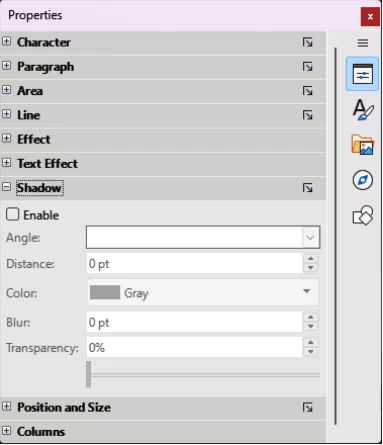
Click on Shadow to open the Shadow panel (Figure 22) in the Properties deck.
-
Select Enable and the shadow options become active.
-
In Angle, select from one of the options in the drop-down list to set the direction of where the shadow is going to be cast in relation to the object.
-
In Color, select the color palette from the drop-down list of available palettes and then select the color required for the shadow.
Figure 22: Shadow panel in Properties deck on Sidebar
-
In Distance, enter a distance to set spacing between the object and the shadow.
-
In Blur, enter a value to soften the edges of the shadow.
-
In Transparency, move the slider or enter a percentage in the text box to set the shadow transparency.
-
Deselect the object to save the changes made.
Working with transparencies
Transparencies can be applied to objects and shadows. In Draw, two types of transparencies can be applied to an object – uniform and gradient. Transparencies can be applied to area fills, gradients, shadows and lines.
-
For gradient transparencies and an example of combining a color gradient with a gradient transparency, see “Gradient fills” above.
-
For line transparencies, refer to “Formatting lines” above for more information.
-
For shadow transparencies, refer to “Working with shadows” above for more information.
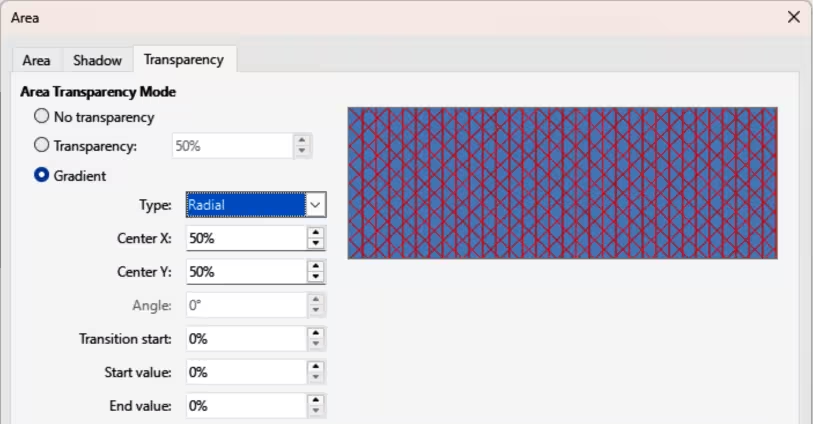
The following example procedure applies a transparency to an object area fill using the Area dialog (Figure 23):
-
Make sure the object is selected in a drawing.
-
Open the Area dialog, then click on Transparency to the open the Transparency page and access the available options.
-
To create a uniform transparency, select Transparency and enter a percentage in the text box.
-
To create a gradient transparency so that the area becomes gradually transparent, select Gradient and select the type of gradient transparency from the drop-down list: Linear, Axial, Radial, Ellipsoid, Quadratic, or Square. See “Gradient fills” above for more information on gradient types.
Figure 23: Area dialog — Area Transparency page
-
Set the parameters for the type of the gradient transparency selected above. Refer to “Table 5: Transparency parameters” for a description of the transparency properties. The parameters available depends type of gradient transparency selected.
-
Click OK to close the Area dialog and save the changes.
Table 5: Transparency parameters
|
Transparency parameters |
Meaning |
|
Centre X |
For Radial, Ellipsoid, Quadratic and Square gradients. The values to set the horizontal offset of the gradient center. |
|
Center Y |
For Radial, Ellipsoid, Quadratic and Square gradients. The values to set the vertical offset of the gradient center. |
|
Angle |
For Linear, Axial, Ellipsoid, Quadratic and Square gradients. Specifies the angle of the gradient axis. |
|
Border |
Increase this value to make the gradient start further away from the border of the object. |
|
Start value |
Value for the starting transparency gradient. 0% is fully opaque, 100% means fully transparent. |
|
End value |
Value for the ending transparency gradient. 0% is fully opaque, 100% means fully transparent. |
Drawing styles
If the area fill, line thickness, and border properties are to be applied to a set of objects, it is recommended to use styles. Styles reduce the risk of format errors by allowing format to be defined and applied to multiple objects. For more information, see the Writer Guide.
-
Note
The drawing styles included with Draw cannot be deleted or renamed, but can be modified to comply with drawing requirements. Drawing styles can also be hidden when not required in a drawing.
-
Tip
Hierarchical styles are used when multiple objects differ in one or two options, but are identically formatted. Create a parent style for objects including borders, area fill, font, and so on. Then create a hierarchical or child styles, which differ, for example, in fill color. If the font size or the thickness of a border needs to be changed, it is sufficient to change the parent style and all the child styles are changed accordingly.
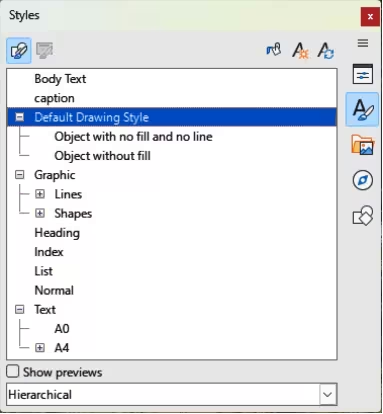
Style categories
All Styles
Applied Styles
Hierarchical Styles
Custom Styles
Hidden Styles
Figure 24: Styles deck in Sidebar — Drawing styles
Selecting styles
Styles can only be selected and applied to objects using the Styles deck on the Sidebar (Figure 24).
-
Select the object for style application.
-
Open the Styles deck on the Sidebar using one of the following methods:
-
Go to View > Sidebar on the Menu bar, then click on Styles at the right side of the Sidebar.
-
Click on Show the Styles Sidebar on the Line and Filling toolbar.
-
Go to View > Styles on the Menu bar.
-
Use the keyboard shortcut F11.
-
Select a style category from the drop-down list at the bottom of the Styles deck.
-
In the Styles deck, double-click on the style required for the selected object.
-
If necessary, create a custom style, or modify a selected style to drawing requirements.
-
Note
It is recommended to create custom styles rather than modify drawing styles installed with LibreOffice. Modifying LibreOffice drawing styles may cause formatting problems if the style has been used in other drawings.
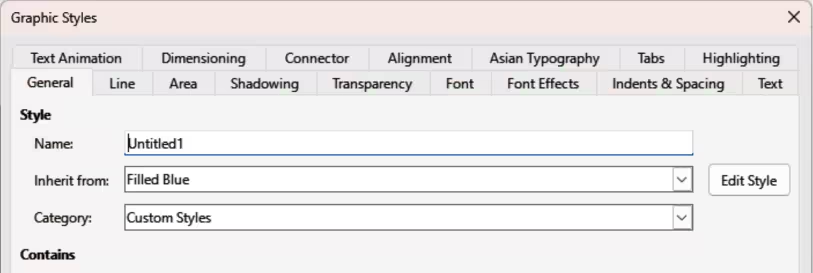
Figure 25: Graphic Styles dialog — General page
Creating custom styles
Custom styles are placed in All Styles and Custom Styles categories in the Sidebar Styles deck. When a custom style is applied to an object, the custom style appears in Applied Styles.
Using Styles deck
-
Open the Styles deck on the Sidebar.
-
Right click on the style required as a starting point to create a custom style and select New from the context menu to open the Graphic Styles dialog (Figure 25).
-
Click on Organizer to open the Organizer page in the Graphic Styles dialog.
-
In the Name text box, enter a unique style name.
-
In Inherit from text box, select None from the drop-down list if the new drawing style is NOT going to be linked. When an object is created, it uses the Default Drawing Style and a new drawing style is linked by default to the Default Drawing Style.
-
If the new style is to inherit settings from an existing style, select a style from the Inherit from: drop-down list.
-
Use the available options on the various pages of the Graphic Styles dialog to format and categorize a new style.
-
Click OK to save the new style and close the Graphic Styles dialog.
Using New Style from Selection
Using the option New Style from Selection all formatting is applied to an object first and then a new drawing style is created using the formatting changes.
-
Select an existing object, or create a new object in a drawing.
-
Format the object using the tools and options from the Graphic Styles dialog, Area dialog, Line dialog, Properties deck on the Sidebar, or Line and Filling toolbar.
-
Make sure the object is selected and create the new style using one of the following methods:
-
Open the Styles deck on the Sidebar and click on New Style from Selection at the top right of the deck.
-
Go to Format > Styles > New Style from Selection on the Menu bar.
-
In the New Style from Selection dialog, enter a unique name for the new style. This dialog also shows existing custom styles.
-
Click OK to save the new style and close the New Style from Selection dialog.
Modifying styles
-
Note
It is recommended to only modify custom styles. Modifying the installed LibreOffice styles may cause formatting errors in other documents that uses a LibreOffice style.
-
Select an object in a drawing.
-
Click on Styles on the left of the Sidebar to open the Styles deck.
-
Open the Graphic Styles dialog using one of the following methods:
-
Go to Format > Styles > Edit Style on the Menu bar.
-
Right-click on the object and select Edit Style from the context menu.
-
Right-click on the style that is highlighted in the Styles deck on the Sidebar and select Modify from the context menu.
-
Use the options on the various pages of the Graphic Styles dialog to modify the style.
-
Click OK to save the changes and close the Graphic Styles dialog.
Editing hierarchical or parent styles
If an object uses a style that is linked to a hierarchical or parent style, then this hierarchical or parent style can be edited.
-
Select an object in a drawing that uses a linked style.
-
Open the Graphic Styles dialog and click on Organizer to open the Organizer page in the Graphic Styles dialog.
-
Check the style name in the Inherit from text box is the required hierarchical or parent style, then use the options on the various pages in the Graphic Styles dialog to edit the style.
-
If the hierarchical or parent style is NOT the style required:
-
Click on Edit Style to the right of the Inherit from text box until the name of the style is displayed.
-
Use the options on the various pages in the Graphic Styles dialog to edit the style.
-
Click OK to save the changes and close the Graphic Styles dialog.
Updating styles
-
Note
Only update custom styles that have been created. Updating LibreOffice drawing styles may create formatting errors in documents using LibreOffice drawing styles.
Using Update Style allows all formatting to an object to be applied first and then the drawing style used for the object is updated.
-
Select the object to update the applied drawing style.
-
Format the object using the tools and options from the Graphic Styles dialog, Area dialog, Line dialog, Properties deck on the Sidebar, or Line and Filling toolbar.
-
Update the drawing style using one of the following methods. There is no confirmation when updating a drawing style.
-
Open the Styles deck on the Sidebar and click on Update Style at the top right.
-
Go to Format > Styles > Update Selected Style on the Menu bar.
Applying styles
Drawing styles are applied to an object using the Styles deck on the Sidebar as follows:
-
Select the object to apply a drawing style.
-
Click on Styles on the Line and Filling toolbar, or click on Styles on the Sidebar.
-
Double click on a style name to apply the drawing style to the selected object.
Deleting styles
-
Note
Before deleting a custom style, it is recommended to make sure the drawing style is not in use by checking the list of drawing styles in the Applied Styles category.
Drawing styles installed with LibreOffice cannot be deleted, even if the drawing styles are not being used. Only custom styles can be deleted.
-
To open a list of styles, use one of the following methods:
-
Click on Styles on the Line and Filling toolbar.
-
Click on Styles on the Sidebar.
-
Select Applied Styles from the drop-down list at the bottom of the Styles deck on the Sidebar.
-
Right click on the style name in the styles list and select Delete from the context menu.
-
If the style is used on an object, a warning message appears stating that the selected object will revert back to the default drawing style. Select Yes to confirm deletion of the style.
-
If the style is not in use, select Yes to confirm deletion of the style and there is no confirmation message.
Special effects
-
Note
The tools on the Transformations toolbar are described in the following sections with the exception of the In 3-D Rotation Object tool. This tool is described in Chapter 7, Working with 3D Objects.
Special effects can be applied to objects in Draw. Several effects are available on the Transformations toolbar. If the Transformations toolbar (Figure 15) is not open, go to View > Toolbars > Transformations on the Menu bar and select Transformations.
Rotating objects
-
Note
By default, the rotation pivot point is a small circle in the center of a selected object. To change the center of object rotation, click and drag the rotation pivot point to a new position. The rotation pivot point can be positioned outside of a selected object.
Manual rotation
-
Select an object for rotation so that the selection handles are displayed.
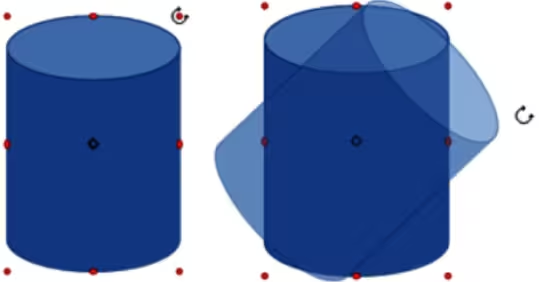
Figure 26: Example of manual rotation
-
Use one of the following methods to switch the selected object into rotation mode. The selection handles change shape and color when in rotation mode (Figure 26).
-
Click again on the selected object.
-
Click on the triangle ▼ to the right of Transformations on the Line and Filling and select Rotate from the context menu.
-
If the Transformations toolbar is open, click on Rotate.
-
Move the cursor over one of the corner handles and the cursor changes shape. Only corner selection handles are active for rotation.
-
Click and drag on a corner selection handle to rotate the selected object.
-
To restrict the rotation angles to multiples of 15 degrees, press and hold the Shift key while rotating the object. This is useful for rotating objects through 90 deg.
-
When satisfied with the rotation, release the corner selection handle.
Rotation using Sidebar
-
Select the object for rotation so that the selection handles are displayed.
-
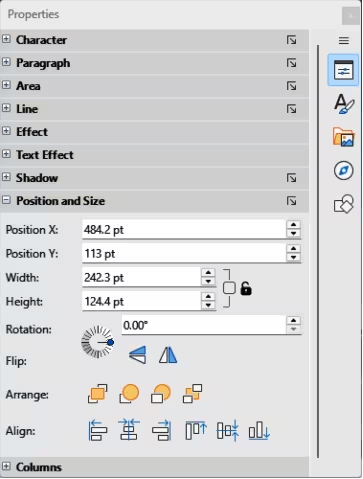
Open the Position and Size panel in the Properties deck on the Sidebar (Figure 27).
-
Rotate the object using one of the following options:
-
Click on and drag the Rotation Angle indicator in Rotation.
-
Enter a rotation angle in the Select the angle for rotation text box.
-
After rotating the object, click outside the object to deselect the object and save the changes.
Position and Size dialog
-
Select the object for rotation so that the selection handles are displayed.
-
Open the Position and Size dialog (Figure 27) using one of the following methods:
-
Use the keyboard shortcut F4.
-
Select Format > Position and Size on the Menu bar.
-
Right-click on the object and select Position and Size from the context menu.
-
Click Rotation to open the Rotation page.
Figure 27: Position and Size panel in Sidebar Properties deck
-
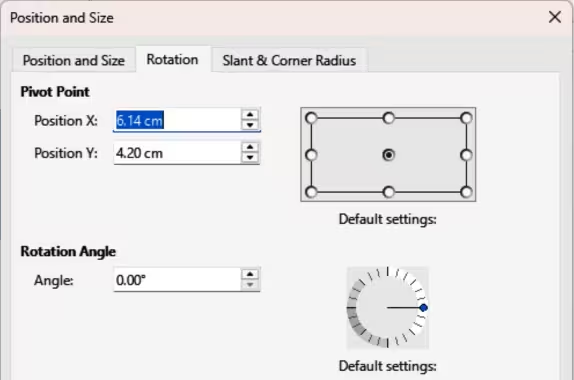
If required, in Pivot Point enter a value for Position X and Position Y to move the position of the pivot point. The default position of the pivot point is the center of the object. Alternatively, select a pivot point from one of the 9 positions in Default settings.
-
In Rotation Angle, rotate the object using one of the following methods:
-
In the Angle text box, enter the degrees of rotation required.
Figure 28: Position and Size dialog — Rotation page
-
Click on and drag the rotation indicator in Default settings.
-
Click OK to save the changes and close the Position and Size dialog.
Flipping objects
Quick flipping
-
Select the object for flipping to display the selection handles.
-
Use one of the following methods to flip the object vertically or horizontally:
-
Right click on the object and select Flip > Horizontally or Flip > Vertically from the context menu.
-
In Flip on the Position and Size panel in the Properties deck on the Sidebar (Figure 27), click on Flip Vertically or Flip Horizontally.
-
In the Line and Filling toolbar, click on Vertically or Horizontally.
-
Go to Shape > Flip > Vertically or Horizontally on the Menu bar.
Flip tool
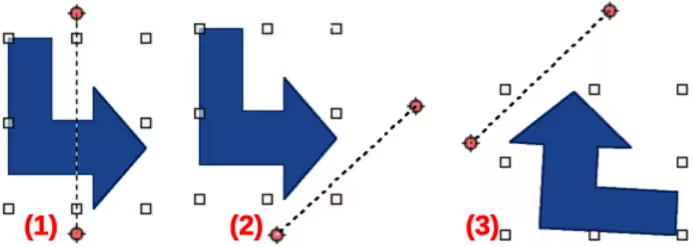
Using Flip on the Transformations toolbar (Figure 15), the position and angle that the object flips over can be changed, as shown by the example in Figure 29.
-
Note
Pressing and holding the Shift key while moving the symmetry axis allows rotation in 45 degree increments.
-
Select the object for flipping to display the selection handles.
-
Click on Flip on the Transformations toolbar and the symmetry axis appears as a dashed line through the middle of the object. The object is flipped about this symmetry axis.
-
Click and drag one or both ends of the symmetry axis setting the axis orientation.
-
Place the cursor over one of the object selection handles until it changes shape.
Figure 29: Example of using Flip tool
|
|
|
-
Click and hold the selection then drag the object across to the other side of the symmetry axis until the object appears flipped over. The angle and position of the flip depends on the angle and position of the symmetry axis.
-
Release the selection handle and the object is flipped.
Mirror copies
At the moment there is no mirror command available in LibreOffice Draw. However, mirroring an object can be emulated by copying and flipping the object as follows:
-
Select the object to copy the object to the clipboard.
-
Flip the object using the procedures in “Flipping objects” above.
-
Click in an empty area on the drawing to deselect the object.
-
Paste the copy of the original object back into its original location creating a mirror copy.
-
If necessary, select both objects and align them using one of the following methods:
-
Go to Shape > Align on the Menu bar and use one of the alignment options.
-
Right-click the selected objects and select Align from the context menu, then select one of the alignment options.
Distorting images
Three tools on the Transformations toolbar (Figure 15) allow an object to be distorted.
-
Distort — distorts an object in perspective.
-
Set to circle (slant) and Set in Circle (perspective) — both create a pseudo 3D effect.
-
Note
Before distorting an object, the object must be converted to a curve. Transforming an object into a curve is a safe operation, but cannot be reversed. To cancel, click on Format > Undo on the Menu bar.
Set in circle (perspective)
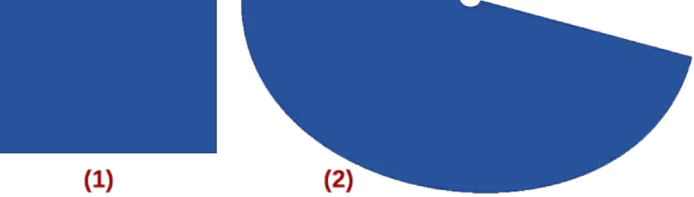
An example of distorting an object using Set in Circle (perspective) is shown in Figure 30.
-
Select the object and click on Set in Circle (perspective) on the Transformations toolbar.
-
Click Yes to convert the object to a curve. If the object is already a curve, this dialog does not appear.
-
Click and drag one of the selection handles to give a pseudo 3D perspective using the opposite side as an anchor point. A ghosted image appears as the object is distorted to give an indication of how the resulting object will look.
Figure 30: Example of using Set In circle (perspective) tool
|
|
Figure 31: Example of using Set in circle (slant) tool
|
|
Figure 32: Example of using Distort tool
|
|
|
|
Set to circle (slant)
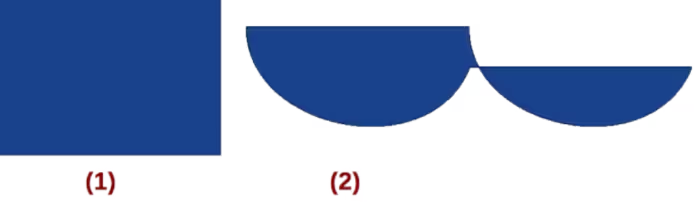
An example of distorting an object using Set to circle (slant) is shown in Figure 31.
-
Select an object and click on Set to circle (slant) on the Transformations toolbar.
-
Click Yes to convert the object to a curve. If the object is already a curve, this option is not available.
-
Click and drag one of the selection handles to give a pseudo 3D perspective using the opposite side as an anchor point. A ghosted image appears as the object is distorted to give an indication of how the resulting object will look.
-
Click and drag one of the selection handles to give a pseudo 3D perspective using the opposite side as an anchor point. A ghosted image appears as the object is distorted to give an indication of how the resulting object will look.
Distort
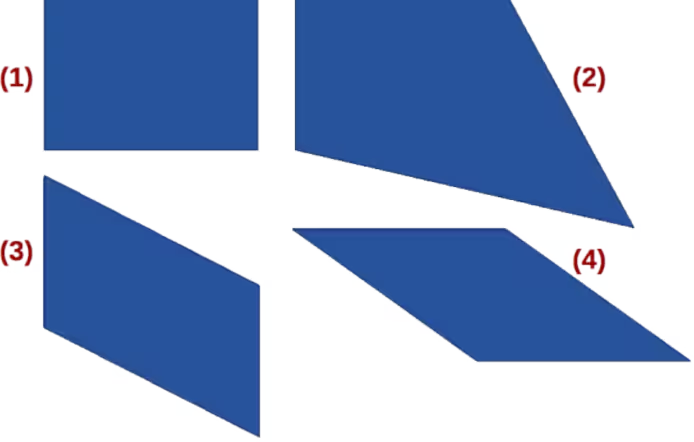
Examples of distorting an object using Distort are shown in Figure 32.
-
Select an object and click on Distort on the Transformations toolbar.
-
Click Yes to convert the object to a curve. If the object is already a curve, this dialog does not appear.
-
Click and drag a corner selection handle to distort the object using the opposite corner selection handle as an anchor point for the distortion.
-
Click and drag the vertical selection handles to distort the object using the opposite vertical side as an anchor point for the distortion.
-
Click and drag the horizontal selection handles to distort the object using the opposite horizontal side as an anchor point for the distortion.
Dynamic gradients
Transparency gradients are controlled using the same procedure for color gradients and both types of gradient are used together. With a transparency gradient, the direction and degree of object fill color changes from opaque to transparent. In a color gradient, the fill changes from one color to another, but the degree of transparency remains the same.
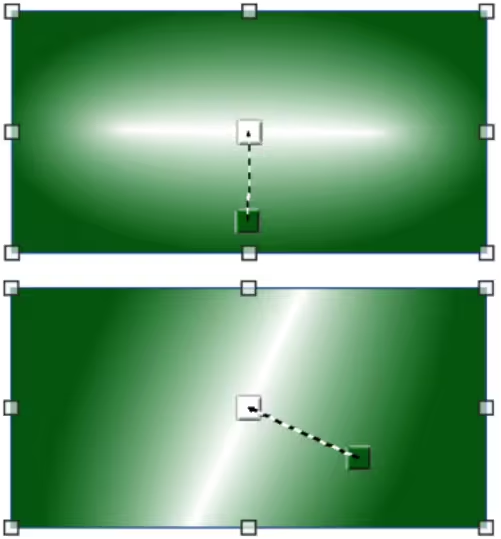
Two icons on the Transformations toolbar dynamically control transparency and color gradients. Even if an object with a color fill is not assigned transparency, the transparency can be controlled by clicking on Interactive transparency tool. This defines a transparency gradient and a dashed line connecting two squares appears on the object. Move the two squares to modify the gradient. Define the direction of the gradient (vertical, horizontal, or at any angle) and the spot at which the transparency begins.
A regular color gradient is defined in the same manner. Select an object, then select a gradient area fill (see “Gradient fills” above for more information). The Interactive gradient tool is now active on the Transformations toolbar. When clicking on Interactive gradient tool, a dashed line connecting two squares appears on the object, just as it does for a transparency gradient. In both transparency gradient and gradient fill, click outside the object to set the gradient.
In the example shown in Figure 33 a gradient transparency is dynamically adjusted. Direction of transparency is changed by moving the white square and the distance over which it is applied by moving the colored square.
Figure 33: Example of using Dynamic Gradient tool
-
Note
Moving the squares has different effects, depending on the type of gradient. For example, for a linear gradient, the start and end squares of the gradient are always situated on either side of the center point of the object