Copyright
This document is Copyright © 2026 by the LibreOffice Documentation Team. Contributors are listed below. This document may be distributed and/or modified under the terms of either the GNU General Public License (https://www.gnu.org/licenses/gpl.html), version 3 or later, or the Creative Commons Attribution License (https://creativecommons.org/licenses/by/4.0/), version 4.0 or later. All trademarks within this guide belong to their legitimate owners.
Contributors
Contributors for this edition:
Peter Schofield
Contributors for previous editions:
Claire Wood, Hazel Russman, Jean Hollis Weber, John A Smith, John Cleland, Kees Kriek, Martin Fox, Peter Schofield, Winston Min Tjong.
Feedback
Please direct any comments or suggestions about this document to the Documentation Team Forum at https://community.documentfoundation.org/c/documentation/loguides/ (registration is required) or send an email to: loguides@community.documentfoundation.org.
-
Note
Everything sent to a forum, including email addresses and any other personal information that is written in the message, is publicly archived and cannot be deleted. Emails sent to the forum are moderated.
Publication date and software version
Published April 2026. Based on LibreOffice 26.2.
Other versions of LibreOffice may differ in appearance and functionality.
Grouping objects
Grouping objects is similar to placing objects into a container. Objects within a group are moved together as one object and any changes made are applied to all objects within the group. A group can be ungrouped and the objects that make up the group can be manipulated separately.
Temporary grouping
Temporary grouping is when several objects are selected together. Any changes to object parameters are applied to all objects within the temporary group. A temporary group of objects can be rotated in its entirety and is created using one of the following methods:
-
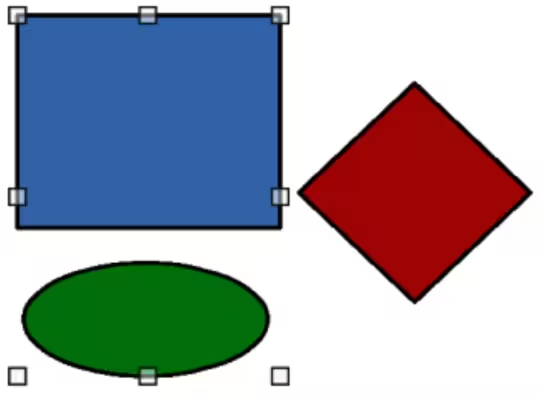
Click and drag the cursor over several objects surrounding the objects with a selection rectangle. This selection rectangle is also known as a marquee, as shown in Figure 1. Release the cursor when all the objects required for a temporary group are selected.
-
Click the first object, then hold down the Shift key and click on the remaining objects required for a temporary group.
-
To cancel a temporary group of objects, simply click outside of the selection handles displayed around the objects.
Figure 1: Example of a selection rectangle (marquee)
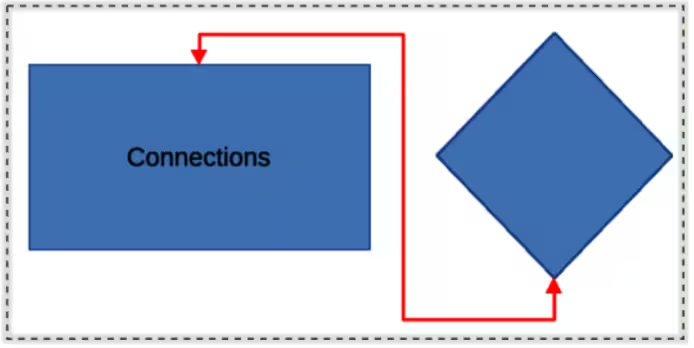
Figure 2: Example of grouping objects
Grouping
When objects are grouped, any editing carried out on a group is applied to all objects within the group. Click on one object in a group selects the whole group. Objects within a group retain their individual properties and can be edited independently. See “Editing individual objects in a group” below for more information.
-
Select objects for a group using one of the following methods. Selection handles appear around all objects selected for the group (Figure 2).
-
Click on each object required while holding down the Shift key.
-
Select Select on the Drawing toolbar and draw a selection rectangle around the objects required for the group.
-
To select all the objects, go to Edit > Select All on the Menu bar, or use the keyboard shortcut Ctrl+A (macOS ⌘+A).
-
Create a group of selected objects using one of the following methods:
-
Right-click on an object within selected group and select Group from context menu.
-
Go to Shape > Group > Group on the Menu bar.
-
Use the keyboard shortcut Ctrl+Shift+G (macOS ⌘+Shift+G).
Ungrouping
-
Select a group of objects and selection handles appear around objects within the group (Figure 2).
-
Ungroup a group of objects using one of the following methods:
-
Right-click on the selected group and select Ungroup from the context menu.
-
Go to Shape > Group > Ungroup on the Menu bar.
-
Use the keyboard shortcut Ctrl+Alt+Shift+G (macOS ⌘+⌥+Shift+G).
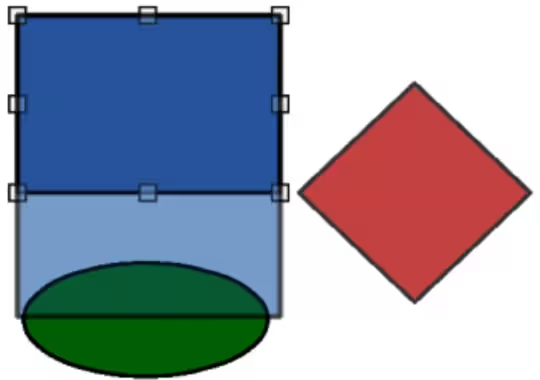
Figure 3: Example of editing individual object within a group
-
Note
After entering a group, any other objects outside the group cannot be selected for editing. Exit from the selected group first before editing objects outside the group.
Editing individual objects in a group
An object within a group can be edited individually without ungrouping the objects.
-
Select a group, then enter the group using one of the following methods:
-
Right-click on the group and select Enter Group from the context menu.
-
Go to Shape > Group > Enter Group on the Menu bar.
-
Use the keyboard shortcut F3.
-
Double-click on the selected group.
-
Click on an object to select and individually edit it, as shown in Figure 3.
-
After editing and saving changes to an individual object within a group, exit the group using one of the following methods:
-
Right-click on the group and select Exit Group from the context menu.
-
Go to Shape > Group > Exit Group on the Menu bar.
-
Use the keyboard combination Ctrl+F3 (macOS ⌘+F3).
-
Double-click outside the group.
Nesting groups
A group of groups can be created and is commonly known as nesting groups. When nested groups are created, Draw retains individual group hierarchy, keeping the order in which groups were selected. The last individual group selected is on top of all the other groups within a nested group. Ungrouping and entering a nested group works the same way as for individual groups.
-
Tip
If group and ungroup commands are regularly used, or any other command, tools can be added to a toolbar. See Appendix B, Toolbars and the Getting Started Guide for more information on customizing toolbars.
Combining, splitting, breaking, and connecting
Combining objects
Combining objects is a permanent merging of objects creating a new object. The original objects are no longer available as individual objects and cannot be edited as individual objects.
-
Select several objects that are overlapping each other.
-
Combine the selected objects into a single object using one of the following methods:
-
Right-click on the selection and select Shapes > Combine from the context menu.
-
Go to Shape > Combine on the Menu bar.
-
Use the keyboard combination Ctrl+Shift+K (macOS ⌘+Shift+K).
The result of combining objects is as follows:
-
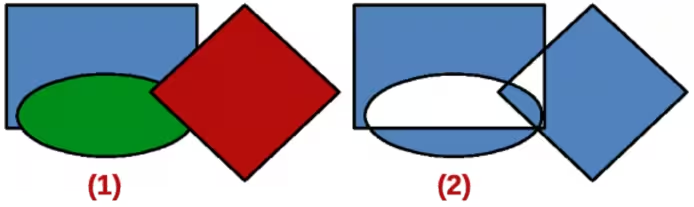
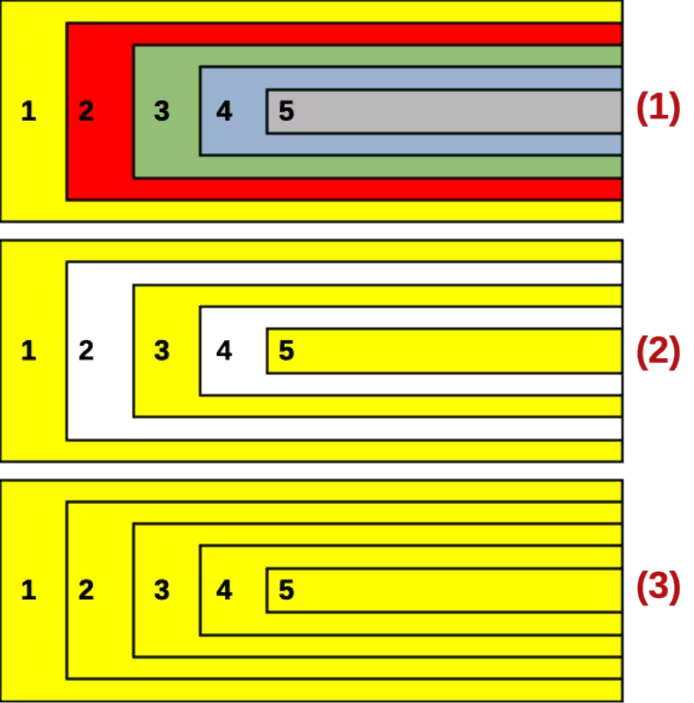
The attributes of the resulting object are those of the object at the back of the group. In Figure 4, it is the rectangle and in Figure 5 it is the yellow rectangle.
-
Where objects overlap, the overlapping zone is filled or empty depending on the overlap being even numbered or odd numbered. Figure 5 shows where overlap number is even, an empty space is created and where overlap number is odd, a filled area is created.
Figure 4: Example of area fill in combined objects
|
|
Figure 5: Example of area fill in combing and splitting objects
|
|
|
Splitting combined objects
An object which has been created from combining several objects can be split into individual objects. However, the original objects retain the formatting of the combined object and do not revert back to their original formatting. Select the combined object and use one of the following methods to split a combined object:
-
Go to Shape > Split on the Menu bar.
-
Use the keyboard shortcut Ctrl+Alt+Shift+K (macOS ⌘+⌥+Shift+K).
In Figure 5, the individual overlapping objects use Rectangle 1 formatting at the rear of the overlapping objects when a combined object is split.
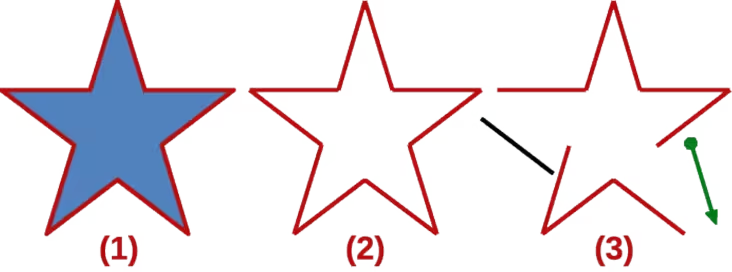
Figure 6: Example of breaking objects
|
|
|
Breaking objects
An object that consists of more than one part can be broken into its individual parts as follows. For example, a star is broken into separate lines and the area fill is lost, as shown by the center graphic in Figure 6.
-
Select an object that consists of more than one part.
-
Convert the object to a curve or polygon using one of the following methods:
-
Go to Shape > Convert > To Curve or To Polygon on the Menu bar.
-
Right-click on the object and select Convert > To Curve or To Polygon on the context menu.
-
Go to Shape > Break on the Menu bar and the object is broken into individual parts.
-
Move, format or delete the individual parts as necessary, as shown by the right object in Figure 6.
Connecting lines
The individual parts of an object or individual objects can be connected together as follows:
-
Select all the objects that are going to be connected.
-
Go to Shape > Connect on the Menu bar. Individual lines or lines in a border are converted to curves and the end points of each line connected.
Closing objects
-
Select an object that has a gap in its border.
-
Right-click on the selected object and select Close Object from the context menu to close the gap.
-
Format the area fill created to requirements. See Chapter 4, Changing Object Attributes for more information on working with area fills.
-
Note
The shape created when connecting individual parts or lines is not a closed shape. The new shape has to be closed to create an area fill.
Merging, subtracting, or intersecting objects
After selecting more than one object, the merge, subtract, and intersect functions become available allowing creation of a new object with a new shape.
Merge
When merging objects, a new object is created with a shape that follows the shape of the merged objects. The area fill of the merged object is determined by the area fill of the object that is at the rear of all the other objects, as shown in Figure 7.
After selecting several objects, use one of the following methods to merge the objects:
-
Go to Shape > Merge on the Menu bar.
-
Right-click on the selected objects and select Shapes > Merge from the context menu.
Figure 7: Example of merging objects

Figure 8: Example of subtracting objects

Figure 9: Example of intersecting objects

Subtract
When subtracting objects, the objects at the front are subtracted from the object behind. This leaves a blank space the subtracted objects occupied creating a new shape, as shown in Figure 8. After selecting several objects that overlap each other, use one of the following methods to subtract objects:
-
Go to Shape > Subtract on the Menu bar.
-
Right-click on the selected objects and select Shapes > Subtract from the context menu.
Intersect
When intersecting objects, the front objects and the exposed area of the rear object are removed. This creates a new object from the area of the rear object that was covered by the front objects, as shown in Figure 9. After selecting several objects that overlap each other, use one of the following methods to intersect objects:
-
Go to Shape > Intersect on the Menu bar.
-
Right-click on the selected objects and select Shapes > Intersect from the context menu.
Duplication and cross-fading
Duplication
Duplication makes copies of an object while applying a set of changes to the duplicate copies, such as color or rotation.
Figure 10: Duplicate dialog
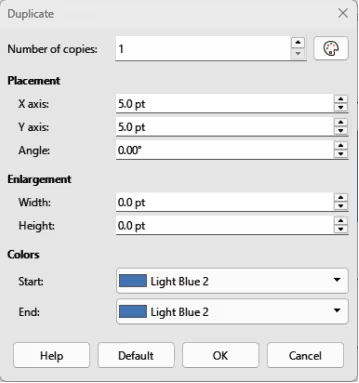
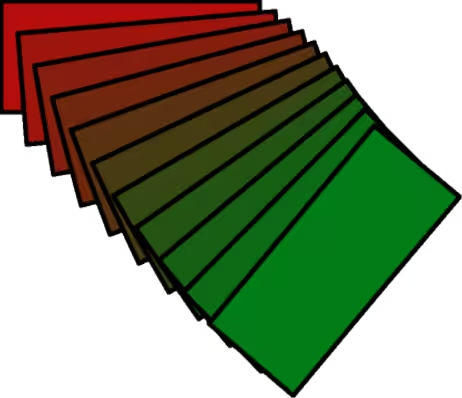
Figure 11: Example of duplication
-
Select an object or group of objects, then use one of the following methods to open the Duplicate dialog (Figure 10):
-
Go to Edit > Duplicate on the Menu bar.
-
Go to Shape > Duplicate on the Menu bar.
-
Use the keyboard shortcut Shift+F3.
-
Select the umber of copies, placement, enlargement, and the start and end colors for the duplicate copies.
-
Click OK and duplicate copies are created. An example of a duplication is shown in Figure 11. Each duplicate object is a separate object.
-
To group the duplicate objects into one group, see “Grouping objects” above.
-
To combine the duplicate objects into one object, see “Combining, splitting, breaking, and connecting” above.
The following options are available when using the Duplicate dialog:
Number of copies
Placement
X axis
Enter the horizontal distance between centers of a selected object and duplicate objects. Positive values shift the duplicate object to the right and negative values shift the duplicate object to the left.
Y axis
Enter the vertical distance between the centers of a selected object and duplicate objects. Positive values shift the duplicate object down and negative values shift the duplicate object up.
Angle
Enter the angle (0 to 359 degrees) required for rotating a duplicate object. Positive values rotate duplicate objects in a clockwise direction and negative values in a counterclockwise direction.
Enlargement
Width
Enter the amount to enlarge or reduce the width of duplicate objects.
Height
Enter the amount to enlarge or reduce the height of duplicate objects.
Colors
Start
Select a color for a selected object.
End
Select a color for a duplicate object. If making more than one copy, this color is applied to the last copy.
Cross-fading
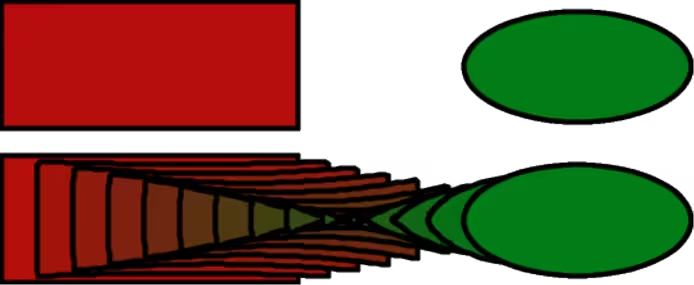
Cross-fading transforms one object shape into another object shape. The result is a new group of individual objects that includes the start and end objects. The intermediate steps show the transformation from one object shape to another object shape. The cross-fading is carried out from the first object selected to the second object selected.
-
Select two objects and go to Shape > Cross-fading on the Menu bar to open the Cross‑fading dialog (Figure 12).
-
In Settings, select the number of Increments for the transformation.
Figure 12: Cross-fading dialog
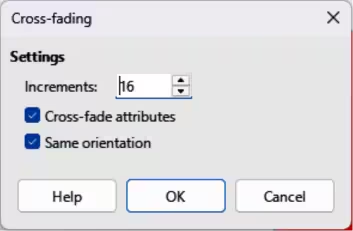
Figure 13: Example of cross-fading objects
-
If necessary, in Settings, select Cross-fade attributes and Same orientation.
-
Click OK to cross-fade the selected objects and close the Cross-fading dialog. An example of cross-fading is shown in Figure 13 with Same orientation deselected. The object created is a group of objects.
-
To ungroup this group of objects and use the individual objects, see “Ungrouping” above.
The following options are available in the Cross-fading dialog:
Increments
Cross-fade attributes
Same orientation
Positioning objects
Arranging objects
When combining, merging, subtracting, or intersecting objects, the end result varies depending on which object is at the front and which object is at the back. Each new object placed on a drawing automatically becomes the front object and all the other objects move backwards in positioning order. Arranging objects changes the order of a group of objects.
To change the arrangement position of an object, select one or more objects and then use one of the following methods:
-
Right-click on the selected object(s), then select Arrange from the context menu and one of the available options.
-
Click on the triangle ▼ to the right of Arrange on the Standard toolbar to open the Position sub-toolbar (Figure 14) and select one of the available tools.
-
Click one of the arrangement tools on the Line and Filling toolbar.
-
Click on Shape > Arrange on the Menu bar and select an arrangement option.
-
Use the Arrange tools in Position and Size panel in the Properties deck on the Sidebar.
-
Use a keyboard shortcut available for each arrange option.
The arrangement options available are as follows:
Bring to Front
Bring Forward
Figure 14: Position sub-toolbar
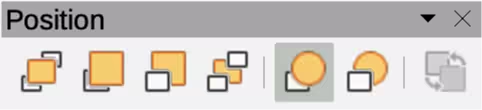
Send Backward
Send to Back
In Front of Object
Behind Object
Reverse
Aligning objects
To make a drawing look more professional, objects can be aligned with each other. Select one or more objects and use one of the following methods to align objects:
-
Right-click on the selected object(s), then select Align Objects from the context menu and one of the available options.
-
Click on one of the alignment tools on the Line and Filling toolbar.
-
Go to Shape > Align Objects on the Menu bar and select the alignment required.
-
Use the Align tools in the Position and Size panel in the Properties deck on the Sidebar.
-
Go to View > Toolbars on the Menu bar and select Align Objects to open the Align Objects toolbar (Figure 15).
The alignment tools available are as follows:
Left
Centered
Right
Top
Center
Figure 15: Align Objects toolbar
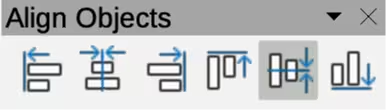
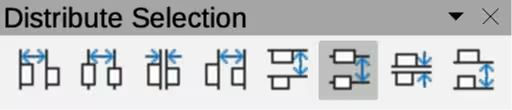
Figure 16: Distribute Selection toolbar
Bottom
Distributing objects
Distributing objects allows three or more objects to be evenly spaced along a horizontal or vertical axis. Objects are distributed using the outermost objects as base points for spacing. Select at least three objects, then use one of the following methods to distribute the objects:
-
Right-click on the selected objects, then select Distribute Selection from the context menu and one of the available options.
-
Go to View > Toolbars on the Menu bar and select Distribute Selection to open the Distribute Selection toolbar (Figure 16).
-
Go to Shape > Distribute Selection on the Menu bar and select a distribution option.
-
Right-click on the selected objects and select Distribute Selection from the context menu, then select a distribution option.
The distribution options available are as follow:
Horizontal Left
Horizontal Center
Horizontal Spacing
Horizontal Right
Vertical Top
Vertical Center
Vertical Spacing
Vertical Bottom