Copyright
This document is Copyright © 2026 by the LibreOffice Documentation Team. Contributors are listed below. This document may be distributed and/or modified under the terms of either the GNU General Public License (https://www.gnu.org/licenses/gpl.html), version 3 or later, or the Creative Commons Attribution License (https://creativecommons.org/licenses/by/4.0/), version 4.0 or later. All trademarks within this guide belong to their legitimate owners.
Contributors
Contributors for this edition:
Peter Schofield
Contributors for previous editions:
Claire Wood, Elzett Kotze, Jean Hollis Weber, John A Smith, John Cleland, Martin Fox, Peter Schofield, Regina Henschel.
Feedback
Please direct any comments or suggestions about this document to the Documentation Team Forum at https://community.documentfoundation.org/c/documentation/loguides/ (registration is required) or send an email to: loguides@community.documentfoundation.org.
-
Note
Everything sent to a forum, including email addresses and any other personal information that is written in the message, is publicly archived and cannot be deleted. Emails sent to the forum are moderated.
Publication date and software version
Published April 2026. Based on LibreOffice 26.2.
Other versions of LibreOffice may differ in appearance and functionality.
Introduction
Previous chapters in the Draw Guide provide information on vector graphics and the common types of vector graphics in use are as follows:
SVG (Scalable Vector Graphics)
EPS (Encapsulated PostScript)
AI (Adobe Illustrator)
However, Draw has several functions for handling raster graphics or bitmaps, for example photographs and scanned pictures. This includes import, export, and conversion from one graphic format to another graphic format. Draw can open the majority of graphic file formats using capabilities similar to raster graphics programs like Gimp or Adobe Photoshop. Raster graphics are generally images or pictures that use the following formats:
JPG/JPEG (Joint Photographic Experts Group)
GIF (Graphics Interchange Format)
PNG (Portable Network Graphics)
TIF/TIFF (Tagged Image File Format)
BMP (BitMaP)
Importing graphics and images
Inserting
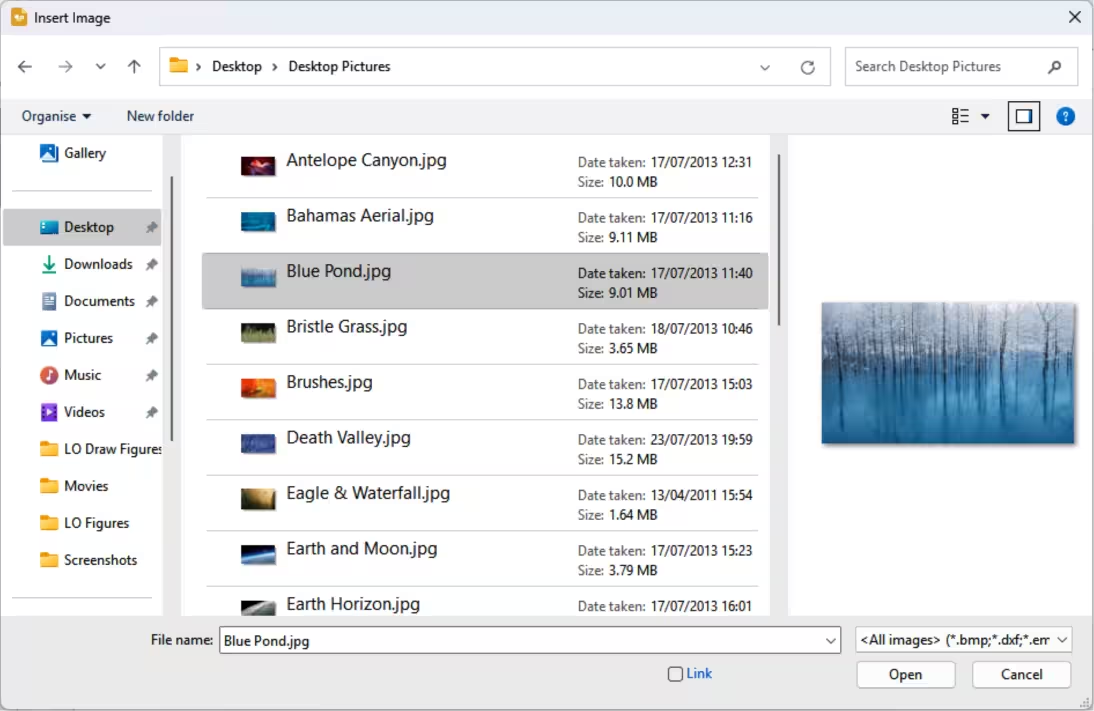
To import graphic or image files into a drawing, go to Insert > Image on the Menu bar to open the Insert Image dialog (Figure 1).
Draw contains import filters for the majority of graphic formats. If the file being imported uses a graphic format not compatible with LibreOffice import filters, it is recommended to use a free graphic conversion program to convert the file into a graphic format that Draw recognizes.
If Preview is selected, a preview of the file is shown on the right-hand side of the Insert Image dialog. This makes it easier to select the file required and makes sure that Draw can import the graphic file format used.
Figure 1: Insert Image dialog
Embedding
Embedding graphics into a drawing makes graphics a permanent part of the drawing. Any changes made to an embedded graphic only appear in a LibreOffice drawing where the graphic has been embedded. The original graphic file is not affected. Embedding is importing a graphic into a drawing using one of the following methods:
Insert Image dialog
Copying and pasting
Scanning a graphic
Dragging and dropping between open files.
The main advantage of embedding graphics into a drawing is that a graphic is always available no matter what computer is used to open the drawing.
The main disadvantage of embedding graphics is that it creates large file sizes, which may create storage problems if there is limited storage capacity on the computer. Also, if the original graphic is altered, the embedded graphic is not updated each time the LibreOffice drawing is opened.
-
Note
When a graphic is embedded into a LibreOffice drawing, make sure that Insert as Link is not selected in the Insert Image dialog.
Linking
Linking to an original graphic does not insert the graphic into a drawing, but creates a link to the location of an original graphic file. Each time a LibreOffice drawing is opened, any linked graphics are displayed in the drawing.
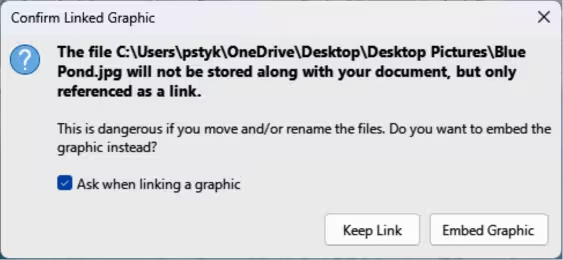
Figure 2: Confirm Linked Graphic dialog
The main advantage of linking graphic files is that if the original graphic file is altered or modified, opening a LibreOffice drawing automatically updates the linked graphic. Also the file size of a LibreOffice drawing is smaller and the original graphic is easily edited with specialized external applications.
The main disadvantage of linking graphics is that the link must be maintained between a LibreOffice drawing and the embedded graphic file for a link to work correctly. If the original drawing or graphic file is moved to another computer location, then any links must be updated to include the new location.
-
Open the Insert Image dialog.
-
Select Insert as Link in the Insert Image dialog.
-
Select the required graphic or image file and click on Open to open the Confirm Linked Graphic dialog (Figure 2).
-
Click on Keep Link to link the file and close the Confirm Linked Graphic dialog.
-
If required, click on Embed Graphic to embed the file instead of linking the file. This also closes the Confirm Linked Graphic dialog.
-
Note
When a graphic or image file is linked in a LibreOffice drawing, the file format of the linked graphic or image is not changed.
Editing links
-
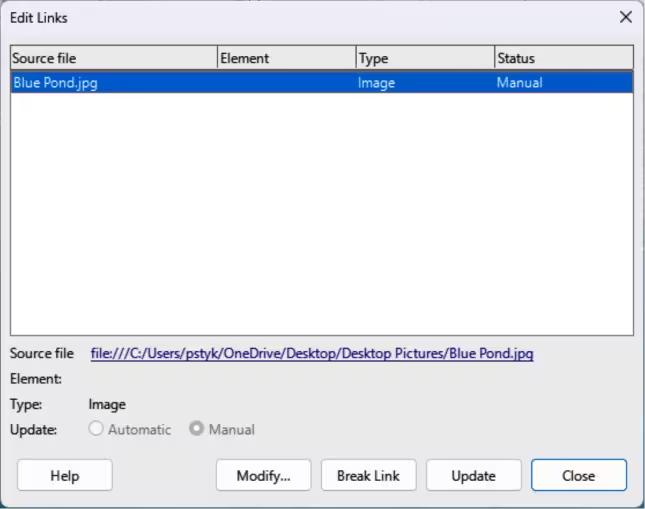
Go to Edit > External Links on the Menu bar to open the Edit Links dialog (Figure 3) and select the link to be edited.
-
Click on Modify, Break Link, or Update as appropriate.
-
Modify — allows changes to the selected link that is between the graphic file in the current drawing and the source file.
-
Break Link — breaks the link between the selected linked graphic file and the current document. The graphic file version in the drawing becomes embedded into the drawing. A confirmation dialog opens asking if the link is to be broken. Click on Yes to confirm the breaking of the link.
-
Update — updates the selected link so that the most recent version of the linked graphic file is displayed in the drawing.
-
Click on Close to save the changes to the link and close the Edit Links dialog.
Figure 3: Edit Links dialog
Copying and pasting
Copying and pasting a graphic also embeds a graphic or image file into a LibreOffice drawing. A copied graphic can be an image already embedded in another document or drawing, or a graphic file such as a drawing, document, or photograph.
-
After copying the graphic file, go to Edit > Paste Special > Paste Special on the Menu bar to open the Paste Special dialog.
-
Select the required format for pasting the copied graphic into a LibreOffice drawing. Available formats for pasting depend on the type of file copied onto the clipboard.
-
Click OK to paste the graphic file and close the Paste Special dialog.
-
Note
When copying and pasting images into a LibreOffice drawing, respect the copyright and license of any file being copied.
Exporting images
Exporting ODG files
By default Draw saves drawings in the Open Document format ODG and some software programs are not compatible with the ODG format. To make drawings compatible with other software applications, an ODG file can be exported in several formats. The export procedure used depends on the computer setup and computer operating system being used. The following procedure is an example export procedure.
-
Open the ODG file being exported.
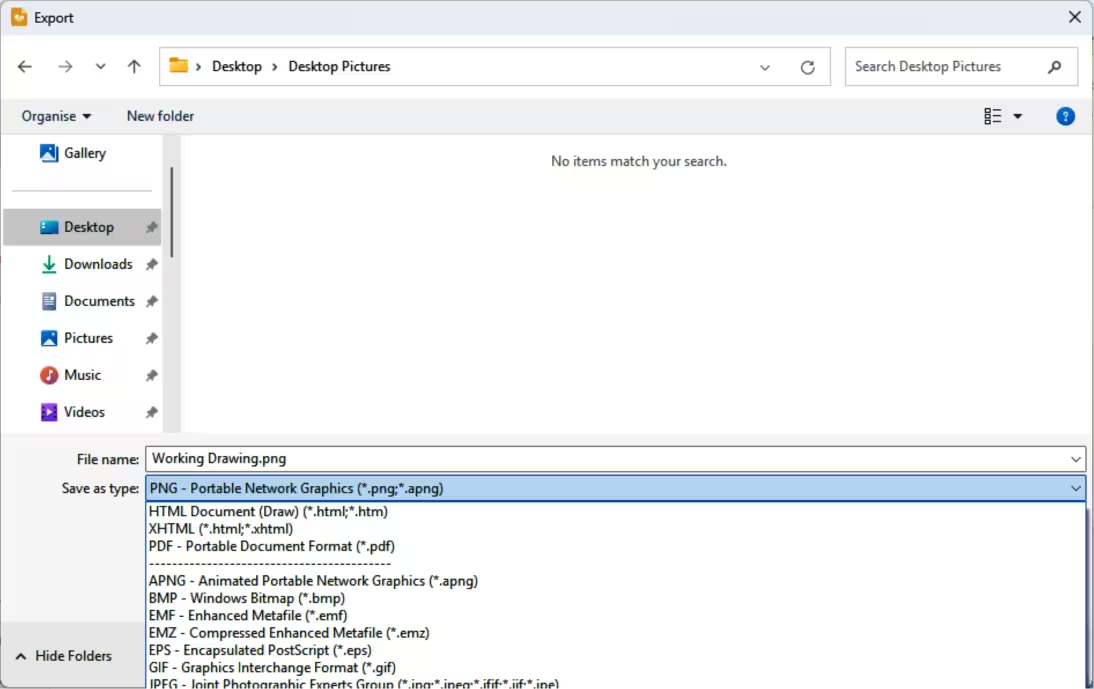
Figure 4: Example export dialog
-
Go to File > Export on the Menu bar and open the Export dialog. An example export dialog is shown in Figure 4.
-
Enter a filename for the exported file and navigate to the folder where the exported file is to be saved.
-
Select the required file format from the options in the drop-down list.
-
Click Export and the file is exported as a new file in the selected file format.
-
Depending on the file format selected, another dialog may open allowing options to be selected for the export format.
-
Depending on the additional dialog that may open, click on Export, Create, or OK and the file is exported as a new file in its new format.
Exporting graphics or images
Exporting individual graphics or images, or a group of graphics or images, from a drawing file is similar to exporting files. The following export procedure is an example. Actual procedure depends on computer operating system and computer setup.
-
Open the ODG file that contains the graphic or images for export.
-
In the ODG file, select the graphics or images for export.
-
Go to File > Export on the Menu bar and open the Export dialog. An example export dialog is shown in Figure 4.
-
Enter a filename for the exported file and navigate to the folder where the exported file is to be saved.
-
Click on Selection in the Export dialog. Selecting may open an example options dialog as shown in Figure 5.
-
Enter the required options in the options dialog and click OK to export the file to the selected destination. There is no confirmation of export.
Figure 5: Example of Export Options dialog
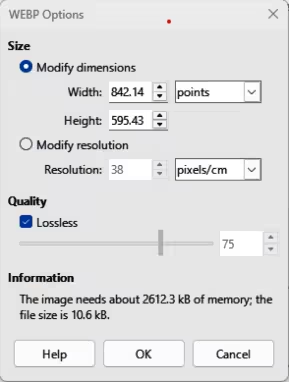
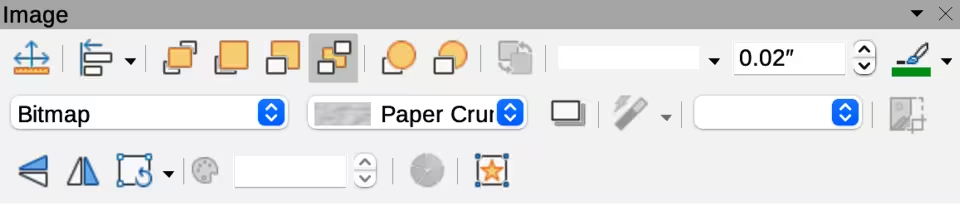
Figure 6: Image toolbar
Formatting images
Images (raster graphics) are edited and formatted to add or change filters and adjust the properties of color, lines, areas, and shadows using one of the following methods:
-
Go to Format > Image on the Menu bar and use the tools in the sub-menu that opens.
-
Use the tools on the Image toolbar (Figure 6).
-
Use the tools available in the Image panel on the Properties deck of the Sidebar.
-
Some raster graphics may have a text element. For more information on formatting text, see Chapter 9, Adding and Formatting Text.
-
Note
Formatting changes to a graphic using LibreOffice tools only appear in the drawing where the graphic was modified. Original graphic file is not affected. Raster graphics included in a group behave like other objects when the properties of the group are edited and formatted.
Naming images
Draw names objects using the insertion order into a drawing, for example Shape 1, Shape 2, and so on. It is recommended to rename objects using a unique name. Names make objects and images easily identifiable in the Navigator.
-
Select an image, then use one of the following methods to open the Name dialog and create a unique name for the selected image:
-
Go to Format > Name on the Menu bar.
-
Right-click on the image and select Name from the context menu.
-
Enter a name in the Name text box in the Name dialog that opens and click OK.
Image toolbar
The Image toolbar (Figure 6) appears when an image or raster graphic object is selected. For more information on the Image toolbar and the available tools, see Appendix B, Toolbars. The tools listed below for the Image toolbar are an example only.
Position and Size (F4)
Align Objects
Bring to Front
Bring Forward
Send Backward
Send to Back
In Front of Object
Behind Object
Reverse
Line Style
Line Width
Line Color
Area Style/Filling
Shadow
Filter
Image Mode
Default
Image is displayed unaltered in color.
Grayscale
Image is displayed in 256 shades of gray.
Black/White
Image is displayed in black and white.
Figure 7: Image panel in Properties deck on Sidebar
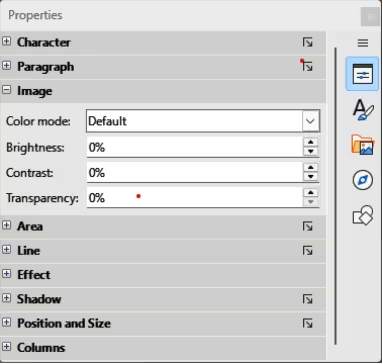
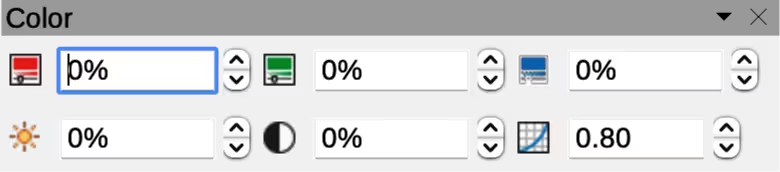
Figure 8: Color sub-toolbar
Watermark
Color, brightness, contrast, and gamma settings are reduced so that the image can be used as a watermark (background). The default settings for Watermark can be adjusted using the Color sub-toolbar (Figure 8).
Crop Image
Vertically
Horizontally
Transformations
Transparency
Color
Red, Green, Blue
Select values between –100% (no color) to +100% (full intensity); 0% represents the original color value of the image.
Brightness
Select a value between –100% (totally black) and +100% (totally white).
Contrast
Select a value between –100% (minimum) and +100% (maximum).
Gamma
Affects the brightness of the middle color tones. Select a value between 0.10 (minimum) to 10 (maximum) Try adjusting this value if changing brightness or contrast does not give the required result.
Cropping images
Cropping is a method of hiding unwanted areas of an image or changing the size of an image in a drawing. Changes made when cropping an image only change the display of the image in a drawing and not the original image file.
Quick cropping
After selecting an image, it can be cropped quickly using one of the following methods:
-
Click on Crop Image on the Standard or Image toolbar.
-
Go to Format > Image > Crop on the Menu bar.
-
Right-click on the image and select Crop from the context menu.
Selection handles appear around the selected image, as shown in the example in Figure 9. The image is cropped as follows:
-
Top, bottom, left, and right selection handles crop the image in one direction only.
-
Corner selection handles crop the image vertically and horizontally in two directions.
-
To maintain the ratio between vertical and horizontal dimensions, hold down the Shift key while moving a selection handle.
Crop dialog
For more control and accuracy over the cropping functions, it is recommended to use the Crop dialog (Figure 10). Select an image and go to Format > Image > Crop Dialog on the Menu bar to open the Crop dialog.
Figure 9: Example image in crop mode
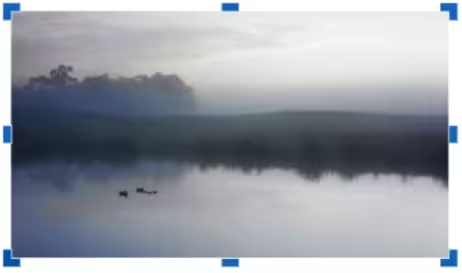
Figure 10: Crop dialog
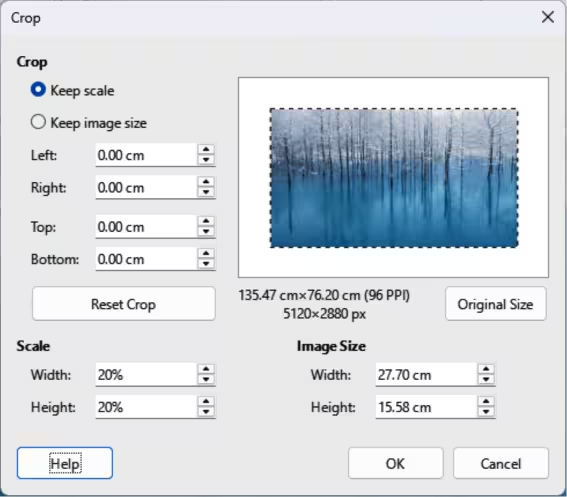
Crop
Keep scale
Maintains the original scale of the image when cropping so that only the size of the image changes.
Keep image size
Maintains the image original size when cropping so that only the image scale changes. To reduce the image scale, select this option and enter negative values in the cropping boxes. To increase the image scale, enter positive values in the cropping boxes.
Left and Right
If Keep scale is selected, enter positive amount to trim the left or right edge of images, or negative amount to add white space to the left or right of images. If Keep image size is selected, enter a positive amount to increase image horizontal scale, or a negative amount to decrease image horizontal scale.
Top and Bottom
If Keep scale is selected, enter a positive amount to trim the image top or bottom, or a negative amount to add white space above or below the image. If Keep image size is selected, enter a positive amount to increase the image vertical scale, or a negative amount to decrease the image vertical scale.
Scale
Width
Enter a percentage value to change the image width.
Height
Enter a percentage value to change the image height.
Image Size
Width
Enter a value for the image width.
Height
Enter a value for the image height.
Original Size
-
Note
In the Crop dialog, the Width and Height are treated as independent values. Changing one without the other can result in significant distortion of the image and this may not be what is required.
Exporting cropped images
If a cropped image is to be used in another drawing, use one of the following methods after selecting the cropped image.
Using Export dialog
-
Select the cropped image.
-
Go to File > Export on the Menu bar to open the Export dialog.
-
Navigate to the destination folder, then enter a filename.
-
Click on Selection, then click on Export. See “Exporting images” above for more information.
Using Save
-
Select the cropped image.
-
Go to Format > Image > Save on the Menu bar or right click on the cropped image and select Save from the context menu.
-
Click on Yes to save the modified image and open an Image Export dialog.
-
Select the file format required, navigate to the destination folder, and enter a filename.
-
Click on Save to save the cropped image.
Compressing images
If a large image is inserted into a drawing and resized to fit into the layout of the drawing, the complete full-size original image is stored in the drawing file. This preserves the original image, possibly resulting in a large file to store or send by mail.
If some loss of image quality can be accepted, the image can be compressed using the following procedure. This reduces the data volume while preserving the display in the page layout.
-
Open the Compress Image dialog (Figure 11) using one of the following methods:
-
Right-click on the image and select Compress from the context menu.
-
Go to Format > Image > Compress on the Menu bar.
-
Select the type of compression and the resolution required.
-
Click on Calculate New Size to update the image information when the Compression and Resolution settings are changed.
Figure 11: Compress Image dialog
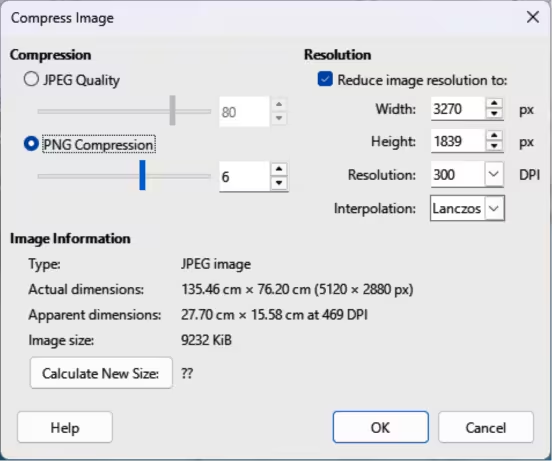
-
When satisfied with the new settings, click OK to apply the settings.
-
If the resulting image is not acceptable, use one of the following methods to undo the changes and select another compression setting.
Image filters
Draw has eleven filter effects that can be applied to selected images and these image filters can be combined. Filters always apply to the entire image and it is not possible to use filters on only part of the image.
-
Notes
If an image is embedded into a drawing, any image filters are only applied directly to the embedded image and the original image file is not changed. Save the drawing to retain any filter effects applied to the embedded image in a drawing.
After a drawing is saved and closed, the effects of image filters become permanent. If image filter effects are not satisfactory, use Edit > Undo on the Menu bar to cancel the filter effects BEFORE saving the drawing.
When applying image filters to an image, the file size of the image must be taken into account. On large file sizes, there is a time lag between applying an image filter and the effect to become visible on the image.
Applying image filters
-
Select an image to open the Image toolbar.
-
Apply an image filter using one of the following methods:
-
Click on Filter to open the Image Filter sub-toolbar (Figure 12), then select an image filter to apply.
-
Go to Format > Image > Filter on the Menu bar and select an image filter from the context menu.
Figure 12: Image Filter sub-toolbar

Figure 13: No filter applied
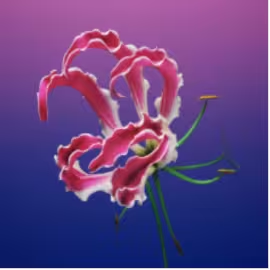
Figure 14: Invert filter applied
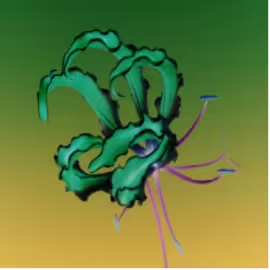
Figure 15: Smooth filter applied
Figure 16: Smooth dialog
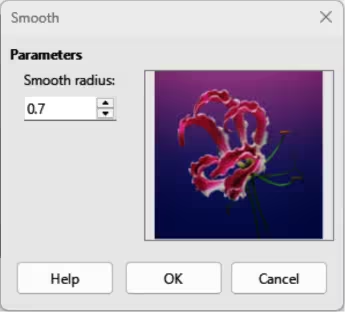
Image filters
Figure 17: Sharpen filter applied
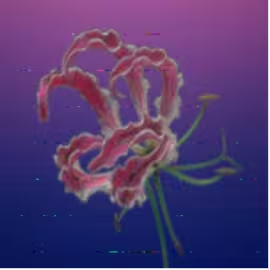
Figure 18: Remove noise filter applied
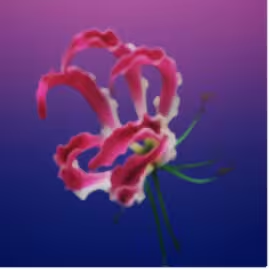
Figure 19: Solarization filter applied
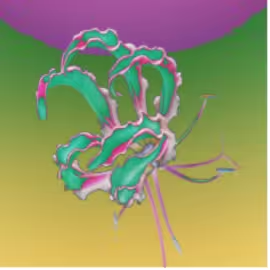
Figure 20: Solarization dialog
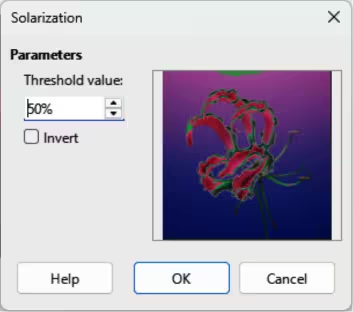
Figure 21: Aging filter applied
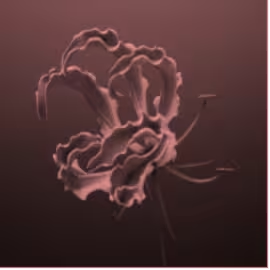
Figure 22: Aging dialog
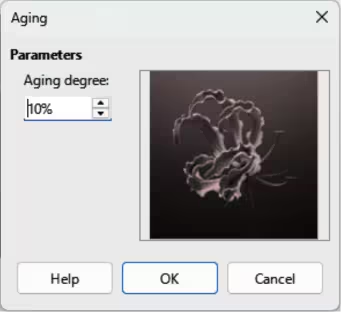
Figure 23: Posterize filter applied
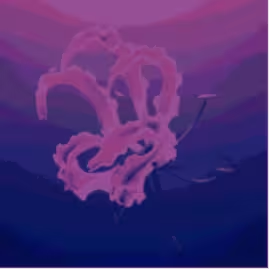
Figure 24: Posterize dialog
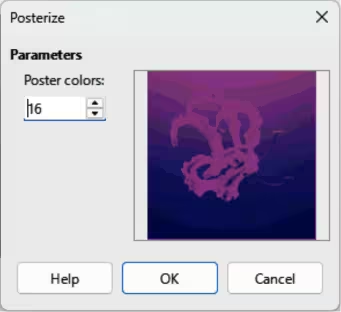
Figure 25: Pop art filter applied
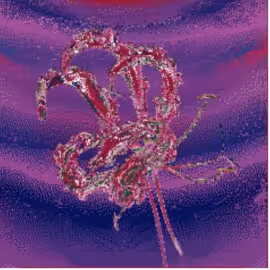
Figure 26: Charcoal sketch filter applied
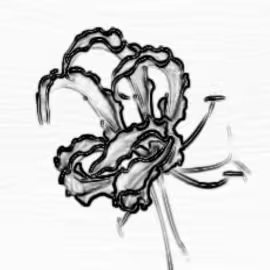
Figure 27: Relief filter applied
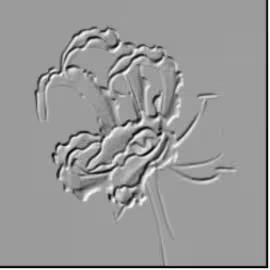
Figure 28: Emboss dialog
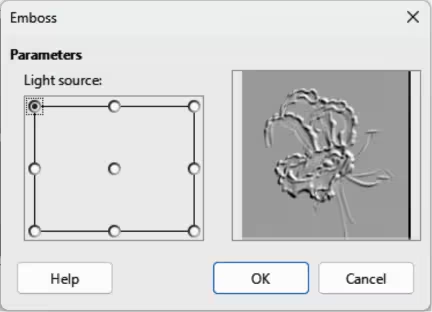
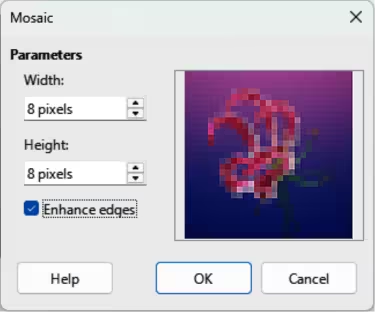
Figure 29: Mosaic filter applied
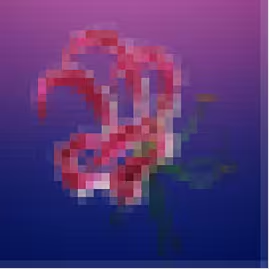
Figure 30: Mosaic dialog
Replacing colors
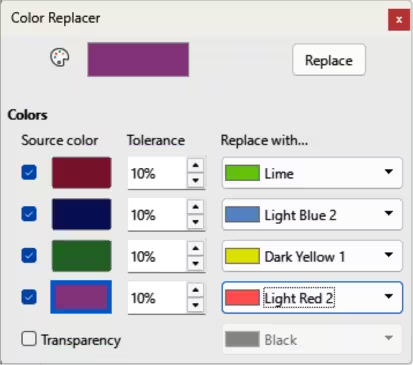
The Color Replacer is used to replace or change a color of an embedded image for another color, or to make a color transparent. Up to four colors can be replaced or changed at the same time. Areas of an image cannot be selected for editing as the Color Replacer only works on the whole of an image.
Selecting replacement colors can only be from the available color palettes in LibreOffice. Custom colors cannot be defined in the Color Replacer, but custom colors can be created before using the Color Replacer. For more information on creating custom colors, see Chapter 11, Advanced Draw Techniques.
-
Note
The Color Replacer can only be used on embedded images. If the Color Replacer is used on a linked image, the following error message appears “This image is linked to a document. Do you want to unlink the image in order to edit it?”. Click on Yes to unlink and embed the graphic.
Color Replacer dialog
Pipette
Replace
Colors
Source color
Select this checkbox to replace the current Source color with the color that specified in the Replace with box.
Tolerance
Set the tolerance for replacing a source color in a source image. To replace colors that are similar to the color selected, enter a low value. To replace a wider range of colors, enter a higher value.
Replace with
Lists the available color palettes and replacement colors.
Transparency
Replacing colors
-
Note
Using the Color Replacer replaces all occurrences of a Source color that are in the selected image. Default selection of Transparent in the Replace with boxes removes selected color from an image creating transparent areas in a selected image.
-
Select an embedded image.
-
Go to Tools > Color Replacer on the Menu bar to open the Color Replacer dialog (Figure 31).
-
Click on Pipette at the top of the Color Replacer dialog to activate the color selection mode.
-
Move the cursor over the color to be replaced in the selected image.
-
Click on the color and following happens. A maximum of four colors can be selected in an image.
-
A preview of a selected color appears in the box next to Pipette each time a color is clicked on.
-
Each selected color appears in a Source color preview box with a check mark.
-
Enter the amount of tolerance required for replacing each selected color in the Tolerance boxes. The default selection is 10% tolerance.
Figure 31: Color Replacer dialog
-
In Replace with and for each selected color, select a color palette from the drop-down list, then select the required color from the color palette. Transparent is the default selection.
-
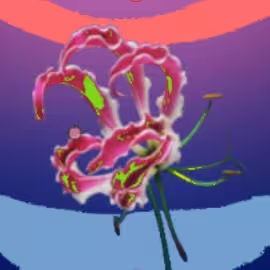
After selecting up to four colors for replacement, click Replace to replace the colors in the selected image. Examples of the original image and after color replacement are shown in Figure 32 Figure 33.
Figure 32: Before replacing colors
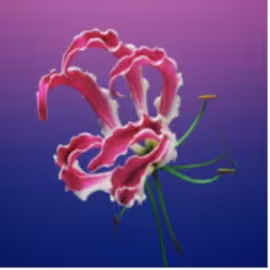
Figure 33: After replacing colors
-
There is no preview of the effect. If the result is not satisfactory, select Edit > Undo: Image with transparency Color Replacer in the Menu bar and repeat the color replacement.
Replacing transparent areas
-
Go to Tools > Color Replacer on the Menu bar to open the Color Replacer dialog.
-
Select an image with transparent areas.
-
Select Transparency in the Color Replacer dialog so that a check mark appears next to Transparency.
-
Select a color palette from the drop-down list next to Transparency, then select a color from the selected palette.
-
Click on Replace and the transparent areas are filled with the selected color.
-
There is no preview of the effect. If the result is not satisfactory, select Edit > Undo: Image with transparency Color Replacer in the Menu bar and repeat the transparency replacement.
Conversion
Contour conversion
Consider the following points before carrying out a contour conversion on an object:
-
Contour conversion converts a selected object to a polygon, or a group of polygons, with four corner points.
-
Converting an image to a contour, the converted image is set as a background graphic.
-
If the conversion creates a group of polygons (for example, contour conversion of a text object). Enter a polygon group before selecting an individual polygon within a group. For more information on working with groups, see Chapter 5, Combining Multiple Objects.
-
After converting an image to a contour, the object can no longer be edited normally. The converted image has to be edited using Edit > Points on the Menu bar to adjust its shape. For more information on editing points, see Chapter 3, Working with Objects.
-
Any object editing must be completed before carrying out a contour conversion because any further editing is not possible on the converted object.
-
No confirmation dialog is provided for a contour conversion.
A contour conversion is carried out as follows:
-
Carry out all necessary editing on the object before converting to a contour.
-
Make sure the object is selected.
-
Convert the object to a contour using one of the following methods:
-
Go to Shape > Convert > To Contour on the Menu bar.
-
Right-click on an object and select Convert > To Contour from context menu.
Polygon conversion
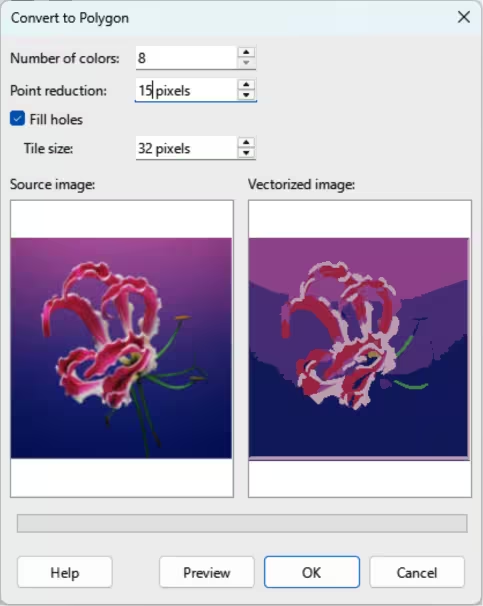
Polygon conversion is used to convert a selected image into a group of polygons filled with color. The image is also converted to a vector graphic and can be resized with no loss of image quality or distortion of any text. After conversion, the graphic can be broken into groups of polygons and then split into individual polygons. Breaking and splitting allows editing or deletion of individual colors within the graphic.
Conversion options and controls
Number of colors
Point reduction
Fill holes
Tile size
Source image
Vectorized image
Preview
OK
Converting
-
Select an image in a drawing.
-
Convert the image into a polygon using one of the following methods and open the Convert to Polygon dialog (Figure 34).
-
Go to Shape > Convert > To Polygon on the Menu bar.
-
Right-click on an image and select Convert > To Polygon from context menu.
-
Select Number of colors and Point reduction to be used in the conversion.
-
Select Fill holes to prevent any blank areas appearing in the converted image.
-
Enter the number of pixels to use for Tile size.
-
Click Preview to check how the converted graphic will look.
-
Make any necessary changes to the settings and check the preview again.
-
If the converted image meets the expected requirements, click OK to convert the image to a polygon and close the Convert to Polygon dialog.
Figure 34: Convert to Polygon dialog
Breaking
After converting an image to polygons, a vectorized image can be broken into groups of polygons. Each polygon group consists of one color and becomes an object that can be used in another drawing.
-
Convert an image to polygons.
-
Make sure the converted image is selected, then use one of the following methods to break the image into groups of polygons:
-
Go to Shape > Break on the Menu bar.
-
Right-click on the image and select Break from the context menu.
-
Click on a color in the image and drag the group of polygons filled with that color out of the image to create a new image.
-
Alternatively, press Delete and delete the color from the image.
Splitting
After converting an image to polygons and breaking the image into polygon groups, these polygon groups can be split into individual polygons.
-
Convert an image to polygons.
-
Break the image into groups of polygons.
-
Select the image, then use one of the following methods to split the polygon groups into individual polygons:
-
Go to Shape > Split on the Menu bar.
-
Right-click on the image and select Shapes > Split from the context menu.
-
Use the keyboard shortcut Ctrl+Alt+Shift+K (macOS ⌘+⌥+Shift+K).
-
Select an individual polygon (or several polygons) in the image and drag the polygon from the image to create a new image in the drawing.
-
Alternatively, press Delete to delete the selected polygon(s) from the image.
Bitmap conversion
All drawing objects placed into a LibreOffice drawing are vector graphics and these vector graphics can be converted to a bitmap (raster graphic) in PNG format. Any transparent areas in the original vector graphic are lost during conversion even though the PNG format used by Draw supports transparencies. Use one of the following methods to convert a vector graphic to a bitmap. There is no confirmation dialog is for a bitmap conversion.
-
Go to Shape > Convert > To Bitmap on the Menu bar.
-
Right-click on the graphic and select Convert > To Bitmap from the context menu.