Copyright
Document copyright © for 2026 is held by the LibreOffice Documentation Team. Contributors are listed below. All trademarks in this guide belong to their legitimate owners. This document maybe distributed and/or modified under the terms of the GNU General Public License (https://www.gnu.org/licenses/gpl.html), version 3 or later, or the Creative Commons Attribution License (https://creativecommons.org/licenses/by/4.0/), version 4.0 or later.
Contributors
Contributors for this edition:
Peter Schofield
Contributors for previous editions:
Claire Wood, Elzett Kotze, Jean Hollis Weber, John A Smith, John Cleland, Martin Fox, Peter Schofield, Regina Henschel.
Feedback
Please direct any comments or suggestions about this document to the Documentation Team Forum at https://community.documentfoundation.org/c/documentation/loguides/ (registration is required) or send email to: loguides@community.documentfoundation.org.
-
Note
Everything sent to a mailing list, including email addresses, is publicly archived and cannot be deleted.
Publication date and software version
Published April 2026. Based on LibreOffice 26.2.
Other versions of LibreOffice may differ in appearance and functionality.
Introduction
LibreOffice Draw does not have the same functionality available as in other drawing or image editing programs, but can produce and edit 3D drawings. Using Draw, 3D scenes and extruded 3D shapes are created and edited. Depending 3D type selected, there are possibilities for further editing of objects (rotation, illumination, perspective, and so on).
-
Extruded 3D shapes are simpler to create and edit.
-
3D scenes allow for greater customization.
3D object types
3D scenes
3D scenes are created from objects using dimensions for the x, y, and z coordinates and contain object types, such as cube, sphere, extrusion object or rotation object. These object types do not exist outside a 3D scene.
The Status Bar displays 3D scene selected (Figure 1) when it is selected and has been created from a 2D object using body rotation or conversion. Alternatively, it is a ready-made 3D object that has been inserted into a drawing.
A 3D scene is similar to a group. Just like a group, a 3D scene is entered for editing individual objects within a 3D scene and exited after editing is completed. See Chapter 5, Combining Multiple Objects for more information on entering, editing and exiting groups.
When a 3D scene is created from a selection of several 2D objects, a group is automatically created as a single 3D scene. Enter this 3D scene so that individual objects within the 3D scene can be changed, edited and rotated.
-
Notes
Individual objects cannot be ungrouped when a 3D scene has been created from a selection of 2D objects.
Toggle Extrusion is only used when a 2D shape, or a 3D object that has been extruded from a 2D shape, or an object from the Fontwork Gallery is selected in a drawing. Toggle Extrusion cannot be used for text, lines, arrows, curves, and polygons.
Figure 1: Status Bar — information with 3D scene selected

Figure 2: Status Bar — information with 3D shape selected

3D shapes
2D shapes are flat with only width and height dimensions, but 3D shapes are solid objects that have a depth, width, and height. A 3D shape is created when a 2D shape or an object from the Fontwork Gallery is converted to 3D using Toggle Extrusion. The Status Bar displays Shape selected when this type of 3D object is selected (Figure 2). 3D shapes are viewed and edited in 3D or 2D mode. To edit in 2D mode, switch off extrusion, make the editing changes, then switch back to 3D mode using Toggle Extrusion.
Creating 3D objects
-
Notes
Before creating 3D objects in a drawing, it is recommended that the extra 3D tools (To 3D; To 3D Rotation Object; Toggle Extrusion) are added to the Drawing toolbar using Visible Buttons or the Customize dialog. For more information on using Visible Buttons and the Customize dialog, see Appendix B, Toolbars and the Getting Started Guide.
After installing the 3D tools onto the Drawing toolbar, the tools only become available for use when a 2D object is selected in a drawing.
Ready made 3D objects can be repositioned, resized, and edited in the same way as 2D objects. See Chapter 3, Working with Objects for more information.
3D ready made objects
3D ready made objects are 3D scenes inserted into a drawing using one of the following methods. The selection and drawing of 3D objects is the same for all methods of inserting a 3D ready made object.
-
Click on the triangle ▼ to the right of 3D Objects on the Drawing toolbar (Figure 3) and select a 3D object from the sub-toolbar that opens.
-
Go to View > Toolbars > 3D-Objects on the Menu bar to open the 3D-Objects toolbar (Figure 4). This toolbar has the same options available as the 3D Objects sub-toolbar on the Drawing toolbar.
-
Go to Shapes > Insert > 3D Objects on the Menu bar and select a 3D object from the submenu.
-
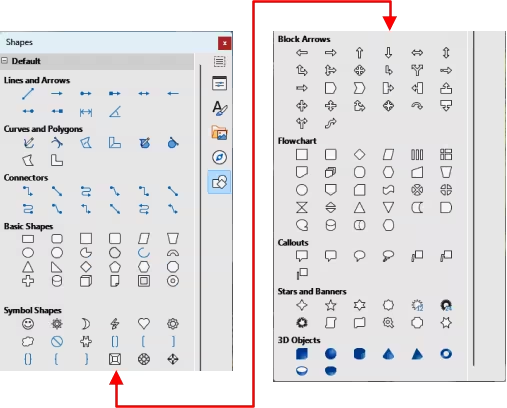
Go to the 3D Objects panel in the Shapes deck on the Sidebar (Figure 5) and select a 3D object.
Figure 3: Drawing toolbar

Figure 4: 3D-Objects toolbar
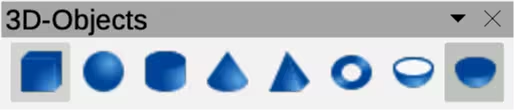
Figure 5: Shapes deck on Sidebar
Converting 2D objects
Conversion tools for converting a 2D object into a 3D object are available as follows:
-
On the Drawing toolbar.
-
On the Transformations toolbar.
-
Right-clicking on the object and selecting from the context menu.
-
Go to Shape on the main Menu bar and select Transformations or Convert from the context menu.
-
Using the 3D Effects dialog.
To convert a 2D object into a 3D object use one of the following tools.
To 3D
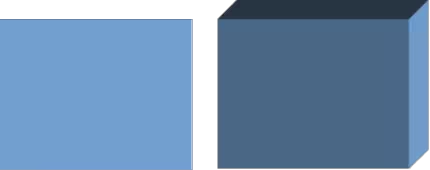
Figure 6: Example of using To 3D conversion

To 3D Rotation Object
Figure 7: Example of using To 3D Rotation Object conversion
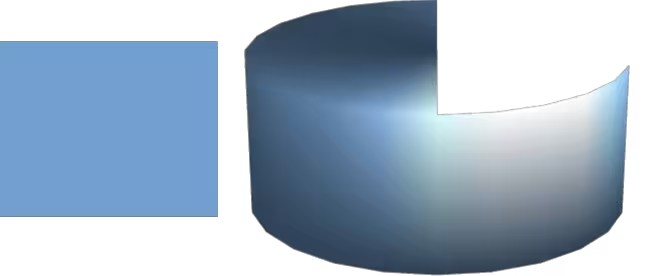
In 3D Rotation Object
Figure 8: Example of using In 3D Rotation Object conversion
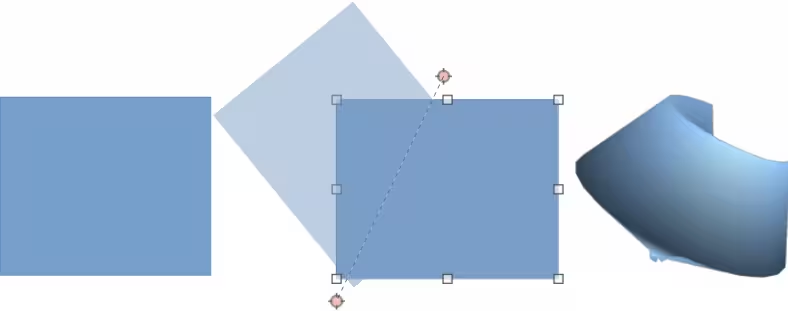
Toggle Extrusion
Figure 9: Example of using Toggle Extrusion
Convert To Rotation Object
Extrusion
Extrusion converts a 2D object into a 3D scene by extruding a 2D object toward the observer. The scene is rotated by 20 degrees around the horizontal axis to make the 3D effect more visible. After selecting a 2D object, convert it to a 3D scene using one of the following methods:
-
Right-click on the 2D object and select Convert > To 3D from the context menu.
-
Click on To 3D in the Drawing toolbar.
-
Go to Shape > Convert > To 3D on the Menu bar.
-
Click on Convert to 3D in the 3D Effects dialog. For more information, see “3D effects” below.
Rotation
To 3D Rotation Object or Convert to Rotation Object converts a 2D object into a 3D scene by rotating the object using the left edge of the bounding box around the object as the axis of rotation. Examples of 3D conversion using either of these rotation tools are shown in Figure 7. The actual 3D scene created depends on the angle and shape of the object being rotated. After selecting a 2D object in a drawing, convert it to a 3D scene using rotation using one of the following methods:
-
Right-click on a 2D object and select Convert > To 3D Rotation Object from the context menu.
-
Click on To 3D Rotation Object in the Drawing toolbar. By default, To 3D Rotation Object is not installed on the Drawing toolbar, but is available for installation in Visible Buttons for the Drawing toolbar.
-
Go to Shape > Convert > To 3D Rotation Object on the Menu bar.
-
Click on Convert To Rotation Object in the 3D Effects dialog. For more information, see “3D effects” below.
-
Go to Shape > Convert > In 3D Rotation Object on the Menu bar.
Toggle extrusion
Extrusion is where parallel surfaces are moved to create a 3D shape. In Draw, the 2D surface is moved forwards out of the drawing level. At the same time the object is slightly tilted and central projection turned on, creating the impression of a 3D shape. Draw uses a default value for this extrusion (body depth) based on the size of the 2D object. The value can be changed after the extrusion, see “Editing 3D objects” below.
Extrusion conversion is carried out using Toggle Extrusion. Extrusion only works on Basic Shapes, Symbol Shapes, Block Arrows, Flowcharts, Callouts, Stars and Banners, and Fontwork. These are included as a part of the default set of tools on the Drawing toolbar, or in the Shapes deck on the Sidebar.
-
Select a 2D object in a drawing created from Basic Shapes, Symbol Shapes, Block Arrows, Flowcharts, Callouts, Stars and Banners, or Fontwork.
-
Click on Toggle Extrusion on the Drawing toolbar to convert the 2D object into a 3D shape.
-
To convert a 3D conversion back into a 2D object, select the 3D object and click on Toggle Extrusion on the Drawing toolbar.
-
Note
Extrusion cannot be used on text objects created using Insert Text Box or Insert Vertical Text.
Editing 3D objects
-
Note
Where 3D scenes are created from more than one 2D object, a 3D scene group is automatically created. This 3D scene group cannot be ungrouped and any editing carried out affects all 3D objects within the group. To edit an individual 3D object within this 3D scene group, enter the group. For more information on working with groups, see Chapter 5, Combining Multiple Objects.
Position, Size and Rotation
Editing the position, size and rotation of 3D objects is similar to 2D objects. See Chapter 3, Working with Objects for more information.
3D settings
Go to View > Toolbars > 3D‑Settings on the Menu bar to open the 3D‑Settings toolbar (Figure 10). The 3D‑Settings toolbar activates when a 3D shape is selected created from a 2D object using “Toggle extrusion” above.
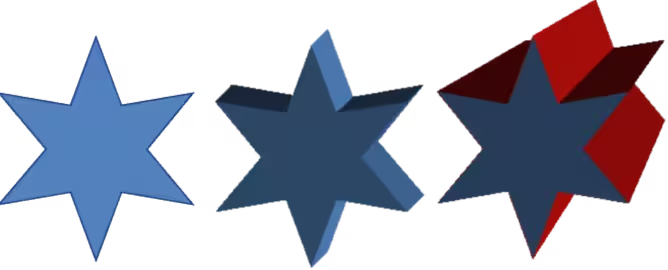
Any changes made using the editing tools on the 3D‑Settings toolbar are applied to the selected 3D shape immediately displaying the 3D effect. Figure 11 shows an example of tilting left, increasing extrusion depth, and changing 3D color using the 3D‑Settings toolbar.
Figure 10: 3D-Settings toolbar

Figure 11: Example of changing 3D settings
The tools available for editing 3D shapes are as follows.
Tilt Down
Tilt Up
Tilt Left
Tilt Right
Depth
Direction
Lighting
Surface
3D Color
3D effects
The 3D Effects dialog provides options for editing 3D ready made objects, or 3D scenes. This dialog is also used to convert a 2D object to 3D using the tools in the bottom left corner of the dialog. Open the 3D Effects dialog using one of the following methods:
-
Click on 3D Effects on the Standard or Line and Filling toolbar, if this has been added to the tollobar.
-
Go to Format > 3D-Effects on the Menu bar.
Any 3D effects applied to a 3D scene are not carried out until Assign is selected in the top right of the 3D Effects dialog. This allows for all 3D effect changes to be carried out before application to a 3D scene.
-
Notes
The 3D Effects dialog cannot be used on 3D shapes created using Toggle Extrusion because the correct formatting results will not be achieved. If the 3D Effects dialog is used in error, remove any incorrect formatting by going to Format > Default Formatting on the Menu bar.
Any options grayed out in the pages in the 3D Effects dialog cannot be used for a selected object.
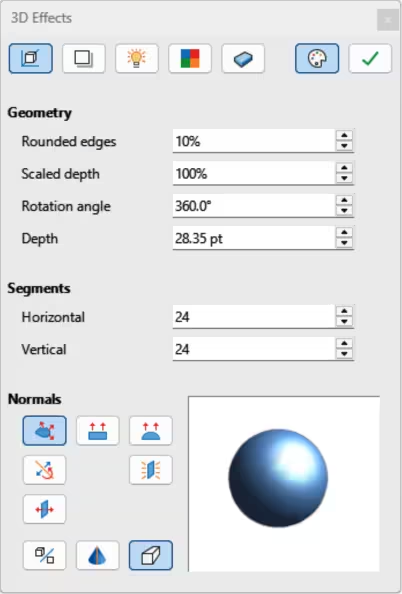
Figure 12: 3D Effects dialog — Geometry page
3D conversion
In the bottom left corner of the 3D Effects dialog (Figure 12) are tools for converting a 2D object into a 3D scene and changing the projection used in a 3D scene.
Convert to 3D
Convert to Rotation Object
Perspective On/Off
-
Note
The 3D Effects dialog has five pages to provide options for Geometry, Shading, Illumination, Textures, and Material. The tools to change pages for the different types of 3D effects are located at the top of the 3D Effects dialog.
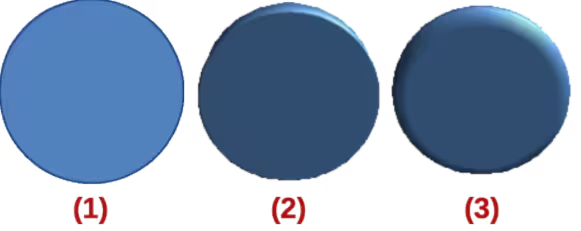
Figure 13: Example of rounded edges
|
|
|
Figure 14: Example of scaled depth
|
|
|
|
3D Effects — Geometry
Clicking on Geometry in the 3D Effects dialog (Figure 12) opens the options available on the Geometry page to change the geometry of a 3D object.
Geometry
Rounded edges
Enter the amount required to round the corners of a 3D shape as shown by the example in Figure 13. The default setting for Rounded edges is 10%.
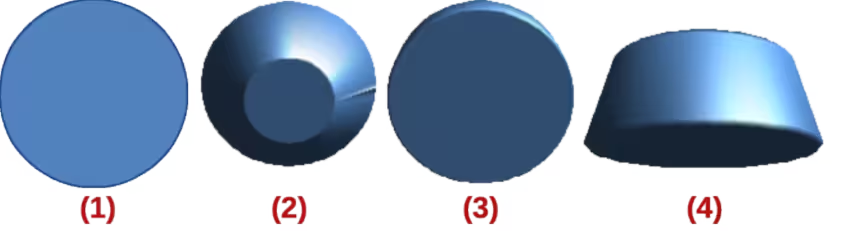
Scaled depth
Enter the amount required to increase or decrease the frontal area of a selected 3D object. Figure 14 shows an example where the Scaled depth has been decreased to 50%, then increased to 150%. The default setting for Scaled depth is 100%.
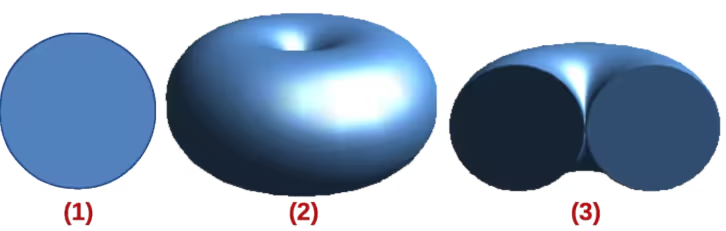
Rotation angle
Enter the angle in degrees to rotate a 2D object that has been converted to 3D using To 3D Rotation Object. Figure 15 shows an example of a 2D circle where the Rotation angle is changed to 180 degrees.
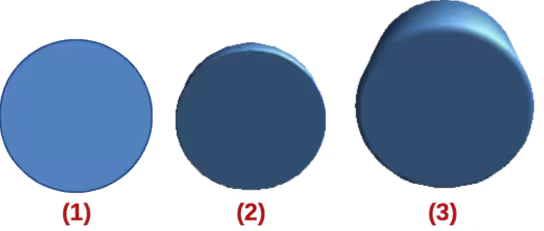
Depth
Enter the extrusion depth for the selected 2D object after it has been converted to 3D. Figure 16 shows an example of the original object converted to 3D using the tool To 3D, then increasing Depth to 3cm.
Figure 15: Example of rotation angle
|
|
|
Figure 16: Example of increasing depth
|
|
|
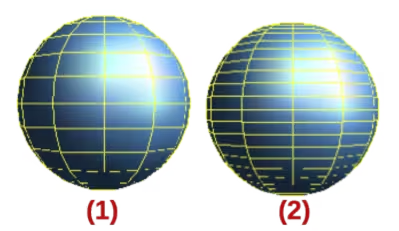
Figure 17: Example of using segments
|
|
Segments
Horizontal
Enter the number of horizontal segments used in the selected 3D object.
Vertical
Enter the number of vertical segments used in the selected 3D object.
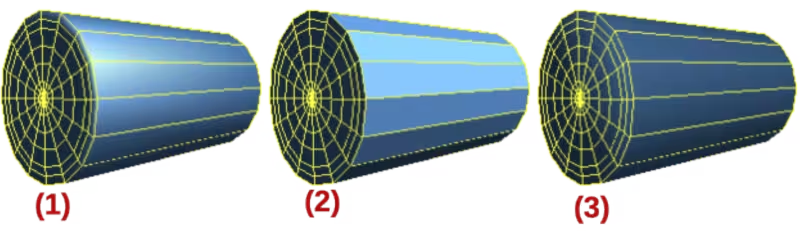
Figure 18: Examples of object specific, flat, and spherical effects
|
|
|
Figure 19: Examples of invert normals and double sided illumination

|
|
Normals
Object-Specific
Renders the 3D surface according to the shape of the object (Figure 18).
Flat
Renders the 3D surface as polygons (Figure 18).
Spherical
Renders a smooth 3D surface regardless of the shape of the object (Figure 18).
Invert Normals
Inverted normal is a normal that is pointing in the wrong direction (Figure 19). This tells a computer that an outside face is actually an inside face when it is not. If there is a hollow design, an inverted normal can be indicated because both surfaces facing are in and out in the same model.
Double-Sided Illumination
Lights the outside and the inside of the object (Figure 19). This has only an effect, if the inside is drawn at all, see Double-Sided. This is a setting for the whole of the 3D scene and not for a single object within the scene.
Double-Sided
3D object has outside (front) and inside (back) faces (Figure 19). With Double-Sided switched off, only the outside face of an object is rendered. The effect, looking from outside, is a solid object, but, when looking from inside, the front face is transparent. If there is no view to the inside face, normal for an extruded 3D object with solid texture, Double-Sided should be switched off to improve performance during rendering. Any 3D object created using rotation often allows an inside view and it is recommended that Double-Sided is switched on.
Figure 20: 3D Effects dialog — Shading page
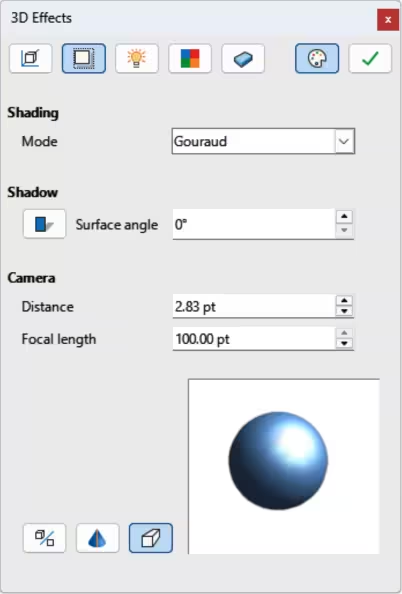
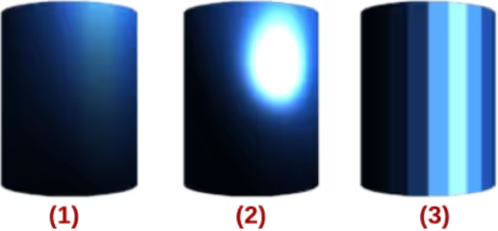
Figure 21: Examples of shading mode
|
|
|
3D Effects — Shading
The Shading page of the 3D Effects dialog (Figure 20) provides options to set the shading, shadow, and camera effects on a selected 3D object.
Shading
Gouraud
Gouraud shading mode is used to simulate the differing effects of light and color across the surface of an object. It achieves smooth lighting on low-polygon surfaces without the heavy computational requirements of calculating lighting for each pixel.
Phong
Phong shading mode is an interpolation technique for surface shading calculating the normal of a point in a polygon by interpolating the vertices normals. The angle between normal and lighting direction determines how much of the lighting is used to color the pixel.
Flat
Flat shading mode refers to depth perception in 3D models or illustrations by varying the darkness level. It assigns a single color of shading to a single segment on the surface of the object.
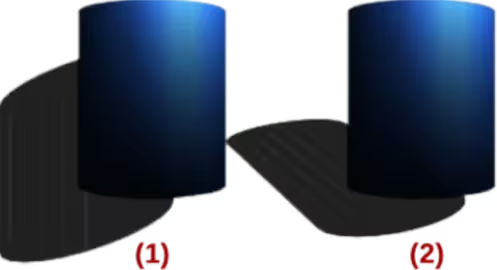
Shadow
Figure 22: Examples of shadow surface angle
|
|
Figure 23: Example of using camera angles
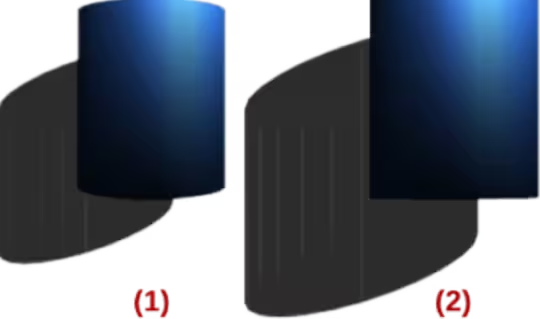
|
|
Camera
Distance
Enter the distance to leave between the camera and the center of the selected 3D scene. The default setting for distance is 2.6cm.
Focal length
Enter the focal length of the camera lens. A small value corresponds to a fisheye lens and a large value to a telephoto lens. The default setting for focal length is 10cm.
3D Effects — Illumination
The Illumination page of the 3D Effects dialog (Figure 24) defines how a 3D scene is illuminated and illumination settings apply to all 3D objects in a scene. Light source direction, color, and ambient light are specified for a 3D scene. By default, one light source is already selected when the Illumination page opens. A maximum of eight sources can be used and each light source can use a different color.
Light source location and color are shown in the lower right corner of the Illumination page. The vertical slider bar adjusts the lighting angle and the horizontal slider bar rotates the light about the object. Alternatively, click on the light point and drag the light source to the required position.
Figure 24: 3D Effects dialog — Illumination page
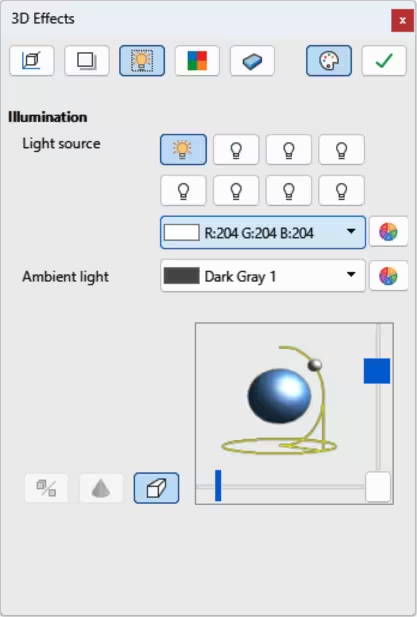
To change the preview from a sphere to a cube, click on the small square to the right of the horizontal slider bar and below the vertical slider bar. Each light source selected is shown as a small colored sphere in the specified color. The larger colored sphere indicates the active light source.
Selecting a light source and setting the illumination effects is as follows:
-
Select a Light source to turn the light source on. The icon changes to an illuminated bulb.
-
Click again on the selected light source to adjust the color for the light source.
-
Select a color for the light from one of the color palettes in the Light source drop-down list. A different color can be used for each light source selected.
-
Select a color from one of the color palettes in the Ambient light drop-down list to set the color of the surrounding light.
-
To deselect a light source, select a light source already selected and click on it again.
3D Effects — Textures
The Textures page of the 3D Effects dialog (Figure 25) shows the surface texture properties set for a selected 3D object. The settings in the Textures page are only available if the area fill of a 3D object is set to Gradient, Image, Pattern, or Hatch. For more information on changing area fill, see Chapter 4, Changing Object Attributes.
Figure 25: 3D Effects dialog — Textures page
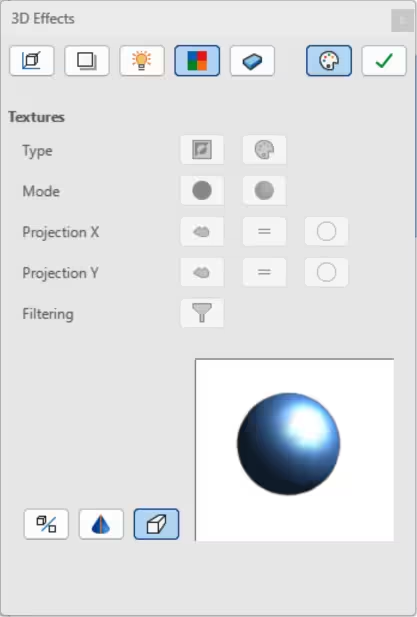
Type
Black & White
Converts the texture to black and white.
Color
Converts the texture to color.
Mode
Only Texture
Applies the texture without shading.
Texture and Shading
Applies the texture with shading to lighten or darken the illumination.
Projection X
Object-Specific
Automatically adjusts the texture for best fit based on the shape and size of the object. This is the default setting except for extrusion objects.
Parallel
Applies the texture parallel to the horizontal axis and is mirrored on the rear side of the object. This is the default setting for extrusion objects.
Circular
Wraps the horizontal axis of the texture pattern around an object.
Projection Y
Object-Specific
Automatically adjusts the texture for best fit based on the shape and size of the object. This is the default setting except for extrusion objects.
Parallel
Applies the texture parallel to the vertical axis and is mirrored on the rear side of the object. This is the default setting for extrusion objects.
Circular
Wraps the vertical axis of the texture pattern around an object.
Filtering
Filters out noise that can occur when a texture is applied to a 3D object.
Filtering On/Off
Applies a soft focus filter blurring the texture slightly to remove unwanted speckles.
3D Effects — Material
The settings on the Materials page of the 3D Effects dialog (Figure 26) change the 3D object appearance to represent different materials. Materials and Textures can be combined with each other to achieve the desired result.
Material
Favorites
Select a material type for the selected object from the Favorites drop-down list.
Object color
Select a color from one of the color palettes in the Object color drop‑down list to apply to the object.
Illumination color
Select a color from one of the color palettes in the Illumination color drop-down list. This illuminates the object and brightens parts of the object which lie in shadow making the object seem more illuminated.
Figure 26: 3D Effects dialog — Materials page
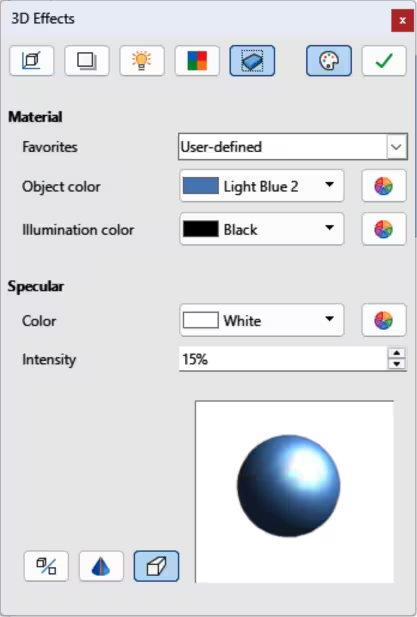
Specular
Color
Select a color to be reflected from the object from one of the color palettes in the Color drop-down list.
Intensity
Enter the intensity of the specular effect as a percentage.
Colors Dialog
-
Note
Metallic and glass surfaces do not simulate well because the appearance of these materials is produced using reflection.
-
Tip
Do not use a very high brightness value for individual colors. Colors are additive and it is easy to end up with a colored area that is white.
Combining objects
Multiple 3D objects cannot be combined using Shape > Combine on the Menu bar, or the keyboard shortcut Ctrl+Shift+K (macOS ⌘+Shift+K). Multiple 2D objects have to be created first, then a single 3D object created as follows (see Chapter 5, Combining Multiple Objects for more information on combining objects):
-
Create multiple 2D objects and carry out all necessary editing changes.
-
Make sure all 2D objects are selected to create a single 3D object.
-
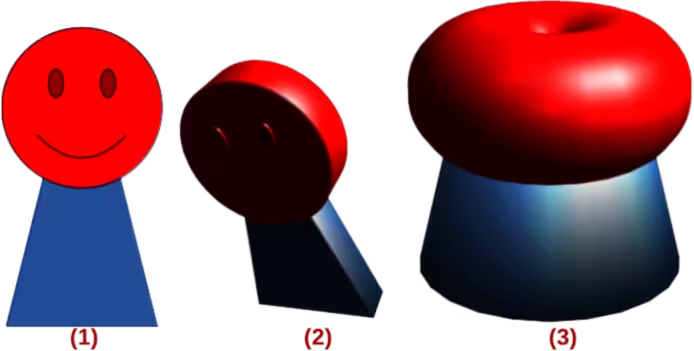
Create a single 3D object combining the selected 2D objects using one of the following methods (examples of creating 3D objects are shown in Figure 27):
-
Click on To 3D or To 3D Rotation Object on the Drawing toolbar.
-
Right-click on the selected multiple 2D objects and select Convert > To 3D or To 3D Rotation Object from the context menu.
-
Go to Shape > Convert > To 3D or To 3D Rotation Object on the Menu bar.
Figure 27: Example of creating 3D object from multiple 2D objects
|
|
|
Assembling 3D objects
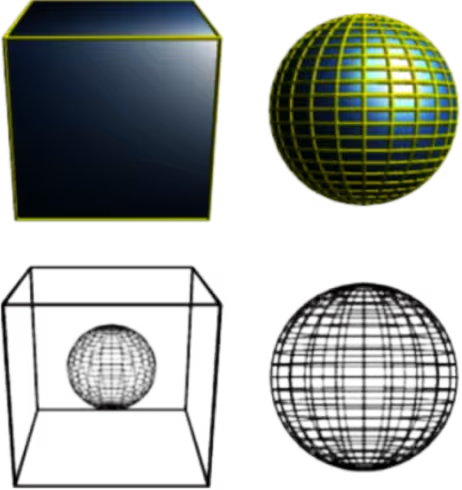
3D objects that each form a separate 3D scene can be combined or assembled into a single 3D scene. An example procedure for assembling 3D objects is as follows and shown in Figure 28:
-
Select a 3D object (for example, a cube) from 3D Objects on the Drawing toolbar, or Shapes deck on the Sidebar and place it in a drawing.
-
Select a second 3D object (for example, a sphere) from 3D Objects on the Drawing toolbar, or Shapes deck on the Sidebar and place it in the drawing.
-
If necessary, set the area fill to None and the lines to Continuous to create wire frame objects. This makes it easier to position both objects in the assembled 3D scene.
Figure 28: Example of assembling 3D objects
-
Select the second 3D object (sphere) and go to Edit > Cut on the Menu bar, or right-click on the object and select Cut from the context menu.
-
Double-click the first 3D object (cube) to enter the group, or go Shape > Group > Enter Group on the Menu bar.
-
Go to Edit > Paste on the Menu bar, or right-click on the first 3D object and select Paste from the context menu. The sphere appears inside the cube and is part of the group.
-
If required, edit the individual objects, or change their position within the group.
-
Double-click outside the 3D assembled scene to exit the group, or go to Shape > Group > Exit Group on the Menu bar.
-
Note
The second object also reappears in its original position when Paste is carried out. This object is NOT part of the assembled 3D scene and can be deleted if necessary.