Copyright
Document copyright © for 2026 is held by the LibreOffice Documentation Team. Contributors are listed below. All trademarks in this guide belong to their legitimate owners. This document maybe distributed and/or modified under the terms of the GNU General Public License (https://www.gnu.org/licenses/gpl.html), version 3 or later, or the Creative Commons Attribution License (https://creativecommons.org/licenses/by/4.0/), version 4.0 or later.
Contributors
Contributors for this edition:
Peter Schofield
Contributors for previous editions:
Claire Wood, Elzett Kotze, Jean Hollis Weber, John A Smith, John Cleland, Martin Fox, Peter Schofield, Regina Henschel.
Feedback
Please direct any comments or suggestions about this document to the Documentation Team Forum at https://community.documentfoundation.org/c/documentation/loguides/ (registration is required) or send email to: loguides@community.documentfoundation.org.
-
Note
Everything sent to a mailing list, including email addresses, is publicly archived and cannot be deleted.
Publication date and software version
Published April 2026. Based on LibreOffice 26.2.
Other versions of LibreOffice may differ in appearance and functionality.
Connectors and gluepoints
Connectors are lines or arrows where the ends of a line, or arrow, automatically lock to a connection or gluepoint on the border of an object. Connector lines between objects remain connected to objects, even when objects are moved or rearranged. Also, when an object with a connector attached is moved or resized, the connector automatically adjusts its shape to accommodate the changes. For example, create a flowchart, or an organization chart, using connectors instead of simple lines removes the need to redraw lines between objects when making changes to a chart.
When a connector is created or selected, the selection handles are different to the normal selection handles used on lines or objects. The termination handles of a connector are round at the start and end points of a connector, and square in the center of the lines of a connector, as shown by the example of a straight connector in Figure 1. The square selection handles on the selected connector are used to change the routing of a connector.
Connectors
Draw includes a selection of connectors for use in a flowchart or organization chart. The default set of connectors is accessed using one of the following methods:
-
Click the triangle ▼ to the right of Connectors on the Drawing toolbar to open a pop-up toolbar. The Connectors icon changes shape depending on the last connector used.
-
Select a connector from the options available in the Connectors panel in the Shapes deck on the Sidebar.
Connectors sub-toolbar
If required, the connectors can be displayed as a Connectors sub-toolbar as follows:
-
Click on the triangle ▼ on the right of Connectors on the Drawing toolbar to open a pop‑up toolbar.
-
Click on the line at the top of the pop-up toolbar and drag the sub-toolbar onto the Workspace.
-
Release the toolbar to create the Connectors sub-toolbar (Figure 2).
Figure 1: Example of connectors between objects
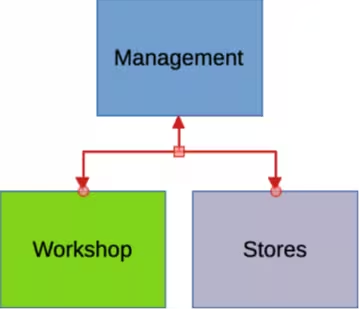
Figure 2: Connectors sub-toolbar

|
|
Connector types and groups
The full range of available connectors are accessed by clicking on the triangle ▼ on the right of the Connectors sub-toolbar and selecting Visible Buttons from the context menu. Depending on the computer system being used, connectors already installed on the Connectors sub-toolbar are indicated either by a check mark against the name, or the connector icon is highlighted.
Connectors are grouped into four main groups as follows:
Connector
Line
Straight
Curved
Connectors are installed on the Connectors sub-toolbar in the same order they appear in the Visible Buttons drop-down list.
Adding connectors to objects
-
Click on the triangle ▼ on the right of Connectors on the Drawing toolbar to open the options available for selecting connectors.
-
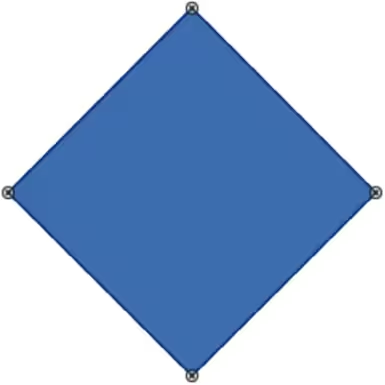
Select the type of connector required and move the cursor onto the first object. When the cursor is over an object, small crosses appear as gluepoints around the object edges replacing the object selection handles, as shown by the example in Figure 3.
-
Position the cursor over a gluepoint, then click and drag the cursor toward another object to start creating a connector. When the cursor reaches the target object, small crosses appear indicating the gluepoints around the object edges.
Figure 3: Example of object connector gluepoints
-
Move the cursor over the required gluepoint on the target object and release the connector to draw the connector. The round selection handles at each end of the connector are attached to the gluepoints on each object.
-
If necessary, use the square control handles that appear on the connector to adjust the connector route so that it does not cover any other object in the connector route. See “Modifying connectors” below for more information.
-
Notes
The start and end round selection handles of a connector cannot be swapped. To change the start and end points of a connector, the connector has to be deleted and a new connector drawn in the opposite direction.
The end point of a connector can also be positioned in an empty part of a drawing where it is locked into place. This end point can then be moved and attached to an object when required.
Modifying connectors
Connectors can be modified using one of the following methods:
-
To detach or reposition a connector, click and drag one of the round selection handles of a connector line to a different location.
-
To change the connector route between objects so that the connector does not overlap any objects on the route, click on one of the square selection handles on the connector line and drag it to a new position.
-
To modify a connector, right-click on the connector and select Connector from the context menu to open the Connector dialog (Figure 4). Use this dialog to change connector type and connector properties.
Figure 4: Connector dialog
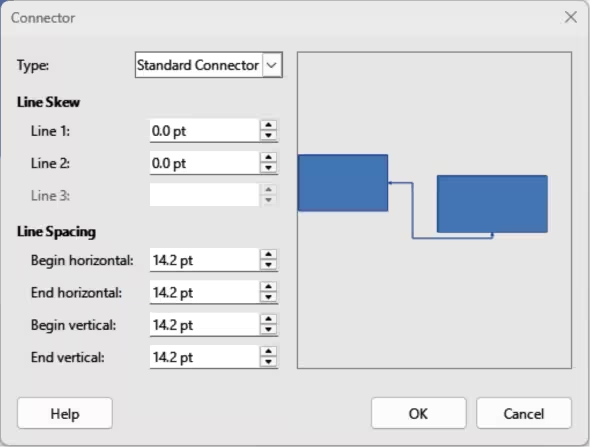
The options available in the Connector dialog are as follows:
Type
Line skew
Line spacing
Begin horizontal
Enter the amount of horizontal space required at the beginning of a connector.
End horizontal
Enter the amount of horizontal space required at the end of a connector.
Begin vertical
Enter the amount of vertical space required at the beginning of a connector.
End vertical
Enter the amount of vertical space required at the end of a connector
Preview box
Gluepoints
Gluepoints are not the same as object selection handles, but are for moving or changing the shape of an object (see Chapter 3, Working with Objects for more information). Gluepoints fix or glue connectors to objects for when an object moves, the connector stays fixed to an object.
Figure 5: Gluepoints toolbar

All objects have gluepoints, as shown by the example in Figure 3. Gluepoints are not normally displayed on an object and only become visible when a connector is selected using one of the following methods.
-
Select Connectors on the Drawing toolbar. The connector icon displayed on the Drawing toolbar is the previous connector type used.
-
Select a connector type in the Connectors panel in the Shapes deck on the Sidebar.
To add, customize or delete gluepoints, go to View > Toolbars > Gluepoints on the Menu bar to activate the Gluepoints toolbar (Figure 5). This toolbar only becomes visible after using one of the following methods:
-
Select Show Gluepoint Functions on the Drawing toolbar.
-
Select Edit > Gluepoints on the Menu bar.
-
Notes
Show Gluepoint Functions on the Drawing toolbar is not part of the default set of tools for the Drawing toolbar. To add Show Gluepoint Functions icon to the Drawing toolbar, right-click in an empty area on the Drawing toolbar and select Visible Buttons > Gluepoints from the context menu.
Each gluepoint added to an object can have only one horizontal position and one vertical position. Only one of the horizontal position tools and one of the vertical position tools can be selected and used at any one time.
Gluepoint types
When the Gluepoints toolbar opens, only the five tools on the left of Gluepoint Relative are active. The remaining six tools on the right of the toolbar only become active when Gluepoint Relative is deselected.
Insert Gluepoint
Exit Direction Left
Exit Direction Top
Exit Direction Right
Exit Direction Bottom
Gluepoint Relative
The following six tools only become active when Gluepoint Relative is deselected.
Gluepoint Horizontal Left
Gluepoint Horizontal Center
Gluepoint Horizontal Right
Gluepoint Vertical Top
Gluepoint Vertical Center
Gluepoint Vertical Bottom
Adding gluepoints
By default, objects have four gluepoints, as shown in the example in Figure 3. Additional gluepoints are added to an object as follows:
-
Go to View > Toolbars > Gluepoints on the Menu bar to activate the Gluepoints toolbar.
-
Make sure no objects are selected and use one of the following methods to open the Gluepoints toolbar:
-
Select Show Gluepoint Functions on the Drawing toolbar.
-
Select Edit > Gluepoints on the Menu bar.
-
Select the object, then click on Insert Gluepoint on the Gluepoints toolbar.
-
Move the cursor to the required position on the selected object and the cursor changes shape. Normally this is a cross, but the actual shape used depends on the computer setup.
-
Click once to add a gluepoint. To add more gluepoints, move the cursor to a new position and click.
-
When adding gluepoints is completed, move the cursor off the selected object and click in an empty space to deselect the object.
-
Alternatively, right-click on a gluepoint previously added to the object and select Insert Gluepoint from the context menu, then click and drag the new gluepoint to the required position.
-
Select the type of gluepoint required from the options available on the Gluepoints toolbar. See “Gluepoint types” above for more information.
-
Note
For objects with no fill, gluepoints are added to the border of an empty object.
-
Tip
When adding, moving or customizing gluepoints, it is recommended to use the zoom function making it easier to work with gluepoints. See Chapter 3, Working with Objects for more information. Also, gluepoints can snap to the grid making it easier to position a gluepoint.
Customizing gluepoint exit direction
Customize the exit direction for a gluepoint that is already added to an object as follows:
-
Go to View > Toolbars > Gluepoints on the Menu bar to activate and open the Gluepoints toolbar.
-
Double-click on a gluepoint that is already added to an object and select the gluepoint for customization.
-
Select the required exit direction for a connector attached to the gluepoint using one of the following methods:
-
Select the required exit direction on the Gluepoints toolbar.
-
Right-click on a gluepoint and select an exit direction from the context menu.
Customizing gluepoint positioning
-
Note
Only gluepoints that are added to an object can be customized. The default gluepoints (example shown in Figure 3) included with an object cannot be customized or deleted.
Customize the horizontal and vertical positioning for a gluepoint that is already added to an object as follow:
-
Go to View > Toolbars > Gluepoints on the Menu bar to activate and open the Gluepoints toolbar.
-
Double-click on a gluepoint that on an object to select the gluepoint for customization.
-
Click on Gluepoint Relative on the Gluepoints toolbar to deselect the tool, or right-click on the gluepoint and select Gluepoint Relative from the context menu to deselect the tool.
-
Select the horizontal and vertical positioning tools required for the gluepoint using one of the following methods. Only one horizontal positioning tool and one vertical positioning tool can be used at any one time:
-
Click and select the required horizontal or vertical positioning tool in the Gluepoints toolbar.
-
Right-click on the gluepoint and select the required horizontal and vertical positioning from the context menu.
Deleting gluepoints
-
Select a gluepoint for deletion that has previously been added to the object.
-
Press the Delete or Backspace key, or go to Edit > Cut on the Menu bar.
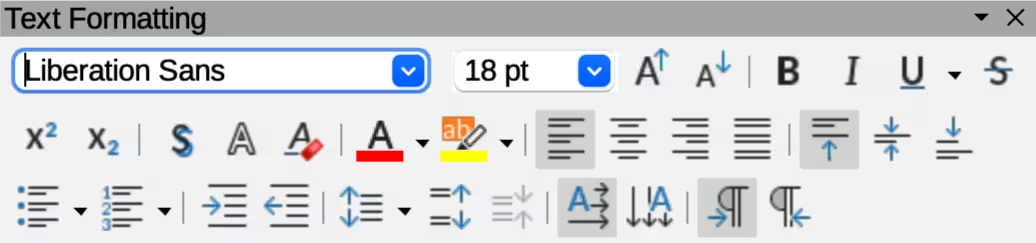
Figure 6: Text Formatting toolbar
Connector text
Text is easily added and formatted to connectors making a flowchart or organization chart easier to follow. See Chapter 9, Adding and Formatting Text for more information on working with text.
Adding text
-
Select a connector and the control points become active.
-
Enter text mode using one of the following methods. A flashing text cursor appears close to the connector and the Text Formatting toolbar (Figure 6) opens.
-
Click on Insert Text Box or Insert Vertical Text (if added) on the Drawing toolbar.
-
Use the keyboard shortcut F2 to create horizontal text on the selected connector.
-
Type the required text for the connector.
-
If necessary, format the connector text. See “Formatting text” below for more information on formatting and editing text text.
-
When adding and formatting text is complete, move the cursor away from the text and connector, then click to end text mode. This also closes the Text Formatting toolbar.
-
Note
With a default installation of LibreOffice, the Insert Text Box and Insert Vertical Text tools may not be installed on the Drawing toolbar. To add text tools to the Drawing toolbar, right‑click in an empty area in the Drawing toolbar and go to Visible Buttons, then select Text Box and/or Vertical Text from the context menu.
Formatting text
-
Select a connector with text added and activate the control points to enter text mode. See “Adding text” above for more information on adding text to a connector.
-
Use the tools available on the Text Formatting toolbar, or the options available in Format > Text on the Menu bar to format the text. By default, connector text is formatted with horizontal central alignment and vertical central positioning for the connector text paragraph.
-
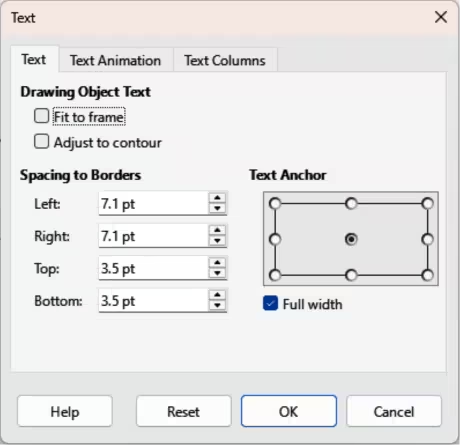
Right-click on the connector text and select Text Attributes from the context menu to open the Text dialog (Figure 7) and format the connector text using the options available in the dialog.
-
Click OK to save the changes to the text and close the Text dialog.
-
Move the cursor away from text and connector, then click to end the text mode. This also closes the Text Formatting toolbar.
Figure 7: Text dialog — Text page
-
Notes
The options available for text animation are not recommended for connector text unless the drawing is going to be displayed as part of a presentation. See the Impress Guide for more information on text animation.
The options available for text columns are not recommended for connector text. Text columns are normally used for text that is placed into a text box when adding information to a drawing, or into an object such as a rectangle or circle. For more information on text columns, see Chapter 9, Adding and Formatting Text.
The options available in the Text dialog are as follows:
Drawing Object Text
Fit to frame
Resizes the text to fit the entire area of a connector rectangle or frame.
Adjust to contour
Adapts the text flow so that it matches the contours of the selected connector.
Spacing to Borders
Text Anchor
Full width
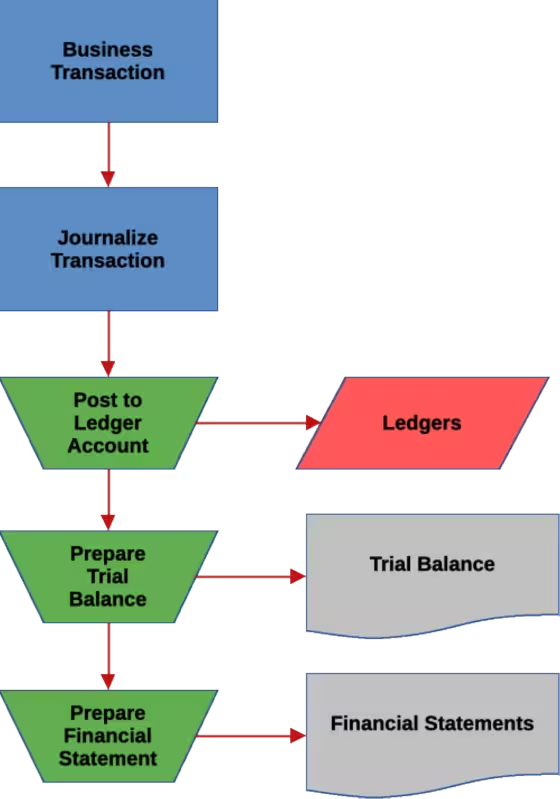
Figure 8: Example flowchart
Flowcharts
An example flowchart is shown in Figure 8 and the following basic steps are used when creating a flowchart:
-
When adding objects or flowchart shapes to a flowchart, see Chapter 2, Drawing Basic Shapes for information on how to draw and resize object shapes.
-
Add text to each flowchart shape to make it easily identified in the flowchart. See Chapter 2, Drawing Basic Shapes and Chapter 11, Advanced Draw Techniques for more information.
-
Use connector lines in a flowchart. This allows repositioning of an object in a flowchart while maintaining connections with the other objects in the flowchart. See “Connectors and gluepoints” above for more information.
-
Use the zoom, grid, and snap functions to help in positioning objects in a flowchart. See Chapter 3, Working with Objects and Object Points for more information.
-
Use the alignment and distribution functions to give a flowchart a more professional look. See Chapter 5, Combining Multiple Objects for more information.
-
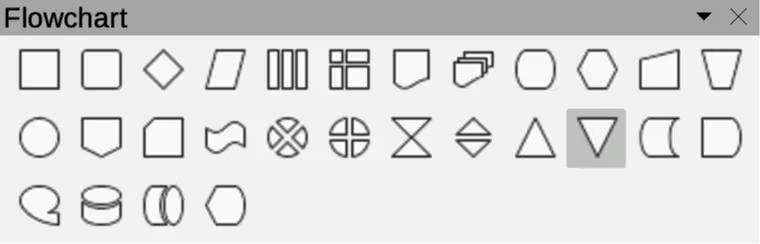
Use the Flowchart sub-toolbar (Figure 9) and its a large selection of flowchart tools to create a flowchart (also known as flow diagrams). Click on Flowchart on the Drawing toolbar to open the Flowchart sub-toolbar.
Figure 9: Flowchart sub-toolbar
|
|
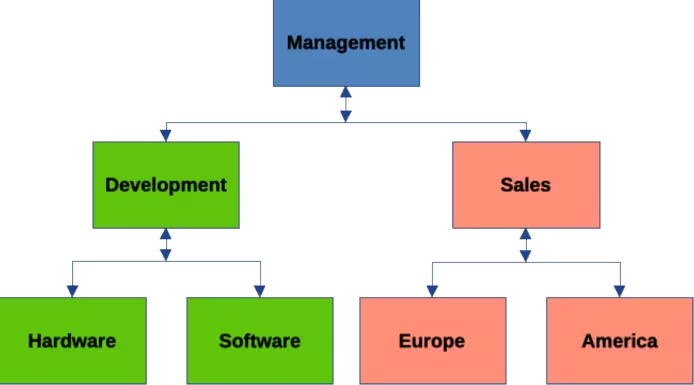
Figure 10: Example organization chart
Organization charts
Draw does not have a specific tool for creating organization charts, but are easily created using basic shapes, flowchart shapes, and connectors. Hierarchy in an organization is easily indicated using shading and/or color. When using shading and color in an organization chart, make sure the selection provides a good contrast between the text and the shading or color. This makes the chart easy to read on a computer display, or in a printed document. An example of an organization chart is shown in Figure 10.
-
When adding objects to a chart, see Chapter 2, Drawing Basic Shapes for information on how to draw and resize object shapes.
-
Add text to each object in the organization chart to make it easily identified in the chart. See Chapter 2, Drawing Basic Shapes and Chapter 11, Advanced Draw Techniques for more information.
-
Use connectors in an organization chart. This allows repositioning of an object in a chart while maintaining connections with the other objects in the chart. See “Connectors and gluepoints” above for more information.
-
Use the zoom, grid, and snap functions to help in positioning objects in a chart. See Chapter 3, Working with Objects and Object Points for more information.
-
Use the alignment and distribution functions to give an organization chart a more professional look. See Chapter 5, Combining Multiple Objects for more information.
-
Duplicate objects when more than one of the same shape and size is required. See Chapter 5, Combining Multiple Objects for more information.