Copyright
Document copyright © for 2026 is held by the LibreOffice Documentation Team. Contributors are listed below. All trademarks in this guide belong to their legitimate owners. This document maybe distributed and/or modified under the terms of the GNU General Public License (https://www.gnu.org/licenses/gpl.html), version 3 or later, or the Creative Commons Attribution License (https://creativecommons.org/licenses/by/4.0/), version 4.0 or later.
Contributors
Contributors for this edition:
Peter Schofield
Contributors for previous editions:
Claire Wood, Hazel Russman, Jean Hollis Weber, John A Smith, Kees Kriek, Peter Schofield, Ron Faile Jr.
Feedback
Please direct any comments or suggestions about this document to the Documentation Team Forum at https://community.documentfoundation.org/c/documentation/loguides/ (registration is required) or send email to: loguides@community.documentfoundation.org.
-
Note
Everything sent to a mailing list, including email addresses, is publicly archived and cannot be deleted.
Publication date and software version
Published April 2026. Based on LibreOffice 26.2.
Other versions of LibreOffice may differ in appearance and functionality.
Introduction
The dialogs and procedures for printing, exporting and emailing drawings from Draw are EXAMPLES only. Actual dialogs and procedures do depend on the following:
-
Type of computer and computer setup.
-
Computer operating system and software application being used.
-
Type of printer connected to the computer.
-
How the printer is connected to the computer, for example cable or wi-fi.
Default printer setup
Before printing any drawings using Draw, it is recommended to setup a default printer that is connected to the computer. An example printer setup procedure for Draw is as follows:
-
Go to File > Printer Settings on the Menu bar to open the Printer Setup dialog. An example Printer Setup dialog is shown in Figure 1.
-
Select the required printer from the printers listed in the Name drop-down list.
-
If necessary, click on Properties in the Printer Setup dialog to open a properties dialog for the selected printer to select the options required for paper and the printer.
-
Click OK to save the printer selection and close the Printer Setup dialog.
Figure 1: Example Printer Setup dialog
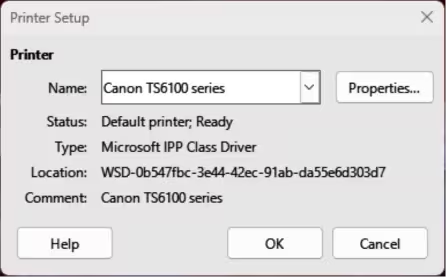
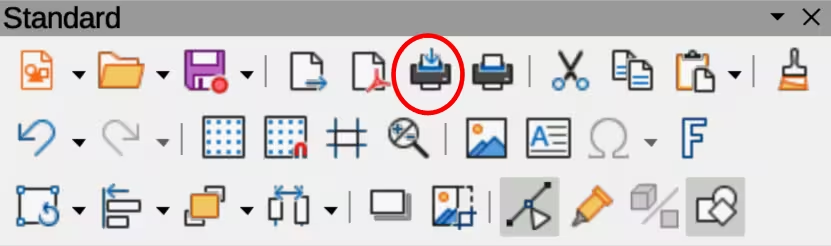
Figure 2: Standard toolbar with Print Directly installed
Quick printing
To quickly print a document or drawing, without changing print settings already selected, click on Print Directly on the Standard toolbar (highlighted in Figure 2). Print Directly sends the entire document to the default printer defined for the computer.
If Print Directly is not visible on the Standard toolbar, it is added to the toolbar as follows:
-
Right-click in an empty area on the Standard toolbar and select Visible Buttons from the context menu.
-
Select Print Directly from the list of available tools and the Print Directly tool is added to the Standard toolbar.
Linux or Windows printing
For more control over printing when using Linux or Windows operating system, open a Print dialog using one of the following methods.
-
Go to File > Print on the Menu bar.
-
Use the keyboard shortcut Ctrl+P.
-
Click on Print on the Standard toolbar.
-
Notes
The options selected in the Print dialog only apply to the printing of the current document open in Draw. Any print options selected in the Print dialog overrides the default LibreOffice printer settings that have been set using Tools > Options > LibreOffice > Print (macOS LibreOffice > Preferences > LibreOffice > Print) and Tools > Options > LibreOffice Draw > Print (macOS LibreOffice > Preferences > LibreOffice Draw > Print).
General options
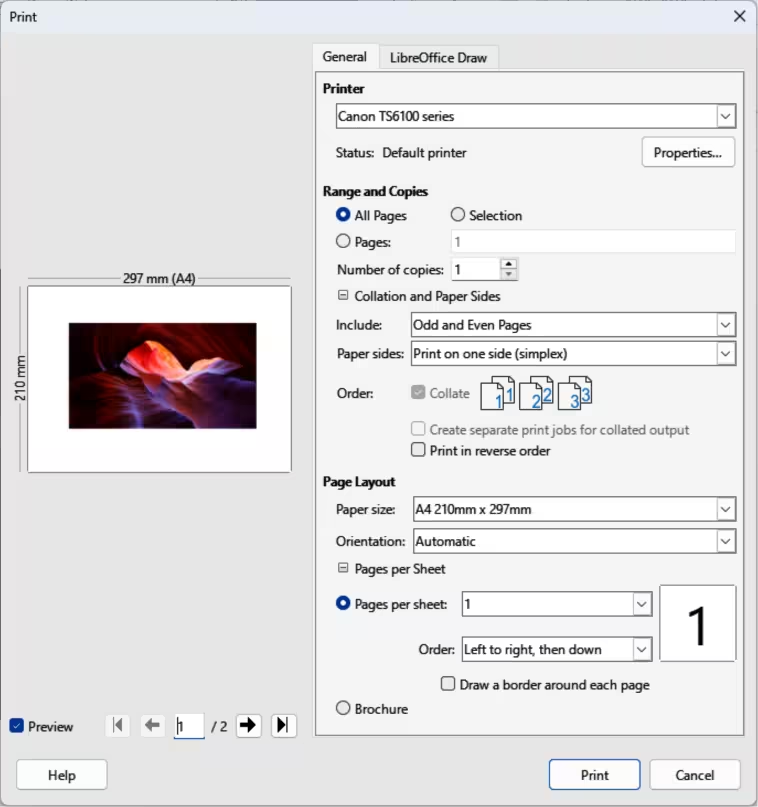
Figure 3 displays an example of printing options that may be available on the General page of the Print dialog in Windows/Linux.
Printer
Status:
Indicates if the selected printer is the default printer.
Properties
Click on Properties to open the properties dialog for the printer being used. The options available in this dialog depends on the type of printer connected to the computer and the computer operating system being used.
Range and Copies
All Pages
Prints all pages in a document.
Selection
Prints the pages selected in Draw.
Pages
Select the page number(s) to print. For multiple pages, use the format 1, 3, 7 or 1 – 5, 7, 9 for page number selection.
Figure 3: Example Print dialog — General page — Windows/Linux
Number of copies
Enter number of printed copies required for the document.
Collation and Paper Sides > Include
Select from the drop-down list Odd and Even Pages, Odd Pages, or Even Pages.
Collation and Paper Sides > Paper sides
Select from the drop-down list Print on one side (simplex), Print on both sides (duplex long edge), or Print on both sides (duplex short edge).
Collation and Paper Sides > Order > Collate
Collates multiple printed copies into separate documents. Only available when multiple copies of a printed document are required.
Collation and Paper Sides > Order > Create separate print jobs for collated output
Only available when multiple copies of a printed document are required.
Collation and Paper Sides > Order > Print reverse order.
Prints the document pages in reverse order.
Page Layout
Paper size
Select the paper size to use from drop-down list.
Orientation
Select from the drop-down list Automatic, Portrait, or Landscape.
Pages per sheet
Select from the drop-down list how many pages are printed on one sheet of paper.
Order
Select from the drop-down list the printing order of multiple pages on one sheet of paper.
Draw a border around each page
When multiple pages are printed on one sheet of paper, a border is drawn around each page.
Brochure
Prints the document so the pages can be folded into a brochure or booklet.
LibreOffice Draw options
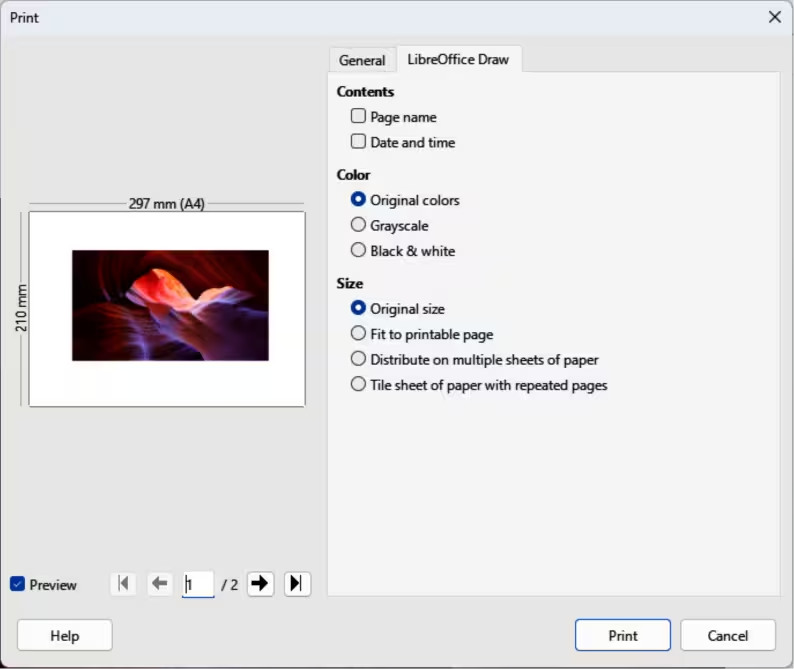
Figure 4 displays an example of printing options that may be available on the LibreOffice Draw page of the Print dialog for the current drawing being printed:
Contents
Color
Size
Original size
Prints the drawing using its original size.
Fit to printable page
Drawing size is changed so that it fits on the paper size used for printing.
Distribute on multiple sheets of paper
Used if the drawing is too large for the paper size being used.
Tile sheet of paper with repeated pages
Used to print multiple copies of a drawing on a page.
Figure 4: Example Print dialog — LibreOffice Draw page — Windows/Linux
macOS printing
For more control over printing using macOS, open and use the Print dialog using one of the following methods.
-
Go to File > Print on the Menu bar.
-
Use the keyboard shortcut ⌘+P.
-
Click on Print on the Standard toolbar.
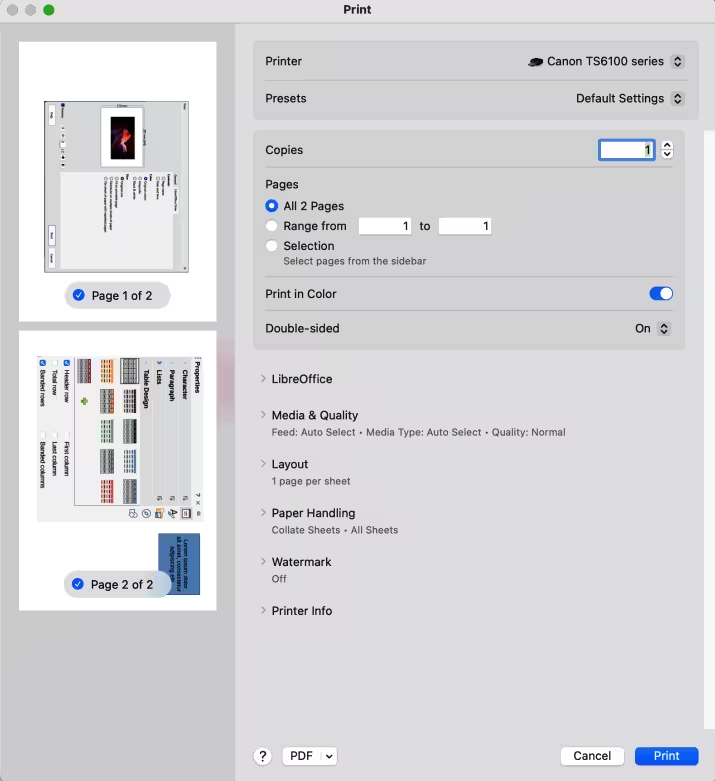
Figure 5: Example Print dialog — General page — macOS
General options
Figure 5 displays an example of the printing options that may be available on the General page of the Print dialog in macOS.
Printer
Presets
Copies
Pages
All
Prints all the pages in the document.
Range from
Select a range of page number(s) to print.
Selection
Select the pages to print from the Pages pane.
Print in Color
Double-sided
On
When selected, prints the drawing pages double-sided using long edge binding.
On (Short)
When selected, prints the drawing pages double-sided using short edge binding.
LibreOffice options
LibreOffice Draw options
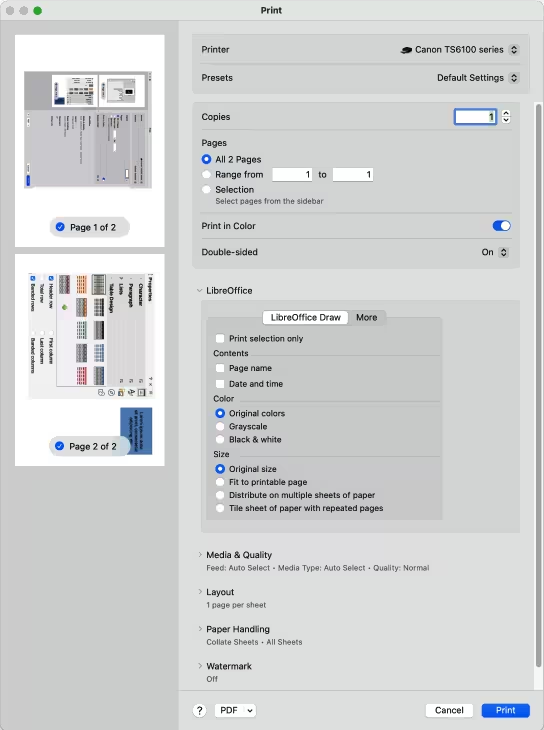
Click on LibreOffice Draw to open the printing options available for Draw (Figure 6).
Print selection only
Prints the selected pages in Pages pane.
Contents
Color
Size
Original size
Prints the drawing using its original size.
Fit to printable page
Drawing size is changed so that it fits on the paper size used for printing.
Distribute on multiple sheets of paper
Used if the drawing is too large for the paper size being used.
Tile sheet of paper with repeated pages
Used to print multiple copies of a drawing on a page.
Figure 6: Example Print dialog — LibreOffice Draw page — macOS
More options
To access more printing options in Draw, click on More to open the More options page (Figure 7).
Brochure
Figure 7: Example Print dialog — LibreOffice More page — macOS
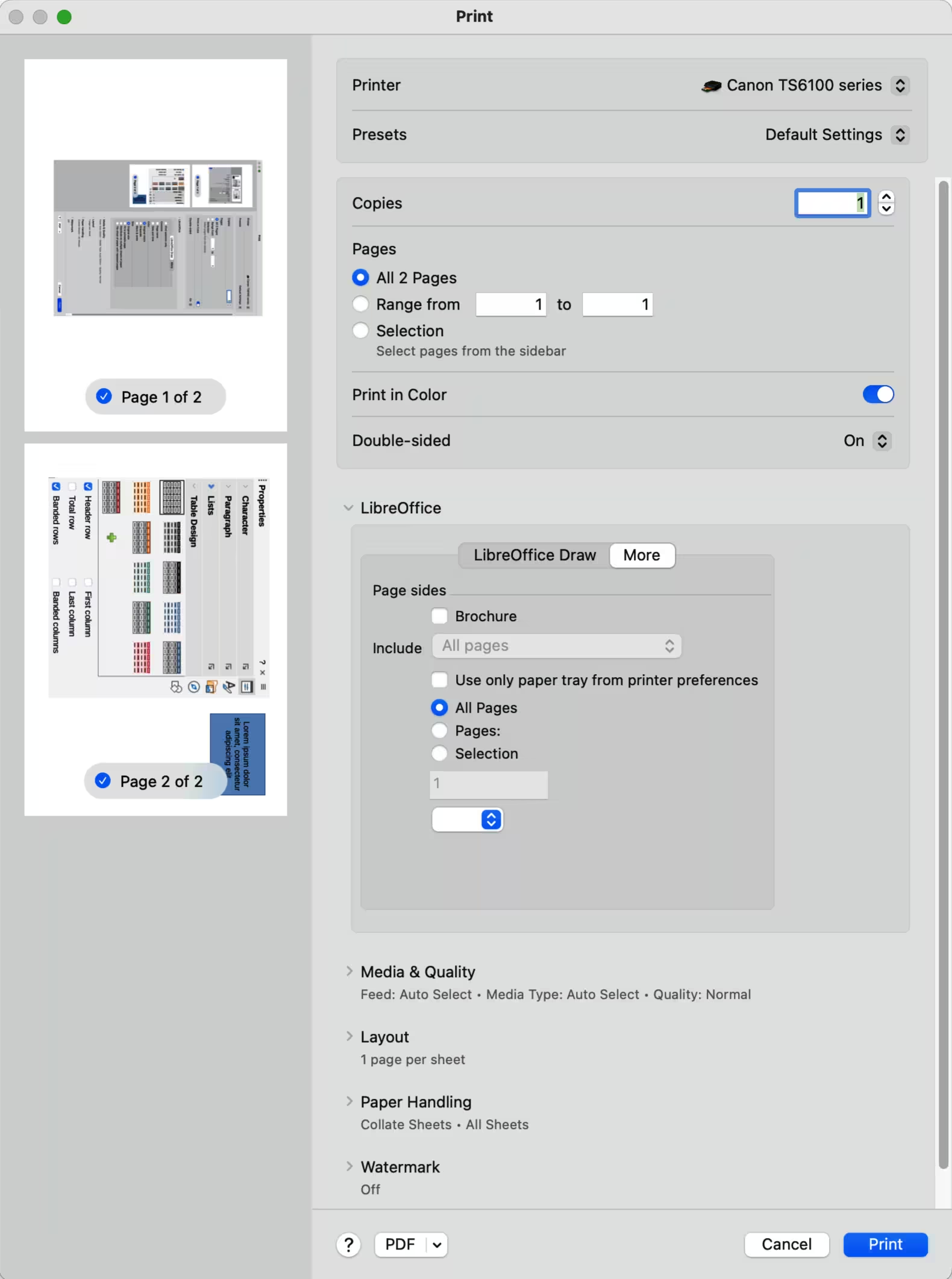
Include
Use only paper tray from printer preferences
All Pages
Pages
Selection
Media & Quality options
Click on Media & Quality to open a drop-list down with the following printing options (Figure 8).
Feed from
Media Type
Quality
Figure 8: Example Print dialog — LibreOffice Media & Quality page — macOS
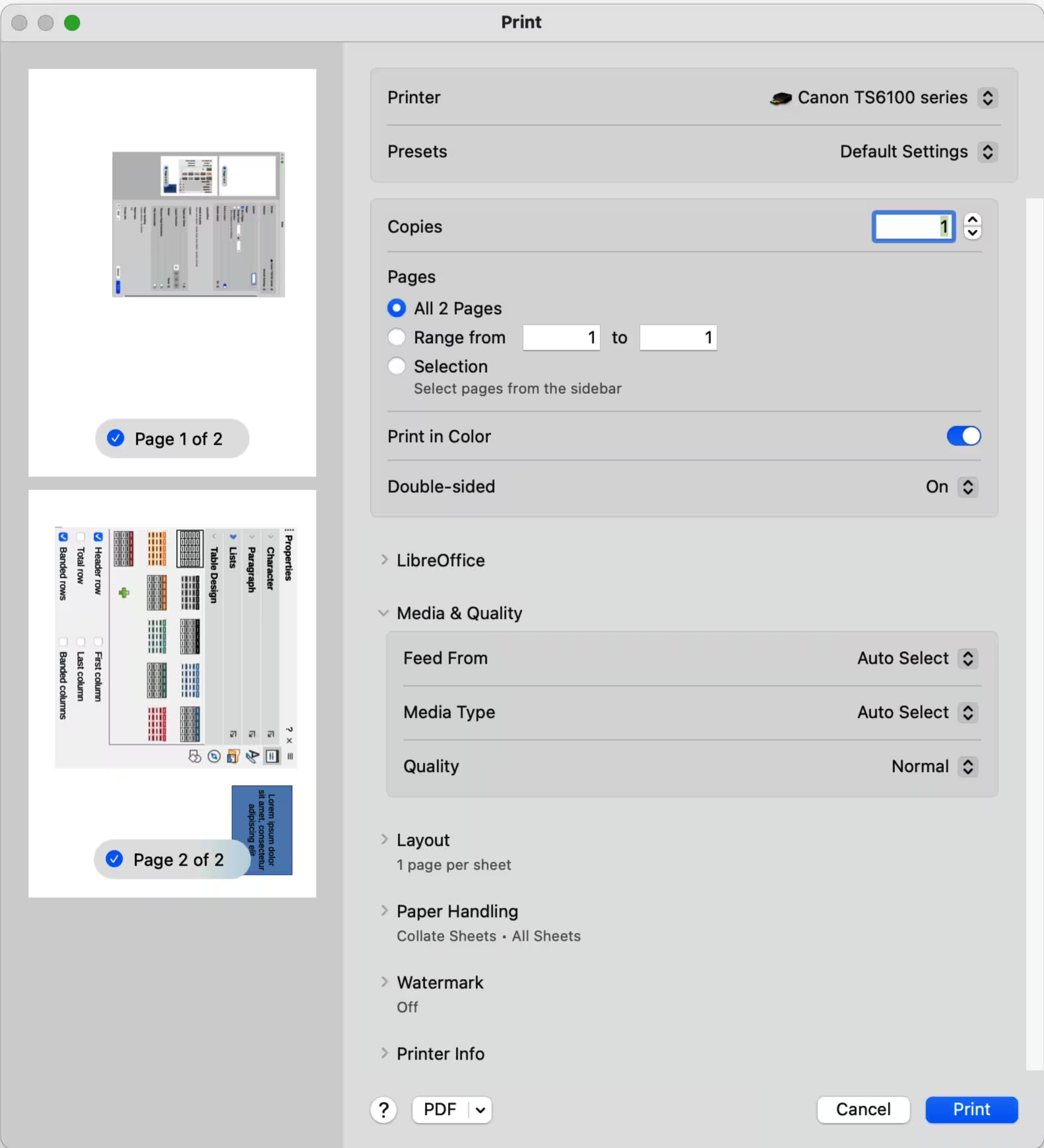
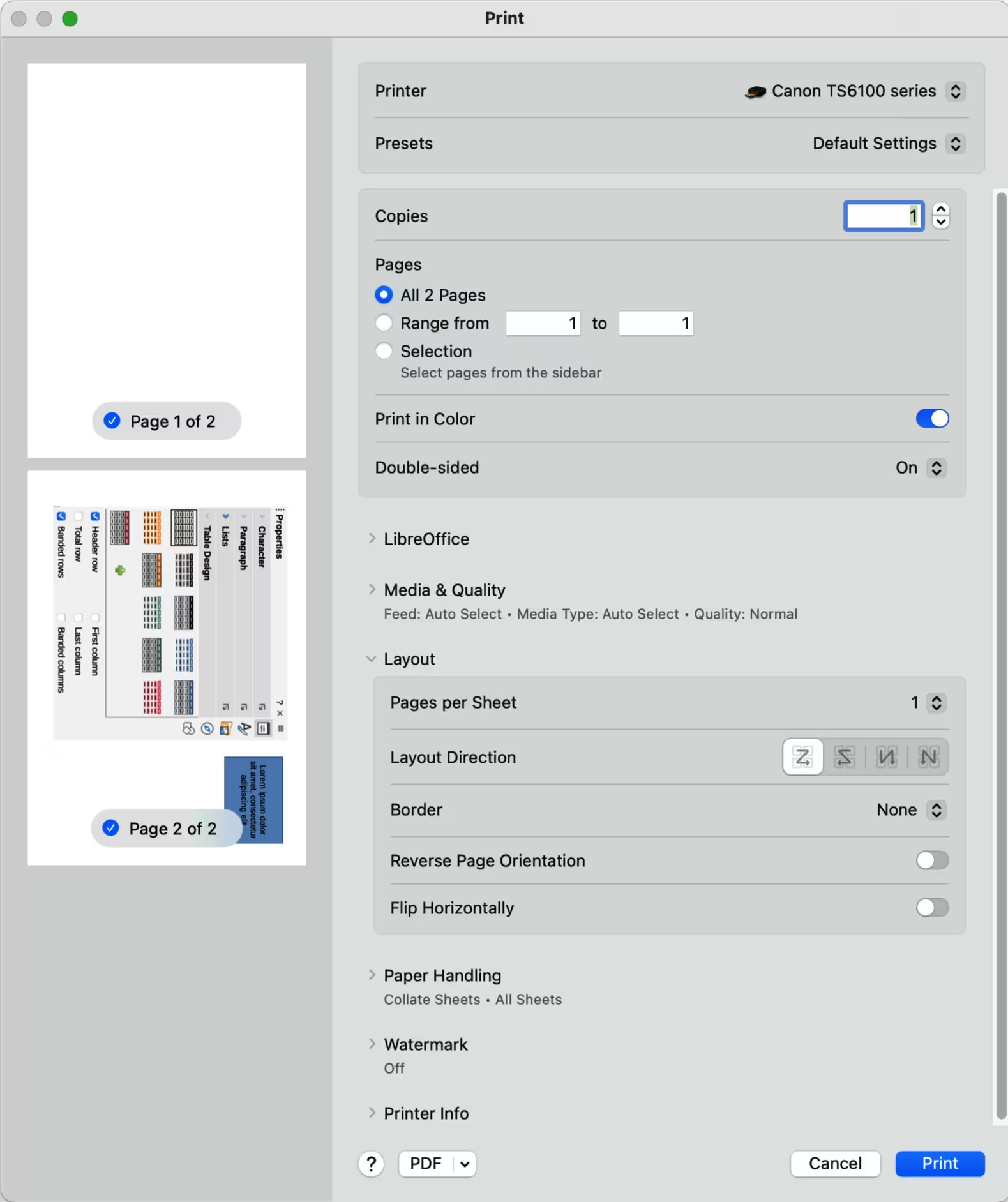
Figure 9: Example Print dialog — LibreOffice Layout page — macOS
Layout options
Click on Layout to open a drop-list down with the following options for the document printing layout (Figure 9).
Pages per sheet
Layout Direction
Border
Reverse page orientation
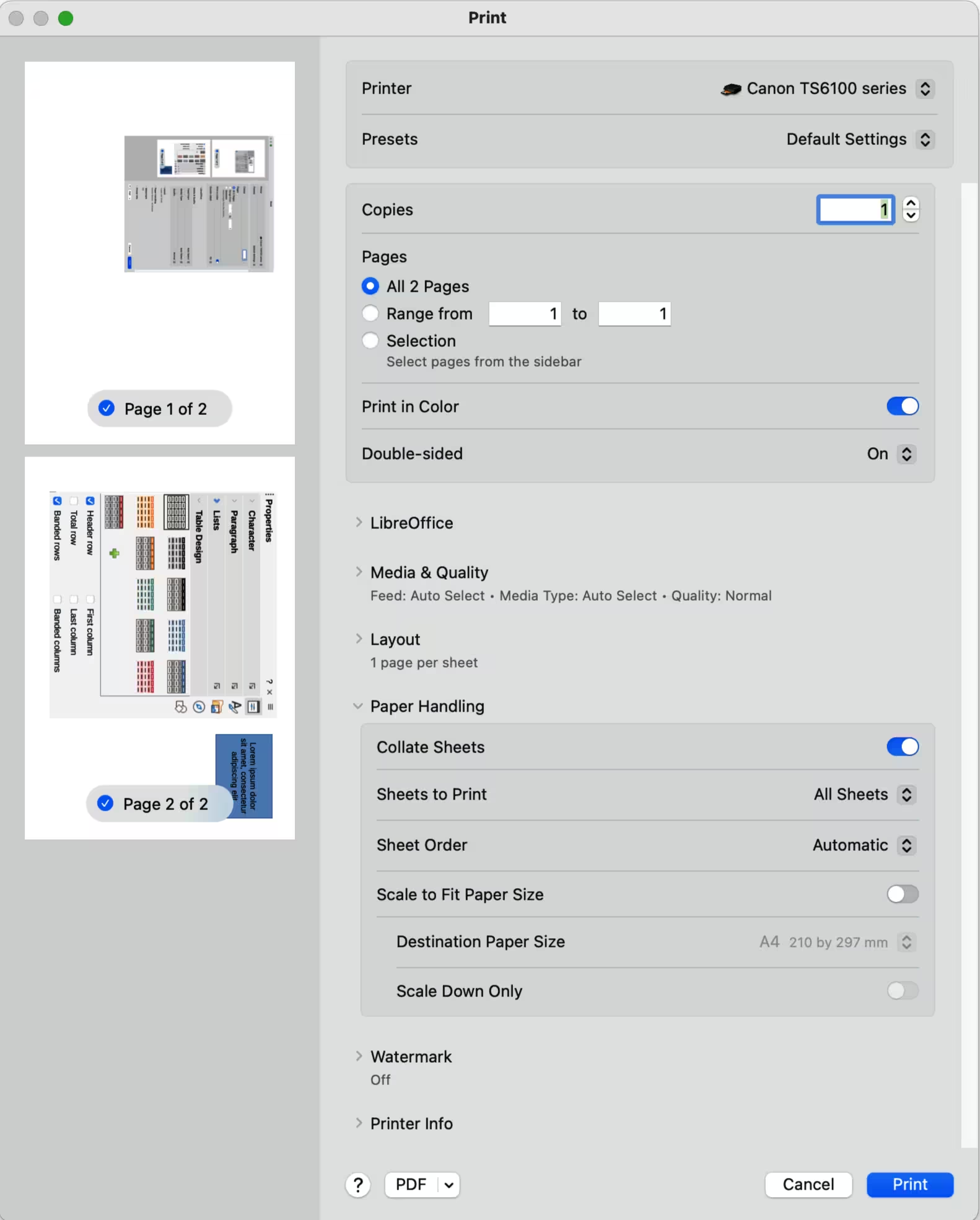
Figure 10: Example Print dialog — LibreOffice Paper Handling page — macOS
Flip horizontally
Paper Handling options
Click on Paper Handling to open a drop-list with the following options when printing multiple page documents (Figure 10).
Collate Sheets
Pages to Print
Page Order
Scale to fit paper size
Destination Paper Size
Scale Down Only
Watermark options
Provides options to print watermark text on the drawing pages, for example Confidential if the document is of a sensitive nature.
Printer info options
Provides information about the printer being used, for example ink levels, printer name, and printer location.
Printing examples
The following printing instructions are examples ONLY. Actual printing procedure may differ from these examples because printing depends on computer operating system, computer setup, and the connected printer. For more information on printing, see “Linux or Windows printing” above, or “macOS printing” above, and the Writer Guide.
Individual page
-
Open the Print dialog and select General to open the General page.
-
In Printer, Select the printer to use from the drop-down list if more than one printer is connected to the computer.
-
In Ranges and Copies, select Pages and enter the page number of the page to be printed.
-
In Ranges and Copies, enter how many copies to be printed in the Number of copies box.
-
Click Print to print the individual page and close the Print dialog.
All pages
-
Open the Print dialog and select General to open the General page.
-
In Printer, select the printer to use from the drop-down list if more than one printer is connected to the computer.
-
In Ranges and Copies, select All Pages.
-
In Ranges and Copies, enter how many copies to be printed in the Number of copies box.
-
Click Print to print all pages in the document and close the Print dialog.
Range of pages
-
Open the Print dialog and select General to open the General page.
-
In Printer, select the printer to use from the drop-down list if more than one printer is connected to the computer.
-
In Ranges and Copies, select Pages and enter the page numbers of the pages to print using the format, for example, 1,3,7 or 2–5,7,9.
-
In Ranges and Copies, enter how many copies to be printed in the Number of copies box.
-
Click Print to print the selected pages and close the Print dialog.
Selection printing
-
Select the pages in the Pages panel in LibreOffice Draw.
-
Open the Print dialog and select General to open the General page.
-
Select the printer to use from the drop-list if more than one printer is connected to the computer.
-
In Ranges and Copies, select Selection and then select Odd and Even Pages, Even Pages, or Odd Pages from the Include drop-down list.
-
In Ranges and Copies, enter how many copies to be printed in the Number of copies box.
-
Click OK to print the pages and close the Print dialog.
Multiple pages on a single sheet
-
Open the Print dialog and select General to open the General page.
-
In Printer, select the printer to use from the drop-down list if more than one printer is connected to the computer.
-
In Page Layout, select the number of pages to print per sheet of paper from the Pages per sheet drop-down list. The preview panel shows how the pages will look when printed on a page.
-
In Page Layout, select how the multiple pages are printed on a page from the Order drop-down list.
-
If necessary, select Draw a border around each page to distinguish each page printed on a sheet of paper.
-
In Ranges and Copies, enter how many copies to be printed in the Number of copies box.
-
Click Print to print the document and close the Print dialog.
Brochure printing
In Writer, Impress, and Draw, a document can be printed as a brochure, which is also known as booklet printing. The pages are arranged so that when the printed pages are folded in half, the pages are in the correct pagination order to form a brochure or booklet.
-
Tip
Plan a document so it looks professional when printed as a brochure. Use appropriate margins, font sizes, and so on because pages are normally printed at half size on a sheet of paper. Experiment to get the best document format to match the capabilities of the printer being used.
Simplex printer
-
Open the Print dialog and select General to open the General page.
-
In Printer, select the printer to use from the drop-down list if more than one printer is connected to the computer.
-
In Printer, click on Properties to open the properties dialog for the selected printer.
-
In Layout, make sure the printer is set to the same orientation (portrait or landscape) as specified in the page setup for the document. Usually the orientation does not matter, but is important for brochures to create the correct page layout.
-
In Paper Quality, select the type of paper from the Media drop-down list.
-
If required, in Color, select either Black & White or Color printing option.
-
Click OK to close the properties dialog and return to the Print dialog.
-
In Page Layout, select Brochure.
-
In Range and Copies, select the following:
-
In Include, select Even pages, or Odd pages from the drop-down list.
-
In Paper sides, select Print on one side (simplex) from the drop-down list.
-
Click Print to print the even or odd pages.
-
Take the printed pages out of the printer and put back into the printer in the correct orientation to print on the blank side. This may require some testing to find out what the correct arrangement is for the selected printer.
-
If the Even Pages were printed, now select Odd Pages in Include. If Odd Pages were printed, now select Even Pages in Include.
-
Click Print to finish printing the document as a brochure and close the Print dialog.
-
Make sure the printed pages create a brochure when all the pages are placed in the correct order.
Duplex printer
-
Open the Print dialog and select General to open the General page.
-
In Printer, select the printer to use from the drop-down list if more than one printer is connected to the computer.
-
In Printer, click Properties to open the properties dialog for the selected printer.
-
Make sure the printer is set to the same orientation (portrait or landscape) as specified in the page setup for the document. Usually the orientation does not matter, but is important for brochures to create the correct page layout.
-
In Paper Quality, select the type of paper from the Media drop-down list.
-
If required, in Color, select either Black & White or Color printing option.
-
Click OK to close the properties dialog and return to the Print dialog.
-
In Range and Copies, select the All Pages option.
-
In Range and Copies, select one of the following options from the Paper sides drop‑down list. Actual options available for duplex printing depend on the printer model and the computer system being used:
-
Print on both sides (duplex long edge).
-
Print on both sides (duplex short edge).
-
In Page Layout, select the Brochure option.
-
Click Print to print the document as a brochure and close the Print dialog.
Black and white or grayscale printing
Printer settings
The following example procedure explains how to print documents in black and white or grayscale on a color printer:
-
Open the Print dialog and select General to open the General page.
-
Select the printer to use from the drop-down list if more than one printer is connected to the computer.
-
Click on LibreOffice Draw to open the printing options page for LibreOffice Draw.
-
In Color, select Grayscale, or Black & white from the available options.
-
Click Print to print the document and close the Print dialog.
-
Tips
Some color printers may only allow printing in color regardless of the settings selected. More details can be found in the information for the selected printer.
Grayscale is the best option for printing any colored text or graphics in a document on a monochrome printer. Colors printed in shades of gray give more detail. When printing color in black and white some of this detail is lost.
LibreOffice settings
Use the Print page in the Options LibreOffice Draw dialog to change the LibreOffice settings to print all colored text and graphics as grayscale, or black and white.
-
Go to Tools > Options > LibreOffice Draw > Print (macOS LibreOffice > Preferences > LibreOffice Draw > Print) on the Menu bar to open the Options LibreOffice Draw Print dialog (Figure 11).
-
In Quality, select either the option Grayscale, or Black & white.
-
Click OK to save the change and close the Options LibreOffice Draw Print dialog.
-
Print the document using one of the above procedures and the document is printed as grayscale, or black and white.
Figure 11: Options LibreOffice Draw Print dialog
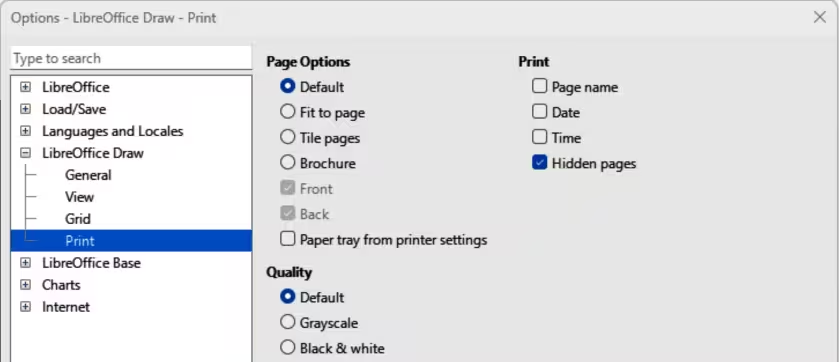
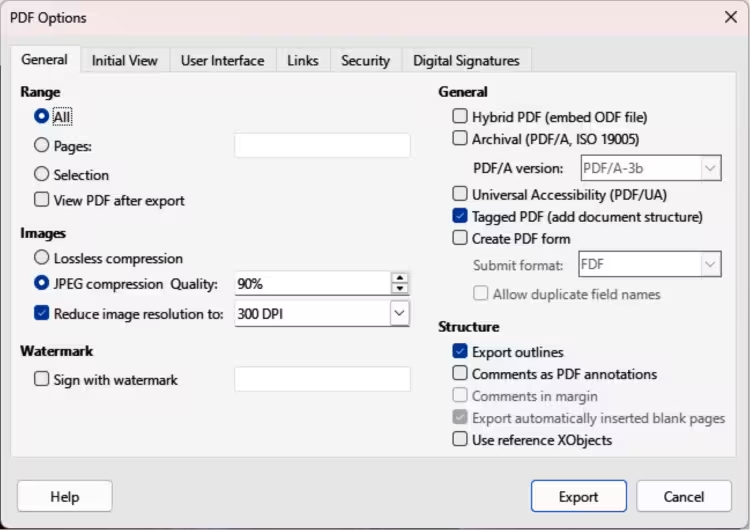
Figure 12: PDF Options dialog — General page
Exporting
PDF format
LibreOffice can export documents as a PDF (Portable Document Format) file. This standard file format is ideal for sending a file to be viewed on another computer using PDF viewing software.
Directly as PDF
Export the complete document using default PDF settings as follows:
-
Click on Export Directly as PDF on the Standard toolbar, or go to File > Export As > Export Directly as PDF on the Menu bar.
-
Enter a file name and location for the PDF file and click on Save to export the file as PDF.
-
Note
The page range, image compression, or other printing options are not available when creating a PDF file using Directly as PDF.
Controlling PDF content and quality
For more control over the content and quality when creating a PDF file, use the options available in the PDF Options dialog (Figure 12). For more information on available options, see the Getting Started Guide.
-
Go to File > Export As > Export as PDF on the Menu bar to open the PDF Options dialog.
-
Select the required options available in the various pages of the PDF Options dialog.
-
Click on Export and a file browser window opens.
-
Navigate to the required location and enter a file name for the PDF being created.
-
Click on Save to export the file as PDF. The file browser window and the PDF Options dialog close.
-
Notes
When exporting in Other formats, a dialog may open providing options that can be selected when a LibreOffice Draw file is exported.
The content of the exported file depends on the elements selected on the drawing. If no elements are selected, the complete drawing file is exported.
Other formats
LibreOffice can export files in various formats, which are listed in the drop-down list of the file browser window. For more information on exporting graphics, see Chapter 6, Editing Pictures.
-
Go to File > Export on the Menu bar to open a file browser window.
-
Navigate to the directory where the drawing is going to be saved.
-
Specify a file name for the exported drawing in the File name text box.
-
Select the required file format from the Save as type drop-down list.
-
Click on Save or Export to save the file and close the file browser window.
Emailing documents
LibreOffice provides several ways to send documents quickly and easily as an email attachment in ODF format (LibreOffice default format), or as a PDF. For more information on emailing documents, see the Getting Started Guide.
Open Document format
-
Go to File > Send > Email Document on the Menu bar. LibreOffice opens the default email program with the document attached to a new email.
-
In the email program, enter the recipient, subject, and message, then send the email.
PDF format
-
Go to File > Send > E-mail as PDF on the Menu bar. and the PDF Options dialog opens.
-
Create a PDF file of the drawing using the options available in the PDF Options dialog, see “PDF format” above for more information. The default email application opens with the PDF file attached to a new email.
-
In the email application, enter the recipient, subject, and message, then send the email.
Digital signatures
A digital signature is a mathematical scheme for verifying the authenticity of digital versions of drawings or documents.
Signing a drawing digitally, a personal key or certificate is required. This personal key is stored on a computer is a combination of a private key and a public key. These keys are added to a drawing when a digital signature is applied. A certificate is obtained from a certification authority, which may be a private company or a government institution.
Applying a digital signature to a drawing, a checksum is computed from the drawing content plus the personal key being used. The checksum and public key are stored together with the drawing.
Opening the drawing on another computer with a recent version of LibreOffice, the program computes the checksum again and compares it with the stored checksum. If both checksums are the same, the program opens the original, unchanged drawing.
Also, the program can display the public key information from the certificate. This information is compared with the public key that is published on the web site of the certificate authority. Whenever the drawing is changed, this change breaks the digital signature.
For a more detailed description of how to obtain, use and manage a certificate and signature validation, see the LibreOffice Getting Started Guide and Applying Digital Signatures in LibreOffice Help (https://help.libreoffice.org/7.1/en-US/text/shared/guide/digitalsign_send.html?&DbPAR=WRITER&System=UNIX).
Removing personal data
Sometimes it is necessary to remove personal data, versions, notes, hidden information, or recorded changes from drawing files before files are distributed, or PDF version is created. Use the two following procedures to remove this type of data from a drawing file.
Setting security and warning options
-
Go to Tools > Options > LibreOffice > Security (macOS LibreOffice > Preferences > LibreOffice > Security) to open the Options LibreOffice Security dialog (Figure 13).
-
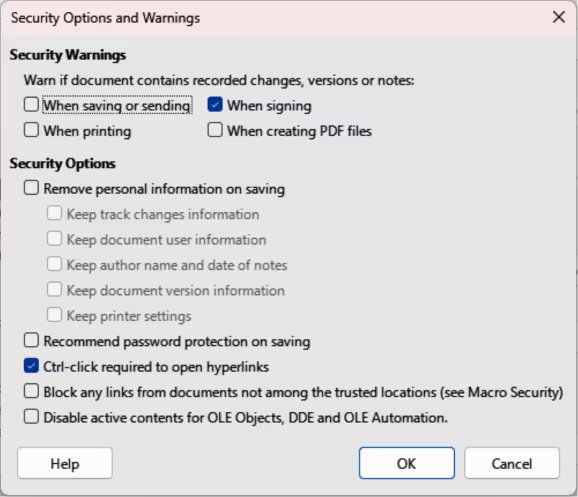
Click on Options to open the Security Options and Warnings dialog (Figure 14).
-
Select the required options to allow LibreOffice to warn when drawing files contain sensitive information and/or automatically remove personal information on saving.
Figure 13: Options LibreOffice dialog — Security page
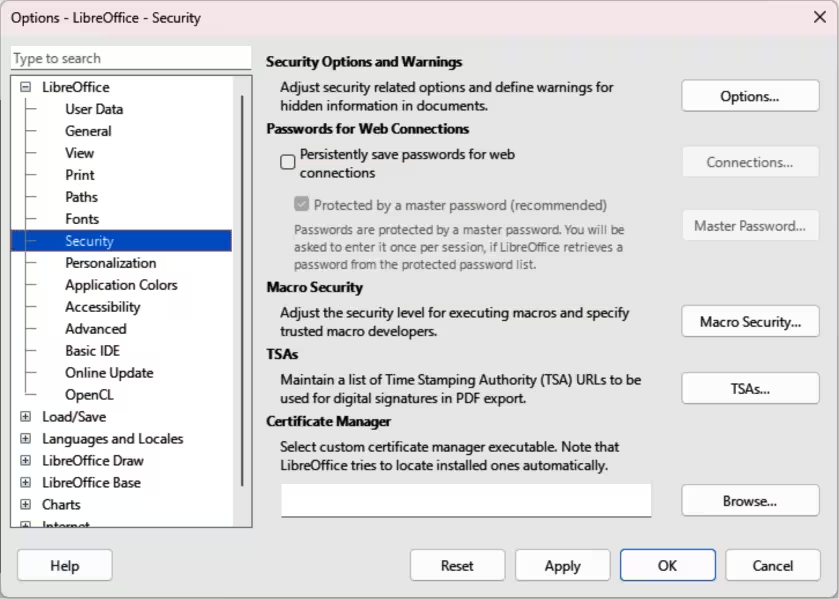
Figure 14: Security Options and Warnings dialog
-
Click OK to close the Security Options and Warnings dialog and save the selected options.
-
Click OK to close the Options LibreOffice Security dialog.
Removing personal data and drawing file information
-
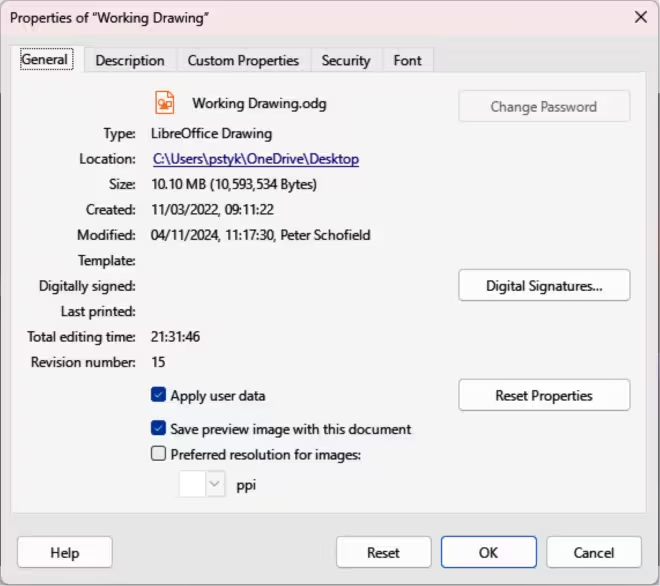
Open a drawing file and go to File > Properties on the Menu bar to open the Properties dialog (Figure 15).
-
In the General page, deselect the option Apply user data.
-
Click on Reset Properties to change the following file properties:
-
Remove any information in the created and modified fields.
-
Delete modification and printing dates.
-
Reset editing time to zero.
-
Reset creation date to the current date and time.
-
Reset version number to 1.
-
Click OK to save the changes and close the Properties dialog.
Removing version information
To remove version information from a drawing file, use one of the following methods:
-
Go to File > Versions on the Menu bar to open a properties dialog for the drawing file.
-
Select the versions in the Existing Versions list for deletion and click Delete. The dialog automatically closes.
-
Go to File > Save As on the Menu bar and save the drawing file using a different name.
Figure 15: Properties dialog — General page
Redaction
Documents are redacted to remove or hide any sensitive information. Redaction allows the selective disclosure of information in a document while keeping other parts of the document secret.
When a redacted document is exported as a new document, any redacted portions are removed and replaced by redaction blocks of pixels preventing any attempt to restore or copy the original contents. A redacted document is often exported in PDF format for publication, or sharing.
Any documents that are redacted in Writer, Calc, or Impress are automatically transferred as a copy to Draw for redaction.
-
Note
When a redacted document is exported as a new PDF file, all information in the redacted areas is removed and replaced by redaction blocks of pixels. The redacted areas prevent any attempt to restore, or copy the original contents.
Documents, spreadsheets, or presentations
-
Open the document to be redacted in Writer, Calc or Impress, then go to Tools > Redact on the Menu bar and the following happens:
-
The document is copied, prepared and transferred to Draw as an untitled file.
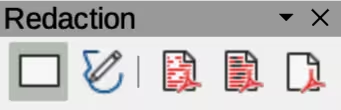
Figure 16: Redaction toolbar
-
Draw opens with the untitled document displayed.
-
Redaction toolbar (Figure 16) automatically opens. If the Redaction toolbar is not displayed, go to View > Toolbars on the Menu bar and select Redaction.
-
Go to Tools > Redact on the Menu bar and select either Rectangle or Freeform, or click on Rectangle Redaction or Freeform Redaction in the Redaction toolbar.
-
Draw the required shapes to redact the document sensitive areas. The redaction shape is gray allowing the sensitive areas in the document to be visible before redaction.
-
Click on Export Preview PDF to create a PDF copy of the document and save as a PDF file. Review the sensitive information in the gray redacted areas before redaction is finalized.
-
Delete the preview PDF copy after reviewing the redaction areas in the file.
-
Go to Tools > Redact on the Menu bar and use one of the following options in the Redaction toolbar:
-
Select either Redacted Export (White), or Redacted Export (Black) option.
-
Click on Redacted Export (White), or Redacted Export (Black) icon.
-
Navigate to the folder in the file browser window that opens where the redact document is to be saved and enter a name for the document.
-
Click on Save to create the redacted PDF file and the following happens:
-
Gray redaction areas are converted to white, or black and the document is exported as a PDF
-
There is no selectable text in the PDF file and any redacted content is non‑existent.
Drawings
Open a drawing file in in Draw and follow Steps 2) thru 8) in “Documents, spreadsheets, or presentations” above to create a redacted PDF copy of the drawing file.