Copyright
Document copyright © for 2026 is held by the LibreOffice Documentation Team. Contributors are listed below. All trademarks in this guide belong to their legitimate owners. This document maybe distributed and/or modified under the terms of the GNU General Public License (https://www.gnu.org/licenses/gpl.html), version 3 or later, or the Creative Commons Attribution License (https://creativecommons.org/licenses/by/4.0/), version 4.0 or later.
Contributors
Contributors for this edition:
Peter Schofield
Contributors for previous editions:
Jean Hollis Weber, John A Smith, John Cleland, Kees Kriek, Martin Fox, Peter Schofield, Regina Henschel.
Feedback
Please direct any comments or suggestions about this document to the Documentation Team Forum at https://community.documentfoundation.org/c/documentation/loguides/ (registration is required) or send email to: loguides@community.documentfoundation.org.
-
Note
Everything sent to a mailing list, including email addresses, is publicly archived and cannot be deleted.
Publication date and software version
Published April 2026. Based on LibreOffice 26.2.
Other versions of LibreOffice may differ in appearance and functionality.
Drawing pages
Pages pane
Drawings created in Draw can consist of multiple pages and stored as one file on a computer. The pages in a drawing are displayed as thumbnails in the Pages pane. Drawing pages can be added, renamed, deleted, and arranged in a sequence using the Pages pane.
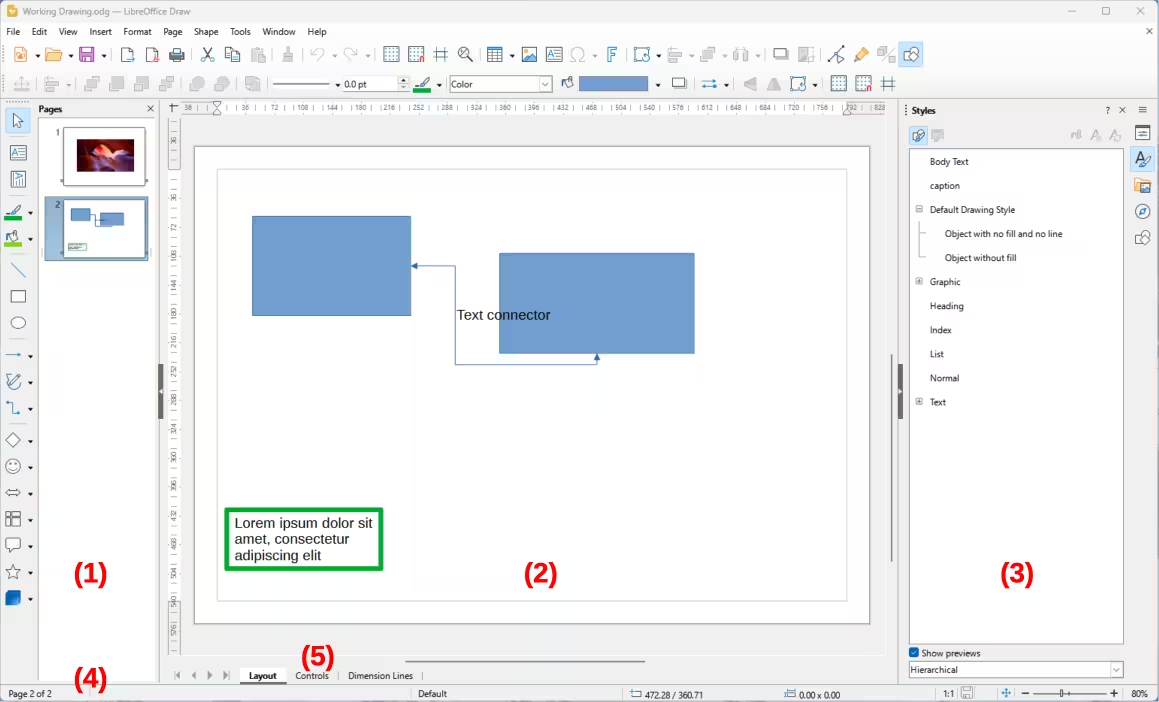
By default the Pages pane (Figure 1) appears docked on the left of the Workspace. If the Pages pane is not visible, go to View > Page Pane on the Menu bar. The Pages pane can become a floating window using one of the following methods:
-
Windows and Linux only — press and hold the Ctrl key, then double-click in the title bar of the Pages pane to create a floating window.
-
macOS only — press and hold the ⌘ key, then double-click in the title bar of the Pages pane to create a floating window.
-
Windows, Linux and macOS — click in the title bar and drag the Pages pane to create a floating window.
To close the Pages pane, click on the X on the right side of the title bar, or deselect View > Page Pane in the Menu bar.
Selecting pages
To make a page appear in the Workspace, select a page using one of the following methods:
-
Select a page in the Pages pane.
-
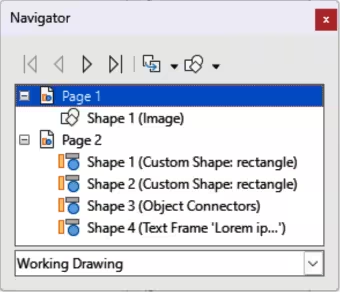
Use the keyboard shortcut F5, or go to View > Navigator on the Menu bar to open the Navigator dialog (Figure 2) and select a page from the displayed list.
Figure 1: Draw main window
|
|
|
Figure 2: Navigator dialog
-
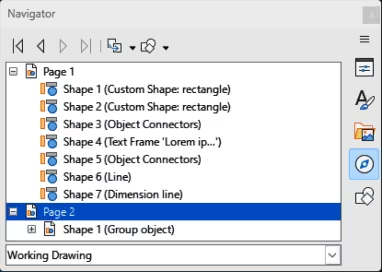
Click on Navigator in the Sidebar to open the Navigator deck in the Sidebar (Figure 3) and select a page from the displayed list.
Figure 3: Navigator deck in Sidebar
Navigating pages
To navigate a multi-page drawing and select a page for editing, use one of the following methods:
-
Select the required page in the Pages pane.
-
Select the required page in the Navigator dialog (Figure 2), or the Navigator deck in the Sidebar (Figure 3).
-
Go to Page > Navigate on the Menu bar and select one of the following options:
-
To First Page — moves to the first page in the drawing.
-
To Previous Page — moves backward to the previous page.
-
To Next Page — moves forward to the next page.
-
To Last Page — moves to the last page in the drawing.
-
Go to Page — enter the page number in the text box and press the Enter key to move to the selected page.
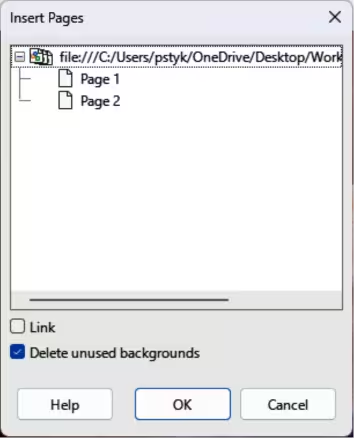
Figure 4: Insert Pages dialog
Adding pages
Inserting new page
Insert a new page into a drawing using one of the following methods. A new page is added after the selected page in the Pages pane, or at the end of the pages if no page is selected.
-
Go to Page > New Page on the Menu bar.
-
Right-click in the Pages pane and select New Page from the context menu.
-
Right-click on the page displayed in the Workspace and select Page > New Page from the context menu.
-
Go to Page > Insert Page from File on the Menu bar and open the Insert File dialog. Navigate to the folder where the file is located. Select the file and click on Open to open the Insert Pages dialog (Figure 4). Select the required pages and click OK.
Duplicating pages
Select a page in the Pages pane, then use one of the following methods to insert the duplicate page after the selected page:
-
Go to Page > Duplicate Page on the Menu bar.
-
Right-click on a page in the Pages pane and select Copy from the context menu. Right‑click in a blank area of the Pages pane and select Paste from the context menu.
Renaming pages
When pages are inserted into a drawing, they are automatically named as Page 1, Page 2, and so on in the Pages pane, Navigator dialog, or Navigator deck in the Sidebar. As the page order is changed, pages are automatically renumbered making it difficult to identify the pages. It is recommended to give each page a memorable name to identify pages as follows:
-
Select a page for renaming in the Pages pane.
-
Use one of the following methods and rename the selected page:
-
Go to Page on the Menu bar and select Rename Page from the submenu.
-
Right-click on the selected page in the Pages pane and select Rename Page from the context menu.
-
Right-click on the page displayed in the Workspace and select Page > Rename Page from the context menu.
-
In the Rename Page dialog that opens, enter a new name for the page and click OK.
Changing page order
Use one of the following methods and change the page order in a drawing:
-
Select a page thumbnail in the Pages pane, then click and drag the page thumbnail to change the page order.
-
Select a page thumbnail in the Pages pane, then go to Page > Move on the Menu bar and select one of the following options:
-
Page to Start — moves the selected page to the beginning of a drawing.
-
Page Up — moves selected page up one place in the page order of a drawing.
-
Page Down — moves selected page down one place in the page order of a drawing.
-
Page to End — moves selected page to the end of a drawing.
Deleting pages
-
Select a page for deletion in the Pages pane.
-
Use one of the following methods to delete the selected page:
-
Go to Page > Delete Page on the Menu bar.
-
Right-click on the selected page in the Pages pane and select Delete Page from the context menu.
-
Right-click on the page displayed in the Workspace and select Page > Delete Page from the context menu.
-
Note
When deleting pages in a drawing, there is no confirmation of deletion for the selected page.
Master pages
A master page is a page used as a starting point for all drawing pages to control basic formatting of pages based on a master page. It is similar to a page style in Writer, or master slide in Impress. A drawing with multiple pages can have more than one master page allowing a different look assigned to individual pages in a drawing, for example title page, contents page, and drawing pages.
Master pages have a defined set of characteristics. For example, background objects (such as logos, decorative lines), text formatting, blocks of standard text, and fields such as page numbering, date, or filename.
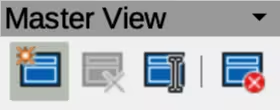
Figure 5: Master View toolbar
Master page view
Go to View > Master on the Menu bar and open the master page view. This also opens the Master View toolbar (Figure 5). If this toolbar does not open, go to View > Toolbars > Master View on the Menu bar. To return to normal page mode, click on Close Master View in the Master View toolbar, or go to View > Normal on the Menu bar.
Creating master pages
Each drawing created uses the default master page. When a drawing has multiple pages, master pages can be created and added to the drawing as follows:
-
Go to View > Master on the Menu bar to open the master page view and the Master View toolbar.
-
Create a new master page using one of the following methods. After creation, the new master page is automatically selected.
-
Click on New Master in the Master View toolbar (Figure 5).
-
Go to Page > New Master on the Menu bar.
-
Add the required graphic objects, logos, fields, text and so on to the selected master page, then save the drawing.
-
Assign the new master page to a drawing page. See “Changing master pages” below for more information.
-
Rename the master page, see “Renaming master pages” below.
Renaming master pages
Each new master page created has the default name of Default 1, Default 2, and so on. It is recommended to rename new master pages. The default master page that was created when the drawing was created can also be renamed.
-
Go to View > Master on the Menu bar to open the master page view and the Master View toolbar.
-
Use one of the following methods and open the Rename Master Slide dialog:
-
Click on Rename Master in the Master View toolbar (Figure 5).
-
Right-click on a master page in the Pages pane and select Rename Master from the context menu.
-
Enter a name for the master page in the Name text box in the Rename Master dialog.
-
Click OK to save the changes and close the Rename Master Slide dialog.
Changing master pages
When a drawing uses several master pages, each page in the drawing can use a different master page.
-
Go to View > Normal on the Menu bar.
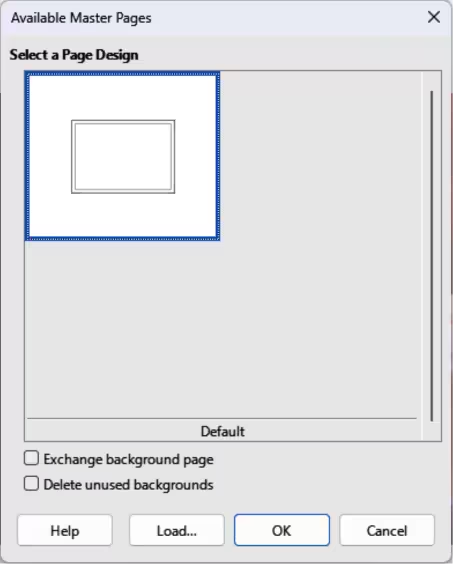
Figure 6: Available Master Pages dialog
-
In the Pages pane, select the page to change the master page.
-
Right-click on the page in the Workspace and select Change Master Page from the context menu to open the Available Master Pages dialog (Figure 6).
-
In the Select a Page Design preview box, select a master page design for the selected page.
-
If necessary, select Exchange background page to use the selected master page for all pages in the drawing.
-
If necessary, select Delete unused backgrounds to delete any master pages shown in Select a Page Design preview box that have not been assigned to a page.
-
Click OK to change the selected master page and close the Available Master Pages dialog.
Deleting master pages
-
Note
The default master page created when the drawing was first created cannot be deleted. Also, if the drawing only uses one named master page, then that named master page cannot be deleted.
Deleting master pages is only available when a drawing has more than one master page.
-
Go to View > Master on the Menu bar to open the master page view and the Master View toolbar (Figure 5).
-
Use one of the following methods to delete a master page. The deletion of the master page is immediate and there is no confirmation
-
Select and right-click on a master page in the Pages pane and select Delete Master from the context menu.
-
Click on Delete Master in the Master View toolbar.
-
Go to Page > Delete Master on the Menu bar.
Master pages from templates
Master pages from templates available in LibreOffice can be used for drawings. If the master pages from a template use a different page size, the master pages loaded into a drawing are adapted to the drawing page size. This may cause some objects to be stretched, or incorrectly positioned when adapted to fit the drawing page size.
-
Go to View > Master on the Menu bar to open the master page view and the Master View toolbar.
-
Right-click on a master page displayed in the drawing and select Change Master Slide from the context menu to open the Available Master Pages dialog (Figure 6).
-
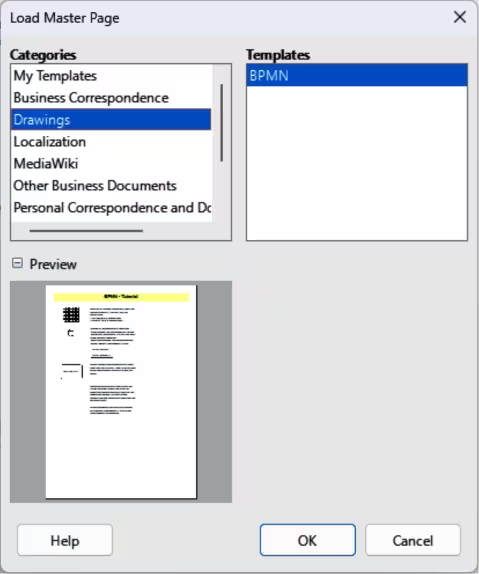
Click on Load… to open the Load Master Page dialog (Figure 7).
-
Select a template category from the list displayed in Categories.
-
Select a template from the list displayed in Templates.
-
If necessary, click on Preview to display a preview of the selected template.
Figure 7: Load Master Page dialog
-
Click OK to close the Load Master Slide dialog. The Available Master Slides dialog opens displaying the selected template in Select a Slide Design.
-
Select the master page required in Select a Slide Design.
-
If necessary, select Exchange background page to use the selected master page for all pages in the drawing.
-
If necessary, select Delete unused backgrounds to delete any master pages shown in Select a Slide Design that have not been assigned to a page.
-
Click OK to assign the selected master page to a drawing page and close the Available Master Slides dialog.
Inserting fields
-
Go to View > Master on the Menu bar to open the master page view and the Master View toolbar.
-
Go to Insert > Field on the Menu bar and select a field type from the options available on the submenu. The selected field appears in the middle of the drawing page.
-
Select the inserted field so that the border is displayed.
-
Click on the border and drag the field to the required position.
-
If necessary, format the text used in the field to the drawing requirements. For more information, see Chapter 9, Adding and Formatting Text.
The field types that are available for insertion as follows:
Date (fixed)
Date (variable)
Time (fixed)
Time (variable)
Author
Page Number
Page Title
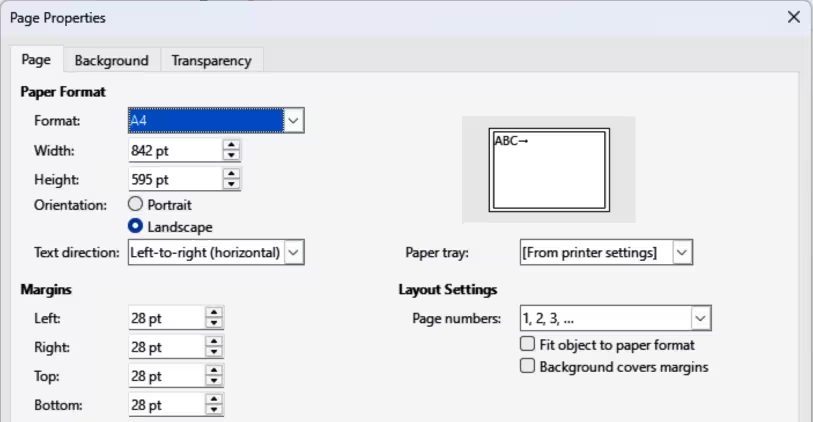
Figure 8: Page Properties dialog — Page page
Page Count
File Name
Templates
A drawing template is used as the starting point for all new drawings. For example, a template can include a company logo, name and information on the first page of a drawing with the remaining pages in a drawing only showing the company logo and name. Templates can contain anything that regular drawings can contain, such as text, graphics, a set of styles, and so on.
All document types created using LibreOffice are based on templates. If a template is not specified when a new document is started, then the default template for that type of document is used. This default template uses a set of properties that are hard coded into LibreOffice. If necessary, the default template for drawings, which is hard coded into LibreOffice, can be changed. See “Default template” below for more information. For more information on templates and obtaining templates from other sources, see the Getting Started Guide.
The only template available in Draw is the default template and no predefined drawing templates are installed with LibreOffice. However, templates can be created using methods described as follows. Drawing templates can also be installed from other sources, see "Importing templates" below for more information.
Creating templates
Using Save As Template dialog
-
Open a drawing to use as a basis for a template, or open and edit a template to use as a basis for a new template.
-
Add any extra content and styles, or edit the content and styles to the template requirements.
-
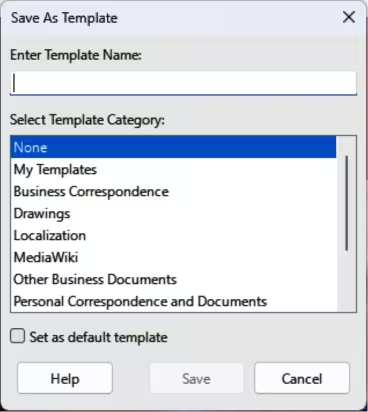
Use one of the following methods to open the Save As Template dialog (Figure 9):
-
Go to File > Templates > Save As Template on the Menu bar.
-
Click on the triangle ▼ to the right of Save on the Standard toolbar and select Save as Template from the drop-down menu.
-
Enter a name for the template in the Enter Template Name text box.
-
Select a template category from the list available in the Select Template Category box.
Figure 9: Save As Template dialog
-
If the new template is to be used as the default template in LibreOffice Draw, select the option Set as default template.
-
Click on Save to save the template and close the Save As Template dialog.
Using Save As command
-
Go to File > Save As on the Menu bar, or use the keyboard shortcut Shift+Ctrl+S (macOS ⌘+Ctrl+S) to open the Save as dialog.
-
Navigate to the LibreOffice templates folder. Actual location of the LibreOffice template folder depends on the computer system and setup.
-
Enter a filename using the extension OTG in the Name box.
-
From the drop-down list, select ODF Drawing Template (.otg) as the file type.
-
Click on Save to save the template and close the dialog.
-
Note
When saving a drawing as a template, the template must be saved in the LibreOffice templates folder for the template to be recognized and located by the LibreOffice Template Manager. See “Template folder location” below for more information.
Creating drawings from templates
Start Center
Open LibreOffice and create a new drawing from a template displayed in the Start Center using one of the following methods:
-
Click on Templates in the Start Center to open a display of available templates for all LibreOffice applications. Click on the required template and a new document opens using the relevant LibreOffice module for the template.
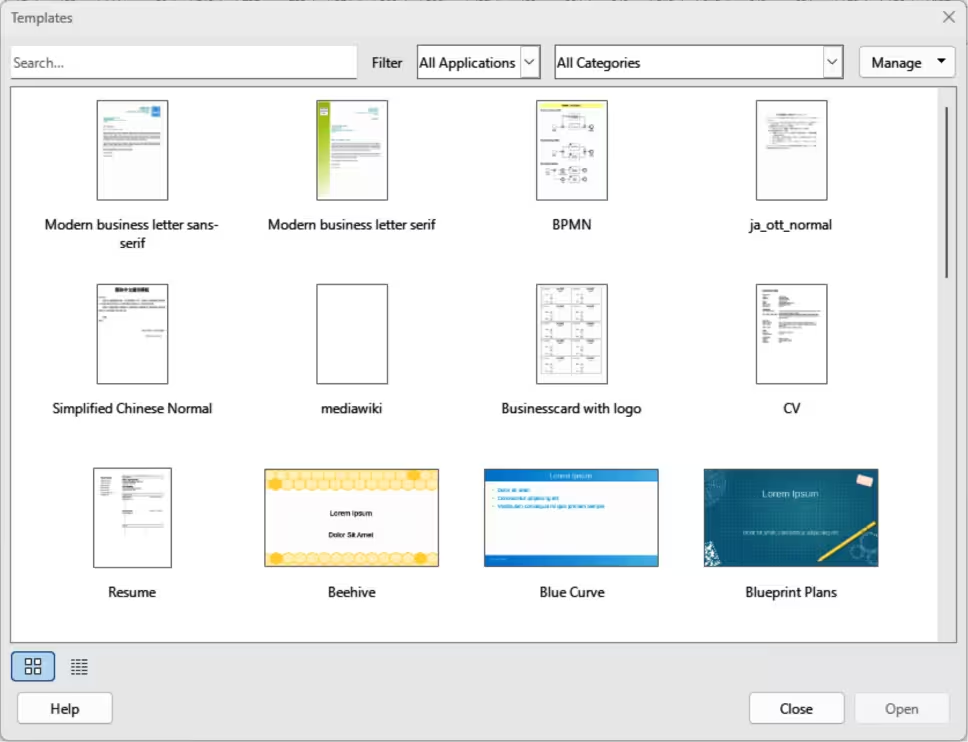
Figure 10: Templates dialog
-
Click on the triangle ▼ to the right of Templates in the Start Center, then select Draw Templates to display Draw templates. Click on the required template and a new drawing opens using LibreOffice Draw.
Templates dialog
-
Use one of the following methods to open the Templates dialog (Figure 10).
-
Go to File > New > Templates on the Menu bar.
-
Go to File > Templates > Manage Templates on the Menu bar.
-
Use the keyboard short cut Ctrl+Shift+N (macOS ⌘+Shift+N).
-
Select Drawings from the Filter drop-down list.
-
Select a category from the options available in the All Categories drop-down list.
-
Select a template from the options available in the preview box.
-
Click on Open, or double click on the template to create a new drawing using the selected template and close the Template dialog.
-
Go to File > Save As on the Menu bar and save the new drawing as a file using the extension ODG.
Default template
If a new drawing is created without selecting a template, LibreOffice creates a drawing using properties hard coded into LibreOffice. However, any drawing template can be used as a default template for Draw. The selected template must be in the templates folders used for LibreOffice applications and categories. See “Template folder location” below for more information.
Setting default template
-
Use one of the following methods to open the Templates dialog:
-
Go to File > New > Templates on the Menu bar.
-
Go to File > Templates > Manage Templates on the Menu bar.
-
Use the keyboard short cut Ctrl+Shift+N (macOS ⌘+Shift+N).
-
Select Drawings from the Filter drop-down list.
-
Select a category from the options available in the All Categories drop-down list.
-
Select a template from the options available in the preview box.
-
Right-click on the selected template and select Set as default from the context menu. There is no confirmation that the selected template is now the default template for new drawings. The default template is indicated by check mark at the top left corner of the template icon.
-
Click on Close to close the Templates dialog. The next time a new drawing is created, it uses the new default template.
-
Note
If a new drawing is suitable to use as the default template, then the drawing must be saved as a template first before it can be used as the default template. See “Creating templates” above for more information.
-
Tip
To reset all default templates for all LibreOffice modules, click on Manage in the Templates dialog and select Reset All Default Templates from the drop-down list.
Resetting default template
-
Use one of the following methods to open the Templates dialog (Figure 10):
-
Go to File > New > Templates on the Menu bar.
-
Go to File > Templates > Manage Templates on the Menu bar.
-
Use the keyboard short cut Ctrl+Shift+N (macOS ⌘+Shift+N).
-
Select Drawings from the Filter drop-down list.
-
Select a category from the options available in the All Categories drop-down list.
-
Right-click on the default template. The default template is indicated by check mark at the top left corner of the template icon.
-
Select Reset Default from the context menu. There is no confirmation that LibreOffice Draw has been reset to using LibreOffice default properties. The check mark is removed from the template icon.
-
Click on Close to close the Templates dialog. The next time a new drawing is created, it uses the LibreOffice default template.
Editing templates
Template styles and template content can be edited and, if necessary, reapplied to drawings that were created using that template. Content in a drawing that is not included in the template cannot be reapplied.
-
Note
Templates that were supplied with LibreOffice cannot be deleted. Only templates that have been created using LibreOffice, or imported into LibreOffice, can be edited or deleted.
Editing
-
Use one of the following methods to open the Templates dialog (Figure 10):
-
Go to File > New > Templates on the Menu bar.
-
Go to File > Templates > Manage Templates on the Menu bar.
-
Use the keyboard short cut Ctrl+Shift+N (macOS ⌘+Shift+N).
-
Select a drawing template that was created using LibreOffice, or imported into LibreOffice.
-
Right-click on the selected template and select Edit from the context menu to open the template in Draw.
-
Edit the template as any other drawing.
-
Go to File > Save on the Menu bar, or use the keyboard shortcut Ctrl+S (macOS ⌘+S) to save the template.
-
Alternatively, save the edited template as a new template. See “Creating templates” above for more information.
Updating drawings from modified template
If a drawing is opened and the template has been modified, a confirmation dialog opens asking to update the styles in the drawing to the formatting used in the modified template.
-
Select Update Styles to update any styles in the drawing that have been changed in the template and close the confirmation dialog.
-
Select Keep Old Styles so that styles in the drawing that have been changed in the template are not updated. The confirmation dialog closes and does not appear when the document is reopened. Also, the drawing is no longer connected to the template.
-
Note
If Keep Old Styles is selected, the template is still listed under File > Properties > General. The template has to be reassigned to reconnect the document to the template.
Changing templates assigned to drawings
If necessary, the template originally used for a drawing can be changed to a different template, or the original template used for the drawing reassigned.
-
To manually change, or reassign a template, create a new drawing from the required template and copy the contents from the old drawing into the new drawing.
-
Download the Template Changer extension from the LibreOffice website at https://extensions.libreoffice.org/extensions?ord=download_d&Tags%5B%5D=47 and install it into LibreOffice. Restart LibreOffice to activate the extension. Open the drawing and use File > Templates > Change template (current document) on the Menu bar to change the template. For more information, see the Getting Started Guide.
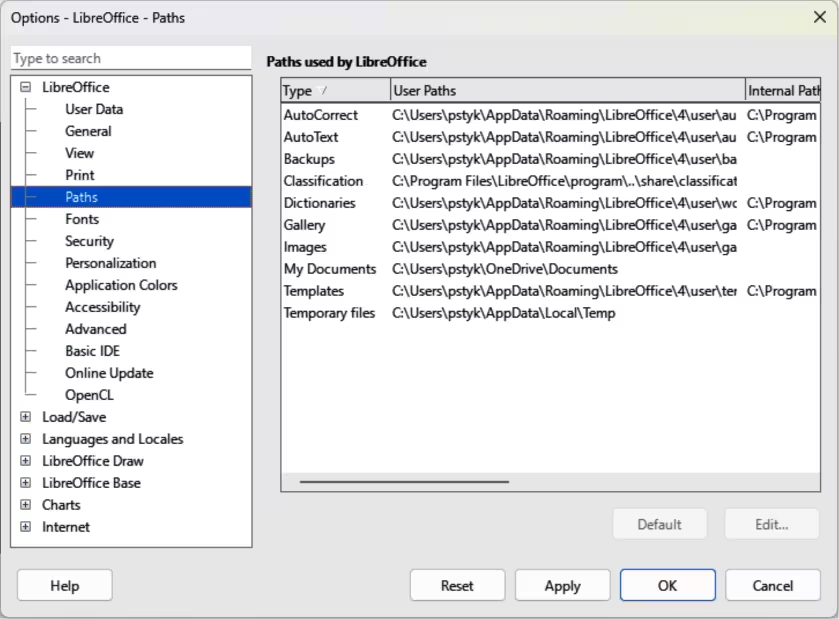
Figure 11: Options LibreOffice Paths dialog
Organizing templates
LibreOffice can only locate templates that are in LibreOffice template folder. Template categories can be created and used to organize templates, for example creating separate categories for different projects or clients. Templates can also be imported and exported.
Template folder location
The template folder location in LibreOffice varies with the computer operating system. Locating the template folder on a computer is as follows:
-
Go to Tools > Options > LibreOffice > Paths (macOS LibreOffice > Preferences > LibreOffice > Paths) on the Menu bar to open the Options LibreOffice Paths dialog (Figure 11).
-
Scroll down to Templates in Paths used by LibreOffice to identify the template folder used by LibreOffice.
Creating template categories
-
Use one of the following methods to open the Templates dialog:
-
Go to File > New > Templates on the Menu bar.
-
Go to File > Templates > Manage Templates on the Menu bar.
-
Use the keyboard short cut Ctrl+Shift+N (macOS ⌘+Shift+N).
-
In the Filter drop-down lists, select Drawings as the application.
-
In Manage, select New Category from the context menu.
-
Enter a name in the Enter new category name text box in the dialog that opens.
-
Click OK to save the new category in LibreOffice and close the dialog.
-
Note
In LibreOffice template categories, the default options Rename Category and Delete Category are grayed out. This indicates that template categories cannot be renamed or deleted.
Renaming template categories
Template categories originally installed with LibreOffice cannot be renamed. Only template categories that have been created after installing LibreOffice can be renamed.
-
Use one of the following methods to open the Templates dialog:
-
Go to File > New > Templates on the Menu bar.
-
Go to File > Templates > Manage Templates on the Menu bar.
-
Use the keyboard short cut Ctrl+Shift+N (macOS ⌘+Shift+N).
-
In the Filter drop-down lists, select Drawings as the application.
-
Select the category for renaming from the options available in the All Categories drop‑down list.
-
In Manage, select Rename Category from the context menutest.
-
Enter a name in the Enter new category name text box in the dialog that opens.
-
Click OK to save the renamed category in LibreOffice and close the dialog.
Deleting template categories
Template categories installed with LibreOffice cannot be deleted. Only template categories that have been created after installing LibreOffice can be deleted.
-
Use one of the following methods to open the Templates dialog:
-
Go to File > New > Templates on the Menu bar.
-
Go to File > Templates > Manage Templates on the Menu bar.
-
Use the keyboard short cut Ctrl+Shift+N (macOS ⌘+Shift+N).
-
In the Filter drop-down lists, select Drawings as the application.
-
Select the template category for deletion from the options available in the All Categories drop‑down list.
-
In Manage, select Delete Category from the drop-down list.
-
Click on Yes in the warning message to confirm the deletion of the category.
Moving templates
-
Use one of the following methods to open the Templates dialog:
-
Go to File > New > Templates on the Menu bar.
-
Go to File > Templates > Manage Templates on the Menu bar.
-
Use the keyboard short cut Ctrl+Shift+N (macOS ⌘+Shift+N).
-
In the Filter drop-down lists, select Drawings as the application.
-
Select the template category for moving from the options available in the All Categories drop‑down list.
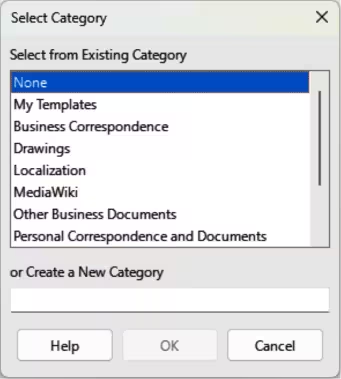
Figure 12: Select Category dialog
-
Right-click on the template that is going to be moved and select Move from the context menu to open the Select Category dialog (Figure 12).
-
Select a category from Select from Existing Category, or enter a name for a new category in Create a New Category.
-
Click OK to move the template to the selected category and close the Select Category dialog.
Importing templates
Using the Extension Manager, templates can be downloaded from many sources, including the official LibreOffice template repository. For more information about using the Extension Manager to import templates, see the Getting Started Guide.
Save the template on a computer, then import into the LibreOffice template folder as follows:
-
Use one of the following methods to open the Templates dialog:
-
Go to File > New > Templates on the Menu bar.
-
Go to File > Templates > Manage Templates on the Menu bar.
-
Use the keyboard short cut Ctrl+Shift+N (macOS ⌘+Shift+N).
-
In the Filter drop-down lists, select Drawings as the application.
-
Click on Manage and select Import from the context menu to open the Select Category dialog (Figure 12).
-
Select a category from Select from Existing Category, or enter a name for a new category in Create a New Category.
-
Click OK and a file browser window opens.
-
Navigate to the folder containing the template, select the template and click Open. The file browser closes and the template appears in the selected template category in the Templates dialog.
-
Note
Exporting a template does not remove it from the Templates dialog, or template folder. Exporting places a copy of the template in the location specified.
Exporting templates
Export a template from a template category to another location in a computer, or network, as follows:
-
Use one of the following methods to open the Templates dialog:
-
Go to File > New > Templates on the Menu bar.
-
Go to File > Templates > Manage Templates on the Menu bar.
-
Use the keyboard short cut Ctrl+Shift+N (macOS ⌘+Shift+N).
-
In the Filter drop-down lists, select Drawings as the application.
-
Select the required template category from the options available in the All Categories drop-down list.
-
Right-click on the required template and select Export from the context menu to open a file browser window.
-
Navigate to the destination folder where the template is going to be exported to.
-
Click OK and the exported template appears in the selected folder.
-
Click on Close to close the Templates dialog.
Deleting templates
-
Use one of the following methods to open the Templates dialog:
-
Go to File > New > Templates on the Menu bar.
-
Go to File > Templates > Manage Templates on the Menu bar.
-
Use the keyboard short cut Ctrl+Shift+N (macOS ⌘+Shift+N).
-
In the Filter drop-down lists, select Drawings as the application.
-
Select the required template category from the options available in the All Categories drop-down list.
-
Right-click on the template being deleted and select Delete from the context menu.
-
Click on Yes to confirm the deletion of the template.
-
Click on Close to close the Templates dialog.
-
Note
Templates installed with LibreOffice cannot be deleted. Only templates that have been created or imported after the installation of LibreOffice can be deleted.
Multiple layers
Layers in Draw allow assembly of related elements in a drawing. Layers are individual workspaces in a drawing that can be hidden from view, prevented from printing, or locked so that changes cannot be made.
Figure 13: Example of Draw Layers tab

Layers do not determine the stacking order of objects on a drawing, except for the Controls layer. The Controls layer is always in front of all other layers in a drawing. The stacking order of objects on a drawing is determined by the order in which objects were added. The stacking order of objects are rearranged by going to Shape > Arrange on the Menu bar.
Layers in a drawing are indicated by tabs located at the bottom of the Workspace and above the Status bar, as shown by the example in Figure 13. By default, the Layout tab is always selected when a drawing is opened. Click on another tab to select another layer in the drawing.
-
Notes
When a new layer is added, the layer is added to all pages in a drawing. However, when an object is added to a layer in a selected page, it is only added to the selected drawing page.
If an object is to appear on all drawing pages, for example, a company logo, add the object to the master page by going to View > Master on the Menu bar. See “Master pages” above for more information.
Default layers
Normal view
In Normal view, LibreOffice Draw provides three default layers that are visible to the user. These default layers cannot be deleted or renamed.
Layout
Controls
Dimension Lines
Master view
In Master view, LibreOffice provides a single layer, Background objects. This layer is used to places objects that appear on every page in a drawing, for example company logo, date, page number, drawing title, and so on.
Inserting layers
-
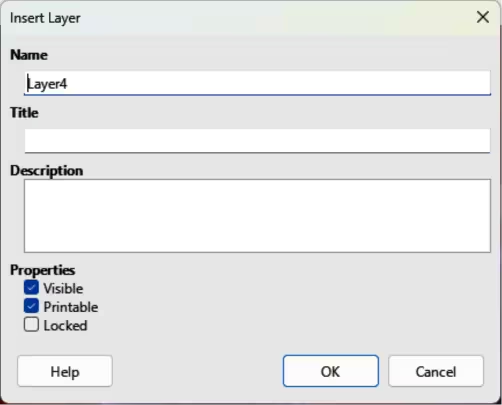
Use one of the following methods to open the Insert Layer dialog (Figure 14):
Figure 14: Insert Layer dialog
-
Right-click the layer tab area at the bottom of the Workspace area and select Insert Layer from the context menu.
-
Go to Insert > Layer on the Menu bar.
-
Enter meaningful names for the layer in the Name and Title text boxes.
-
If necessary, enter a description for the new layer in the Description text box.
-
Select Visible for the layer to be visible in a drawing. When Visible is not selected, the layer is hidden and its name in the layer tab changes color to blue.
-
Select Printable for the layer to print when the drawing is printed. The name of a layer is underlined in the layer tab bar when Printable is not selected. For example, not printing a layer is useful if the layer is a draft layer for guides or annotations used in creating the drawing, but is not required for the final printed output.
-
Select Locked to prevent any objects on a layer from deletion, editing, or moving. No additional objects can be added to a locked layer. The name of a locked layer is changes to Italic text in the layer tab bar. For example, locking a layer is useful when a base plan is to be protected while adding a new layer with other details.
-
Click OK to close the Insert Layer dialog and the new layer automatically becomes active
Modifying layers
-
Select the layer that is going to be modified.
-
Use one of the following methods to open the Modify Layer dialog. The Modify Layer dialog is similar to the Insert Layer dialog (Figure 14):
-
Right-click the layer tab area at the bottom of the Workspace area and select Modify Layer from the context menu.
-
Go to Format > Layer on the Menu bar.
-
Double click on the layer tab.
-
Make the necessary changes to the attributes for the layer.
-
Click OK to save the changes and close the Modify Layer dialog.
Working with layers
Selecting a layer
Click on the layer name tab in the Layers tab bar to select and activate the layer. Objects added to the drawing are only added to the active layer. Form controls are automatically added to the Controls layer and dimension lines are automatically added to the Dimension Lines layer.
If there are several layers in a drawing, a layer tab may not be visible on the Layers tab bar. Use the navigation icons on the left of the Layers tab bar to navigate to the required layer.
Hiding layers
-
Select the layer that is going to be hidden and open the Modify Layer dialog.
-
Deselect Visible and click OK. The text on the layer name tab changes color to blue. Any objects placed on a hidden layer are no longer visible on the other layers of the drawing.
-
Alternatively, hold down the Shift key and click on the layer name tab to hide the layer.
Showing hidden layers
-
Select the hidden layer that is going to become visible and open the Modify Layer dialog.
-
Select Visible and click OK. The text on the layer name tab changes color to the default text color. Any objects placed on a hidden layer are now visible in the other layers of the drawing.
-
Alternatively, hold down the Shift key and click on the layer name tab to make the layer visible.
Locking layers
-
Select the layer that is going to be locked and open the Modify Layer dialog.
-
Select Locked and click OK. The text on the layer name tab is underlined. Locking a layer prevents any modification of the layer.
-
Alternatively, hold down the Ctrl (macOS ⌘) key and click on the name tab to lock the layer.
Unlocking layers
-
Select the locked layer and open the Modify Layer dialog.
-
Deselect Locked and click OK. The text on the layer name tab is no longer underlined.
-
Alternatively, hold down the Ctrl (macOS ⌘) key and click on the name tab of the locked layer to unlock it.
-
Note
Only layers added to a drawing can be renamed or deleted. The default layers Layout, Controls, and Dimension Lines cannot be renamed or deleted.
Renaming layers
-
Select the layer that is going to be renamed and open the Modify Layer dialog.
-
Enter a new name in the Name text box and click OK to save the change.
-
Alternatively, right-click on the name tab of the layer and select Rename Layer from the context menu. The text becomes editable allowing the name to be changed. Click outside the tab area to save the change.
-
Alternatively, hold down the Alt key (macOS ⌥) and click on the name tab. The text becomes editable allowing the name to be changed. Click outside the tab area to save the change.
Deleting layers
-
Right-click on the name tab of the layer that is going to be deleted and select Delete Layer from the context menu.
-
Confirm the deletion of the layer. The layer and all of the objects on the layer are deleted from the drawing.
Moving objects between layers
If objects are selected on a layer, the Status bar indicates how many objects are selected. The position of the moved objects does not change in the drawing and the layer where the objects have been placed is displayed in the Status bar. Move the selected objects from one layer to another layer using one of the following methods:
-
Click and drag the selected objects to the name tab of the destination layer.
-
Go to Edit > Cut on the Menu bar, or right-click on the selected objects and select Cut from the context menu. Select the destination layer, then go to Edit > Paste on the Menu bar, or right-click on the Workspace and select Paste from the context menu.
Dimensioning
Dimensioning objects in Draw and then displaying dimensions creates drawing similar to an engineering drawing. Dimensions are automatically placed on the Dimension Lines layer.
Dimensioning objects
-
Dimension an object using one of the following methods. The cursor changes shape depending on computer operating and system, for example a cross:
-
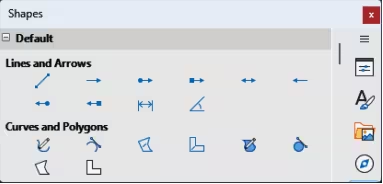
Click on the triangle ▼ next to Lines and Arrows on the Drawing toolbar to open the Lines and Arrows sub-toolbar (Figure 15) and click on Dimension Line.
-
Click on Dimension Line in the Lines and Arrows panel in the Shapes deck on the Sidebar (Figure 16).
Figure 15: Lines and Arrows sub-toolbar

-
Position the cursor at one corner of an object, then click and drag the cursor to draw the dimension line. To restrict drawing the dimension line in the horizontal or vertical direction, hold down the Shift key while dragging the cursor.
Figure 16: Lines and Arrows panel in Shapes deck on Sidebar
-
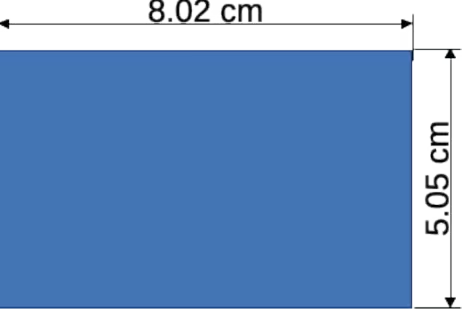
Release the cursor when the end of the dimension line is reached and the dimension line is drawn. A dimension is automatically added (as shown by the example in Figure 17). Dimension lines are placed automatically on the Dimension Lines layer.
-
To edit the text of the dimension, double-click on an unselected dimension line to enter text edit mode and make any necessary changes. Click outside the dimension line to save the changes.
-
To configure the dimension line, see “Configuring dimensioning” below.
-
Note
After editing the dimension text, save and close the drawing. Reopen the drawing to enable dimension automatic measurements.
Figure 17: Example of dimension lines
Configuring dimensioning
Drawing object styles
-
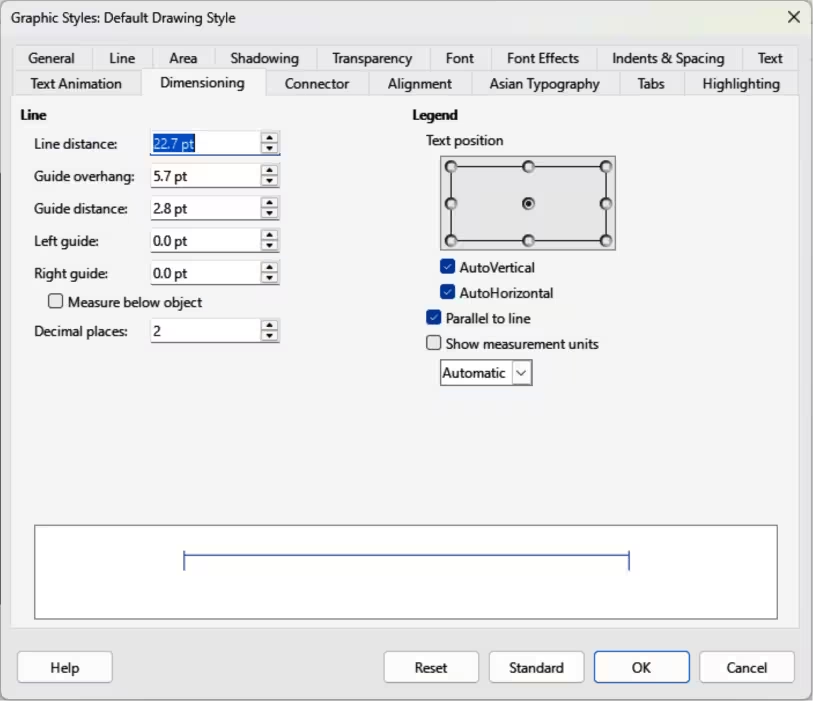
Open the Graphics Styles dialog (Figure 18) using one of the following methods:
-
Go to Format > Styles > Edit Style on the Menu bar.
-
Use the keyboard shortcut F11 (macOS ⌘+T) to open the Styles deck on the Sidebar, then right-click on a style and select Modify from the context menu.
-
Click on Styles on the Sidebar to open the Styles deck, then right-click on a style and select Modify from the context menu.
-
Click on Dimensioning to open the Dimensioning page in the dialog.
-
Make the changes required to dimensioning using the various options in the Line and Legend sections on the Dimensioning page.
Figure 18: Graphic Styles dialog — Dimensioning page
-
Click OK to save the changes and close the Graphic Styles dialog.
-
To reset the dimensioning options to the default properties of the template, open the Graphics Style dialog, then click on Standard.
Dimension line dialog
-
Draw a dimension line. See “Dimensioning objects” above for more information.
-
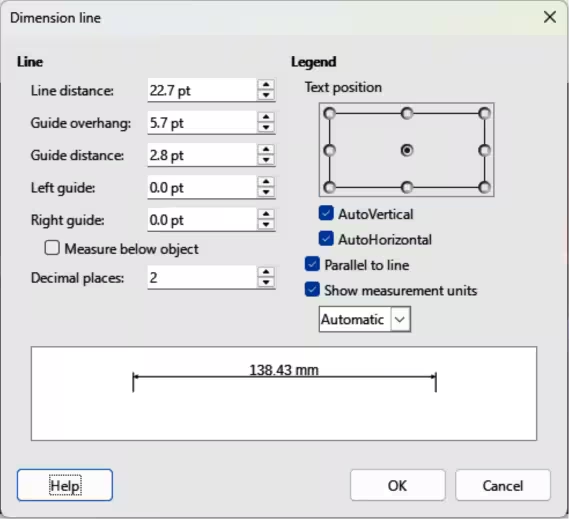
Right-click on the dimension line and select Dimensions from the context menu to open the Dimension line dialog (Figure 19).
-
Make the required changes for dimensioning using the various options in the Dimension line dialog.
-
Click OK to save the changes and close the Dimension line dialog.
Figure 19: Dimension Line dialog
Dimensioning options
The dimensioning options in the Dimensions page in the Graphics Style dialog and the Dimension Line dialog are as follows. The preview in the dialogs changes as the following options are changed showing how the dimension line appears in a drawing.
Line
Line distance
Specifies distance between the dimension line and the object or baseline. A minimum of -10mm to a maximum of 10mm can be entered in the text box. The lower the value, the closer the dimension line is to the object or baseline.
Guide overhang
Specifies distance the guide extends above or below the dimension line. A minimum of -10mm to a maximum of 10mm can be entered in the text box. Positive values cause the guide overhang to extend above the dimension line. Negative values cause the guide overhang to be below the baseline.
Guide distance
Specifies length of the right and left guides below the dimension line toward the object. A minimum of -10mm to a maximum of 10mm can be entered in the text box. Positive values extend the guides above the baseline and further away from the object. Negative values extend guides below the baseline and closer to the object.
Left guide
Specifies length of the left guide starting at the dimension line. A minimum of -10mm to a maximum of 10mm can be entered in the text box. Positive values extend the guide below the dimension line toward the object. Negative values move the guide away from the object.
Right guide
Specifies length of the right guide starting at the dimension line. A minimum of -10mm to a maximum of 10mm can be entered in the text box. Positive values extend the guide below the dimension line toward the object. Negative values move the guide away from the object.
Measure below object
Reverses positions and lengths of the dimension line and guides set in Line options.
Decimal places
Specifies number of decimal places used for the display of line properties.
Legend
Text position
Determines position of the dimension text to the dimension line and guides. AutoVertical and AutoHorizontal must be deselected before selecting text position.
AutoVertical
Determines optimal vertical position for the dimension text.
AutoHorizontal
Determines optimal horizontal position for the dimension text.
Parallel to line
Displays, when selected, text parallel to the dimension line or, when deselected, at 90 degrees to the dimension line.
Show measurement units
Shows or hides dimension measurement units. A measurement unit is selected from the drop-down list.
-
Note
The dimensioning options are linked to the current drawing and any dimensioning changes made apply only to the current drawing. New drawings start with the Draw standard properties. If the dimensioning options are to be used for future drawings, save the drawing as a template.
-
Tip
When dimensioning objects, it is recommended to use the zoom function, guide lines and snap functions so dimension lines can be accurately placed on an object. See Chapter 3, Working with Objects and Object Points for more information.
Drawing to scale
In Draw, the Workspace drawing area is normally Letter or A4 page size, depending on the computer setup and the default printer connected to the computer. However, depending on the actual size of the drawn objects, it is often convenient to reduce or enlarge the drawing by scaling (for example 1:10 or 2:1).
-
Note
When drawing to scale, dimension configuration values in the Graphics Style and Dimension Line dialogs are also to scale. For example, a value of 10mm in the dialog results in a dimension value of 300mm if the scale has been set to 1:30.
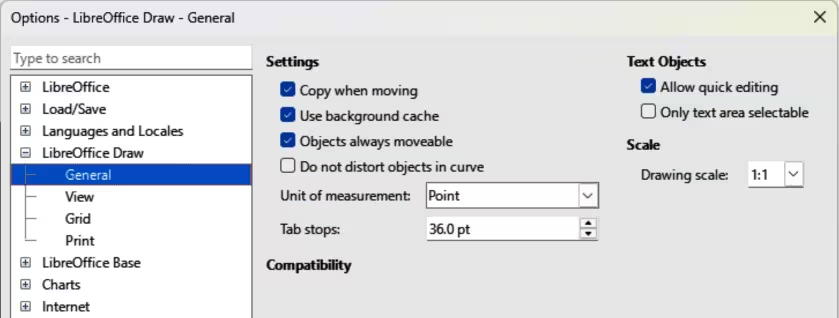
To specify the drawing scale go to Tools > Options > LibreOffice Draw > General (macOS LibreOffice > Preferences > LibreOffice Draw > General) to open the Options dialog (Figure 20), then select a value from the Scale drop-down list. The default setting for this option is 1:1. When a change is made to the drawing scale, it is reflected in the horizontal and vertical rulers on the Workspace.
Figure 20: Options LibreOffice Draw dialog — General page
Any change in the drawing scale has no effect on the basic drawing operations. Draw automatically calculates the necessary values (for example, dimension lines). The spacing of the grid points is independent of drawing scale as the grid is only a visual drawing aid and not a drawing element.
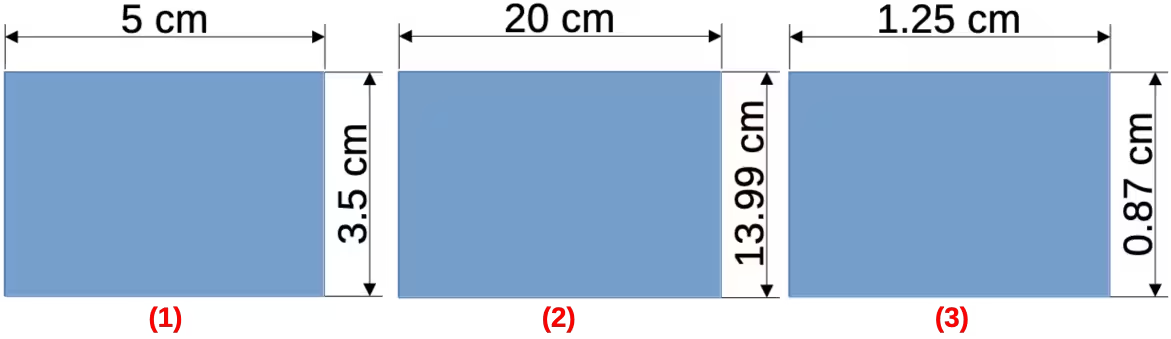
An increase in scale (for example 1:4) allows large objects to be drawn that would not fit into the drawing paper size. A decrease in drawing scale (for example 4:1) allows small objects to be drawn accurately at an increased size making them easier to understand. Examples of drawing to scale are shown in Figure 21 where all three rectangles are the same size in the drawing.
Figure 21: Example of drawing to scale
-
Left rectangle — drawn at the default 1:1 scale and dimensioned.
-
Center rectangle — drawing scale changed to 1:4. Dimensions are automatically increased by Draw to display the decrease in scale.
-
Right rectangle — drawing scale changed to 4:1. Dimensions are automatically decreased by Draw to display the increase in scale.
Multiple views of a drawing
Several views of the same drawing can be opened and used in Draw. These views are displayed in separate windows and are useful in displaying different views of the drawing, for example, master page and normal page open at the same time. Make sure the correct view is active when saving a drawing.
To open a new window for the same drawing file, go to Window > New Window on the Menu bar. Any change to a drawing in one window is immediately displayed in all open windows.
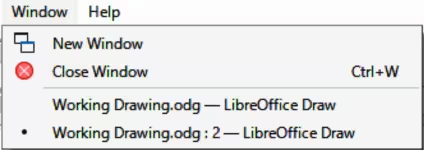
The filename for each open window is automatically numbered as shown by the example in Figure 22 and the active window has a marker by its filename in the list. If other LibreOffice documents are open at the same time, then these documents are also be included in the list. Switch between windows by clicking on a name in the list, or by clicking on the window itself if visible.
Figure 22: Example of multiple windows in Draw
Use one of the following methods to close a window:
-
Go to Window > Close Window on the Menu bar.
-
Use the keyboard shortcut Ctrl+W (macOS ⌘+W).
-
Click on File > Close in the Menu bar of the window.
Gallery
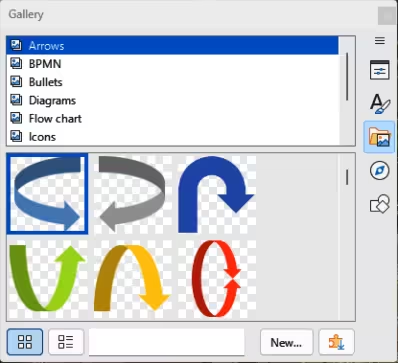
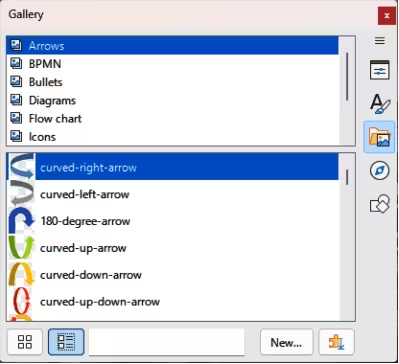
Draw includes several images in the Gallery. These images are grouped into themes listed in alphabetical order (for example Arrows, BPMN, Bullets, Diagrams, and so on). Click on a theme to display its images as icons or in a detailed view.
-
To display an icon view of the images in the Gallery deck (Figure 23), click on Icon View at the bottom left of the Sidebar.
Figure 23: Gallery deck in Sidebar — Icon View
-
To display a detailed view of the images in the Gallery deck (Figure 24), click on Detailed View at the bottom left of the Sidebar.
Figure 24: Gallery deck in Sidebar — Detailed View
Using the Gallery
-
Click on Gallery on the Sidebar, or go to Insert > Media > Gallery on the Menu bar.
-
Select a theme from the available options.
-
Use one of the following methods to place an image into a drawing:
-
Click on an image in the Gallery deck and drag the image into a drawing.
-
Right-click on an image and select Insert from the context menu. The image is placed at the center of a drawing.
-
Right-click on an image and select Copy from the context menu then paste the image into the drawing. The image is placed at the center of the drawing.
-
Edit the gallery image to the drawing requirements. For more information on editing images and pictures, see Chapter 6, Editing Pictures.
Creating themes and adding images
-
Open the Gallery deck on the Sidebar.
-
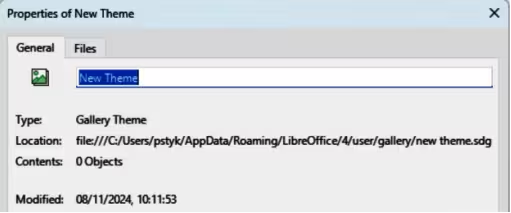
Click on New at the bottom right of the Gallery deck to open the Properties of New Theme dialog (Figure 25).
Figure 25: Properties of New Theme dialog — General page
-
On the General page, enter a name for the theme in the text box.
-
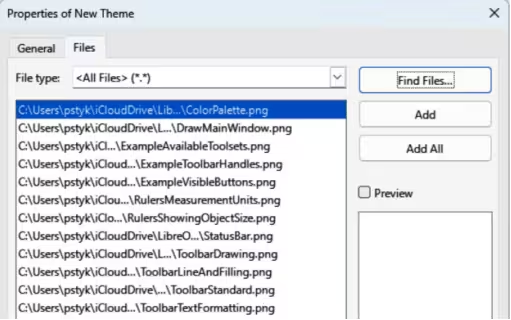
Click on Files to open the Files page (Figure 26).
-
Click on Find Files to open a Select Path dialog.
-
Navigate to the folder that contains the images required and click OK to select the folder and the Select Path dialog closes. A list of files contained in the folder now appear in the Files page as shown by the example in Figure 26.
-
If necessary, select the file format required for the images from the options available in the drop-down list. By default, all formats for image files are selected.
-
If required, click on Preview to display each selected image file.
-
Select the files required for the new theme. If necessary, press the Ctrl key (macOS ⌘) to select multiple files.
-
Click on Add. Selected files disappear from the file list and images appear in the Gallery.
-
If all the files in the list are to be added, click Add All. All files disappear from the list and the images appear in the Gallery.
-
Click OK when finished adding files and close the Properties of New Theme dialog. The name of the new theme appears in the Gallery deck.
Figure 26: Properties of New Theme dialog — Files page
Deleting gallery themes and images
-
Right-click on a theme, or image in the Gallery and select Delete from the context menu.
-
Click on Yes in the confirmation dialog and theme, or image, is deleted from the Gallery.
-
Notes
If an object is added to a theme, the object loses its connection to Draw graphic styles and all properties are set as direct formatting.
Only themes and images that have been added to Draw can be deleted or renamed. Themes and images included with LibreOffice cannot be deleted or renamed.
An image is a linked file and only the link is deleted from the Gallery. The original image file is not deleted.
Updating the Gallery
All images in the Gallery are linked files. Occasionally, it is beneficial to update a theme that has been added to Draw to make sure that all files are still accessible. Right-click on a theme that has at least one file added to the theme and select Update from the context menu.
Renaming themes
To rename a theme that has been added to Draw, right-click on the theme name and select Rename from the context menu.
Colors
Draw (like all LibreOffice modules) uses colors grouped into color palettes. Colors can be created to suit drawing requirements. All custom colors created are placed in the custom color palette. The following explains the color models that are used to create a custom color.
Red, Green, Blue (RGB)
Cyan, Magenta, Yellow, Key (Black) (CMYK)
Hue, Saturation, Brightness (HSB)
-
Tip
More information on color models and color values can be found at https://en.wikipedia.org/wiki/Color_model.
Changing colors in objects or lines
When changing colors in objects, color palettes are used to select colors. These color palettes are installed with LibreOffice and are used in all the LibreOffice modules. Using color palettes is similar across all types of objects, but accessing the color palettes does vary according to the type of object selected.
-
Note
The colors available in the Color Bar are from the Standard color palette that is part of the LibreOffice installation.
Figure 27: Color Bar (Color Palette)
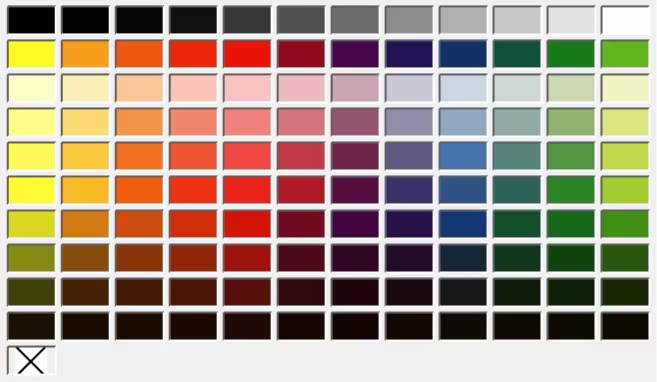
Color Bar
Although LibreOffice includes tools to precisely specify a color, it also includes a Color Bar (Figure 27) to quickly changing color in object area fills, borders, or lines. The Color Bar is also called the Color Palette.
-
Select an object in the drawing.
-
Go to View > Color Bar on the Menu bar to open the Color Bar. When the Color Bar opens, it is labeled Color Palette.
-
Left click on a color to change the area fill color, or right-click on a color to change the border or line color of a selected object.
-
Left click on the X box in the bottom left corner of the Color Bar to remove the color from an object fill, or right-click on the X box in the bottom left corner of the Color Bar to remove the color from an object border.
-
To close the Color Bar, go to View > Color Bar on the Menu bar and deselect Color Bar.
Area dialog
-
Select an object in the drawing.
-
Open the Area dialog (Figure 28) using one of the following methods:
-
Go to Format > Area on the Menu bar.
-
Right-click on the object and select Area from the context menu.
-
Click on Area, then click on Color to open the Color page.
-
In Colors, select a color palette from the Palette drop-down list.
-
Click on a color from the ones displayed in the color palette, or select a color that has been previously used from Recent Colors.
-
Click OK to save the changes and close the Area dialog. The selected fill color appears in the selected object.
Area panel on the Sidebar
-
Select an object in the drawing.
-
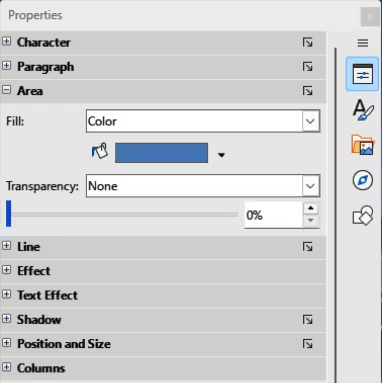
Open the Area panel in the Properties deck on the Sidebar (Figure 29).
-
Select Color from the Fill drop-down list.
-
Click on the triangle ▼ on the right of Fill Color to open the palette last used.
Figure 28: Area dialog — Color page
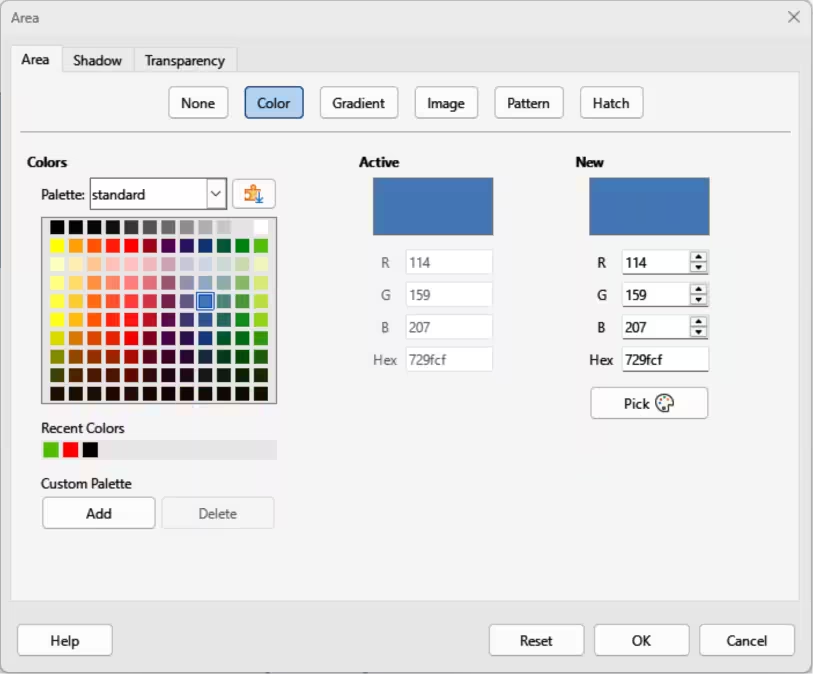
Figure 29: Area panel in Properties deck on Sidebar
-
If necessary, select a color palette from the available palettes in the drop-down list.
-
Click on a color from the colors displayed in the color palette, or select a color that has been previously used from those displayed in Recent. The color palette closes and the selected fill color is applied to the object.
Fill Color on the Line and Filling or Drawing toolbars
-
Select an object in the drawing.
-
Click on the triangle ▼ to the right of Fill Color on the Line and Filling toolbar, or the Draw toolbar to open the last color palette used.
-
Click on a color from the colors displayed in the color palette, or select a color that has been previously used from those displayed in Recent. The color palette closes and the selected fill color is applied to the selected object
Line dialog
-
Select a line, or object in the drawing.
-
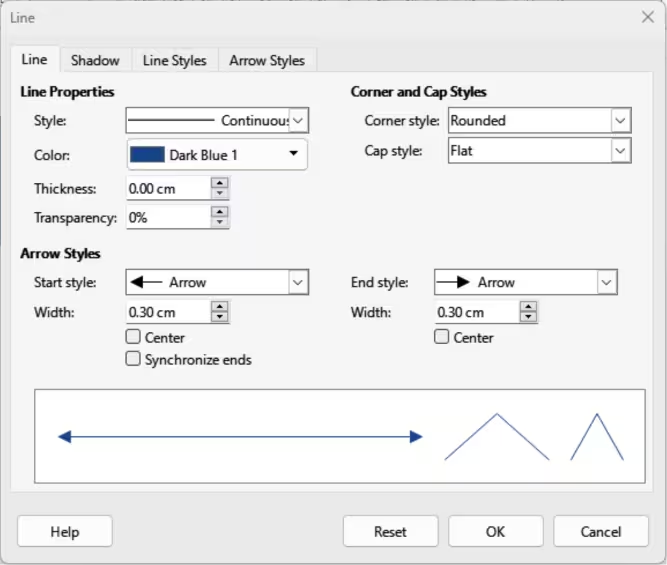
Open the Line dialog (Figure 30) using one of the following methods:
-
Go to Format > Line on the Menu bar.
-
Right-click on the line or object and select Line from the context menu.
-
Click on Line to open the Line page.
Figure 30: Line dialog — Line page
-
Click on the triangle ▼ to the right of Color in Line Properties to open the last color palette used.
-
Select a color palette to use from the available palettes in the drop-down list.
-
Click on a color from the colors displayed in the color palette, or select a color that has been previously used from those displayed in Recent. The color palette closes and the selected line color is applied to the line or object border.
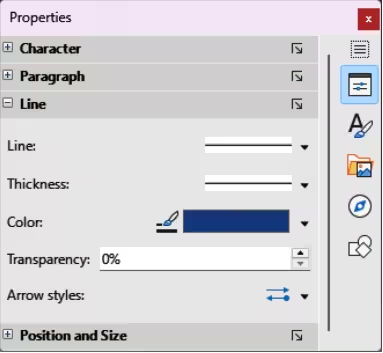
Figure 31: Line panel in Properties deck on Sidebar
-
Click OK to save the color change and close the Line dialog.
Line panel on the Sidebar
-
Select a line, or object in the drawing.
-
Open the Line panel in the Properties deck on the Sidebar (Figure 31).
-
In Line, click on the triangle ▼ to the right of Color to open the last color palette used.
-
Select a color palette to use from the available palettes in the drop-down list.
-
Click on a color from the colors displayed in the color palette, or select a color that has been previously used from those displayed in Recent. The color palette closes and the selected line color is applied to the line or object border.
Line Color on the Line and Filling or Drawing toolbars
-
Select a line, or object in the drawing.
-
Click on the triangle ▼ to the right of Line Color on the Line and Filling toolbar, or the Draw toolbar to open the last color palette used.
-
Select a color palette to use from the available palettes in the drop-down list.
-
Click on a color from the colors displayed in the color palette, or select a color that has been previously used from those displayed in Recent. The color palette closes and the selected line color is applied to the line or object border.
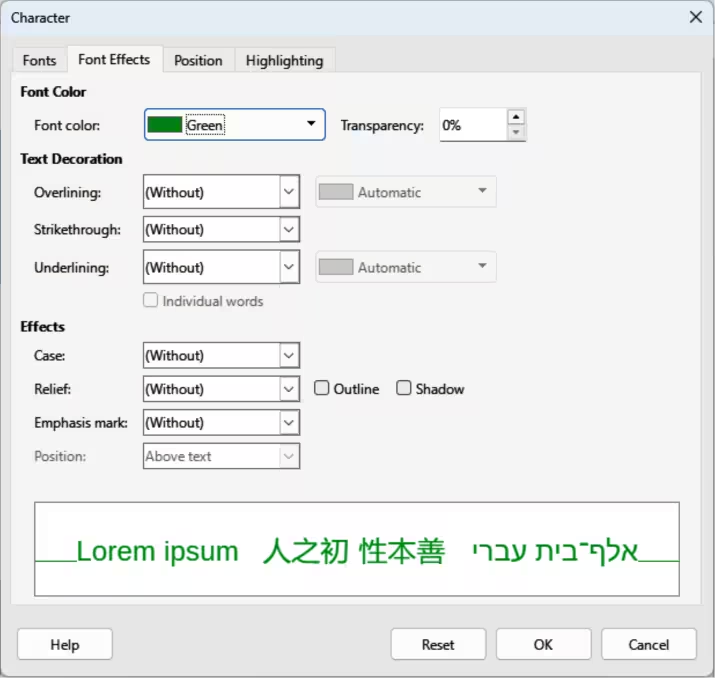
Figure 32: Character dialog — Font Effects page
Changing text color
Changing text color is similar to changing color for area fill, object border, or line. The Text Formatting toolbar automatically opens replacing the Line and Filling toolbar when text is selected in a drawing. If the Text Formatting toolbar does not open, go to View > Toolbars on the Menu bar and select Text Formatting.
Character dialog
-
Select a text box, or switch on text mode for a Draw object.
-
Highlight the text characters where the text color is going to be changed.
-
Open the Character dialog (Figure 32) using one of the following methods:
-
Go to Format > Character on the Menu bar.
-
Right-click on the highlighted text and select Character from the context menu.
-
Click on Font Effects to open the Font Effects page.
-
Click on the triangle ▼ to the right of Font Color to open the last color palette used.
-
Select a color palette to use from the available palettes in the drop-down list.
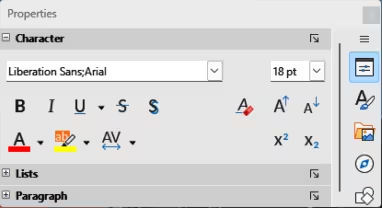
Figure 33: Character panel in Properties deck on Sidebar
-
Click on a color from the colors displayed in the color palette, or select a color that has been previously used from those displayed in Recent. The color palette closes and the selected color is applied to the selected text.
-
Click OK to save the color change and close the Character dialog.
Character panel on the Sidebar
-
Select a text box, or switch on text mode for a Draw object.
-
Highlight the text characters where the text color is going to be changed.
-
Open the Character panel in the Properties deck on the Sidebar (Figure 33).
-
Click on the triangle ▼ to the right of Font Color to open the color palette last used.
-
Select a color palette to use from the available palettes in the drop-down list.
-
Click on a color from the colors displayed in the color palette, or select a color that has been previously used from those displayed in Recent. The color palette closes and the selected color is applied to the selected text.
Creating colors
-
Notes
When using the Line or Character dialog to open the Pick a Color dialog, any custom color created cannot be saved into the Custom Palette, or renamed with a more meaningful name. The custom color created is named using the hex value that is displayed in the Pick a Color dialog. Only the Area dialog has the ability to rename custom colors and save custom colors into the Custom Palette.
LibreOffice uses the RGB color model for printing in color. The RGB values of a selected color are displayed the preview boxes.
Using Pick a Color dialog
-
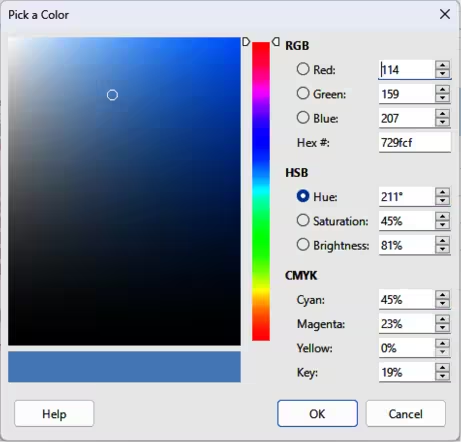
Select an object, or text and open the Pick a Color dialog (Figure 34) using one of the following methods:
-
Open the Area dialog, then click on Color to open the Color page and click on Pick.
-
Open the Area panel in Properties deck on the Sidebar, click on the triangle ▼to the right of Fill Color to open the color palette and click on Custom Color at the bottom of the color palette.
Figure 34: Pick a Color dialog
-
Open the Line dialog, then open a color palette in Color and click on Custom Color at the bottom of the color palette.
-
Open the Line panel in Properties deck on the Sidebar, click on the triangle ▼to the right of Line Color to open the color palette and click on Custom Color at the bottom of the color palette.
-
Open the Character dialog, then open a color palette in Font color and click on Custom Color at the bottom of the color palette.
-
Open the Character panel in Properties deck on the Sidebar, click on the triangle ▼to the right of Font Color to open the color palette and click on Custom Color at the bottom of the color palette.
-
Select a color range on the vertical color bar in the Pick a Color dialog that approximately matches the custom color being created.
-
Click and drag the small target circle in the color box until the color matches the custom color required. The values for RGB, HSB and CMYK change as the small target circle is dragged around the color box helping to create the exact color, if the color values are known.
-
Alternatively, if the color values, or hex number, are known, enter these values in the appropriate text box. Values in all text boxes change to match new values. For example, after entering HSB values, the RGB, CMYK and Hex values also change to match.
-
Click OK to save the changes and close the Pick a Color dialog.
Using Area dialog
-
Open the Area dialog and click on Color to open the Color page (Figure 28).
-
In New, enter the RGB values or, if known, the Hex value into the text boxes. The color changes in the preview box to match the values entered.
-
Alternatively, in New, use the minus and plus signs for the RGB values to decrease or increase the values. The color changes in the preview box to match the values entered.
-
Click OK to change the color and close the Area dialog.
Adding custom colors
-
Make sure the Area dialog is open at the Color page (Figure 28).
-
Select the custom color that is displayed in Recent Colors.
-
In Custom Palette, click on Add to open a Name dialog.
-
Enter a new name for the color in the text box.
-
Click OK to save the changes and close the Name dialog. The custom color appears in the Custom Palette.
-
Click OK to close the Area dialog.
Renaming custom colors
Only a custom color can be renamed using the Area dialog as follows:
-
Make sure the Area dialog is open at the Color page (Figure 28).
-
Select the custom color that is displayed in the Custom Palette.
-
Click on Add to open a Name dialog.
-
Enter a new name for the custom color in the text box,
-
Click OK to save the changes and close the Name dialog. A new custom color appears in the Custom Palette.
-
Click OK to close the Area dialog.
-
Notes
Renaming a custom color does not actually rename the custom color, but adds a new custom color to the Custom Palette. Before renaming, deleting, a custom color, make sure the custom color is NOT being used in another LibreOffice document.
Use a memorable names for custom colors so that the custom color is easily recognized in the Custom Palette. By default, a custom color is given a hex number, which makes it difficult identifying colors when there is more than one custom color.
Deleting custom colors
Only a custom color can be deleted using the Area dialog as follows:
-
Make sure the Area dialog is open at the Color page (Figure 28).
-
Select the custom color that is displayed in the Custom Palette.
-
Click on Delete. There is no confirmation given when deleting custom colors.
-
Click OK to close the Area dialog.
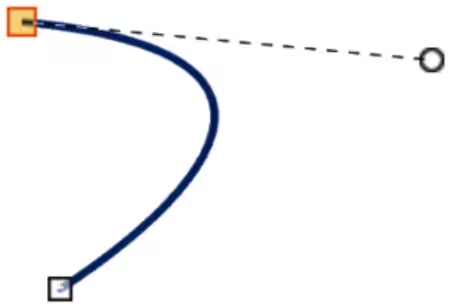
Figure 35: Example Bézier curve
Bézier curves
Bézier curves can be used in Draw. A curve is defined by means of a start point, an end point, and, where necessary, control points. For points on the curve the terms Nodes and Anchors are often used. For more information and an explanation of the mathematical background of Bézier curves, see https://en.wikipedia.org/wiki/Bézier_curve.
Bézier curves are very useful for experimenting with the shape and form of curves. In point mode, the curve alignment can be changed by dragging the points with the cursor. The example shown in Figure 35 displays an example of a Bezier curve with the start point selected and a control point attached to the start point by a dashed line. Moving control points changes the curvature and shape of a Bezier curve.
Drawing Bézier curves
-
Click on Curve in the Curves and Polygons panel in the Shapes deck on the Sidebar, or Curves and Polygons on the Drawing toolbar.
-
Click at the start point for the curve and drag the cursor to the approximate position of the end point for the curve.
-
Release the cursor and drag the end point of the curve to its end position.
-
Double-click when the end position of the curve is reached and a curve is drawn. The arc of the curve is determined by the distance dragged to create the end point.
-
Switch to points editing mode using one of the following methods:
-
Go to Edit > Toggle Edit Point Mode on the Menu bar.
-
If added to the toolbar, click on Toggle Edit Point Mode on the Drawing toolbar.
-
Use the keyboard shortcut F8.
-
Note
The Edit Points toolbar does not open until a point has been selected on a curve.
Figure 36: Edit Points toolbar

-
Open the Edit Points toolbar (Figure 36 ) using one of the following methods.
-
Go to View > Toolbars on the Menu bar and select Edit Points.
-
Use the keyboard shortcut F8.
-
If added to the toolbar, click on Points on the Drawing toolbar.
-
Click once on the curve to display the start and end points. The start point of the curve is larger than the end point.
-
Click on a start or end point to display the control points. Control points appear at the end of a dashed line connected to the selected point, as shown in the following examples.
-
Click on the control point and drag it to a new position to change the shape of the curve.
-
When the shape of the curve is satisfactory, release the cursor to fix the curve.
-
Click anywhere on the workspace to deselect the curve and stop editing points.
Edit Points tools
After the initial opening of the Edit Points toolbar, when an object is selected that has been converted to a curve or polygon, the toolbar is displayed. The tools available on the Edit Points toolbar allow the editing of a Bézier curve and changing of the curve shape. A point on a Bézier curve has to be selected for all the tools on the Edit Points toolbar to become available.
Move Points
-
The curve on both sides of the point follows the movement and changes shape as the selected point changes position.
-
Click and drag on the curve between points to move the entire curve without distorting the form.
Insert Points
-
The inserted point can be moved while insert mode is activated.
-
If a corner or symmetrical point is required, insert a smooth point first and convert the point to a corner or symmetrical point.
Delete Points
Convert To Curve
-
Select a single point and the curved segment after the point converts to a straight line, or coverts a straight line segment to a curve after the point.
-
When converting a segment from a curve to a straight line, each point at each end of the segment becomes a control point similar to the start or end point.
-
When converting a segment from a straight line to a curve, each control point at each end of the segment becomes a smooth point.
Close Bézier
Split Curve
Corner Point
Smooth Transition
Figure 37: Example converting curved segment to line
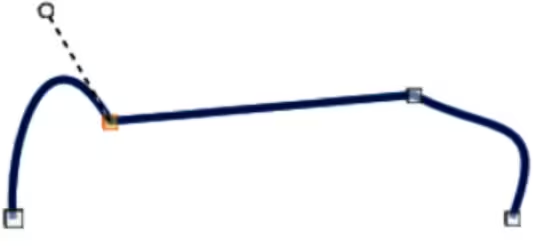
Figure 38: Example corner point
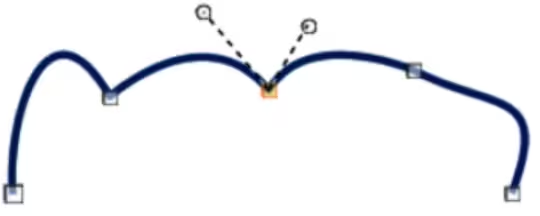
Figure 39: Example smooth transition point
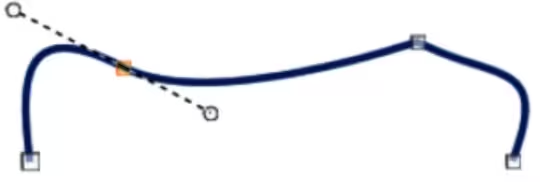
Figure 40: Example symmetric transition point
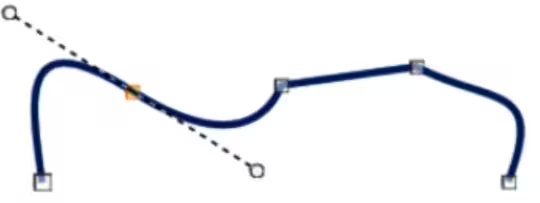
Symmetric Transition
Eliminate Points
Adding comments
Comments in Draw are similar to comments in the Writer, Calc and Impress modules. For more information about adding, navigating, and replying to comments, see the Getting Started Guide.
Comments in Draw cannot be printed. To reply to a comment in Draw, a new comment has to be added to the drawing.
-
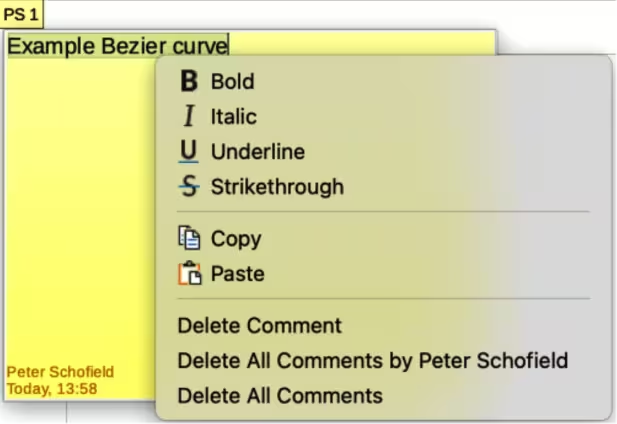
Go to Insert > Comment on the Menu bar and a comment box (Figure 41) appears in the upper left-hand corner of a drawing. Draw automatically adds the user name and date at the bottom of the comment and places a comment marker on the drawing page.
-
Type or paste a comment into the comment text box.
-
To apply basic formatting to the text, right-click on the text and select the formatting option from the context menu.
-
To delete a comment, use one of the following methods:
-
Right-click in the comment box and select Delete from the context menu.
-
Right-click on the comment marker and select Delete from the context menu.
-
Click on the triangle ▼ in the bottom right of the comment box and select Delete from the context menu.
-
To move a comment, click on the comment marker and drag it to a new position.
-
To hide comments, use one of the following methods:
-
Go to View on the Menu bar and deselect Comments to hide the comment and the comment marker.
-
Click on the drawing outside of the comment to hide the comment. The comment marker remains visible.
-
To show comments, go to View > Comments on the Menu bar and click on the comment marker.
Figure 41: Example comment in Draw
-
Note
For the user name and initials to appear in a comment, enter the user data in Tools > Options > LibreOffice > User Data dialog (macOS LibreOffice > Preferences > LibreOffice > User Data). If more than one person edits the document, each author is automatically allocated a different background color.
Coordinate system
X and Y axes
The x-axis is the horizontal position of an object and the y-axis is the vertical position of an object. The rulers do not show a minus sign if there are negative coordinates. However, the minus sign for negative coordinates is shown in the position field in the Status Bar and the Position and Size dialog.
Workspace
The Draw Workspace is larger than the drawing page. The area outside the drawing page is one page width right and left and a half page above and below the drawing page. The size of the drawing page is indicated by highlighted portions in the horizontal and vertical rulers.
Objects in Draw can be drawn partly or wholly outside the drawing page and these objects are saved with the drawing. However, when the drawing is printed or exported, any object or portion of an object not on the drawing page is not included. This allows the Workspace area around the drawing page to be used for drafts when creating objects.
Object position
The coordinates of objects and snap guides are shown relative to the origin. The default origin for coordinates (0.00/0.00 position) is the top-left corner of the drawing page without margins or the top left corner of the drawing page where the margins intersect. To change the default origin, click and drag the intersection of the rulers in the top left corner of the Workspace to the desired position. Guide lines appear as the intersection is dragged from its default origin to its new position. This origin setting is only for the current view and is not saved in the document.
The area inside the default origin is the area used for the grid when the options Snap to Grid and Display Grid are selected.
To reset the default origin back to its original setting at the top-left corner of the page, double‑click in the top-left corner on the Workspace where the horizontal and vertical rulers meet.
Accuracy
Draw internally uses integer values in 1/100 mm. This means that it may not be possible to get an exact position for 1/8 inch. Also, many dialog fields are restricted to two decimals.
To work with the maximum possible accuracy, go to Tools > Options > LibreOffice Draw > General (macOS LibreOffice > Preferences > LibreOffice Draw > General) and set the option Unit of measurement to Millimeter. The rulers then show metric units after this option has been selected, To use another measurement unit for the rulers, right-click on a ruler and select the measurement unit from the context menu. The horizontal and vertical rulers can have different measurement units.