Copyright
Document copyright © for 2026 is held by the LibreOffice Documentation Team. Contributors are listed below. All trademarks in this guide belong to their legitimate owners. This document maybe distributed and/or modified under the terms of the GNU General Public License (https://www.gnu.org/licenses/gpl.html), version 3 or later, or the Creative Commons Attribution License (https://creativecommons.org/licenses/by/4.0/), version 4.0 or later.
Contributors
Contributors for this edition:
Peter Schofield
Contributors for previous editions:
Jean Hollis Weber, Kees Kriek, Peter Schofield
Feedback
Please direct any comments or suggestions about this document to the Documentation Team Forum at https://community.documentfoundation.org/c/documentation/loguides/ (registration is required) or send email to: loguides@community.documentfoundation.org.
-
Note
Everything sent to a mailing list, including email addresses, is publicly archived and cannot be deleted.
Publication date and software version
Published April 2026. Based on LibreOffice 26.2.
Other versions of LibreOffice may differ in appearance and functionality.
Introduction
By default, commands and tools used in Draw are grouped in a user interface consisting of cascading menus and toolbars. The functions and use of these cascading menus and toolbars are described in previous chapters of this user guide.
This chapter describes the user interface variants that are available for Draw. A user has the option to select a user interface that suits their requirements and methods of creating drawings in Draw.
-
Note
When changing the user interface, the variant can be applied only to Draw, or applied to all the modules in LibreOffice.
Selecting user interface variants
-
Go to View > User Interface on the Menu bar to open the Select Your Preferred User Interface dialog (Figure 1).
-
In UI variants, select the required variant. An example of the selected user interface is shown in the Preview box with a short description.
-
Click on Apply to Draw to apply the selected user interface to LibreOffice Draw only.
-
Alternatively, click on Apply to All to apply the selected user interface to all LibreOffice modules. The LibreOffice window changes to match the selected user interface.
-
Click on Close to close the dialog.
-
Note
If the option Enable experimental features has been selected in the Tools > Options > Advanced (macOS LibreOffice > Preferences > LibreOffice > Advanced), several experimental variants appear in UI variants. Being experimental, these user interfaces are not described in this chapter.
Figure 1: Select Your Preferred User Interface dialog
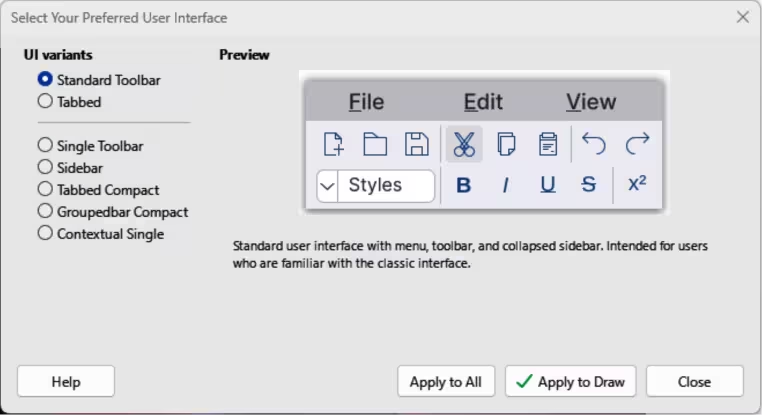
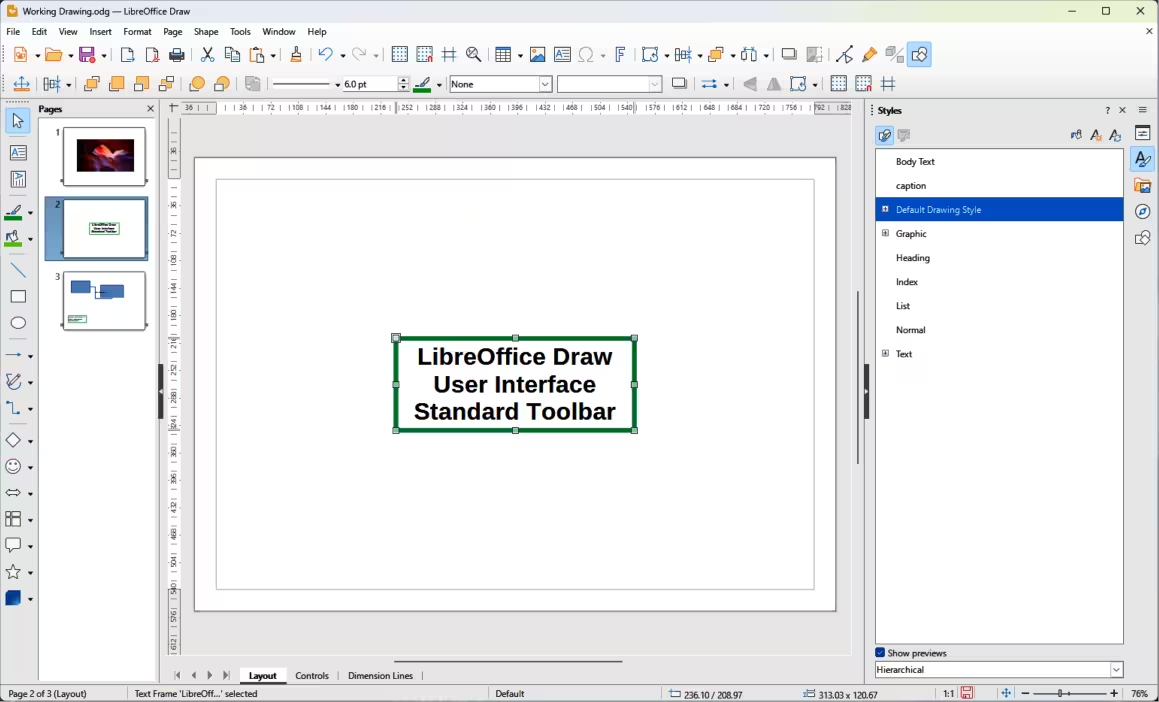
Figure 2: Standard Toolbar user interface
Standard Toolbar
The Standard Toolbar user interface is the default view when LibreOffice is installed on a computer and Draw is opened for the first time. For more information on the Draw Workspace, see Chapter 1, Introducing Draw. Figure 2 shows an example of the default Standard Toolbar user interface in Draw and consists of the following:
-
Menu bar at the top of the Workspace.
-
Standard, and Line and Filling toolbars positioned below the Menu bar.
-
Drawing toolbar positioned vertically on the left side of the Workspace.
-
Sidebar on the right of the Workspace.
Tabbed
-
Note
When using the Tabbed user interface, Draw toolbars are no longer visible. If required, it is possible to open toolbars by going to View > Toolbars on the Menu bar, or select Toolbars on the quick menu.
The Tabbed user interface provides a user interface that is similar to other office software applications, for example Microsoft Office. The user interface tabs consist of tools grouped by context. This context changes automatically depending on the LibreOffice module and the object selected. Figure 3 shows an example of the default Workspace view using the Tabbed user interface in Draw.
The Tabbed user interface includes a menu bar, tab bar, and tool icons grouped in context for use in Draw. If the tool icons on a tab page exceed the width of the Draw window, a double chevron >> appears at the right end of the tab row. Click on this double chevron >> to display the remaining options for the Tabbed user interface.
Figure 3: Tabbed user interface
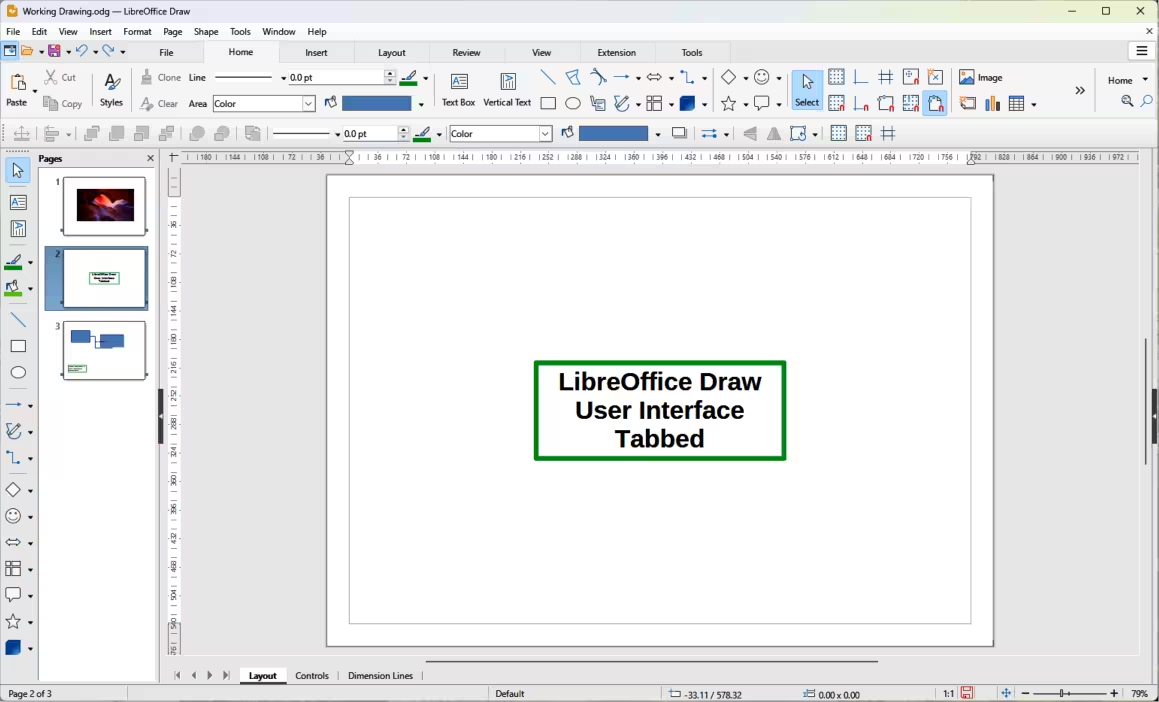
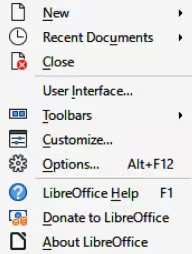
Figure 4: Tabbed user interface — Quick Menu
At the left end of the Tab bar, icons are available giving access to some commonly used tools — Menubar; Open; Save; Undo; Redo. Clicking on Menubar at the left end of the tab bar either hides or opens the main menu bar at the top of the Workspace.
On the right side at the top of the Workspace, click on the 3 horizontal lines (≡) to access commonly used commands and links, as shown by the example in Figure 4. Some commands have context menus with more commands available. This is indicated by a triangle ►, or a single chevron >, on the right of a command.
The Tabbed user interface is customized using the Notebookbar page of the Customize dialog (Figure 5) to show or hide the individual tools on the various tabs. Go to Tools > Customize on the Menu bar to open the Customize dialog. For more information on customization, see the Getting Started Guide and the Writer Guide.
Figure 5: Customize dialog — Notebookbar page
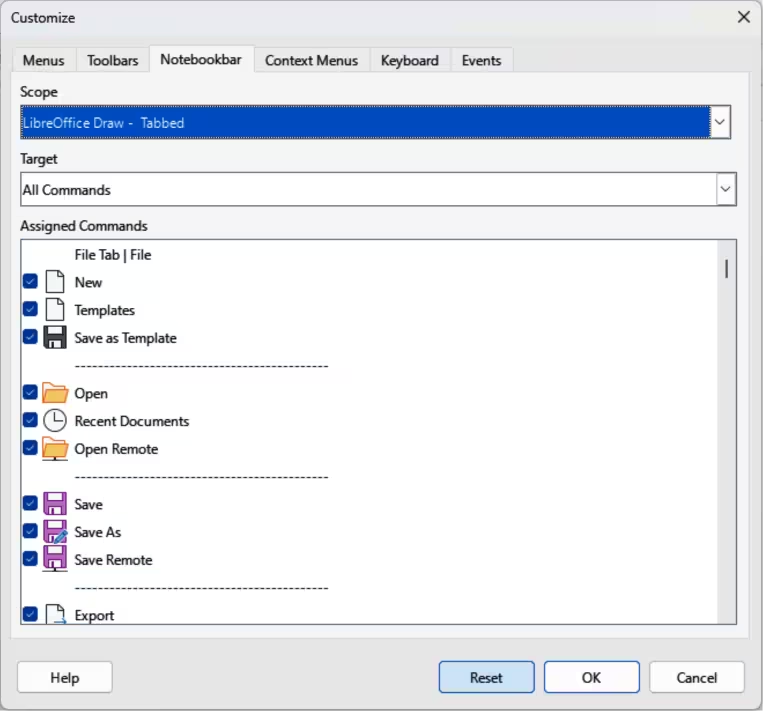
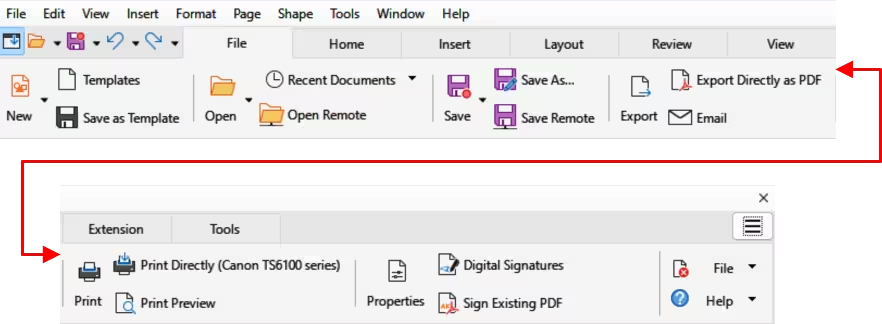
Figure 6: Tabbed user interface — File tab
Fixed tabs
File tab
The File tab (Figure 6) provides commands to create new documents and manage existing documents. On the right of the File tab there are two menus as follows:
-
File — contains the same commands as the tools available on the tab.
-
Help — provides links to a variety of resources.
Figure 7: Tabbed user interface — Home tab
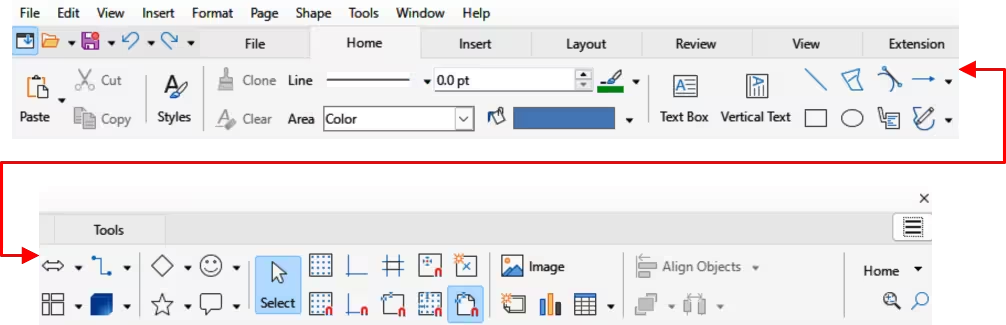
Figure 8: Tabbed user interface — Insert tab
Home tab
The Home tab (Figure 7) provides tools and commands for cutting, copying, pasting, inserting, and formatting all types of objects such as images, tables, charts, text, and so on. Also, drawing styles can be applied and updated to match drawing requirements. At the right end of the Home tab bar, click on Home to open a drop-down menu containing additional tools.
Insert tab
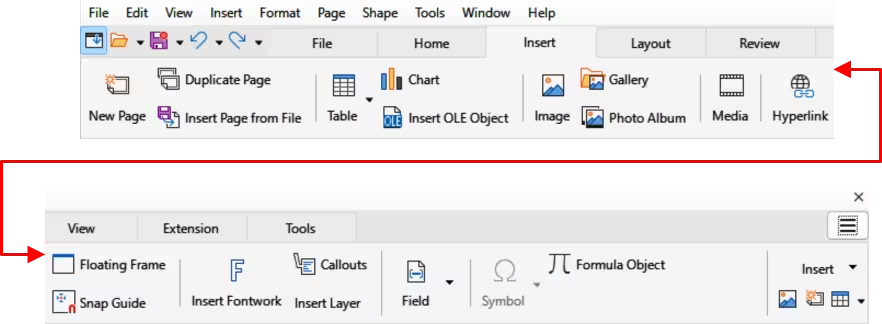
The Insert tab (Figure 8) provides tools and commands for inserting many types of objects such as images, tables, charts, and so on. At the right end of the Insert tab bar, click on Insert to open a drop-down menu with some of the same tools.
Layout tab
The Layout tab (Figure 9) provides tools and commands for creating a drawing layout. At the right end of the Layout tab bar, click on Layout to open a drop-down menu with some of the same tools.
Review tab
The Review tab (Figure 10) provides tools and commands for spell checking text, inserting and deleting review comments, and redaction. At the right end of the Review tab bar, click on Review to open additional text editing commands. Some of these commands appear only if Asian or Complex Text Layout are selected in Tools > Options > Language Settings > Languages (macOS LibreOffice > Preferences > Language Settings > Languages).
View tab
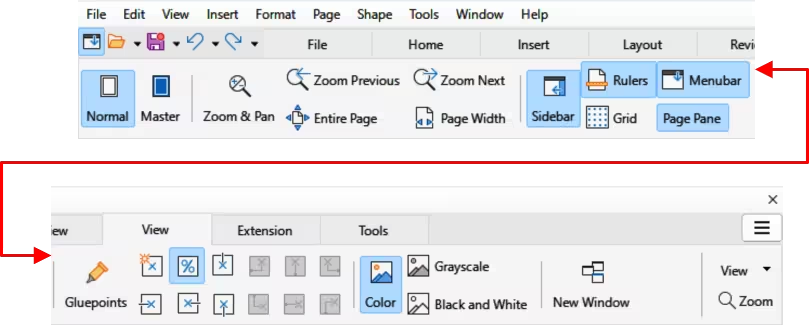
The View tab (Figure 11) provides tools and commands for displaying a drawing on screen. At the right end of the View tab bar, click View to open a drop-down menu providing additional tools for displaying a drawing screen.
Figure 9: Tabbed user interface — Layout tab
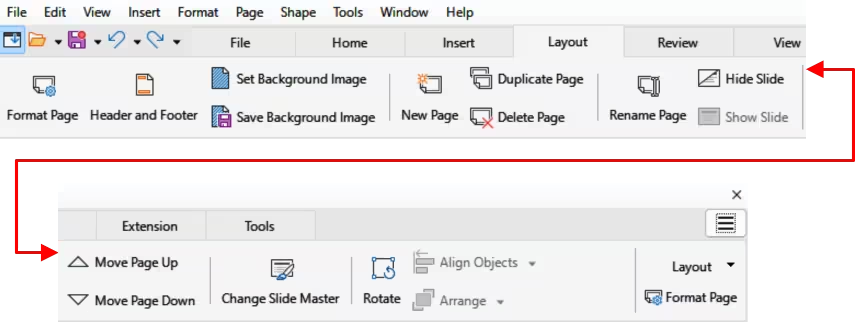
Figure 10: Tabbed user interface — Review tab
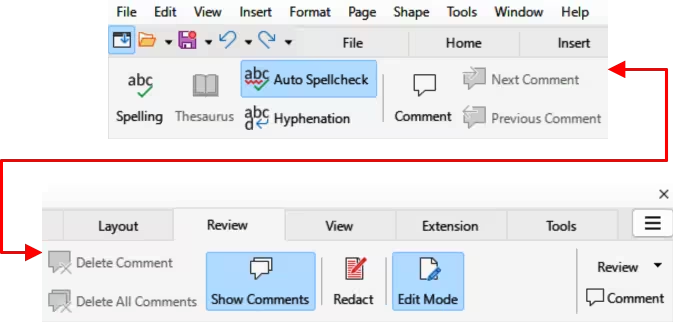
Figure 11: Tabbed user interface — View tab
Extension tab
The Extension tab is a fixed tab containing only the Extension Manager. When selected, the Extension Manager dialog opens allowing for installation and deletion of extensions that are compatible with LibreOffice.
Tools tab
The Tools tab (Figure 12) provides tools for macros; color replacer; media player; and so on. At the right end of the Tools tab bar, click on Tools to open a drop-down menu with some of the same tools, plus extra tools for organizing macros and dialogs, image map, data sources, filter settings, extension manager, and options.
Figure 12: Tabbed user interface — Tools tab
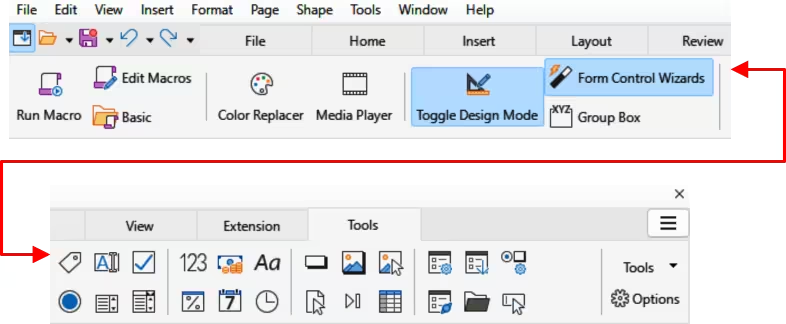
Figure 13: Tabbed user interface — Draw tab
Additional tabs
The following additional tabs only open when a specific type of object in a drawing is selected. These additional tabs are displayed between the View and Extension tabs.
Draw tab
The Draw tab (Figure 13) is only available when a draw object is selected. It provides tools and commands for editing, transforming, grouping, aligning, and distributing draw objects. At the right end of the Draw tab bar, click on Draw to open a drop-down menu with a similar set of tools and commands for editing, transforming and converting draw objects.
Image tab
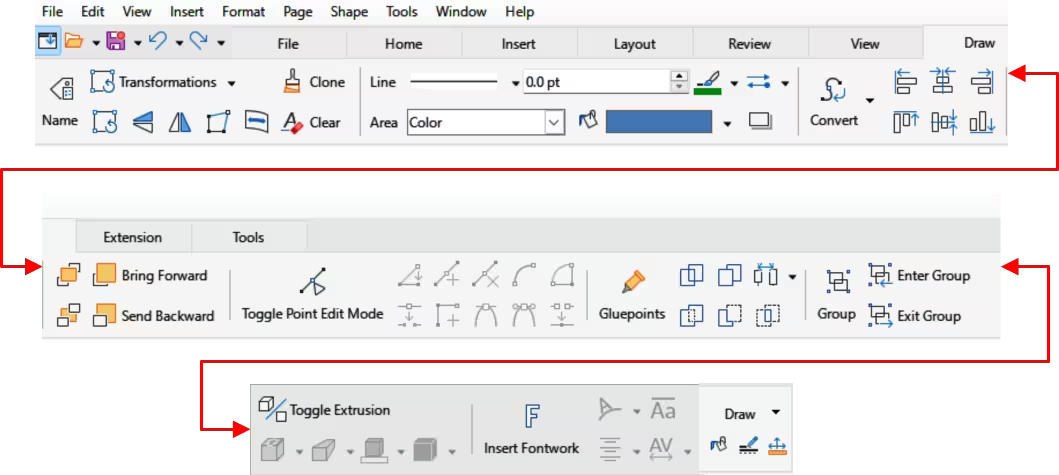
The Image tab (Figure 14) is only available when an image is selected such as a photograph, Fontwork, OLE object, or QR code. It provides tools for working with images, such as cropping, borders, area styles, colors, and so on. At the right end of the Image tab bar, click on Image to open a drop-down menu with some of the same tools.
Object tab
The Object tab (Figure 15) only becomes available when a compatible object is selected in a drawing, for example a chart. It provides tools to position, resize, select colors, and so on for the selected compatible object. At the right end of the Object tab bar, click Object to open a menu with extra tools and commands matching the type of object selected.
Figure 14: Tabbed user interface — Image tab
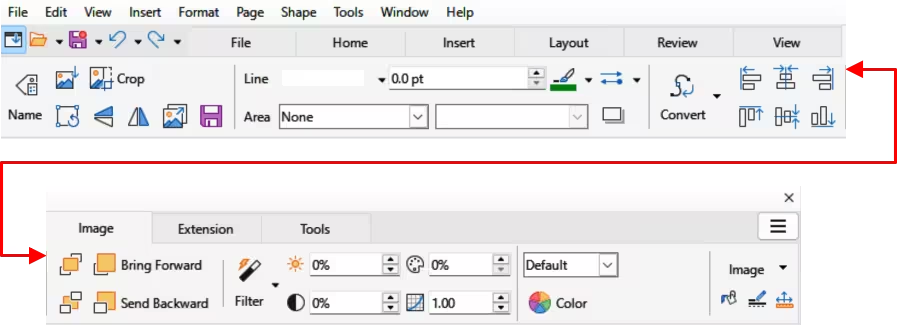
Figure 15: Tabbed user interface — Object tab
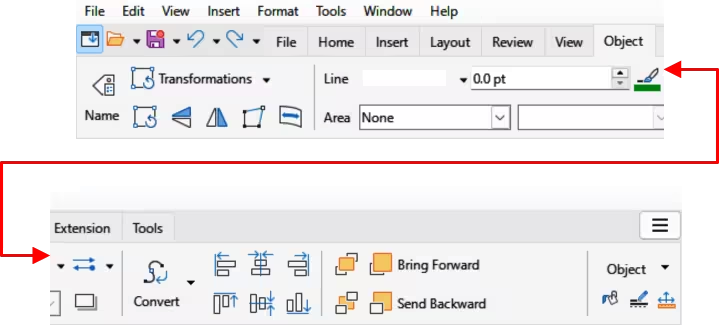
Figure 16: Tabbed user interface — Table tab
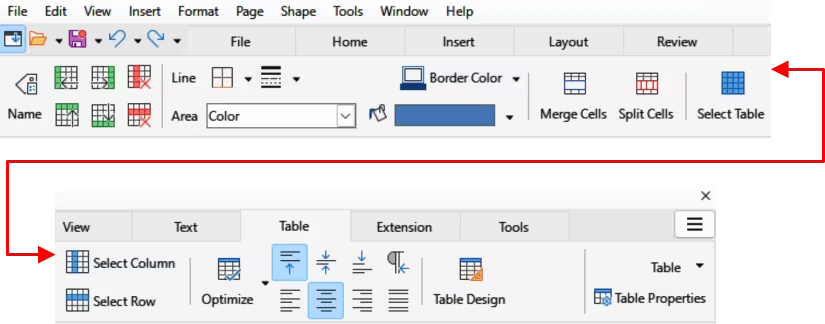
Figure 17: Tabbed user interface — Media tab

Table tab
The Table tab (Figure 16) only becomes available when a compatible table is selected in a drawing. It provides tools to position, resize, select colors, and so on for the selected table. At the right end of the Table tab bar, click on Table to open a drop-down menu with extra editing tools.
Media tab
The Media tab (Figure 17) only becomes available when a media object is selected in a drawing. It provides tools for positioning and running an audio or video file. At the right end of the Media tab bar, click on Media to open a drop-down menu with extra tools for editing a media.
Figure 18: Single Toolbar user interface
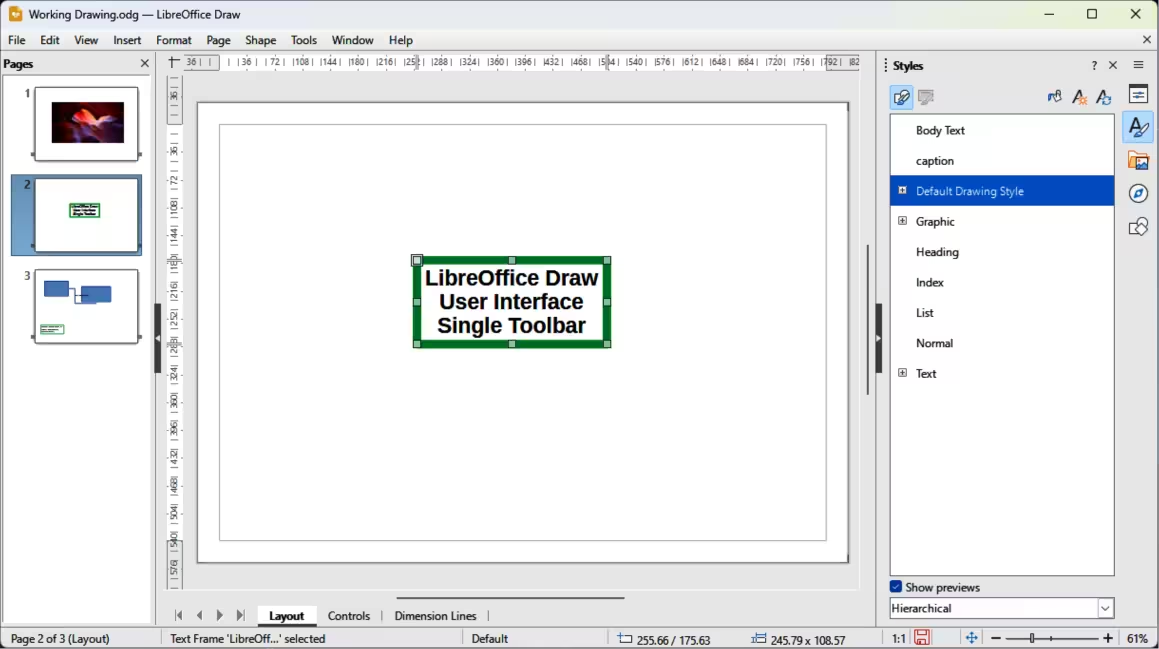
Figure 19: Sidebar user interface
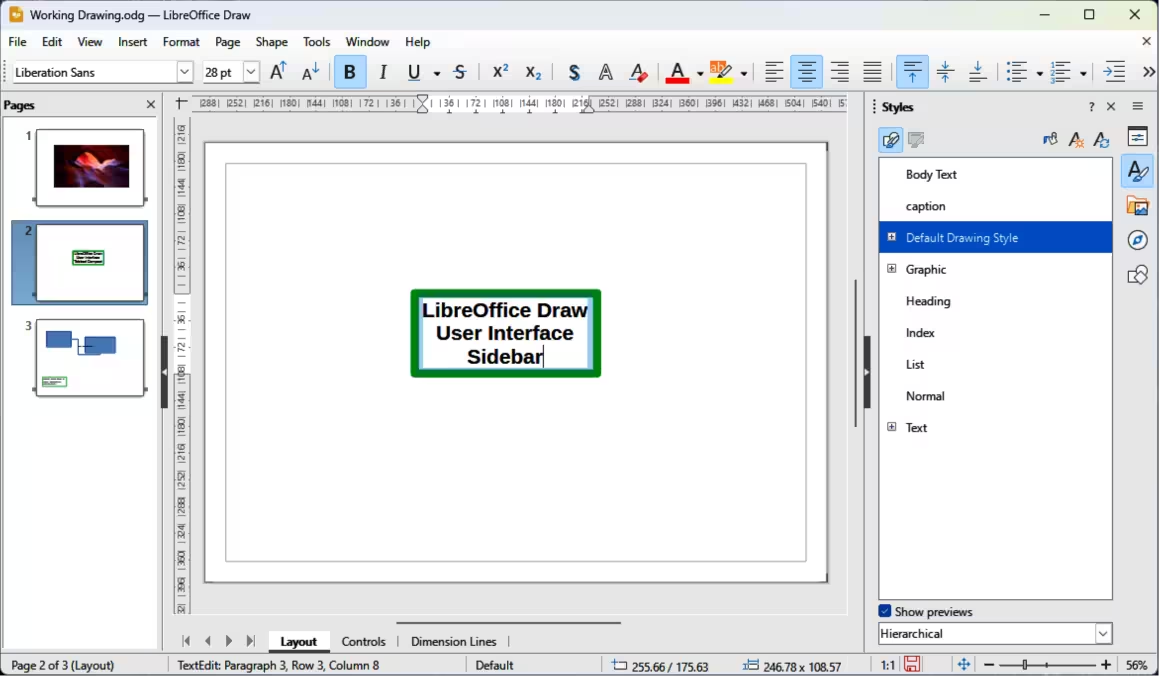
Single Toolbar & Sidebar
When selected, the Single Toolbar and Sidebar user interfaces (Figure 18 and Figure 19) only show the Menu bar with no toolbars. However, toolbars can be added to the user interface by going to View > Toolbars on the Menu bar and selecting the required toolbar from the options available. For more information on toolbars, see Appendix B, Toolbars and Getting Started Guide.
Tabbed Compact
The Tabbed Compact user interface uses the same tabs as the Tabbed user interface, but the tools on each tab are arranged as a single row of tools. Some of these tools have drop‑down menus with extra options. Figure 20 shows an example of the File tab in the Tabbed Compact user interface. When displayed, clicking on the double chevron >> on the right of the tab bar displays more tools and commands for editing an object.
The tab menu on the right of the Tabbed Compact user interface provides the same options as the tab menus in the Tabbed user interface, see “Tabbed” above for more information.
Groupedbar Compact
The Groupedbar Compact user interface provides access to tools and commands in groups using icons for frequently used tools and drop-down menus for other tools and commands. Figure 21 shows an example of a Compact Groupedbar user interface with a text object selected in a LibreOffice Draw document and is organized as sets of tools and menus. The tools and menus that are available change to suit the type of object selected. Clicking on the double chevron >> displays more tools for editing an object.
Contextual Single
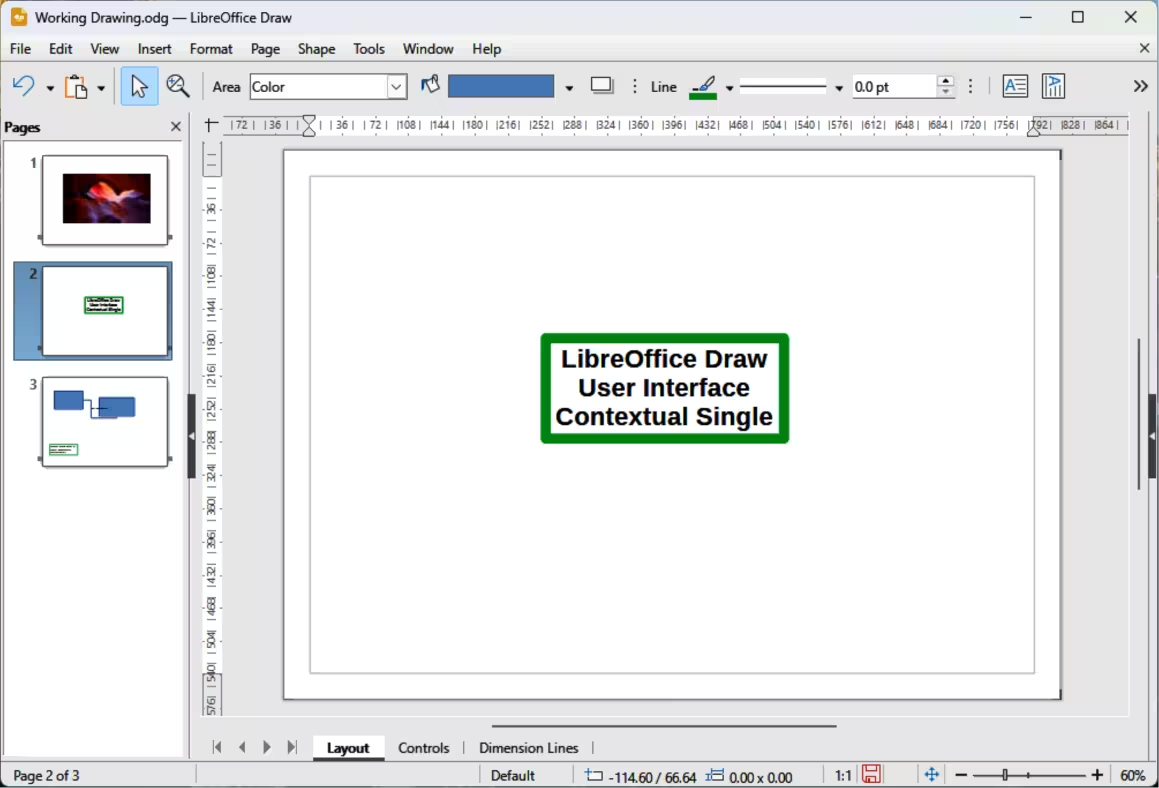
The Contextual Single user interface displays a single toolbar for the type of selected object. Figure 22 shows an example of Contextual Single user interface when a drawing object is selected. Clicking on the double chevron >> displays more options for editing an object.
Figure 20: Tabbed Compact user interface
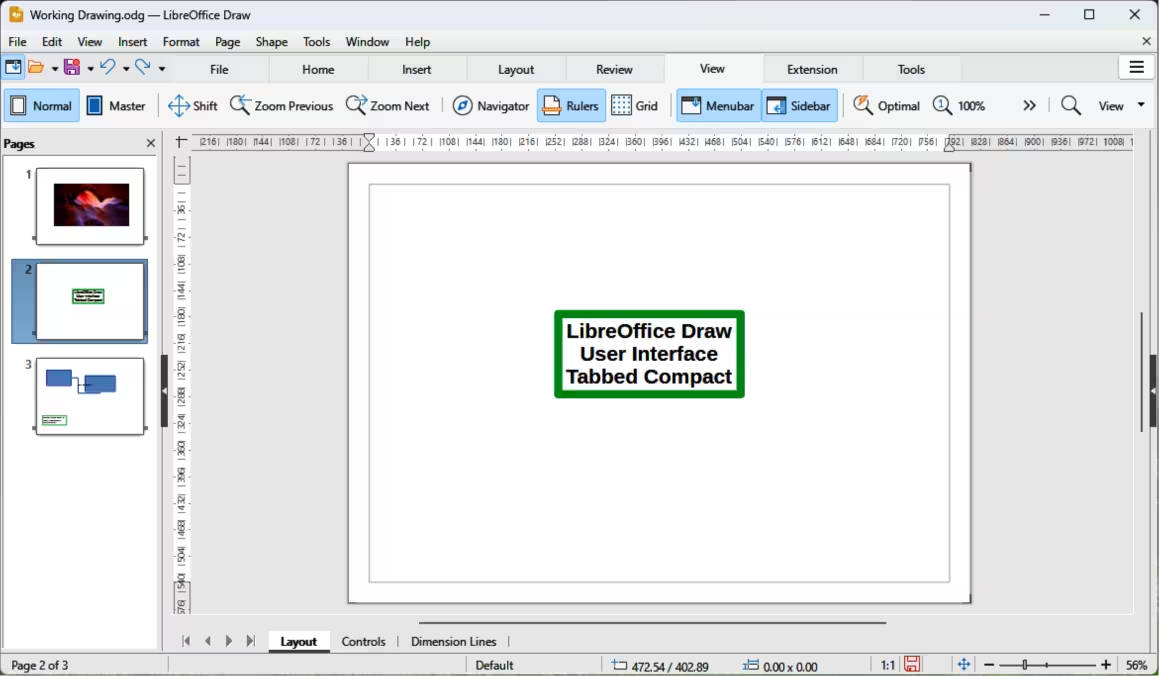
Figure 21: Groupedbar Compact user interface
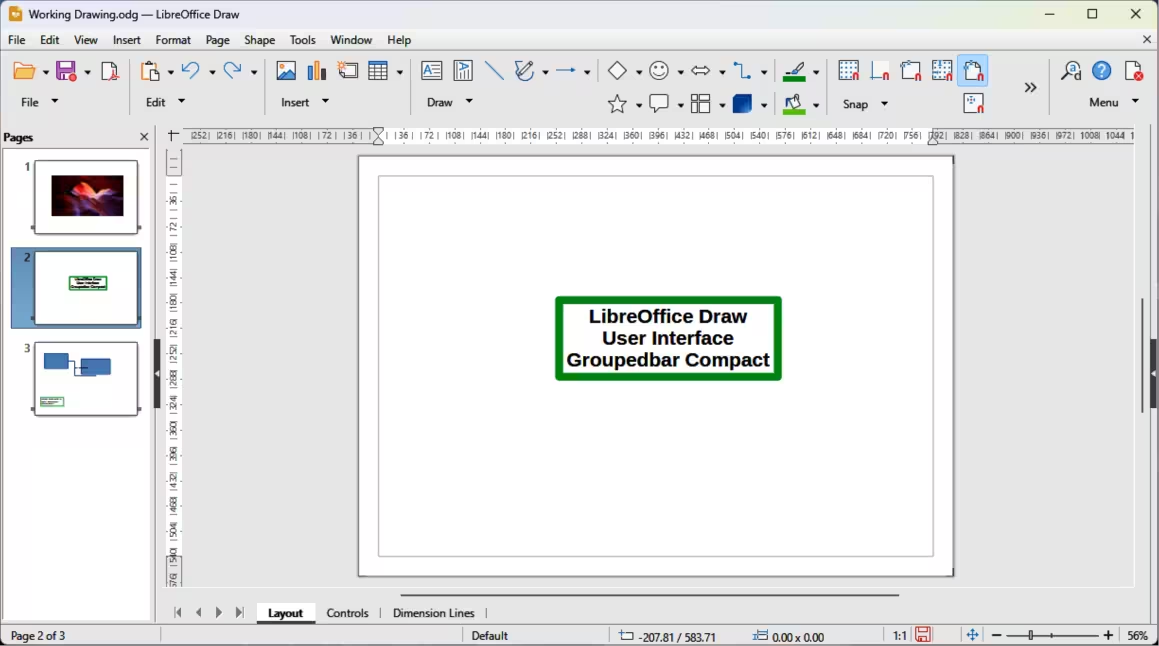
Figure 22: Contextual Single user interface