Copyright
Document copyright © for 2026 is held by the LibreOffice Documentation Team. Contributors are listed below. All trademarks in this guide belong to their legitimate owners. This document maybe distributed and/or modified under the terms of the GNU General Public License (https://www.gnu.org/licenses/gpl.html), version 3 or later, or the Creative Commons Attribution License (https://creativecommons.org/licenses/by/4.0/), version 4.0 or later.
Contributors
Contributors for this edition:
Peter Schofield
Contributors for previous editions:
Peter Schofield
Feedback
Please direct any comments or suggestions about this document to the Documentation Team Forum at https://community.documentfoundation.org/c/documentation/loguides/ (registration is required) or send email to: loguides@community.documentfoundation.org.
-
Note
Everything sent to a mailing list, including email addresses, is publicly archived and cannot be deleted.
Publication date and software version
Published April 2026. Based on LibreOffice 26.2.
Other versions of LibreOffice may differ in appearance and functionality.
Introduction
Draw provides several toolbars for creating drawings. Each toolbar has a default set of tools when LibreOffice is installed on a computer. To improve the usability of a toolbar, additional tools can be added, see “Editing toolbars” below for more information.
-
Note
The toolbar icons displayed in this user guide may differ from what is displayed on a computer screen. Toolbar icons depend on the computer operating system and how LibreOffice is set up. For more information on customizing LibreOffice and the toolbars, see the Getting Started Guide.
Using toolbars
Displaying toolbars
Two methods of opening toolbars in Draw are used, as follows:
-
Go to View > Toolbars on the Menu bar. A sub-menu opens with an alphabetical list of toolbars available for creating drawings in Draw.
-
Click on a toolbar name to display it and make it active. Active toolbars are indicated by highlighting or a check mark next to the toolbar name, depending on computer setup.
Closing toolbars
To close a toolbar, use one of the following methods:
-
Go to View > Toolbars on the Menu bar and deselect the toolbar.
-
Right-click in a blank area on a toolbar and select Close Toolbar from the context menu.
-
Click on the X in the right corner of the title bar of a floating toolbar.
Moving toolbars
Docked toolbars
By default, some toolbars are docked into position in the Draw main window. The Standard toolbar is docked horizontally at the top and the Drawing toolbar is docked vertically at the left side. Docked toolbars can be undocked and moved into a new docked position in the main window, or left as a floating toolbar.
-
Move the cursor over the small vertical handle at the left end of the toolbar, or horizontal handle at the top of a toolbar (highlighted in Figure 1). The cursor changes shape to the moving cursor used for the computer system and setup.
-
Alternatively, right click on a docked toolbar and select Undock Toolbar from the context menu.
-
Click and drag the toolbar to a new docked position, or leave as a floating toolbar. A hashed border appears around the toolbar indicating toolbar position as it is dragged.
-
Release the toolbar when it is in the required position.
Figure 1: Example of toolbar moving handles
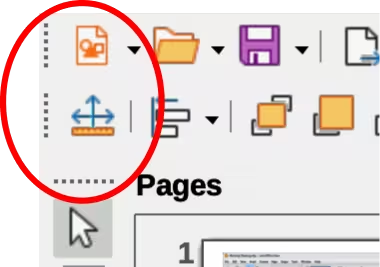
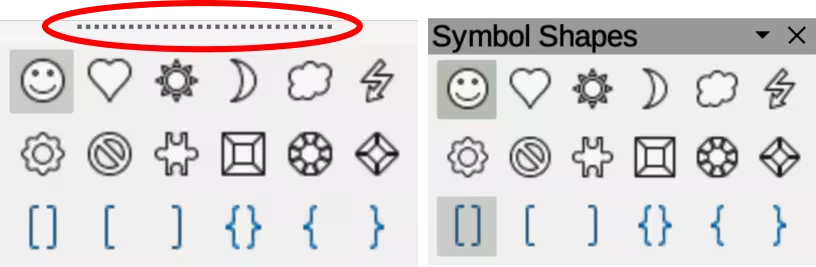
Figure 2: Example of creating floating sub-toolbars
-
Note
If the toolbar handles are not visible on a docked toolbar, then the toolbar is locked into position. A docked toolbar must be unlocked before moving to a new position in the main window. See “Locking toolbars” below for more information.
Floating toolbars
To move a floating toolbar, click on the title bar and drag it to a new floating location. Release the toolbar when it is in the required position. A floating toolbar does not have to be positioned on the Draw main window for it to function.
Floating sub-toolbars
Some tools on a toolbar have a triangle ▼ to the right of the tool indicating that more tools are available on a sub-toolbar, for example Symbol Shapes on the Drawing toolbar. Sub‑toolbars can be turned into floating toolbars and moved into a new position as follows:
-
Move the cursor over the horizontal handle at the top of the sub-toolbar (highlighted in Figure 2). Cursor changes to a moving cursor used for computer system and setup.
-
Click and drag the sub-toolbar to a new location creating a floating sub-toolbar.
-
Release the sub-toolbar when the required position is reached.
-
To close the floating sub-toolbar, right-click on the triangle ▼ in the sub-toolbar title bar and select Close Toolbar from the context menu.
-
Alternatively, click on the X in the right corner of the title bar of a floating sub-toolbar.
Docking floating toolbars
To dock a floating toolbar, use one of the following methods:
-
Click on the title bar and drag it to a docking position at the top, bottom, left side, or right side of the main window. When a toolbar reaches its docking position, a hashed border appears at the docking position. Release the toolbar to dock it in the required position.
-
Right-click on the toolbar and select Dock Toolbar from the context menu. The toolbar moves into a docked position. If the position is not suitable, move the toolbar to a new docked position.
-
To dock all floating toolbars that are active, right-click on a toolbar and select Dock All Toolbars from the context menu.
Locking toolbars
Docked toolbars
When a toolbar has been docked into position, the toolbar can also be locked into position preventing the toolbar from becoming a floating toolbar.
-
To lock a toolbar into a docked position, right-click in a blank area on the toolbar and select Lock Toolbar Position in the context menu. The small vertical or horizontal bar at the left end or top of the toolbar disappears indicating that the toolbar is locked.
-
To unlock a toolbar, right-click in a blank area on the toolbar and click on Lock Toolbar Position in the context menu. A small vertical or horizontal bar appears at the left end or top of the toolbar indicating that the toolbar is unlocked. This bar also moves the toolbar.
-
Notes
The Lock Toolbar Position is an on/off switch and is used for locking and unlocking toolbars.
Some toolbars cannot be docked or locked into position. This is indicated by the options Dock Toolbar and/or Lock Toolbar Position being grayed out making both options unavailable.
Using the Lock Toolbars option affects all toolbars and sub-toolbars available in all LibreOffice modules.
Locking toolbars and sub-toolbars
To prevent all toolbars and sub-toolbars from becoming floating toolbars or sub-toolbars, they can be locked. Locked toolbars and sub-toolbars can be unlocked using the same method below. The Lock Toolbars option is used as a lock/unlock switch.
-
Save the drawing that is open in Draw.
-
Go to View > Toolbars on the Menu bar and select Lock Toolbars from the context menu.
-
Select Restart Now in the Restart LibreOffice dialog that opens to activate the Lock Toolbars option.
-
To unlock all toolbars and sub-toolbars so they can be repositioned, repeat Steps 1 thru 3. The Lock Toolbars option is an on/off switch.
Editing toolbars
When LibreOffice is installed on a computer, it includes a set of toolbars suitable for each LibreOffice module. Each toolbar has a default set of visible tools. Tools can be added or deleted, and toolbars can be customized.
Adding tools
-
Right-click in a blank area on a toolbar, or click on the triangle ▼ on the right of the toolbar title bar.
-
Select Visible Buttons from the context menu to display a list of available tools.
-
Click on the tool required and the tool appears in the toolbar. The list of available tools closes automatically. A check mark next to the tool, or highlighting around the tool, indicates that the tool listed in Visible Buttons is already installed on the toolbar.
-
Note
When adding tools using Visible Buttons, the tool is added to the toolbar at the same position as the tool appears in the Visible Buttons list. That is, the first tool in the list appears at the left end of the toolbar and the last tool in the list appears at the right end of the toolbar.
Removing tools
-
Right-click in a blank area on a toolbar, or click on the triangle ▼ on the right of the toolbar title bar.
-
Select Visible Buttons from the context menu to display a list of available tools.
-
Click on a tool no longer required to deselect and it is removed from the toolbar. The highlighting or check mark is also removed. List of available tools closes automatically.
Customizing toolbars
Extra tools and commands that are not available in Visible Buttons can be added to a toolbar using customization (View > Toolbars > Customize on the Menu bar). Customization also allows the creation of new toolbars if a specific set of tools are required for a specific task. For information on customizing toolbars, see the Getting Started Guide.
Toolbars
-
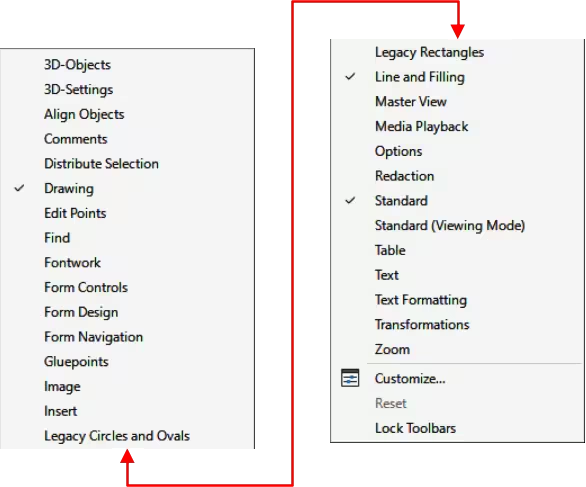
To open the default list of toolbars already installed in Draw, go to View > Toolbars on the Menu bar. An example of the default list of toolbars in Draw is shown in Figure 3.
-
The number of tools visible on a toolbar depends on the computer setup and operating system being used to create a drawing.
-
The tools displayed on toolbars displayed in this appendix are examples only. Actual tools displayed in a toolbar depend on computer setup, operating system and user preferences.
-
The tools already installed on a toolbar are indicated in Visible Buttons either by the tool icon being highlighted or by a check mark. This indication depends on computer setup and computer operating system being used.
-
On some toolbars, tool icons may have a triangle ▼ to the right of the icon. Click on this triangle ▼ to open a list of options, another toolbar, or a sub-toolbar.
Figure 3: Example of default list of toolbars in Draw
-
Some tools also have a keyboard shortcut for selecting the tool. For a full list of keyboard shortcuts available in Draw, see Appendix A, Keyboard Shortcuts.
-
Each toolbar and sub-toolbar displayed in this appendix shows the full list of available tools for that toolbar or sub-toolbar.
3D-Objects
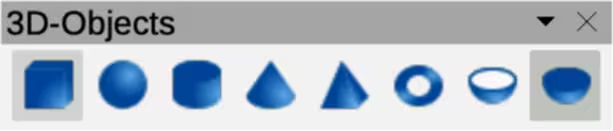
The 3D-Objects toolbar (Figure 4) provides tools for creating 3D objects in a drawing. Go to View > Toolbars > 3D-Objects on the Menu bar. Alternatively, clicking on the triangle ▼ next to 3D‑Objects on the Drawing toolbar opens a sub-toolbar providing access to the same 3D tools.
Figure 4: 3D-Objects toolbar
|
|
|
|
3D-Settings
The tools on the 3D-Settings toolbar (Figure 5) are active when an object has been converted to 3D using Toggle Extrusion and the converted object is selected. For the following tools on the 3D-Settings toolbar click on the triangle ▼ on the right of the icon for access to more options.
Figure 5: 3D-Settings toolbar

|
|
|
|
Align Objects
The Align Objects toolbar (Figure 6) provides tools for aligning several objects with each other in a drawing.
Figure 6: Align Objects toolbar

|
|
|
|
Comments
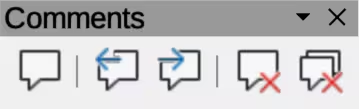
The Comments toolbar (Figure 7) provides tools for adding, deleting, editing and navigation of comments in a drawing. To use comments, it is recommended to add the name and initials of all users in Tools > Options > LibreOffice > User Data (macOS LibreOffice > Preferences > LibreOffice > User Data). Adding user names identifies comments that have been inserted.
Figure 7: Comments toolbar
|
|
|
Distribute Selection
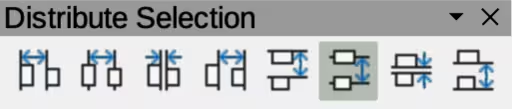
The Distribute Selection toolbar (Figure 8) provides tools to distribute three or more selected objects along a horizontal axis or vertical axis. Also, the spacing between objects can be evenly distributed horizontally and vertically.
Figure 8: Distribute Selection toolbar
|
|
The Drawing toolbar (Figure 9) provides the tools used to create graphic objects in a drawings. By default, this toolbar is docked on the left side of the Workspace. Some tool shapes on the Drawing toolbar change depending on the last tool that was previously selected and used. If required, click on the triangle ▼ to the right of a tool icon to open a pop-up toolbar for options.
Figure 9: Drawing toolbar

|
|
|
Edit Points
The Edit Points toolbar (Figure 10) provides tools for editing the points of a curve or polygon, or an object that has been converted to a curve or polygon. The toolbar only becomes active when an object is selected. Click on Edit Points on the Drawing or Standard toolbar, or use the keyboard shortcut F8 to open the toolbar.
Figure 10: Edit Points toolbar

|
|
|
|
Find
The Find toolbar (Figure 11) opens by default and is docked in the bottom left corner of the LibreOffice Draw main window above the Status bar. This toolbar can be undocked from its default position and made into a floating toolbar.
Figure 11: Find toolbar

|
|
|
|
Fontwork
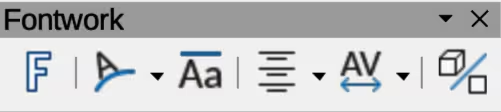
The Fontwork toolbar (Figure 12) is used to create graphical text objects in a slide and provide the tools for editing a graphical text object. This toolbar only becomes active when a Fontwork graphical text object has been selected on a drawing.
Figure 12: Fontwork toolbar
|
|
|
Form Controls
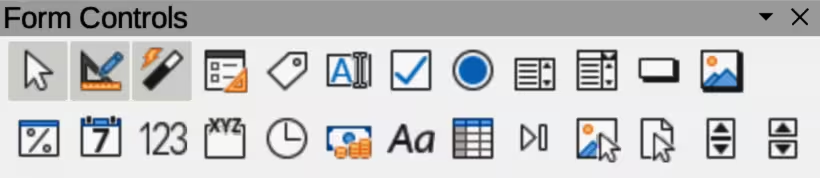
The Form Controls toolbar (Figure 13) provides the tools required to create an interactive form. This allows controls to be added to a form in a drawing. For example, a button that opens a document, drawing, spreadsheet, or slide.
Figure 13: Form Controls toolbar
|
|
|
Form Design
The Form Design toolbar (Figure 14) opens a form in Design Mode so that it can be edited. Controls of the form cannot be activated, or its contents edited when in Design Mode. However, the position and size of the controls can be changed, properties edited, and controls added or deleted in Design Mode.
Figure 14: Form Design toolbar

|
|
|
Form Navigation
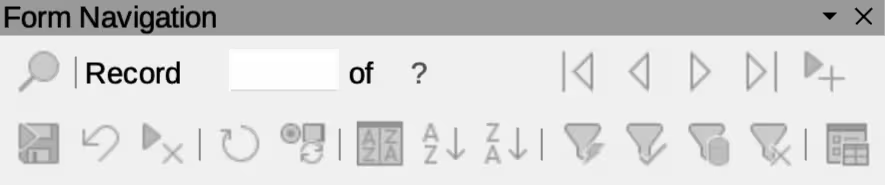
The Form Navigation toolbar (Figure 15) provides tools to edit a database table or control data view. The toolbar is normally displayed at the bottom of a document that contains fields that are linked to a database. This toolbar is only active when forms are connected to a database, which is why an inactivate toolbar is shown in Figure 15.
Figure 15: Form Navigation toolbar
|
|
|
|
Gluepoints
The Gluepoints toolbar (Figure 16) provides tools to insert a gluepoint or modify the properties of a gluepoint. When a connector is attached, it uses a gluepoint. By default, LibreOffice automatically places a gluepoint at the center of each side of the bounding rectangle for every object created.
Figure 16: Gluepoints toolbar

|
|
|
Image
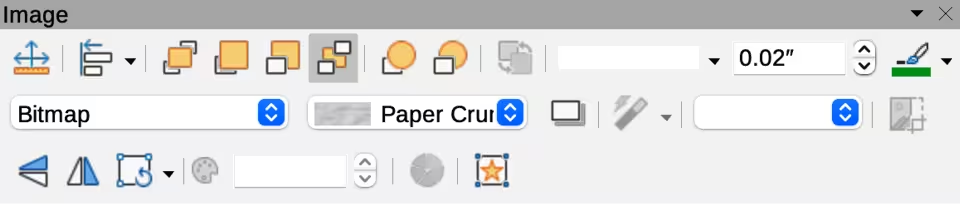
The Image toolbar (Figure 17) provides tools to edit, modify, align, reposition and resize images. The toolbar only becomes active and available when an image is selected in a drawing. The Image toolbar automatically replaces the Line and Filling toolbar when it becomes active.
Figure 17: Image toolbar
|
|
|
|
Insert
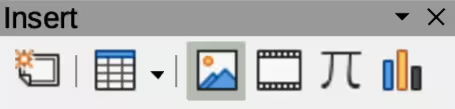
The Insert toolbar (Figure 18) provides tools for inserting objects into a drawing such as table, images, media, formulas, charts, and OLE objects.
Figure 18: Insert toolbar
|
|
|
Legacy Circles and Ovals
The Legacy Circles and Ovals toolbar (Figure 21) provides tools to insert different types of circles and ovals into a drawing.
Figure 19: Legacy Circles and Ovals toolbar

|
|
|
Legacy Rectangles
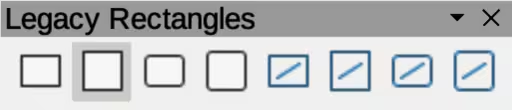
The Legacy Rectangles toolbar (Figure 32) provides tools to insert different types of rectangles and squares into a slide.
Figure 20: Legacy Rectangles toolbar
|
|
|
Line and Filling
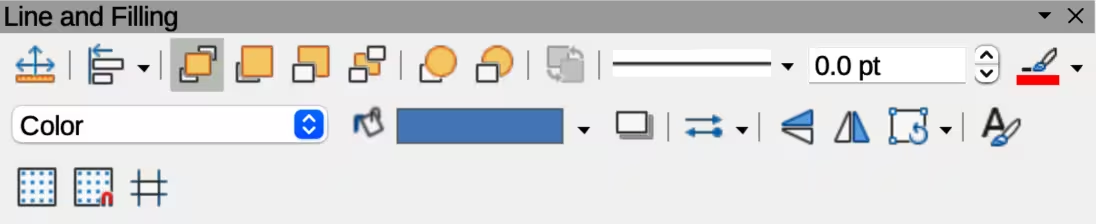
The Line and Filling toolbar (Figure 21) provides tools and drop-down lists for editing lines, arrows, and object borders. The tools available depends on object type selected for editing.
Figure 21: Line and Filling toolbar
|
|
|
|
Master View
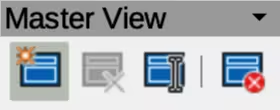
The Master View toolbar (Figure 22) provides tools for creating, renaming, deleting, and closing the master view. This toolbar is only active when Draw is in master view mode.
Figure 22: Master View toolbar
|
|
|
|
Media Playback
The Media Playback toolbar (Figure 23) provides the tools required to insert, view, play, and listen to audio and video files. The toolbar only becomes active when an audio or video file is selected. LibreOffice Draw supports many different media formats depending on the computer operating system being used.
Figure 23: Media Playback toolbar

|
|
|
Options
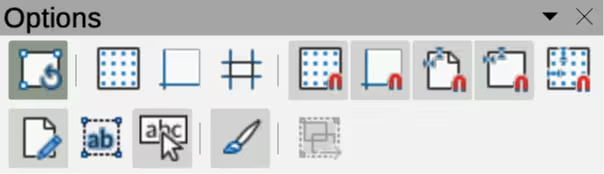
The Options toolbar (Figure 24) provides tools for editing various settings for newly created presentations, for example how objects snap to the grid when being moved or resized.
Figure 24: Options toolbar
|
|
|
Redaction
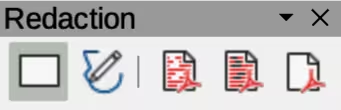
The Redaction toolbar (Figure 25) is used to block portions of a drawing when protecting sensitive information. Redaction helps enterprises and organizations to comply with regulations on confidentiality or privacy.
When a redacted drawing is exported, any redacted portions are removed from a drawing and replaced by redaction blocks of pixels. This prevents any attempt in restoring or copying the original contents. A redacted drawing is often exported as PDF for publication or sharing.
Figure 25: Redaction toolbar
|
|
|
|
Standard
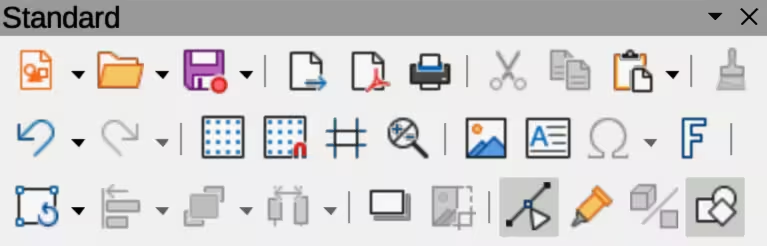
The Standard toolbar (Figure 26) is common to all LibreOffice components providing the most common tools used for creating and editing documents using LibreOffice. The Standard toolbar differs between LibreOffice components to allow for the toolsets required when creating different types of documents.
Figure 26: Standard toolbar
|
|
|
|
Standard (Viewing Mode)
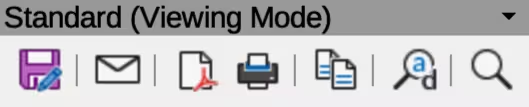
The Standard (Viewing Mode) toolbar (Figure 27) provides tools for saving, editing, and distributing a drawing.
Figure 27: Standard (ViewingMode) toolbar
|
|
|
|
Table
The Table toolbar (Figure 28) provides tools and options to edit and format a table inserted into a drawing. This toolbar only becomes active when a table is selected.
Figure 28: Table toolbar

|
|
|
Text
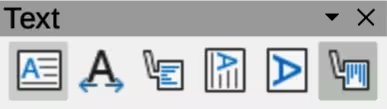
The Text toolbar (Figure 29) provides tools to insert text boxes and callouts into a drawing.
Figure 29: Text toolbar
|
|
|
Text Formatting
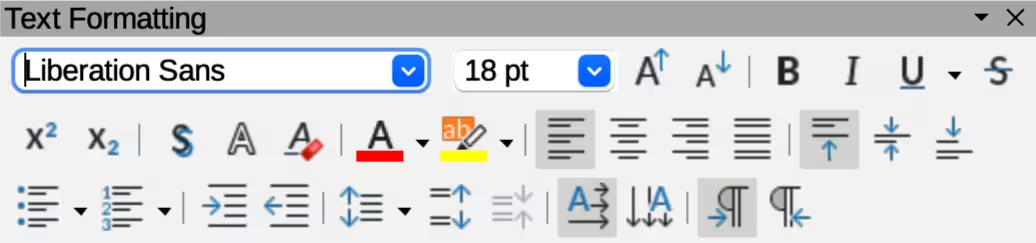
The Text Formatting toolbar (Figure 30) provides tools for formatting text and alignment commands. This toolbar becomes active when text in a text box or graphic object has been selected and it automatically replaces the Line and Filling toolbar.
Figure 30: Text Formatting toolbar
|
|
|
Transformations
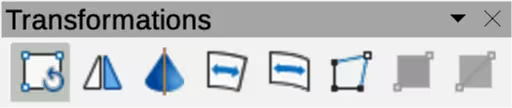
The Transformations toolbar (Figure 31) provides tools to modify the shape, orientation, or fill of selected objects.
Figure 31: Transformations toolbar
|
|
|
Zoom
The Zoom toolbar (Figure 32) provides tools to reduce or enlarge the screen display of the current drawing.
Figure 32: Zoom toolbar

|
|
|
|
Sub-toolbars
3D-Objects
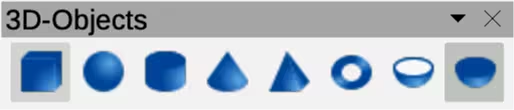
Click on the triangle ▼ to the right of 3D-Objects on the Drawing toolbar to open the 3D‑Objects sub-toolbar (Figure 33), then select a 3D object to add to a drawing. The 3D‑Objects sub-toolbar is identical to the 3D-Objects toolbar available at View > Toolbars on the Menu bar.
Figure 33: 3D-Objects sub-toolbar
|
|
|
|
Align Objects
To make a drawing look more professional, objects can be aligned with each other using one of the tools on the Align Objects sub-toolbar (Figure 34).
Figure 34: Align Objects toolbar
|
|
|
|
Basic Shapes
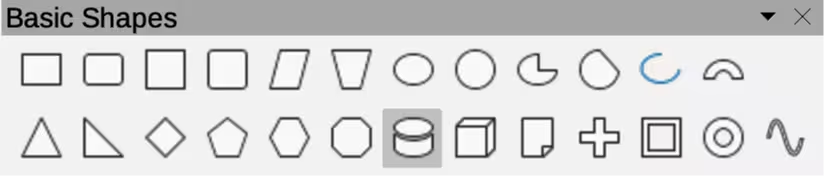
Click on the triangle ▼ to the right of Basic Shapes on the Drawing toolbar to open the Basic Shapes sub-toolbar (Figure 35), then select a basic shape to add to a drawing.
Figure 35: Basic Shapes sub-toolbar
|
|
|
|
Basic Shapes
Click on the triangle ▼ to the right of Basic Shapes on the Drawing toolbar to open the Basic Shapes sub-toolbar (Figure 36), then select a basic shape to add to a drawing.
Figure 36: Basic Shapes sub-toolbar
|
|
|
|
Block Arrows
Click on the triangle ▼ to the right of Block Arrows on the Drawing toolbar to open the Block Arrows sub-toolbar (Figure 37), then select a block arrow to add to a drawing.
Figure 37: Block Arrows sub-toolbar

|
|
|
Callouts
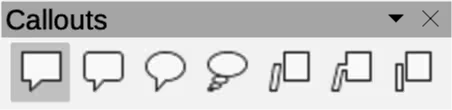
Click on the triangle ▼ to the right of Callouts on the Drawing toolbar to open the Callouts sub‑toolbar (Figure 40), then select a callout to add to a drawing.
Figure 38: Callouts sub-toolbar
|
|
|
Color
-
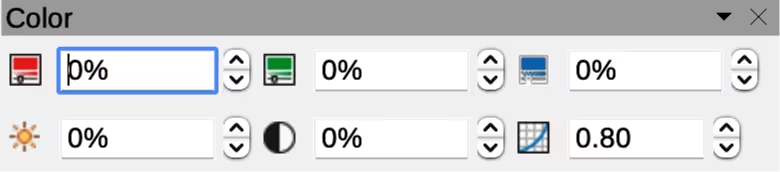
The Color sub-toolbar (Figure 39) provides tools to edit the color properties of a selected object. After selecting an object to open the Image toolbar, click on Color on the Image toolbar.
Figure 39: Color sub-toolbar
|
|
|
Connectors
Click on the triangle ▼ to the right of Connectors on the Drawing toolbar to open the Connectors sub‑toolbar (Figure 41), then select a connector to add to a drawing.
Figure 40: Connectors sub-toolbar

|
|
|
Curves and Polygons
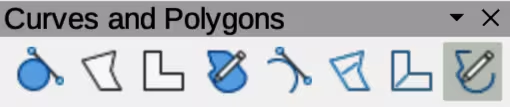
Click on the triangle ▼ to the right of Curves and Polygons on the Drawing toolbar to open the Curves and Polygons sub‑toolbar (Figure 42), then select a curve or polygon to add to a drawing.
Figure 41: Curves and Polygons sub-toolbar
|
|
|
Distribute Selection
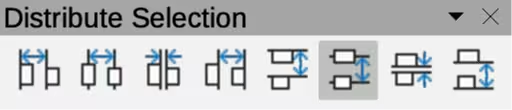
Distributing objects allows three or more objects to be evenly spaced along a horizontal or vertical axis. Objects are distributed using the outermost objects as base points for spacing. The Distribute sub-toolbar (Figure 42) is also available as a toolbar. Go to View > Toolbars > Distribute Selection on the Main menu bar.
Figure 42: Distribute Selection sub-toolbar
|
|
Flowchart
Click on the triangle ▼ to the right of Flowchart on the Drawing toolbar to open the Flowchart sub‑toolbar (Figure 43), then select a flowchart shape to add to a drawing.
Figure 43: Flowchart sub-toolbar

|
|
|
Fontwork Shape
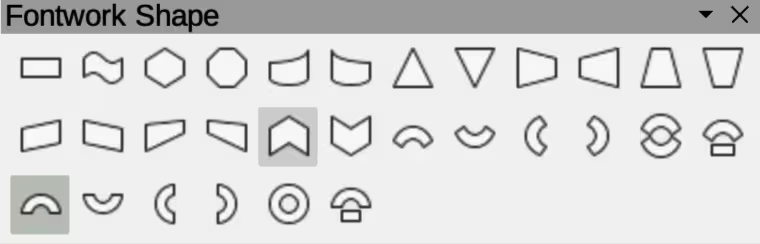
Clicking on the triangle ▼ to the right of Fontwork Shape on the Fontwork toolbar opens the Fontwork Shape sub-toolbar (Figure 44). Select the required shape to change how a Fontwork text shape appears in a drawing.
Figure 44: Fontwork Shape sub-toolbar
|
|
|
|
Image Filter
Clicking on the triangle ▼ to the right of Filter on the Image toolbar opens the Image Filter sub‑toolbar (Figure 45). Select the required filter to change how an image appears on the display.
Figure 45: Image Filter sub-toolbar

|
|
|
|
Lines and Arrows
Click on the triangle ▼ to the right of Lines and Arrows on the Drawing toolbar to open the Lines and Arrows sub‑toolbar (Figure 46), then select a line or arrow to add to a drawing.
Figure 46: Lines and Arrows sub-toolbar

|
|
|
Position
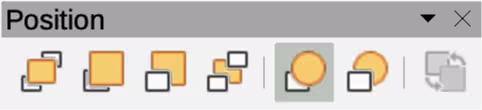
Click on the triangle ▼ to the right of Arrange on the Line and Filling toolbar to open the Position sub-toolbar (Figure 47), then select the position of a selected object in a drawing.
Figure 47: Position sub-toolbar
|
|
|
|
Stars and Banners
Click on the triangle ▼ to the right of Stars and Banners on the Drawing toolbar to open the Stars and Banners sub‑toolbar (Figure 48), then select a star or arrow to add to a drawing.
Figure 48: Stars and Banners sub-toolbar

|
|
|
|
Symbol Shapes
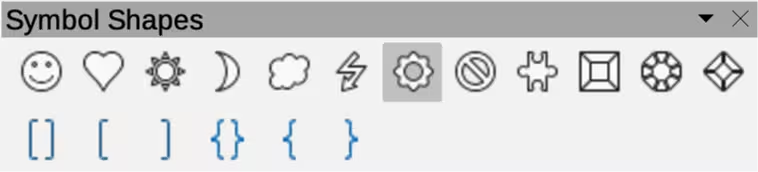
Click on the triangle ▼ to the right of Symbol Shapes on the Drawing toolbar to open the Symbol Shapes sub‑toolbar (Figure 49), then select a symbol shape to add to a drawing.
Figure 49: Symbol Shapes sub-toolbar
|
|
|
|