
Getting Started Guide 25.2
This document is Copyright © 2025 by the LibreOffice Documentation Team. Contributors are listed below. This document may be distributed and/or modified under the terms of either the GNU General Public License (https://www.gnu.org/licenses/gpl.html), version 3 or later, or the Creative Commons Attribution License (https://creativecommons.org/licenses/by/4.0/), version 4.0 or later. All trademarks within this guide belong to their legitimate owners.
To this edition
Peter Schofield
For previous editions
Amanda Labby
Andrew Jensen
Cathy Crumbley
Dan Lewis
Dave Barton
Jean Hollis Weber
Jorge Rodriguez
Kees Kriek
Leo Moons
Olivier Hallot
Paul Figueiredo
Peter Schofield
Rob Thornton
Simon Quigley
Steve Fanning
Timothy Brennan, Jr
Valerii Goncharuk
Vlada Savitskaya
Please direct any comments or suggestions about this document to the Documentation Team Forum at https://community.documentfoundation.org/c/documentation/loguides/ (registration is required) or send an email to: loguides@community.documentfoundation.org.
Note
Everything sent to a forum, including email addresses and any other personal information that is written in the message, is publicly archived and cannot be deleted. Emails sent to the forum are moderated.
Published July 2025. Based on LibreOffice 25.2 Community.
Other versions of LibreOffice may differ in appearance and functionality.
The LibreOffice Getting Started Guide is designed to assist individuals seeking to acquire knowledge of LibreOffice, particularly those individuals who are new to office software, or familiar with alternative office suites. LibreOffice is an open-source office productivity suite that offers a wide range of capabilities, including word processing, spreadsheet creation, presentation design, graphic creation, database management, and formula editing.
This user guide introduces the main modules of LibreOffice, which are as follows:
Writer (word processing)
Calc (spreadsheets)
Impress (presentations)
Draw (vector graphics)
Base (database)
Math (equation editor)
Additionally, it covers common features across all modules, such as setup and customization, styles and templates, macro recording, and printing. For further details, refer to the user guides for each individual LibreOffice module.
LibreOffice is a freely available, fully-featured, open-source office productivity suite compatible with other major office suites and is available on various platforms. The native file format used is the Open Document Format (ODF). However, LibreOffice can also open and save documents in numerous other formats, including those used by various versions of Microsoft Office. For further information, please refer to Appendix B, Open Source, Open Standards, OpenDocument.
Writer is a comprehensive tool designed to create various documents, including letters, books, reports, newsletters, brochures, and more. It enables the seamless integration of graphics and objects from other LibreOffice modules, enhancing the visual appeal and functionality of documents. Writer offers extensive export capabilities, allowing users to save files in HTML, XHTML, XML, PDF, and EPUB formats. Additionally, Writer provides the flexibility to save files in various other formats, including multiple versions of Microsoft Word documents. Also, Writer seamlessly integrates with the email application being used, providing efficient communication and document sharing.
Calc offers a comprehensive suite of advanced analysis, charting, and decision-making capabilities that can also be found in other high-end spreadsheets. It includes over 500 functions for financial, statistical, and mathematical computations, among others. The Scenario Manager facilitates “what if” analysis, enabling users to simulate various scenarios. Calc generates both 2D and 3D charts, which can be integrated into other LibreOffice documents. Also, Microsoft Excel workbooks can be opened and modified within Calc, and then saved in Excel format. Calc also provides the ability to export spreadsheets in diverse formats, including Comma Separated Value (CSV), Adobe PDF, and HTML formats.
Impress offers a comprehensive suite of multimedia presentation tools, including special effects, animations, and drawing capabilities. Impress integrates with the advanced graphics capabilities of the Draw and Math modules. Enhancements can be further achieved by incorporating Fontwork special effects text, as well as sound and video clips. Impress provides functionality to open, edit, and save Microsoft PowerPoint presentations, and can save presentations in a diverse range of graphics formats.
Draw is a vector drawing tool capable of producing a wide range of visual representations, including simple diagrams, flowcharts, and 3D artwork. Its Smart Connectors feature provides the definition of connection points. Draw can generate drawings for integration into any of the LibreOffice modules, and clip art can be created and added to the Gallery. Additionally, Draw supports the import of graphics from various common formats and the export of graphics in multiple formats, including PNG, GIF, JPEG, BMP, TIFF, SVG, HTML, PDF, and WebP.
Base provides tools for managing relational databases, simplifying the day-to-day tasks involved. Base enables the creation and modification of various database components, including forms, reports, queries, tables, views, and relationships, allowing the management of relational databases that is comparable to other widely used database applications. Base introduces several innovative features, such as the capability to analyze and edit relationships from a diagrammatic perspective. Base integrates two relational database engines: HSQLDB and Firebird. Additionally, Base supports PostgreSQL, dBASE, Microsoft Access, MySQL, Oracle, and any ODBC or JDBC compliant database. Base also provides support for a subset of ANSI-92 SQL.
Mathematics is a formula or equation editor. Math can create intricate equations that incorporate symbols or characters beyond those available in standard font sets. While Math is primarily used to create formulas within other documents, such as Writer and Impress files, it can also function as a standalone application. Formulas can be saved in the standard Mathematical Markup Language (MathML) format for inclusion in web pages and other documents not created with LibreOffice.
The following explains some of the advantages of LibreOffice has over other office suites:
No licensing fees
Open source
Cross-platform
Extensive language support
Consistent user interface
Integration
Granularity
File compatibility
No vendor lock-in
All LibreOffice users have a voice
Read more about LibreOffice and The Document Foundation on their websites at https://www.libreoffice.org/ and https://www.documentfoundation.org/.
LibreOffice 25.2 requires one of the following operating systems:
Linux x64 (deb) and Linux x64 (rpm). Snap, Flatpak, Appimage and other packages are available as well from your distribution channel.
Mac OS X (Aarch64/Apple Silicon)
macOS x86_64 (10.14 (Mojave or higher)
Windows x86_64 (Windows 8 or newer required)
For a detailed list of requirements and operating systems supported, see the LibreOffice website, https://www.libreoffice.org/get-help/system-requirements/.
Some LibreOffice features (wizards and the HSQLDB database engine) require that the Java Runtime Environment (JRE) or, for macOS, the Java Development Kit (JDK) is installed on a computer.
If Java is not going to be used, nearly all of the LibreOffice features can still be used. However, Java is available at no cost. More information and download links to the appropriate edition for your operating system can be found at: https://java.com/en/download/manual.jsp.
For macOS, the Oracle Java Development Kit (JDK) and the Java Runtime Environment (JRE) have to be installed. Download links can be found at: https://www.oracle.com/java/technologies/downloads/.
If LibreOffice features that require Java are to be used, it is important that the correct 32-bit or 64-bit edition matches the installed version of LibreOffice. For more information on advanced options, see Chapter 12, Configuring LibreOffice.
Versions of LibreOffice for Windows, Linux, and macOS are freely available and can be downloaded from https://www.libreoffice.org/download. Linux users will also find LibreOffice included free in many of the latest distributions.
Other versions of LibreOffice are listed on the download page such as Portable, an app in the Microsoft Store and Apple Mac App Store at low and affordable prices. The profits from the sales of LibreOffice are invested in supporting the development of the LibreOffice project.
Information on installing LibreOffice on the various supported operating systems can be found at this web page: https://www.libreoffice.org/get-help/install-howto/. When LibreOffice is acquired through official app stores, follow the installation instructions provided by the store.
After installation, to change the default settings (options) in LibreOffice to suit working requirements and preferences, go to Tools > Options on the Menu bar (LibreOffice > Preferences in macOS). For more information, see Chapter 12, Configuring LibreOffice.
Tip
Some settings are intended for power users and programmers. If it is difficult to understand what an option does, LibreOffice recommends leaving the option on its default setting unless instructions in this user guide recommend changing the setting.
More functionalities can be added to LibreOffice by means of extensions. Several extensions have been integrated into the software, along with additional extensions obtained from the official extension repository, https://extensions.libreoffice.org/ or from other sources. See Chapter 13, Customizing LibreOffice, for more information on installing extensions.
This Getting Started Guide, other LibreOffice module user guides, Help system, and user support systems assume that users are familiar with computers and basic functions such as starting a program, opening and saving files.
LibreOffice comes with an extensive Help system and this can be used as the first line of support. Windows and Linux users can choose to download and install the offline Help for use when not connected to the Internet. Offline Help is installed with the macOS version of LibreOffice by default.
To display LibreOffice Help, press F1 or go to Help > LibreOffice Help on the Menu bar. If the offline help is not installed on a computer, but connected to the Internet, a dialog opens giving the option to Read Help Online. Select this option and the default web browser opens at the LibreOffice online help pages in the LibreOffice website.
The Help menu also includes links to other LibreOffice information and support resources. The options marked by a ‡ sign in the list below are only accessible if the computer is connected to the Internet.
What's This?
User Guides
Show Tip of the Day
Search Commands
Get Help Online
Send Feedback
Restart in Safe Mode
Get Involved
Donate to LibreOffice
License Information
Check for Updates
About LibreOffice
The LibreOffice community not only develops software, but provides free, volunteer-based support. See Table 1 and the web page https://www.libreoffice.org/get-help/. For comprehensive online support from the community, look at mailing lists and the Ask LibreOffice website, https://ask.libreoffice.org/en/questions/. Other user websites also offer free tips and tutorials.
Table 1: Free support for LibreOffice users
|
Free LibreOffice support |
|
|
FAQs |
Answers to frequently asked questions https://wiki.documentfoundation.org/Faq. |
|
Mailing lists |
Free community support is provided by a network of experienced users https://www.libreoffice.org/get-help/mailing-lists/. |
|
Questions & Answers and Knowledge Base |
Free community assistance is provided in a Question & Answer formatted web service. Search similar topics or open a new one in https://ask.libreoffice.org/en/questions. The service is available in several other languages. Replace /en/ with de, es, fr, ja, ko, nl, pt, tr, and many others in the web address above. |
|
Native language support |
The LibreOffice website in various languages https://www.libreoffice.org/community/nlc/. Mailing lists for native languages https://wiki.documentfoundation.org/Local_Mailing_Lists. Information about social networking https://wiki.documentfoundation.org/Website/Web_Sites_services. |
|
Accessibility options |
Information about available accessibility options. https://www.libreoffice.org/get-help/accessibility/. |
|
OpenOffice Forum |
Another forum that provides support for LibreOffice, among other open source office suites https://forum.openoffice.org/en/forum/. |
Support and training is available through service contracts from a vendor or consulting firm specializing in LibreOffice. For information about certified professional support, see The Document Foundation website: https://www.documentfoundation.org/gethelp/support/. For schools, educational and research institutions, and large organizations, see https://www.libreoffice.org/download/libreoffice-in-business/.
LibreOffice runs on the Windows, Linux, and macOS operating systems, each of which has several versions and can be customized by users (fonts, colors, themes, window managers). The illustrations in this guide were taken from a variety of computers and operating systems. Therefore, some illustrations will not look exactly like what is seen on a computer display.
Also, some of the dialogs may differ because of the settings selected in LibreOffice. Either use dialogs from the computer system (default), or dialogs provided by LibreOffice.
Figure 1: Options LibreOffice dialog — General page
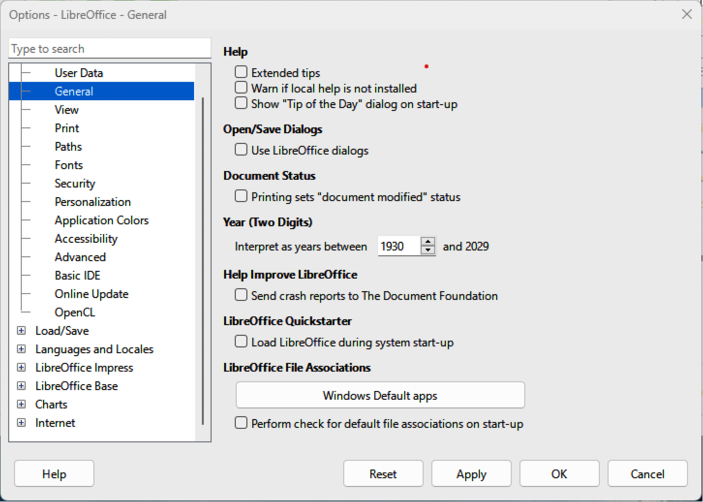
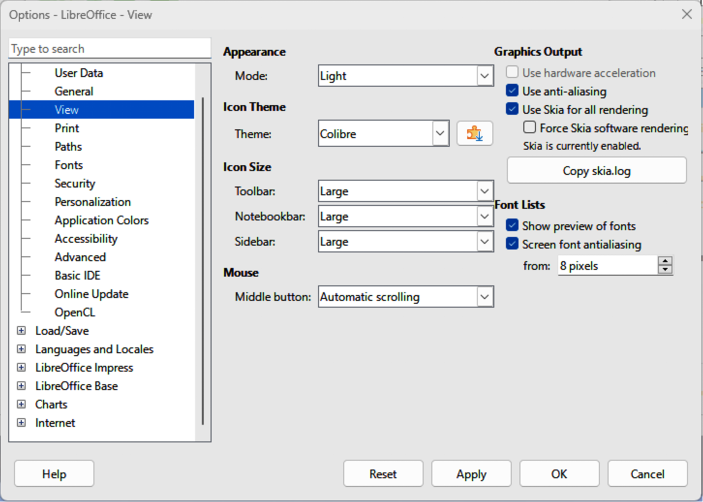
Figure 2: Options LibreOffice dialog — View page
To change to using LibreOffice dialogs:
On Linux and Windows operating systems, go to Tools > Options > LibreOffice > General on the Menu bar to open the dialog for general options.
On a Mac operating system, go to LibreOffice > Preferences > LibreOffice > General on the Menu bar to open the dialog for general options.
Select Use LibreOffice dialogs in Open/Save dialogs to display the LibreOffice dialogs on a computer display, as shown in Figure 1.
Click OK to save the settings and close the dialog.
Notes
Some Linux operating systems, for example Ubuntu, include LibreOffice as part of the installation and may not include the required icon set. This icon set can be downloaded from the software repository for the Linux operating system being used.
Some of the previously included icon sets are now available only as extensions; see https://extensions.libreoffice.org/?Tags%5B%5D=49 or search for specific ones. For example, the People Gallery is available from https://extensions.libreoffice.org/en/extensions/show/people-gallery
The LibreOffice community has developed icons for various icon sets, including Breeze, Colibre, Elementary, and Sifr. Each user can also select a preferred set of fonts to use. The icons used to depict the numerous tools available within LibreOffice may differ from the icons depicted in this guide. The icons in this user guide have been sourced from a LibreOffice installation configured to display the Colibre icon set.
Change the icon set used in a LibreOffice installation as follows:
On the Linux and Windows operating systems, go to Tools > Options > LibreOffice > View on the Menu bar to open the dialog for view options.
On a Mac operating system, go to LibreOffice > Preferences > LibreOffice > View on the Menu bar to open the dialog for view options.
In Icon Style, select a font from the options available in the drop-down list as shown in Figure 2.
In Icon Size, select the required size from the drop-down lists for Toolbar, Notebookbar and Sidebar, as shown in Figure 2.
Click OK to save the settings and close the dialog.
LibreOffice 25.2 requires macOS 10.15 or newer to run.
Some keystrokes and menu items are different on macOS from those used in Windows and Linux. Table 2 below gives some common substitutions for the instructions in this user guide. For a more detailed list, see the application help.
Table 2: Example of macOS keyboard shortcuts
|
Windows or Linux |
macOS equivalent |
Effect |
|
Tools > Options on Menu bar |
LibreOffice > Preferences on Menu bar |
Access to setup options |
|
Right-click |
Ctrl+click and/or right-click depending on computer setup |
Opens a context menu |
|
Ctrl or Control |
⌘ and/or Cmd or Command, depending on keyboard |
|
|
Alt |
⌥ and/or Alt or Option depending on keyboard |
Used with other keys |
This user guide was written by volunteers from the LibreOffice community. Profits from sales of the printed edition will be used to benefit the community.
How is LibreOffice licensed?
Can LibreOffice be distributed to anyone?
Can LibreOffice be sold?
Can LibreOffice be used in a business?
How many computers can LibreOffice be installed on?
Is LibreOffice available in different languages?
Are there templates for presentations, spreadsheets, text documents and drawings?
How can LibreOffice be freely available?
Can the programming code from LibreOffice be used when developing a software application?
Why is Java required to run LibreOffice? Is it written in Java?
Note
If the LibreOffice features that require Java are to be used, it is important that the correct 32-bit or 64-bit edition matches the installed version of LibreOffice. If Java is not to be used, nearly all LibreOffice features can still be used.
How can users contribute to LibreOffice?
Can the PDF copy of this user guide be distributed, or printed and copies sold?
The LibreOffice Release Notes are available at the following https://wiki.documentfoundation.org/ReleaseNotes/25.2. Also at this link, the release notes for earlier versions of LibreOffice are located giving more information on the features that are included in LibreOffice.