Getting Started Guide 25.2
This document is Copyright © 2025 by the LibreOffice Documentation Team. Contributors are listed below. This document may be distributed and/or modified under the terms of either the GNU General Public License (https://www.gnu.org/licenses/gpl.html), version 3 or later, or the Creative Commons Attribution License (https://creativecommons.org/licenses/by/4.0/), version 4.0 or later. All trademarks within this guide belong to their legitimate owners.
To this edition
Claire Wood
Edward Olson
Peter Schofield
For previous editions
Amanda M Labby
Claire Wood
Dave Barton
Drew Jensen
Hazel Russman
Jean Hollis Weber
Jorge Rodríguez
Kees Kriek
Kevin O’Brien
Nay Catina Dia‑Schneebeli
Olivier Hallot
Peter Schofield
Ron Faile Jr.
Skip Masonsmith
Please direct any comments or suggestions about this document to the Documentation Team Forum at https://community.documentfoundation.org/c/documentation/loguides/ (registration is required) or send an email to: loguides@community.documentfoundation.org.
Note
Everything sent to a forum, including email addresses and any other personal information that is written in the message, is publicly archived and cannot be deleted. Emails sent to the forum are moderated.
Published July 2025. Based on LibreOffice 25.2 Community.
Other versions of LibreOffice may differ in appearance and functionality.
Some keystrokes and menu items are different on macOS from those used in Windows and Linux. The table below gives some common substitutions used in this document. For a detailed list, see LibreOffice Help.
|
Windows or Linux |
macOS equivalent |
Effect |
|
Tools > Options |
LibreOffice > Preferences |
Access setup options |
|
Right-click |
Control+click, Ctrl+click, or right click depending on computer setup |
Open a context menu |
|
Ctrl or Control |
⌘ and/or Cmd or Command, depending on keyboard |
|
|
Alt |
⌥ and/or Alt or Option depending on keyboard |
Used with other keys |
|
F11 |
⌘+T |
Open the Styles deck in the Sidebar |
Impress is the presentation (slide show) program included in LibreOffice creating presentations in the Open Document Presentation (ODP) format. ODP presentations can be opened by other presentation software, or exported in different presentation formats.
Slides can contain many different elements, including text, bulleted and numbered lists, tables, charts, and a wide range of graphic objects such as clip art, drawings, and photographs. Impress also includes a spelling checker, a thesaurus, text styles, and background styles.
This chapter introduces some features of Impress, but does not attempt to cover all the features available in Impress that can be used to create presentations. See the Impress Guide and LibreOffice Help for more information.
To use Impress to create presentations requires some knowledge of the elements used on the slides. Slides containing text use styles to determine the appearance of text. Creating drawings in Impress is similar to using the LibreOffice Draw module. For more information, refer to Chapter 4, Working with Styles, Templates, and Hyperlinks, and Chapter 7, Getting Started with Draw, in this guide. It is recommended to consult the Draw Guide for more details on how to use the drawing tools.
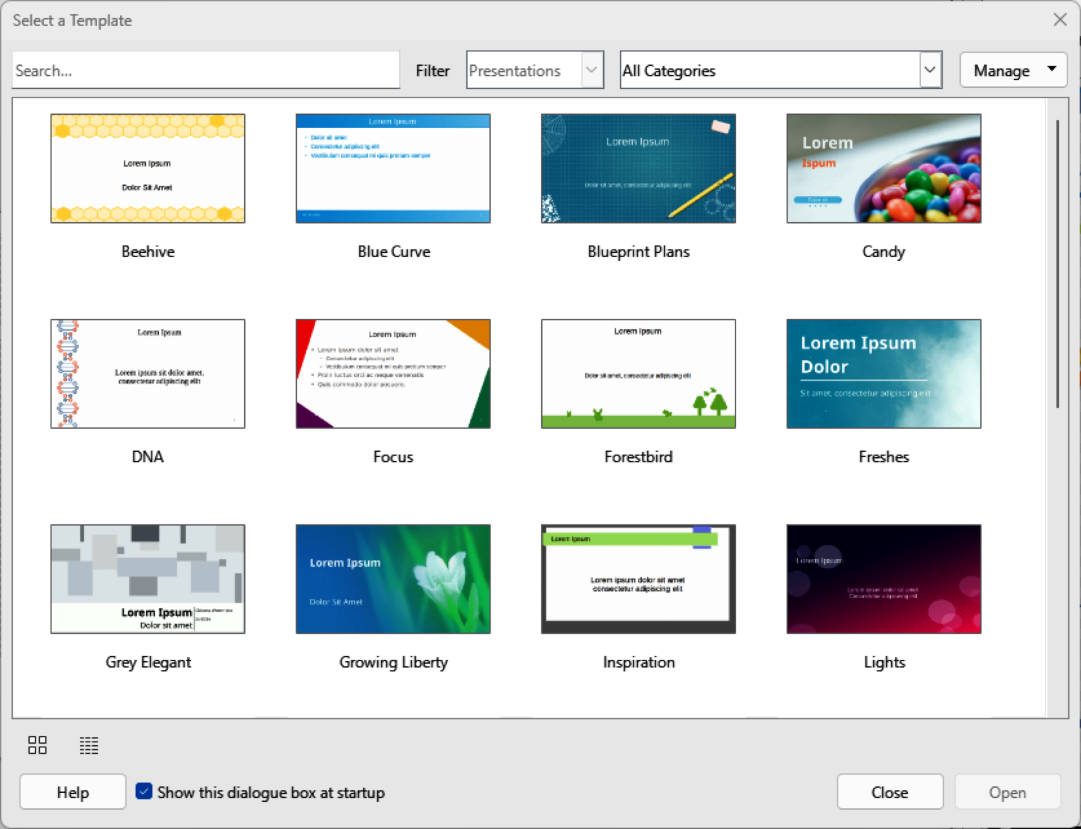
Start Impress using any of the methods described in Chapter 1, LibreOffice Basics. The main Impress window opens and, by default, the Select a Template dialog (Figure 1) displaying templates installed with LibreOffice.
Figure 1: Select a Template dialog
Templates are designed for the two standard sizes for slides using 4:3 and 16:9 ratios, but can adapt to other available sizes, which are selected by going to Slide > Slide Properties > Paper Format on the Menu bar or Format in the Slide panel in the Properties deck on the Sidebar.
Tips
To start Impress without displaying the Select a Template dialog, deselect Show this dialog box at startup in the lower left corner of the dialog.
In Windows or Linux, go to Tools > Options > LibreOffice Impress > General on the Menu bar (macOS LibreOffice > Preferences > LibreOffice Impress > General) and deselect Start with Template Selection in New Document.
The Slides pane and/or Sidebar can be closed by clicking the X in the upper right corner of each pane, or go to View > Slide Pane or View > Sidebar on the Menu bar to deselect. To reopen, select View > Slide Pane or View > Sidebar on the Menu bar.
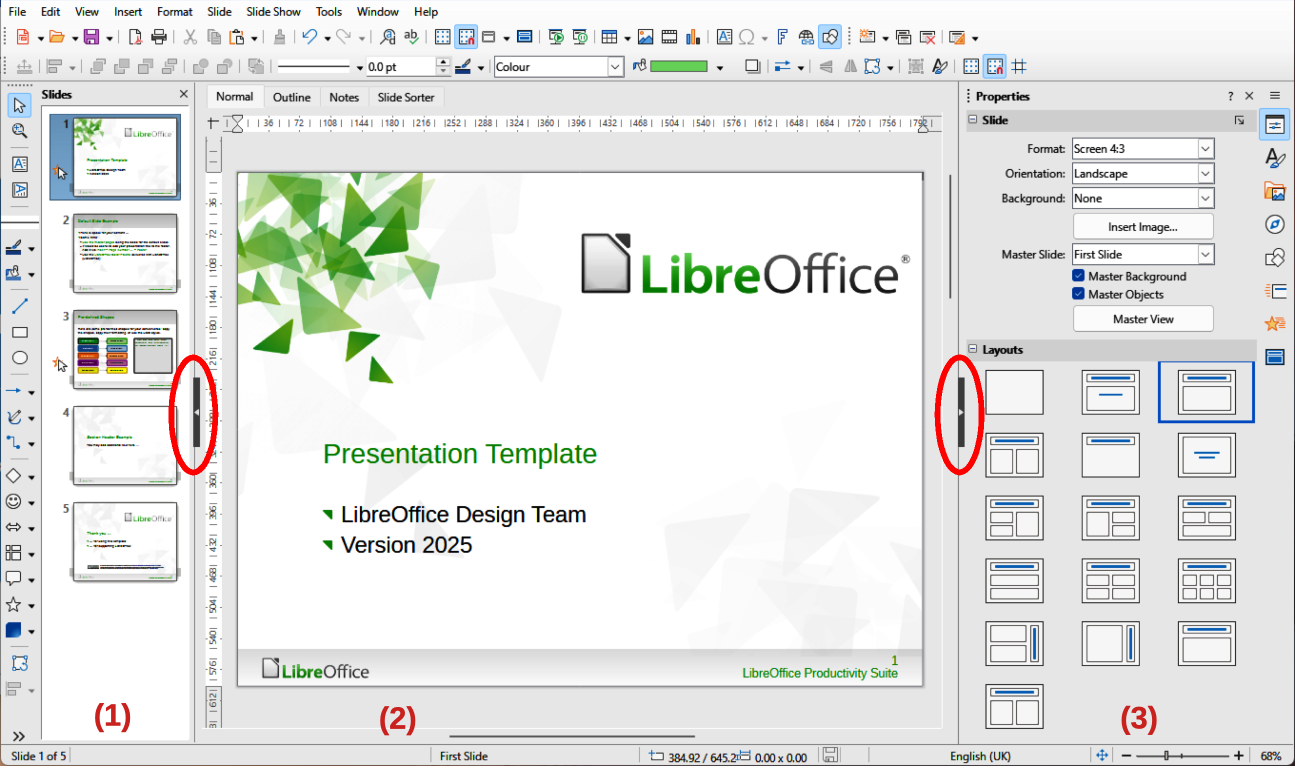
The main Impress window (Figure 2) has three main sections: Slides pane, Workspace, and Sidebar. The toolbars displayed in the main window can also be hidden, locked in position, or floating during when creating a presentation.
The Impress Menu bar, at the top of the main window, provides menus common to all LibreOffice modules, but commands may differ between each LibreOffice module in File, Edit, View, Insert, Format, Tools, Window, and Help. Impress has two extra menus for Slide and Slide Show. When a menu item is selected, a submenu opens to show commands. The Menu bar can be customized; see Chapter 13, Customizing LibreOffice.
The Workspace (normally the center of the main window) opens in Normal view. There are four standard views of Normal, Outline, Notes, and Slide Sorter. For more information, see “Workspace views” below.
If master slides are used, then master views become available: Master Slide, Master Notes and Master Handout. There are no tabs for master views and are selected by going to View on the Menu bar. For more information on master slides, see the Impress Guide.
The Slides pane contains thumbnail images of slides in a presentation in the order in which the slides are shown. Clicking on a slide image in the Slides pane selects it and places the slide in the Workspace where changes are made to the displayed slide.
To display or close the Slides pane, go to View > Slide Pane on the Menu bar.
To close the Slides pane, click on the X in the right top corner of the Slides pane.
To display or hide the Slides pane, use the Hide/Show marker on the left of the Workspace (highlighted in Figure 2).
Several additional operations can be carried out on one or more slides in the Slides pane. These additional operations are available from a context menu when right-clicking on a slide in the Slides pane.
Add new slides to a presentation.
Hide a slide so that it does not show in a presentation.
Delete a slide from a presentation.
Rename a slide.
Duplicate a slide (copy and paste).
Move a slide to another position in the slide order by dragging and dropping it to the desired position.
The following operations can be carried out, although there are more efficient methods than using the Slides pane:
Change the slide transition following the selected slide, or after each slide in a group.
Change the sequence of slides in the presentation.
Change the slide design.
Change slide layout for a group of slides simultaneously.
The Sidebar, normally located on the right side of the Workspace, is similar to the Sidebar in the other LibreOffice module and consists of eight decks. To display or hide the Sidebar, use one of the following methods:
Go to View > Sidebar on the Menu bar.
Use the keyboard shortcut Ctrl+F5 (macOS ⌘+F5).
Use the Hide/Show marker on the right of the Workspace (highlighted in Figure 2).
To hide the Sidebar, click on the X in the right top corner of the Sidebar.
To display the Sidebar, click on one of the Sidebar icons to open a deck.
To open a Sidebar deck, use one of the following methods:
Click on its icon on the right side of the Sidebar.
Click on Sidebar Settings at the top of the Sidebar and select a deck from the drop‑down list.
Use one of the available keyboard shortcuts for Sidebar decks.
The Properties deck (Alt+1, macOS ⌥+1) has ten panels, allowing changes to slide layout and formatting of slide objects.
When a slide is selected and appears in the Workspace, the Properties deck opens with the Slide and Layouts panels already open for use.
When a slide object is selected, the following panels in the Properties deck become available. Actual panels displayed depends on the type of object selected.
Character Lists Paragraph
Area Shadow Line
Position and Size Columns Effect
Text Effect Image
In the Styles deck (Alt+2, macOS ⌥+2), drawing and presentation styles are applied to a selected object, new styles created for drawing and presentation, and formatting of both types of styles. When saving changes to a style, the changes are applied to all elements formatted with that style in the presentation. For more information on styles, see “Styles” below and the Impress Guide.
Using the Gallery deck (Alt+3, macOS ⌥+3), an object is inserted into a presentation either as a copy or as a link. A copied object is independent of the original object. Changes to the original object have no effect on the copy. A link remains dependent on the original object. Changes to the original object are also reflected in the linked object. See the Impress Guide for more information.
The Navigator deck (Alt+4, macOS ⌥+4) displays all objects contained in a presentation. It provides a convenient way to move between slides in a presentation, or select an object on a slide. It is recommended to give slides and objects used in a presentation meaningful names for easy identification when using the Navigator. For more information, see “Navigator” below and the Impress Guide.
The Shapes deck (Alt+5, macOS ⌥+5) provides panels for quick selection of basic shapes that are available on the Drawing toolbar.
Lines and Arrows Curves and Polygons Connectors
Basic Shapes Symbol Shapes Block Arrows
Flowchart Callout Shapes Stars and Banners
3‑D Objects
The Slide Transition deck (Alt+6, macOS ⌥+6) provides a selection of slide transitions used in a presentation. There are controls to adjust transition speed, automatic or manual transition, and how long a selected slide is shown (automatic transition only). For more information on transitions, see “Slide transition” below and the Impress Guide.
The Animation deck (Alt+7, macOS ⌥+7) is used to add, change, or remove animations for different elements or objects on a slide and adjust how objects appear during a slide show. For more information on animation effects, see “Animation effects” below and the Impress Guide.
The Master Slides deck (Alt+8, macOS ⌥+8) provides access to slide designs for presentations and several designs of master slides are available. The default master slide is blank, but the remaining master slides have backgrounds and styled text. For more information on master slides, see “Working with master slides” below and the Impress Guide.
Figure 3: Rulers showing object size
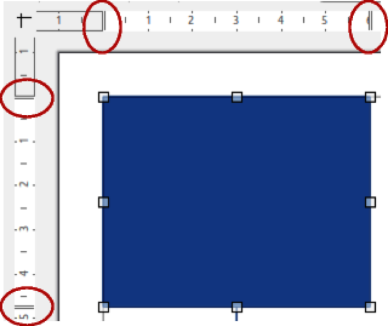
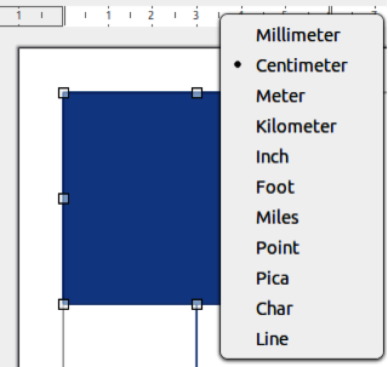
Figure 4: Changing ruler units
Rulers are positioned on the upper and left-hand sides of the Workspace. If the rulers are not visible, go to View > Rulers on the Menu bar. The rulers show the size of a selected object on the slide using double lines (highlighted in Figure 3). Rulers are also used to manage object handles and guide lines when positioning objects.
To change the measurement units of the rulers, right-click on a ruler and select the measurement unit from the drop-down list, as shown in Figure 4 for the horizontal ruler. The horizontal and vertical rulers can be set to different measurement units.
The page margins in the drawing area are also represented on the rulers. The margins can be changed directly on the rulers by dragging them with the mouse. The margin area is indicated by either a grayed out area on the rulers or borders around the unused area of the ruler. This margin indication depends on computer setup and operating system.
The Status Bar (Figure 5), located at the bottom of the Impress window, contains information that maybe useful when working on a presentation. Several of the fields are the same as those in other modules of LibreOffice. Some Impress specific fields are described briefly below.
For details on the contents and use of these fields, see Chapter 1, LibreOffice Basics, in this guide and the Impress Guide. To hide the Status bar, go to View on the Menu bar and deselect Status Bar.
Slide number
Information area
Figure 5: Status Bar
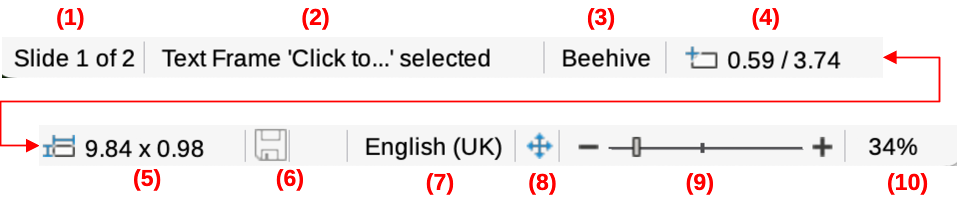
Slide number
Information area
Master slide
Cursor position
Object size
Unsaved changes
Digital signature
Text language
Fit slide
Zoom slide
Zoom percentage
Table 1: Examples of information on Status Bar
|
Example selection |
Examples of information shown |
|
Text area |
Text Edit: Paragraph x, Row y, Column z |
|
Charts, spreadsheets |
Embedded object (OLE) “ObjectName” selected |
|
Graphics |
Bitmap with transparency selected |
Master slide
Cursor position/Object size
When no object is selected, the position numbers show the current position (X and Y coordinates) of the cursor.
When an object is selected and resized using the cursor, the object size numbers show the size of the object (width and height).
If an object is selected, the position numbers show X and Y coordinates of the object upper‑left corner and the object size number pair displays the size of the object. These numbers do not relate to the object itself, but to the selection outline, which is the smallest possible rectangle that can contain the visible part or parts of an object.
Unsaved changes
Digital signatures
Text language
Fit slide
Zoom slider
Zoom percentage
The Navigator displays all objects contained in a presentation providing a convenient way to move around a presentation find items in the presentation, and reorder objects on slides.
To open the Navigator dialog (Figure 6) go to View > Navigator on the Menu bar, or use the keyboard shortcut Ctrl+Shift+F5 (macOS ⌘+Shift+F5). Alternatively, click on Navigator in the Sidebar to open the Navigator deck which is similar in appearance and function as the Navigator dialog.
Figure 6: Navigator dialog
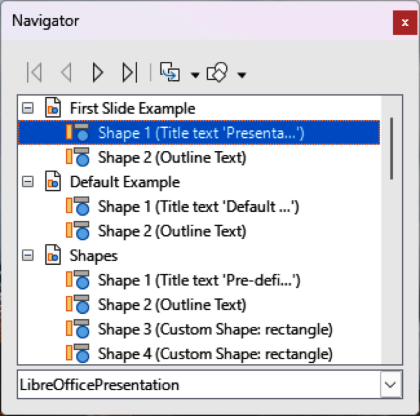
It is recommended that slides and objects (pictures, spreadsheets, and so on) are given meaningful names, instead of leaving them with default names, as shown in Figure 6. Using meaningful names allows for a slide or object to be easily located in a presentation when using the Navigator dialog.
Toolbars provide several tools that are used for creating slides for a presentation. To display or hide the various toolbars in Impress, go to View > Toolbars on the Menu bar and select the required toolbar from the submenu that opens. For example, the Standard and Drawing toolbars are displayed by default, but the Line and Filling, and Text Formatting toolbars are not shown. For more information on toolbars and how to use them, see Chapter 1, LibreOffice Basics, and the Impress Guide.
Note
The shape and color of toolbar icons varies depending on the computer operating system, and the selection of icon size and style in Tools > Options > LibreOffice > View (macOS LibreOffice > Preferences > Options > LibreOffice > View).
The Impress workspace has four standard views selected using tabs: Normal, Outline, Notes, and Slide Sorter. These tabs are normally displayed the top of the Workspace (Figure 2). If the tabs are not displayed, then go to View > Views Tab Bar on the Menu bar. Also, different workspace views can be selected by going to View on the Menu bar and selecting a view in the submenu. Each of the workspace views is designed to carry out different tasks.
Master views only become available in the Workspace when Master Slide, Master Notes or Master Handout are selected. There are no tabs for master views and can only be selected by going to View on the Menu bar.
Note
Each workspace view displays a different set of toolbars when selected. To customize these toolbar sets, go to View > Toolbars on the Menu bar, then check or uncheck the toolbars to add or remove.
Tip
The slide notes text box can be accessed in all views using View > Notes on the Menu bar. Also, the slide notes text box can be opened by going to View > Notes Pane on the Menu bar.
Normal view is the main or primary view for creating individual slides in a presentation. In Normal view, slides are created, text or graphics added and formatted, and any animation effects added to text or graphics.
To display a slide in Normal view of the Workspace, either click on the slide thumbnail in the Slide Pane or click on the slide name in the Navigator.
Outline view (Figure 7) contains all the slides of the presentation in their numbered sequence. It shows topic titles, bulleted lists, and numbered lists for each slide in outline format. Only the text contained in the default text boxes in each slide is shown. If text boxes or graphic objects have been added to the slides, then these objects are not displayed. Slide names are not included.
Use Outline view for the following tasks:
Make changes in the text of a slide:
Add or delete text in a slide as in Normal view.
Figure 7: Example Outline view in Workspace
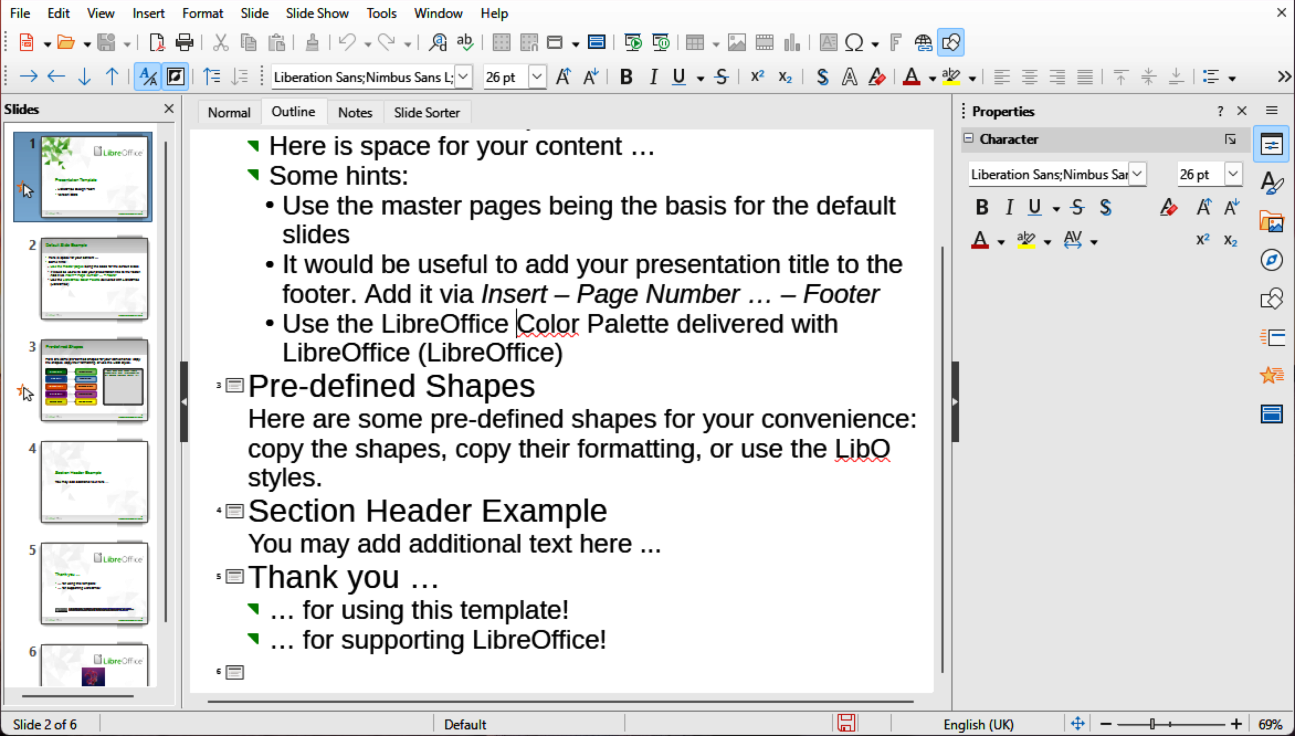
Figure 8: Outline toolbar

Figure 9: Example Notes view in Workspace
Move a paragraph in a slide up or down by using the movement arrows on the Outline toolbar (Figure 8).
Change the outline level of a paragraph in a slide using the left and right arrow buttons on the Outline toolbar.
Compare slides within an outline. If it is noticed in an outline that another slide is required, create it directly in Outline view, or return to Normal view to create it.
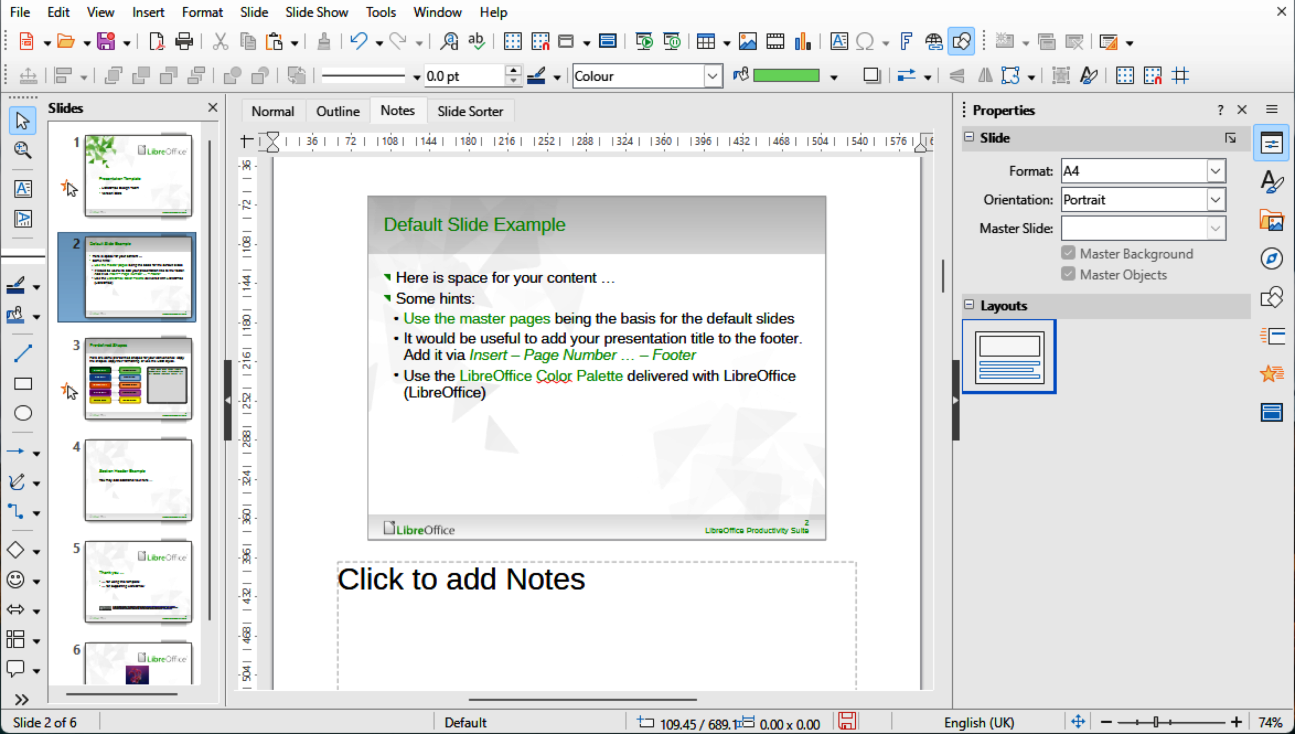
Use Notes view (Figure 9) to add notes to a slide. These notes are not seen when the presentation is shown to an audience using an external display connected to a computer.
Click on Click to add Notes and begin typing. The Click to add notes text box can be resized using the resizing handles which appear when the edge of the notes box is selected. Move or change the size of the box by clicking and dragging on the box border.
When text is inserted in the Click to add notes text box, it is automatically formatted using the predefined Notes style in Presentation Styles in the Styles deck on the Sidebar. The Notes style can be formatted to the presentation requirements. For more information on editing styles, see Chapter 4, Working with Styles, Templates and Hyperlinks in this guide and the Impress Guide.
Slide Sorter view (Figure 10) contains all the thumbnails of slides used in a presentation. Use this view to work with one slide or a group of slides.
Figure 10: Example Slide Sorter view in Workspace
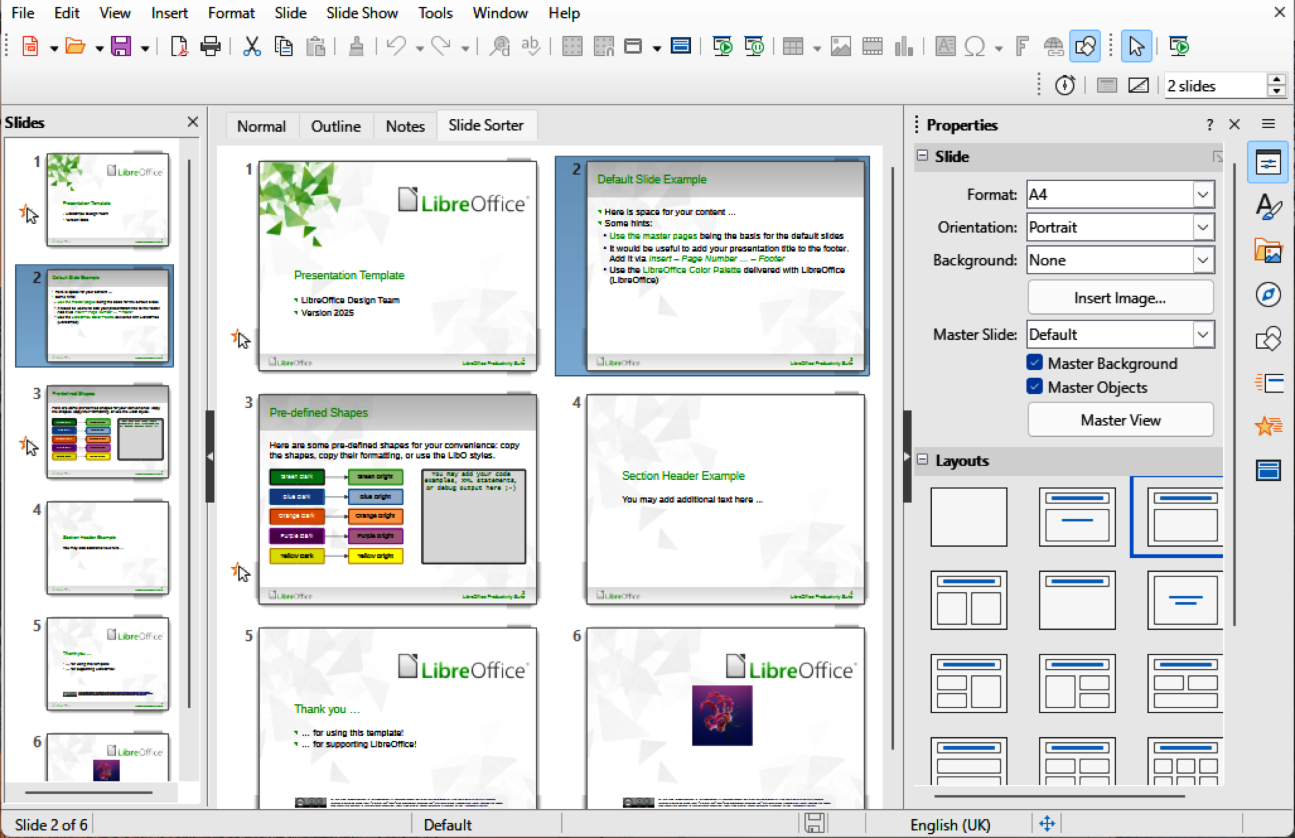
Figure 11: Slide View toolbar
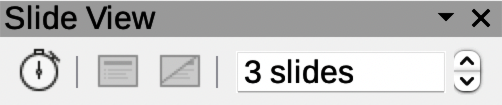
To change the number of slides per row in Slide Sorter view:
Go to View > Toolbars > Slide View on the Menu bar to show the Slide View toolbar (Figure 11).
Adjust the number of slides, up to a maximum of 15, in the Slides per Row box.
To change the slide order of one or a group of slides in a presentation using Slide Sorter view:
Select a slide or a group of slides.
Drag and drop the slide or group of slides at the location required.
To select a group of slides, use one of the following methods:
Ctrl key — click on the first slide and, while holding the Ctrl key (macOS ⌘), select the required slides. The selected slides do not have to be next to each other.
Shift key — click on the first slide, and while holding the Shift key, select the final slide for the group. This selects all of the slides between the first and the last slide selected.
Click and drag — position the cursor slightly outside the first slide, then click and hold the left mouse button and drag the cursor until all of slides required for the group are selected.
Working with slides in Slide Sorter view is similar to working with slides in the Slides Pane. To make changes, right-click on a slide in Slide Sorter view and select one of the following commands in Table 2:
Table 2: Slide Sorter commands
|
Command |
Action |
|
Cut |
Removes the selected slide and saves it to the clipboard. |
|
Copy |
Copies the selected slide to the clipboard without removing it. |
|
Paste |
Inserts a slide from the clipboard after the selected slide. |
|
New Slide |
Adds a new slide after the selected slide. |
|
Duplicate Slide |
Creates a duplicate of the selected slide and places the new slide immediately after the selected slide. |
|
Rename Slide |
Renames the selected slide. |
|
Hide Slide |
Any slides that are hidden are not shown in the presentation. |
|
Delete Slide |
Deletes the selected slide. |
|
Layout |
Allows changes to the layout of the selected slide. |
|
Move |
Allows moving or repositioning of the slide in the presentation order. |
By default, Impress opens with the Select a Template dialog (Figure 1) displayed for selection of a template for the new presentation. To create a new presentation without a template, click on Cancel in the Select a Template dialog and a blank slide opens in the Workspace and Slides pane. For more information on creating presentations, slide show options, and presentation settings, see the Impress Guide.
Tip
Decide on the purpose of a presentation first, then plan accordingly. Having an idea of audience type, structure, content, and how the presentation will be delivered, saves time when creating presentation.
When creating a new presentation, Impress displays one slide in the Slides pane and Workspace.
To insert a new slide into a presentation, use one of the following methods.
Go to Slide > New Slide on the Menu bar.
Right-click in the Slides pane and select New Slide in the context menu.
Use the keyboard shortcut Ctrl+M.
Figure 12: Presentation toolbar

Go to Slide Sorter view in the Workspace, right-click on a slide and select New Slide in the context menu.
Click on New Slide in the Presentation toolbar (Figure 12). If the Presentation toolbar is not visible, go to View > Toolbars on the Menu bar and select Presentation from the drop‑down list.
Note
A new slide is inserted after the selected slide in the presentation. If a slide is not selected, then the new slide is inserted as the last slide in the presentation.
To duplicate a slide, select a slide for duplication in the Slides pane and use one of the following methods. A duplicate slide is inserted after the selected slide in the presentation.
Right-click on a slide in the Slides pane and select Duplicate Slide in the context menu.
Go to Slide Sorter view in the Workspace, right-click on a slide and select Duplicate Slide in the context menu.
Go to Slide > Duplicate Slide on the Menu bar.
Click on Duplicate Slide in the Presentation toolbar (Figure 12).
Click on Properties on the Sidebar and open the Slide panel (Figure ) to display the format options available for a presentation. The Slide panel allows for quick formatting of all slides included in a presentation and selecting master slides for a presentation. For more information on formatting slides and using master slides, see the Impress Guide.
The first slide in a presentation is normally a title slide. The layouts Title Slide, which also contains a section for a subtitle, or Title Only are the most suitable layouts for a first slide in a presentation. For the remaining slides, select the most suitable layout to use for the slide contents.
Impress does not have the functionality to create custom layouts. However, the different elements in a slide layout can be resized and moved. For more information, see the Impress Guide.
The available layouts are shown in the Layouts panel on the Properties deck on the Sidebar. After selecting a slide, select the slide layout using one of the following methods:
Go Properties on the Sidebar, then select Layouts to open the Layouts panel (Figure 13).
Click on Slide Layout on the Presentation toolbar (Figure 12) to open the Layouts panel.
Click on Slide > Layout on the Menu bar to open a drop-down list displaying the layouts by name.
Figure 13: Slide and Layouts panels in Properties deck on Sidebar
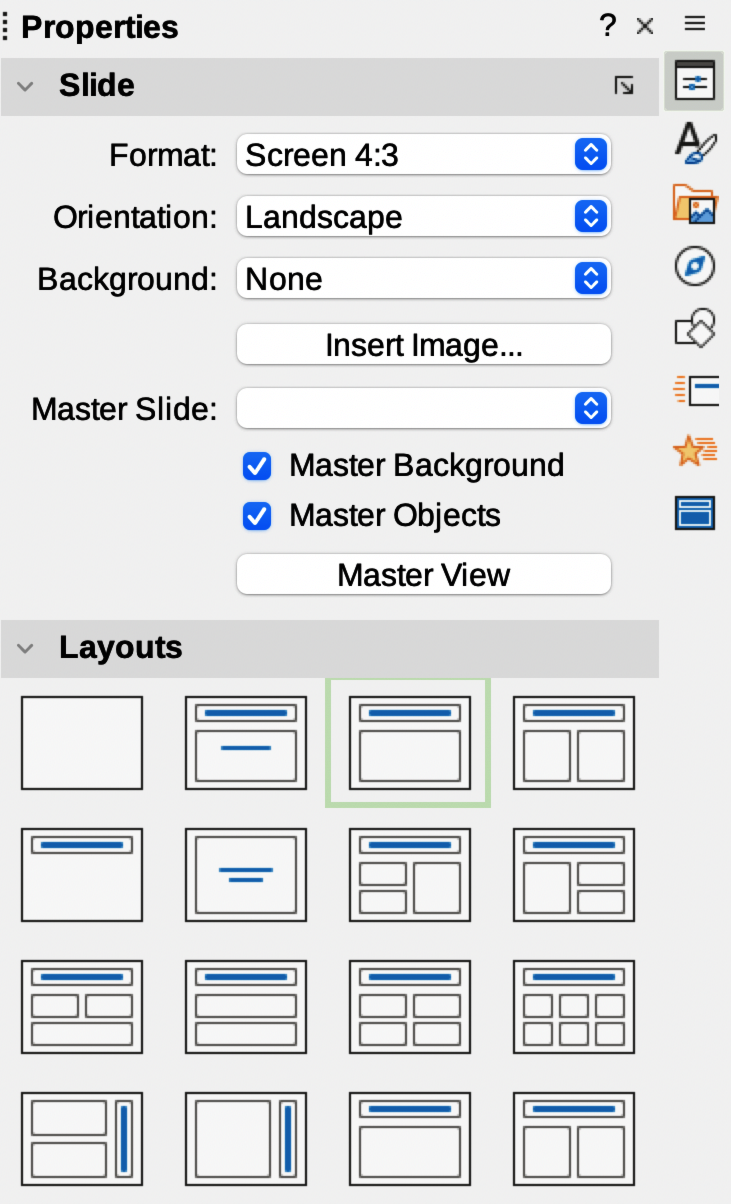
Right‑click on the selected slide and select Layout in the context menu to open a drop‑down list displaying the layouts by name.
Tip
To view the slide layout names, use the tooltip feature. Position the cursor on an icon in the Layouts panel (or on any other tool icon) in the Properties deck on the Sidebar and its name is displayed.
Change the slide layout for a slide in a presentation as follows:
Select a slide in the presentation.
Select a new layout for the slide using one of the methods described in “Selecting slide layout” above.
Figure 14: Example slide using content boxes
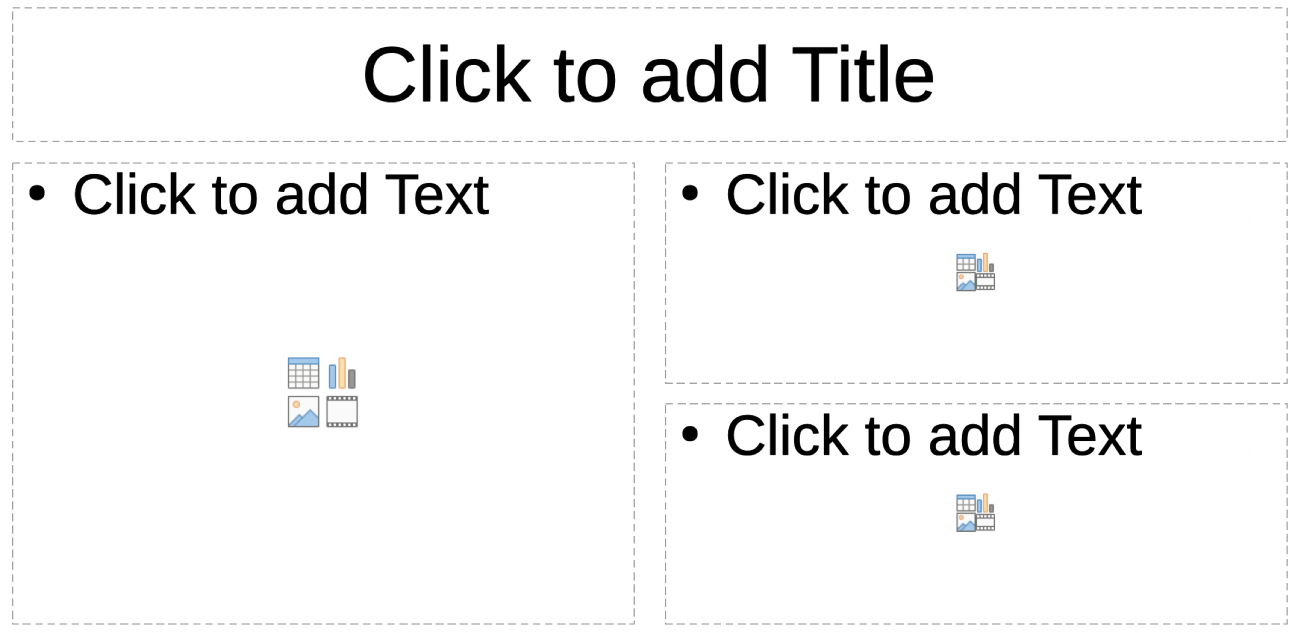
Several layouts can contain one or more content boxes, as shown by the example in Figure 14. Each of these content boxes can be configured to contain the following elements. For more information on layout content boxes, see the Impress Guide.
Slide title
Text
Table
Chart
Image
Audio or video
Note
Text and graphic elements can be formatted when preparing a presentation. However, changing slide layout that already has contents can have a dramatic effect. If the layout is changed after contents have been added, the contents are not lost, but may have to be reformatted.
When a slide is inserted into a presentation, it contains elements that were included in the selected slide layout. However, it is unlikely that the predefined layouts suit all requirements for a presentation. Elements required can be removed, or objects inserted such as text and/or graphics.
Although Impress does not have the functionality to create new layouts, it allows for the resizing and moving of the slide elements. It is also possible to add slide elements without being limited to the size and position of content boxes.
Note
It is recommended that changes to slide elements in the layouts included in Impress are only made using Normal view, which is the default. Any changes made to a slide element when in Master view is possible, but may produce unpredictable results. Using Master view requires extra care as well as a certain amount of trial and error.
Click on the outer frame of the contents box so that the selection handles are displayed.
Place the cursor on the frame so that it changes shape. This is normally a clenched hand, but depends on the computer setup.
Click and drag the contents box to its new position on the slide and release.
Click on the outer frame of the contents box so that the selection handles are displayed.
Place the cursor on the frame so that it changes shape.
Click and drag the selection handle on the frame to resize the contents box and release.
Top and bottom selection handles change the height of a contents box.
Left and right selection handles change the width of a contents box.
Corner selection handles change width and height of a contents box.
Select a contents box, or an element to highlight it and the selection handles are displayed.
Press the Delete or Backspace key to remove the contents box or element.
A contents box or text box are used to add text to a slide. For more information, see “Adding and formatting text” below and the Impress Guide.
Click on Click to add Text in the contents box and type the text. Outline styles are automatically applied to the text. If required, change the outline level of each paragraph as well as its position within the contents box by using the arrow buttons on the Outline toolbar (Figure 8) and Workspace Outline view.
Click on Insert Text Box on the Standard toolbar or Drawing toolbar to select text mode, then click on the slide. A text box is created and the Text Formatting toolbar automatically opens. Type the text and click outside the text box to exit text mode.
To add images or objects to a slide, for example clip art, drawing, photograph, or spreadsheet, click on Insert on the Menu bar and select from the drop-down menu the image or object type required. See “Inserting images, tables, charts, or media” below and the Impress Guide.
To change the background, or characteristics of all slides in the presentation, the master slide has to be modified or a different master slide selected, see “Working with master slides” below.
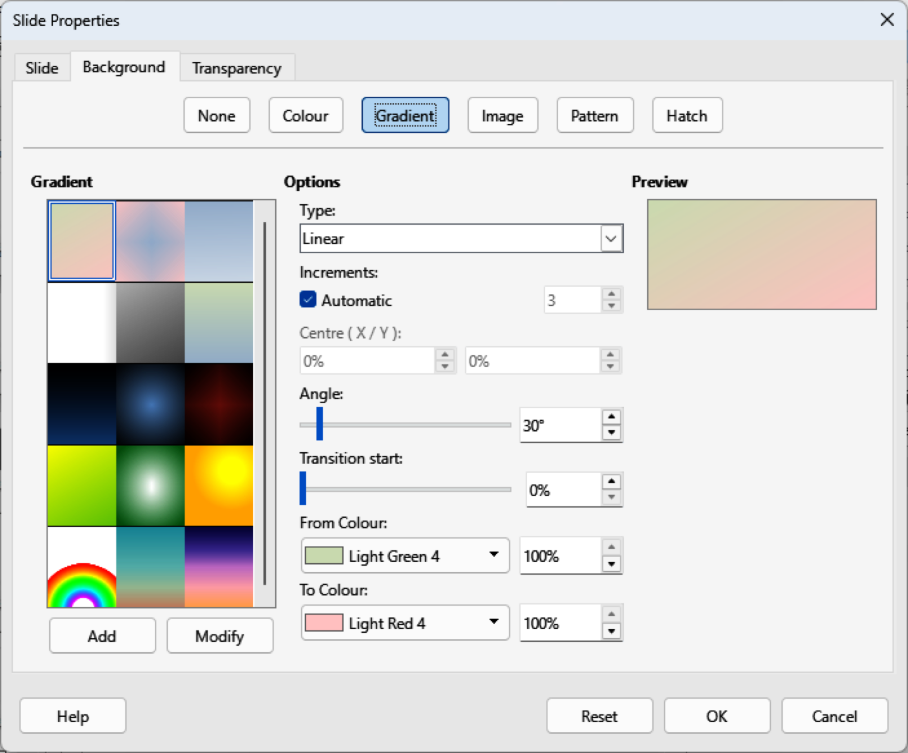
Figure 15: Slide Properties dialog — Background page
A master slide has a specified set of characteristics that acts as a template and is used as the starting point for creating other slides. These characteristics include slide background, objects in the background, formatting of any text used, and any background graphics.
Impress has a range of master slides, located in the Master Slides deck on the Sidebar. Additional master slides can be created, saved, or added from other sources. For more information on inserting, formatting, and changing a background, see the Impress Guide, or Draw Guide.
For example, to change the background of an individual slide, or a master slide:
Right click on a slide, or master slide, and select Slide Properties from the context menu to open the Slide Properties dialog (Figure 15).
Select Background and then select the type of background to use from None, Color, Gradient, Image, Pattern or Hatch.
Make a selection from the various properties that are available for each type of background.
Click OK to save the change and close the dialog.
By default, a presentation displays all slides in the same order as they appear in Slide Sorter view on the Workspace. Run the presentation at least once, then answer the following questions:
Are the slides in the correct order? If not, move the slides into the correct order.
Is the information well spaced and visible to members of an audience at the back of a large room? The audience may not be able to see information at the bottom of a slide, so redesign the presentation to fit the top three-quarters of a screen.
Would an additional slide make a particular point clearer? If so, create another slide.
Are some of the slides unnecessary? Hide or delete the slides not required.
Would animations help some of the slides? This is an advanced technique, but remember that too many animations may not create a good presentation.
Is the slide transition the same for all sides? Varying transitions can improve a presentation.
Once the questions have been answered, make the necessary changes. Making changes can be carried out in Slide Sorter view on the Workspace. For more information on modifying and running a presentation, see the Impress Guide.
Most slides in a presentation are likely to contain some text. This section gives some guidelines on how to add text and change its appearance. Text used in slides is contained in text boxes. For more information on adding and formatting text, see the Impress Guide.
Two types of text boxes (AutoLayout text box and text box) are available in Impress for use on slides. Both types of text boxes can be moved, resized, and deleted.
Choose a predefined layout from the Layouts panel on the Properties deck in the Sidebar and do not select any special content type. These text boxes are called AutoLayout text boxes.
Figure 16: Text toolbar
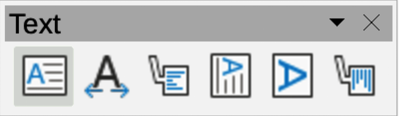
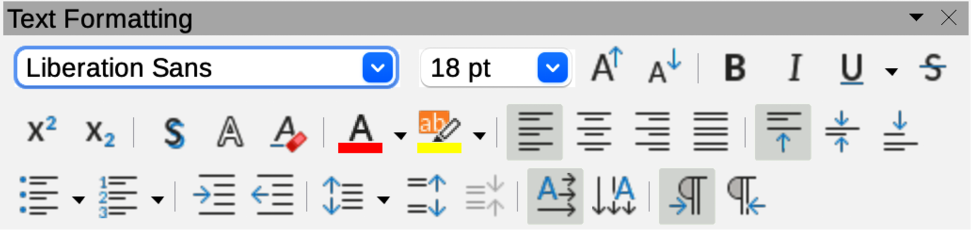
Figure 17: Text Formatting toolbar
Use Insert Text Box for horizontal text, or Insert Vertical Text for vertical text on the Standard toolbar, Drawing toolbar, or Text toolbar (Figure 16) to create text boxes on a slide.
Use the keyboard shortcut F2 to create text boxes on a slide for horizontal text.
When adding and formatting text, the Text Formatting toolbar (Figure 17) normally opens, automatically providing a range of tools to add and format text.
Notes
If the toolbars are not visible, go to View > Toolbars on the Menu bar and select the required toolbars in the drop-down list.
The area fill and borders in AutoLayout text boxes and text boxes can be edited using the same methods that are used for graphic objects. For more information, see the Impress Guide.
AutoLayout text boxes are automatically created when a slide layout in Impress is selected.
Make sure Normal view is selected in the Workspace.
Select the slide where text is to be added into an AutoLayout text box.
Click on Click to add Title or Click to add text in an AutoLayout text box. The text disappears and is replaced by a flashing text cursor. The Text Formatting toolbar automatically opens replacing the Line and Filling toolbar.
Type or paste text into the AutoLayout text box and, if necessary, format the text to the presentation requirements.
Click outside the AutoLayout text box to deselect it.
Make sure Normal view is selected in the Workspace.
Select the slide where the text is to be added.
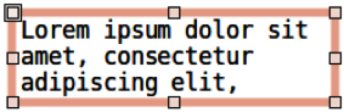
Figure 18: Example text box in edit mode
For horizontal text: click on the selected slide and create a text box using one of the following methods:
Single line text box — select Insert Text Box, click on the slide and then type or paste the text. The width of the text box increases as text is added creating a single line of horizontal text.
Single line text box — use the keyboard shortcut F2, click on the slide and then type or paste the text. The width of the text box increases as text is added creating a single line of horizontal text.
Multiple line text box — select Insert Text Box, or use the keyboard shortcut F2, click on the slide and drag to the approximate width required for the text box, then type or paste the text into the text box. The width of the text box is fixed and the height of the text box increases automatically as text is added creating multiple lines of horizontal text.
Multiple line text box from a single line text box — use the Enter key to create a new paragraph, or the keyboard combination Shift+Enter to create a line break in the text.
Select the text box to switch on edit mode. This is indicated by a colored border as shown in by the example in Figure 18. The width and final position of the text box can be adjusted after adding text into the text box.
Click outside the text box to deselect it.
In addition to normal text boxes using horizontal text, it is possible to insert text boxes where vertical text is used. Vertical text is available only when Asian languages are selected in Tools > Options > Language Settings > Languages (macOS LibreOffice > Preferences > Language Settings > Languages).
Creating vertical text boxes is similar to creating horizontal text boxes. Use the Insert Vertical Text tool on the Standard, Drawing, or Text toolbars to create a vertical text box with single or multiple lines of text. See “Text box” above on how to create a text box for single or multiple lines of text.
To quickly increase or decrease the font size of selected text by using the tools Increase Font Size (Ctrl+]) (macOS ⌘+]) and Decrease Font Size (Ctrl+[) (macOS ⌘+[) on the Text Formatting toolbar. The amount by which the font size changes depends on the standard sizes available for the font in use.
Note
AutoLayout text boxes automatically adjust font size of any text inserted into the box. For example, if a long piece of text is inserted into an AutoLayout text box, the font size decreases to fit into the box.
Text can be added to an AutoLayout, or normal text box, by copying text in another document and pasting it into Impress. The formatting of any text pasted into Impress may not match the formatting of the surrounding text, or that of the other slides in the presentation. This maybe what is required on some occasions. However, to make sure that the presentation style is consistent and does not become a patchwork of different styles, font types, bullet points, and so on, it is recommended that pasted text is formatted to match the rest of the presentation.
It is good practice to paste unformatted text into a presentation and apply text formatting later.
Highlight and copy the text from another document or slide.
Create a text box on a slide and make sure the text cursor is flashing in the text box. Alternatively, select an AutoLayout text box on a slide. See “Text boxes” above and “AutoLayout text boxes” above and the Impress Guide for more information.
Paste unformatted text into the text box using one of the following methods. Text is pasted at the cursor position in the text box formatted using the Default Drawing Style, or Presentation Style if text was pasted into an AutoLayout text box.
Go to Edit > Paste Special > Paste Unformatted Text on the Menu bar.
Click on the triangle ▼to the right Paste on the Standard toolbar and select Unformatted Text in the context menu.
Use the keyboard shortcut Ctrl+Shift+V (macOS ⌘+Shift+V) and select Unformatted text on the dialog that opens.
Format the text to the presentation requirements using the tools on the Text Formatting toolbar, or the options available in Format on the Menu bar.
Note
The Presentation style used in AutoLayout text boxes cannot be changed by selecting another presentation style. Make sure the AutoLayout text box uses the presentation style required. Change outline levels and outline styles using the Tab key or Shift+Tab key combination. See the Impress Guide for more information.
If text is being pasted into an AutoLayout text box, the correct outline style has to be applied to the text giving it the same look and feel as the rest of the presentation.
Highlight and copy the text from another document or slide.
Paste the text into the AutoLayout text box, then select the pasted text.
Select Format > Clear Direct Formatting on the Menu bar, or use the keyboard shortcut Ctrl+Shift+M (macOS ⌘+Shift+M) to make sure any formatting is removed from the pasted text.
Use the four arrow buttons on the Outline toolbar (Figure 8) to move the text to the appropriate position and give it the appropriate outline level.
Left arrow promotes a list entry by one level (for example from Outline 3 to Outline 2). Alternatively, place the cursor at the beginning of the paragraph and use the Shift+Tab keys.
Right arrow demotes a list entry by one level. Alternatively, place the cursor at the beginning of the paragraph and use the Tab key.
Up arrow moves a list entry up in the list order.
Down arrow moves a list entry down in the list order.
If necessary, modify the presentation style to format the text to the presentation requirements to change font attributes, tabs, and so on. See the Impress Guide for more information. Alternatively, apply any necessary manual or direct formatting to the text.
Pasting formatted text into a text box overwrites any formatting and replaces the text box style.
Highlight and copy the text from another document or slide.
If necessary, create a text box on a slide and make sure the text cursor is flashing in the text box. See “Text boxes” above and the Impress Guide for more information.
Paste formatted text into the text box. Text is pasted at the cursor position in the text box and the text formatting of the pasted text overwrites any style formatting of the text box.
Select Format > Clear Direct Formatting on the Menu bar or use the keyboard shortcut Ctrl+Shift+M (macOS ⌘+Shift+M) to make sure any formatting is removed from the pasted text.
Select the required drawing style to format the text from the available drawing styles.
If necessary, modify a drawing style or create a new drawing style to format the text to the presentation requirements. See the Impress Guide for more information.
Note
Drawing styles can be created in Impress and are only available for the presentation which is being created and has been saved. Templates can also be created that include any drawing styles required. For more information, see the Impress Guide.
The procedure to create an unordered (bulleted) or ordered (numbered) list varies depending on the type of text box used. The tools to manage and format a list are the same. To change the appearance of a list, see “Changing outline level” below.
Figure 19: Example of outline levels in AutoLayout text box
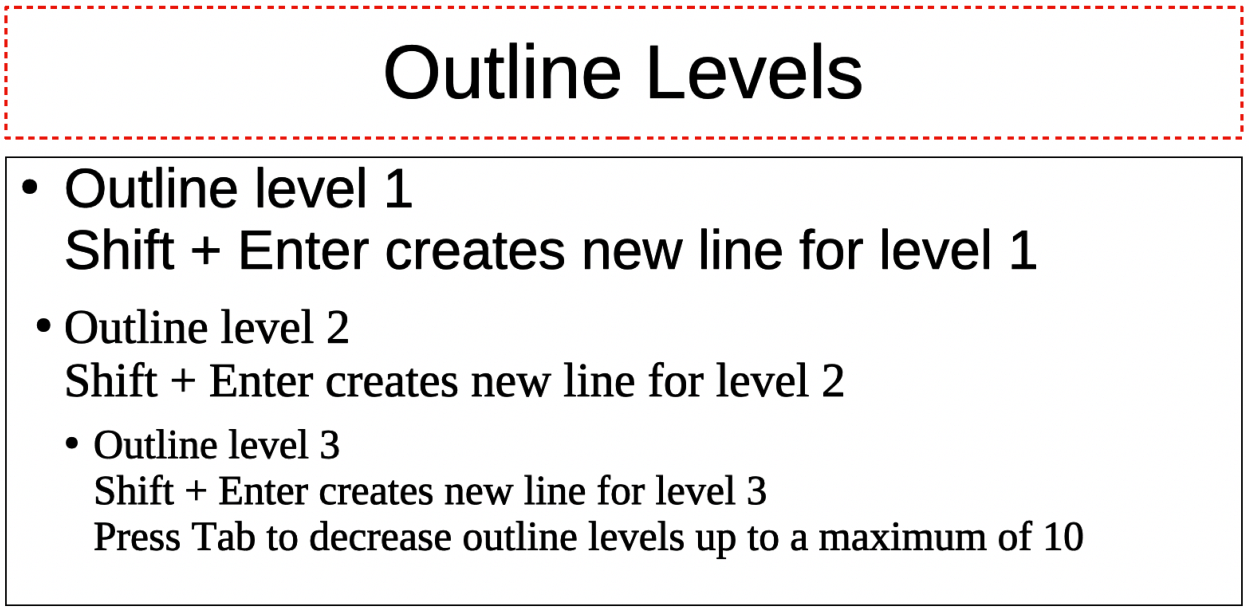
In AutoLayout text boxes, by default, the outline styles available are unordered lists. An example of these outline styles is shown in Figure 19. These outline styles are presentation styles and cannot be deleted, but can be modified or updated to the presentation requirements. See the Impress Guide for more information.
Create a slide using an AutoLayout text box with an unordered list as follows:
Go to View > Normal on the Menu bar to open Normal view.
Select a layout for the slide using one of the following methods:
Right-click in a blank area on the slide and select a layout in the context menu.
Go to Slide > Layout on the Menu bar and select a layout in the drop-down list.
Select a layout in the Layouts panel on the Properties deck in the Sidebar (Figure 13).
Click on the text ● Click to add Text and start typing the first list item.
Press Enter to start a new list point or use the keyboard combination Shift+Enter to start a new line without creating a new list point. The new line will have the same indentation as the list point.
Tip
To create a list without bullets, click on Toggle Unordered List on the Text Formatting toolbar (Figure 17).
In AutoLayout text boxes, change the outline level as follows:
To demote the outline level of a list point, use one of the following methods:
Press the Tab key.
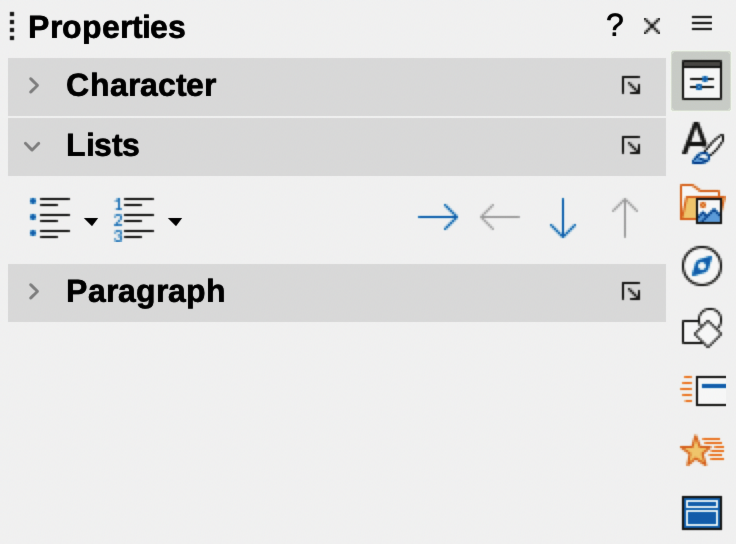
Click on Demote to demote outline level of selected paragraphs on the Outline toolbar (Figure 8), or the Lists panel on the Properties deck in the Sidebar (Figure 20).
Figure 20: Lists panel in Properties deck on Sidebar
Go to Format > Lists on the Menu bar and select Demote in the submenu.
Use the keyboard shortcut Alt+Shift+Right Arrow (macOS ⌥+Shift+Right Arrow).
To promote the outline level of a list point, use one of the following methods:
Use the keyboard shortcut Shift+Tab.
Click on Promote to demote outline level of selected paragraphs on the Outline toolbar (Figure 8), or the Lists panel on the Properties deck in the Sidebar (Figure 20).
Go to Format > Lists on the Menu bar and select Promote in the submenu.
Use the keyboard shortcut Alt+Shift+Left Arrow (macOS ⌥+Shift+Left Arrow).
To move a list point lower in the list order without changing the outline level, use one of the following methods:
Click on Move Down to move selected paragraphs down one paragraph on the Outline toolbar (Figure 8), or the Lists panel on the Properties deck in the Sidebar (Figure 20).
Go to Format > Lists on the Menu bar and select Move Down in the submenu.
Use the keyboard shortcut Alt+Shift+Down Arrow (macOS ⌥+Shift+Down Arrow).
To move a list point higher in the list order without changing the outline level, use one of the following methods:
Click on Move Up to move selected paragraphs down one paragraph on the Outline toolbar (Figure 8), or the Lists panel on the Properties deck in the Sidebar (Figure 20).
Go to Format > Lists on the Menu bar and select Move UP in the submenu.
Use the keyboard shortcut Alt+Shift+Up Arrow (macOS ⌥+Shift+Up Arrow).
Note
In AutoLayout text boxes, a different outline style is applied to a list item when promoting or demoting a list item. The second outline level uses Outline 2 style, the third outline level uses Outline 3 style, and so on. A change in level and style produces other changes, for example, to font size, bullet type, and so on.
Create an unordered or ordered list in a text box as follows:
Create a text box on a slide and make sure the cursor is flashing in the text box. See “Text boxes” above on how to create a text box.
Create a list using one of the following methods:
Click on Toggle Unordered List or Toggle Ordered List on the Text Formatting toolbar.
Click on Toggle Unordered List or Toggle Ordered List in the Lists panel on the Properties deck in the Sidebar.
Go to Format > Lists on the Menu bar and select Unordered List or Ordered List in the submenu.
Type the text and press Enter to start a new list point, or use the keyboard combination Shift+Enter to start a new line without creating a new list point. The new line will have the same indentation as the list point.
To increase or decrease the indent level of a list point, or move a list point up or down, see “Changing outline level” above.
The list type can be changed for an unordered or ordered type for the entire list or for a single point only as follows:
Select a point in a list, or select the entire list in the text box. Alternatively, click on the border of the text box so that the resizing handles are displayed to select the entire list.
Change the list type from unordered to ordered list, or ordered to unordered as described in “Text boxes” above.
If required, change the type of bullet or number used for the list:
Click on the triangle ▼ to the right of the Toggle Unordered List, or Toggle Ordered List on the Text Formatting toolbar (Figure 17), or the Lists panel on the Properties deck in the Sidebar (Figure 20).
Figure 21: Bullet Library dialog
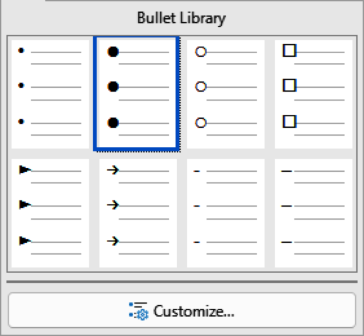
Figure 22: More Numbers dialog
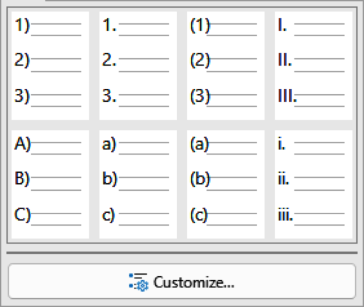
Select a bullet or number type from the options available in the drop-down window as shown in Figure 21, or Figure 22.
If necessary, click on Customize in the drop-down window to open the Bullets and Numbering dialog for further options to change the list appearance. See the Impress Guide for more information.
The bullet, or number format used in a list can be changed for the entire list, or for a single point only as follows:
Select a point in a list, or select the entire list in the text box. Alternatively, click on the border of the text box so that the resizing handles are displayed to select the entire list.
Click on the triangle ▼ to the right of the Toggle Unordered List, or Toggle Ordered List, on the Text Formatting toolbar, or the Lists panel on the Properties deck in the Sidebar (Figure 20) to open a drop-down dialog displaying the format options available.
Select a bullet or number type from the options available in the drop-down window as shown in Figure 21, or Figure 22.
If necessary, click on Customize in the drop-down window to open the Bullets and Numbering dialog for further options to change the list appearance. See the Impress Guide for more information.
Notes
The Bullets and Numbering dialog can also be opened by going to Format > Bullets and Numbering on the Menu bar, or by right-clicking on a list point and selecting Bullets and Numbering from the context menu.
If a list was created in an AutoLayout text box, then the Outline styles can be modified to change the list type and/or format. Changes made to an Outline style apply to all the slides that use that style. See the Impress Guide for more information.
The type of columns used in Impress are continuous flow columns. This means that when text reaches the bottom of a column, it automatically flows into the next column as text is added. This type of columns is also known as newspaper columns.
Columns in text boxes and graphic objects are created as follows:
For text boxes — click the border of a text box to select it so that the selection handles are displayed indicating that the text box is in edit mode.
For graphic objects — double-click on a graphic object to select it so that the selection handles are displayed and the cursor flashes in the center of the object indicating that the object is in text edit mode.
Open the options for text columns using one of the following methods:
Right-click in the text box or graphic object and select Text Attributes in the context menu to open the Text dialog, then click on the Text Columns tab to open the Text Columns page (Figure 23),
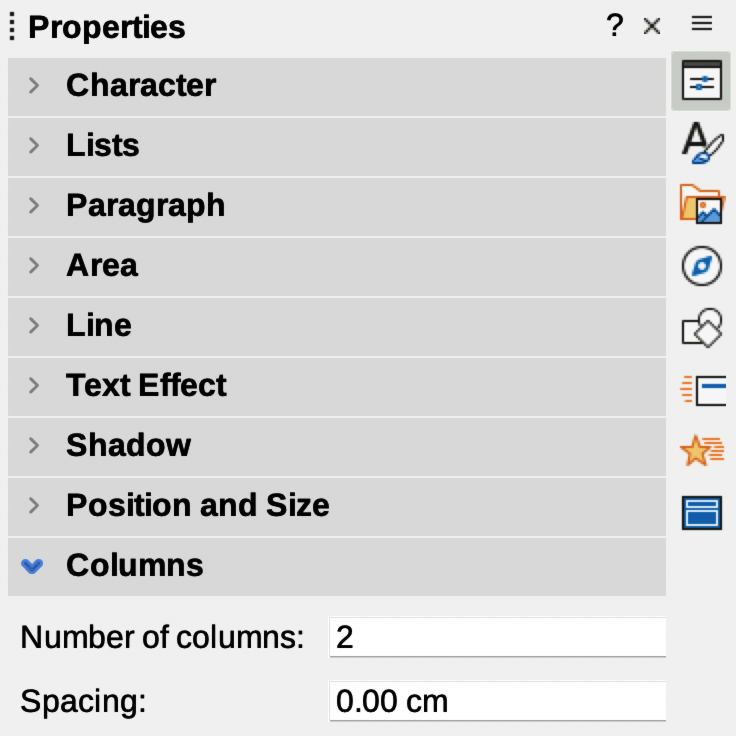
Click on Columns in the Properties deck on the Sidebar to open the Columns panel (Figure 24).
Figure 23: Text dialog — Text Columns page
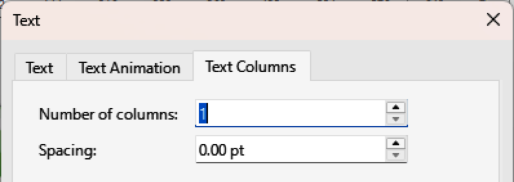
Figure 24: Columns panel in Properties deck on Sidebar
Notes
Text in a presentation can be formatted into columns inside text boxes and objects. However, columns cannot be used on separate parts of text inside a text box or object. The whole of the text box or object has to be used for columns.
Any text inside a text box, or graphic object, automatically flows into column format when the changes are saved.
Set the number of columns required in the Number of columns text box and the required spacing between the columns in the Spacing text box.
Save the changes and deselect the text box, or graphic object, using one of the following methods:
For the Text dialog, click OK to save the changes and close the dialog, then click outside the text box, or graphic object, to deselect it.
For the Columns panel in the Properties deck on the Sidebar, click outside the text box, or graphic object, to deselect it and save the changes.
Type in the required text or use copy and paste to enter the required text into the text box, or graphic object. Any text entered will be in column format.
If necessary, format the text to the presentation requirements.
Click outside the text box, or graphic object, to deselect it and save the changes.
A contents box on a slide can contain images, tables, charts, or media as well as text. The Insert toolbar (Figure ) provides quick access to relevant tools. This section provides an overview of how to work with these objects. For more information, see the Impress Guide.
Open the slide in Normal view on the Workspace where the image is going to be inserted.
Open the Insert Image file browser using one of the following methods:
Go to Insert > Image on the Menu bar.
Click on Insert Image on the Insert toolbar (Figure 25).
Click on Insert Image on the Standard toolbar.
Navigate to the location of the file and select the image file required.
Click Open to place the image in the center of the slide.
Reposition and resize the image to the presentation requirements.
When a table is inserted into a slide, the Table toolbar (Figure 26) automatically opens. The Table toolbar in Impress offers the same functions as the Table toolbar in Writer, with the exception of the calculation functions Sort and Sum. To use Sum and Sort in a presentation, a Calc spreadsheet has to be inserted into the slide.
Figure 25: Insert toolbar
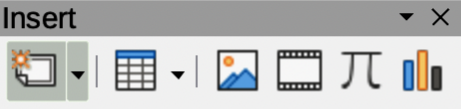
Figure 26: Table toolbar

Note
If the Table toolbar does not automatically open, go to View > Toolbars on the Menu bar and select the Table toolbar.
Entering data into table cells is similar to working with text box objects. Click in a cell and begin typing. To move around cells quickly, use the following keyboard options:
Use the arrow keys to move the cursor to another cell if the cell is empty, or to the next character if the cell already contains text.
Press the Tab key to move to the next cell on the right, or press Shift+Tab to move to the next cell on the left.
Open the slide in Normal view on the Workspace and go to Insert > Table on the Menu bar to open the Insert Table dialog (Figure 27).
Select the Number of columns and the Number of rows required for the table.
Figure 27: Insert Table dialog
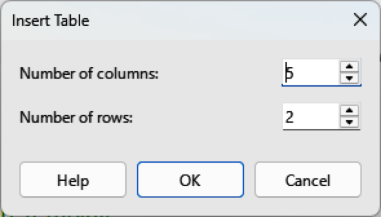
Figure 28: Table Design panel in Properties deck on Sidebar

Figure 29: Insert Table grid
Click OK to place the table in the center of the slide and close the Insert Table dialog.
The Table Design panel on the Properties deck on the Sidebar opens (Figure 28). Select a table design, the type of rows, and the type of columns required.
If necessary, reposition and format the table on the slide to the presentation requirements.
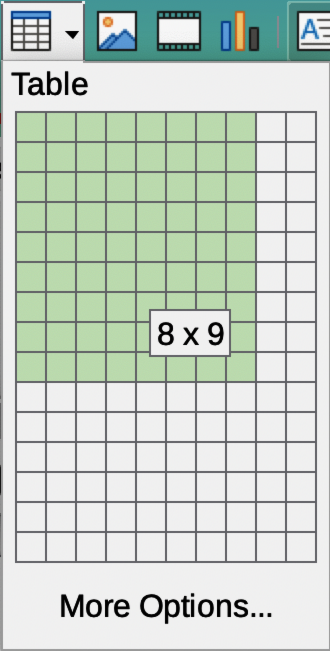
Open the slide in Normal view on the Workspace and click on Table on the Insert toolbar or the Standard toolbar to open the Insert Table grid (Figure 29).
Click and drag the cursor to create the number of columns and rows required, then click to place the table in the center of the slide and the Insert Table Grid closes.
The Table Design panel on the Properties deck in the Sidebar opens (Figure 28). Select a table design, the type of rows, and the type of columns from the options available.
If necessary, reposition and format the table on the slide to the presentation requirements.
Note
Select More Options at the bottom of the Insert Table grid (Figure 29) to open the Insert Table dialog (Figure 27) to select the required number of rows and columns.
Figure 30: Formatting toolbar
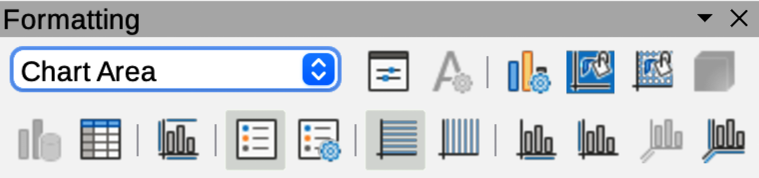
Figure 31: Chart Type and Elements panels in Properties deck on Sidebar
To insert a chart into a selected slide in Normal view on the Workspace, use one of the following methods:
Go to Insert > Chart on the Menu bar.
Click on Insert Chart on the Insert toolbar (Figure 25 on page ).
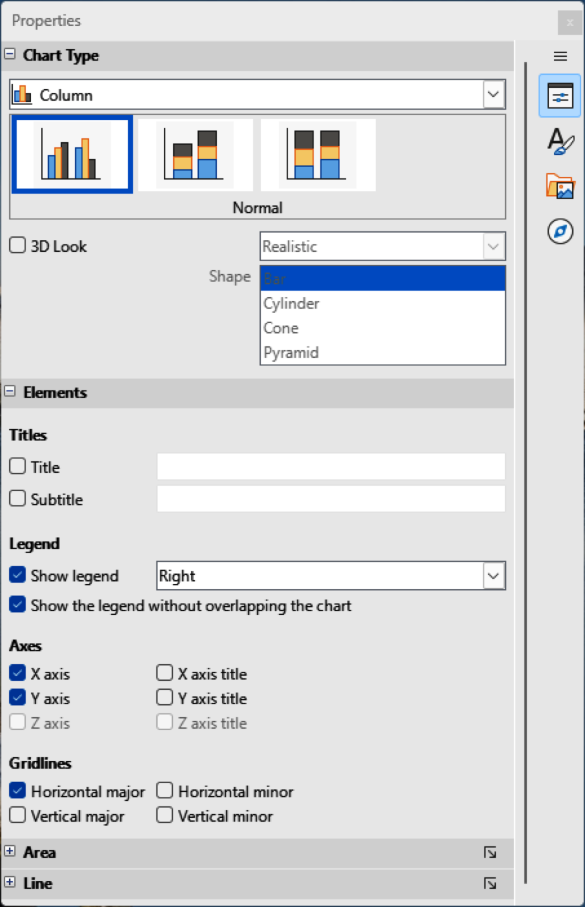
When a chart is inserted into a presentation, Impress switches to chart view opening the Formatting toolbar (Figure 30) and the Chart Type and Elements panels in the Properties deck on the Sidebar (Figure 31). To change the chart type, insert the required data, and change the formatting, see the Impress Guide and the Calc Guide.
Go to Insert > Audio or Video on the Menu bar, or click on Insert Audio or Video on the Insert toolbar (Figure 25), and the Insert Audio or Video file browser opens.
Navigate to the folder where the file is located and select the audio or video file to insert onto a slide. Only the audio and video files that are compatible with Impress will be highlighted in the file browser.
Click Open to place the audio or video file in the center of the slide. The Media Playback toolbar opens while the audio or video file is selected.
Reposition and/or resize the audio or video file. See the Impress Guide for more information.
Figure 32: Sounds in Gallery deck on sidebar
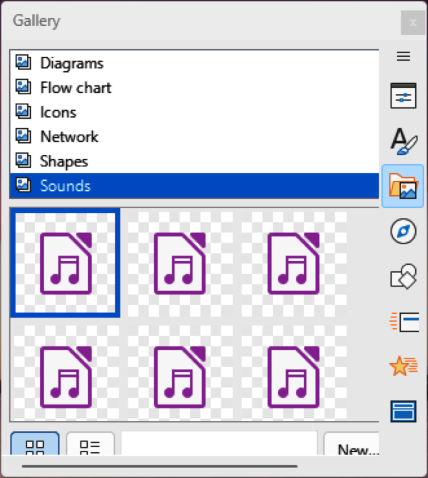
Figure 33: Media Playback toolbar

If the Gallery deck (Figure 32) is not already open, use one of the following methods:
Go to View > Sidebar on the Menu bar to open the Sidebar, then select Gallery.
Go to View > Gallery on the Menu bar.
Browse to a category containing media files, for example Sounds.
Click on the audio or video file required and drag it onto the slide. The Media Playback toolbar (Figure 33) automatically opens when a media file is selected.
Reposition and/or resize the audio or video file. See the Impress Guide for more information.
Graphics, such as shapes, callouts, and arrows, are often useful to complement the text on a slide. These objects are handled much the same way as graphics in Draw. For more information on inserting graphics, see Chapter 7, Getting Started with Draw in this guide, the Impress Guide, or the Draw Guide.
Spreadsheets embedded in Impress include most of the functionality of Calc spreadsheets and are capable of performing complex calculations and data analysis. If the data has to be analyzed or formulas applied, then these operations are best performed in a Calc spreadsheet and the results displayed in an embedded Calc spreadsheet or in an Impress table. For more information on spreadsheets, see the Impress Guide and the Calc Guide.
Object Linking and Embedding (OLE) is a software technology that allows linking and embedding of spreadsheets, charts, drawings, formulas, and text files into an Impress presentation.
The major benefit of using OLE objects is that it provides a quick and easy method of editing the object using tools from the software used to create the object. These file types can be created using LibreOffice and OLE objects can be created from new or from an existing file.
When inserting a new OLE object into a presentation, it is only available in that presentation and can only be edited using Impress. For more information on inserting and formatting OLE objects, see the Impress Guide.
A master slide is a slide that is used as the starting point for other slides. It is similar to a page style in LibreOffice Writer as it controls the basic formatting of all slides based on it. More than one master slide can be used in a presentation.
Each master slide has a defined set of characteristics, including the background color, graphics, or gradients. Master slides can also include objects (for example, logos, decorative lines) in the background; headers and footers; placement and size of text frames; and text formatting.
All characteristics in a master slide are controlled by styles. When creating a new slide, the styles are inherited from the master slide which was used as a starting point. In other words, the master slide styles are available and applied to all slides created from a master slide. Changing a style in a master slide results in changes to all slides based on that master slide. Styles on an individual slide can be modified and formatted without affecting the master slide.
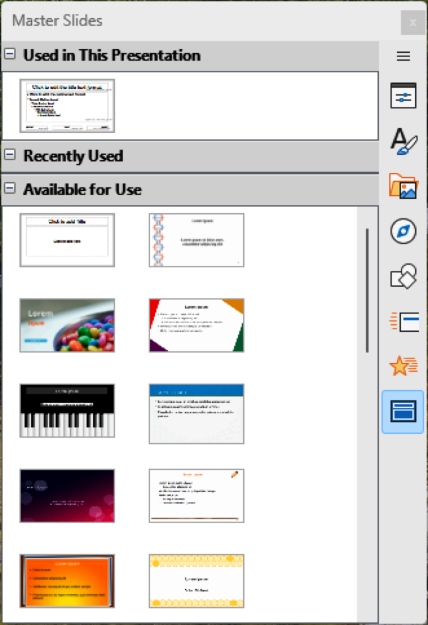
Figure 34: Master Slides deck on Sidebar
Master slides have two types of styles — presentation styles and drawing styles. The presentation styles included with Impress can be modified, but new presentation styles cannot be created or deleted. The drawing styles included with Impress can be modified, but cannot be deleted. However, new drawing styles can be created and these drawing styles can be deleted.
Note
It is recommended to use master slides when creating presentations. However, there are occasions where manual changes are needed for a particular slide. For example, editing an individual slide to enlarge the chart area when text and chart layout are used.
Impress comes with a collection of master slides, which are are shown on the Master Slides deck of the Sidebar (Figure 34). This deck has three panels: Used in This Presentation, Recently Used, and Available for Use. Click the expand marker on the title bar of a panel to expand it and show thumbnails of the master slides, or click the collapse marker to collapse the panel to hide the thumbnails.
Each of the master slides displayed in the Available for Use panel are from templates that are available for use in Impress:
Presentation templates included when LibreOffice is installed on a computer.
Templates have been created, or added from other sources.
If a new presentation is created without using one of the templates available, then a default master slide is available. This default master slide is a good starting point for creating master slides. An example of the default master slide is shown in Figure 35.
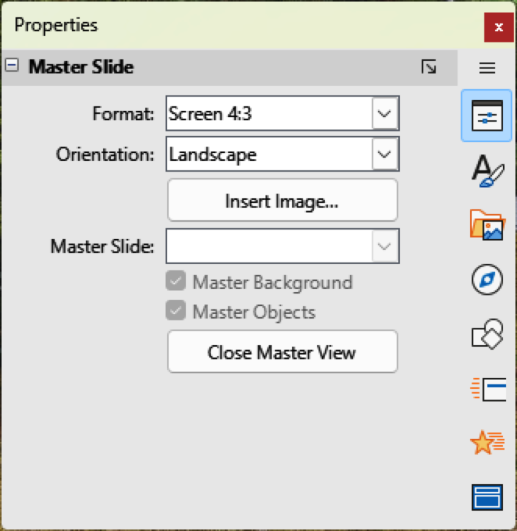
The Master View toolbar (Figure 36) also opens providing tools for creating, deleting and renaming master slides. The Master Slide panel may also open in the Properties deck on the Sidebar (Figure 37). This Master Slide also panel provides a starting point for creating master slides for a presentation.
Figure 35: Default master slide
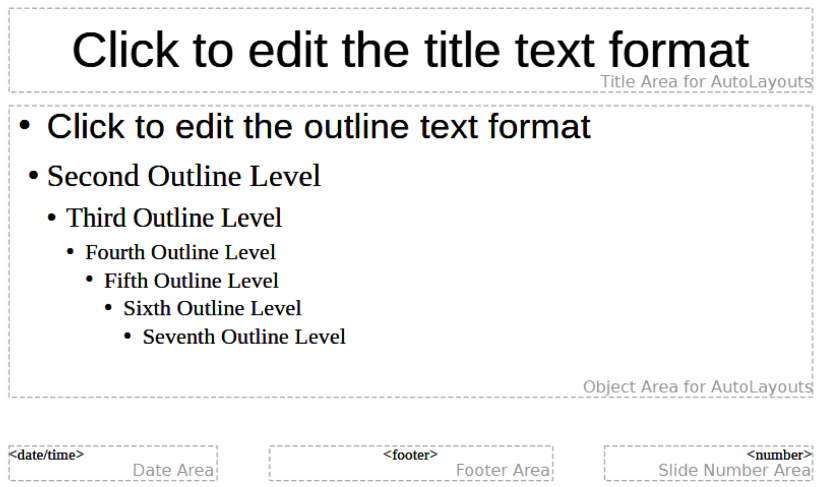
Figure 36: Master View toolbar
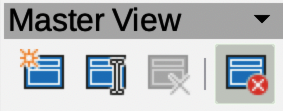
Figure 37: Master Slide panel in Properties deck on Sidebar
Open Master View in the Workspace using one of the following methods. The Master View toolbar also opens (Figure 36). If the Master View toolbar does not open, go to View > Toolbars on the Menu bar and select Master View.
Go to View > Master Slide on the Menu bar.
Click on Master View in the Slides panel on the Properties deck in the Sidebar (Figure 13).
Create a new master slide using one of the following methods and the new master slide appears in the Slides pane:
Click on New Master in the Master View toolbar.
Right-click on a master slide in the Slides pane and select New Master in the context menu.
Go to Slide > New Master on the Menu bar.
Rename the new master slide using one of the following methods to open the Rename Master Slide dialog:
Click on Rename Master on the Master View toolbar.
Right-click on the new master slide in the Slides Pane and select Rename Master in the context menu.
Enter a memorable name for the new master slide in the Name text box, then click OK to save the changes and close the dialog.
Make sure the new master slide is selected in the Slides pane and add all the text, graphics and master elements required. For more information on adding, editing, formatting and managing the different types of objects on a master slide, see the Impress Guide.
When a new master slide has been created, use one of the following methods to return to Normal view:
Click on Close Master View on the Master View toolbar.
Click on Close Master View in the Master Slide panel in the Properties deck on the Sidebar (Figure 37).
Go to View > Normal on the Menu bar.
Save the presentation file before continuing.
A master slide can be applied to all slides or selected slides in a presentation:
Click on Master Slides on the right of the Sidebar to open the Master Slides deck (Figure 34 above).
Right-click on the required master slide in the Used in This Presentation panel.
Select Apply to All Slides, or Apply to Selected Slides in the context menu.
Figure 38: Available Master Slides dialog
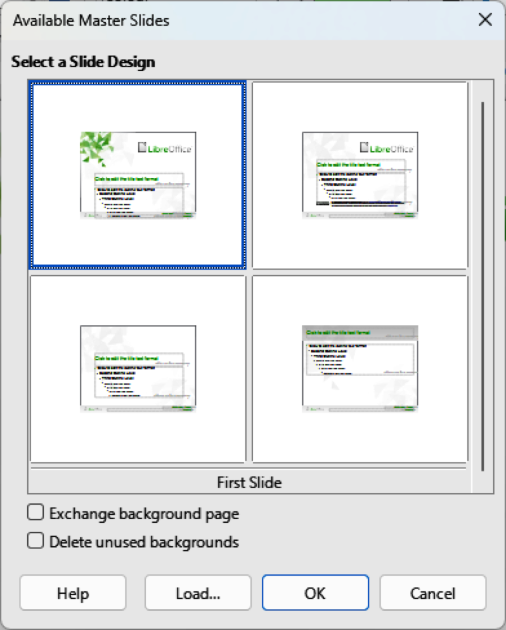
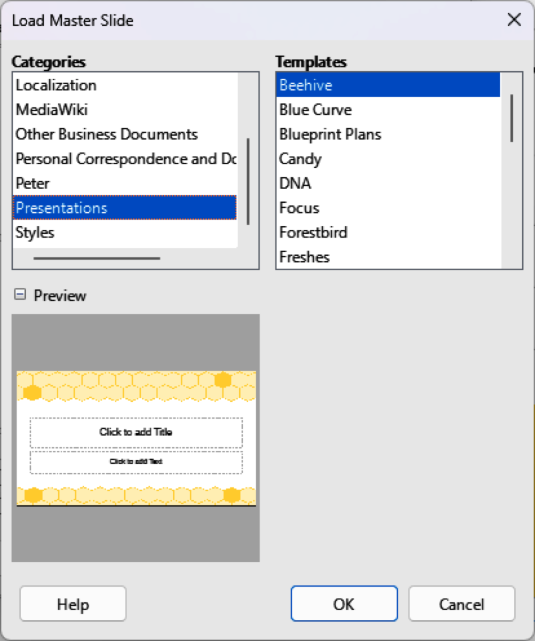
Figure 39: Load Master Slide dialog
In a presentation, it maybe necessary to use multiple master slides from different templates (for more information on templates, see the Impress Guide). For example, a different layout for the first slide of the presentation maybe required, or a slide from a different presentation maybe added to the current presentation.
Select the slide or slides on the Slides pane to change the master slide.
Go to Slide > Change Slide Master on the Menu bar to open the Available Master Slides dialog (Figure 38).
To add master slides, click on Load to open the Load Master Slide dialog (Figure 39).
In the Load Master Slide dialog, select the template category and the template to load as the master slide
Click on OK to close the Load Master Slide dialog and the master slides from the selected template appear in the Available Master Slides dialog.
In the Available Master Slides dialog, select the master slide required in the Select a Slide Design box.
To apply the selected master slide to all slides in the presentation, select the option Exchange background page. To apply the slide design to the selected slides only, make sure the option Exchange background page is deselected.
Click OK to apply the selection to the slides and close the dialog.
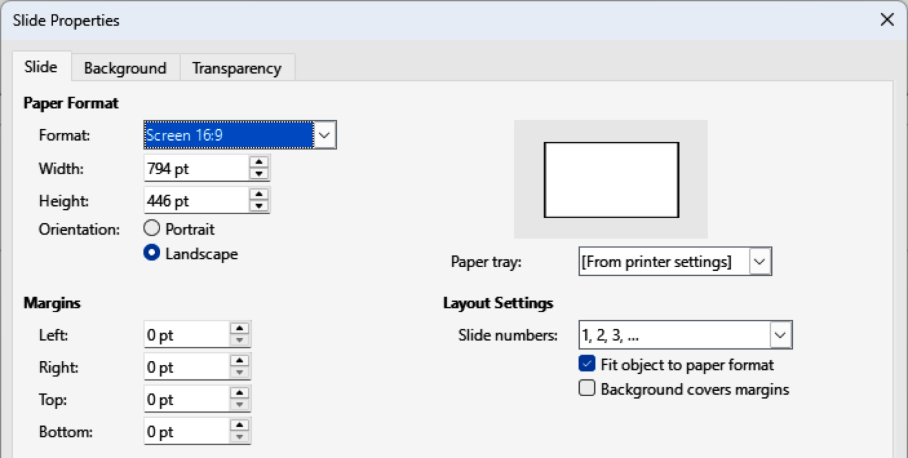
Figure 40: Slide Properties dialog
The following items can be changed on a master slide. For more information, see the Impress Guide:
Background (color, gradient, hatching, or bitmap).
Background objects (for example, adding a logo or decorative graphics).
Text attributes for the main text area and notes.
Size, placement, and contents of header and footer elements to appear on every slide.
Size and placement of default frames for slide titles and content.
To modify a master slide is as follows:
Select View > Master Slide on the Menu bar. This also opens the Master View toolbar.
Select a master slide for editing in the Slides pane so that it appears in the Workspace.
Go to Slide > Slide Properties on the Menu bar or right-click in the Workspace and select Slide Properties in the context menu to open the Slide Properties dialog (Figure 40).
Use the various options in the Slide, Background, and Transparency pages in the Slide Properties dialog to change the format of the master slide.
Click on OK to save the changes and close the Slide Properties dialog.
Select an object on the master slide, then right-click on the object to open a context menu.
Select one of the options in the context menu to edit the object. Selecting an option may open another context menu, a dialog, an application or file browser window to make the necessary changes to the selected object.
Click on Close Master View on the Master View toolbar, or go to View > Normal on the Menu bar to exit from editing master slides.
Save the presentation file before continuing.
Notes
Any changes made to a master slide appears on all slides using the same master slide. Always make sure to close Master Slide view and return to Normal view before working on any of the presentation slides.
Any changes made to an element on a slide in Normal view are not overridden by subsequent changes to the master slide. However, sometimes it is desirable to change a manually modified element of a slide to the style defined in the master slide. To change to default formatting, select the element and select Format > Clear Direct Formatting on the Menu bar.
Text, footers, or fields can be added to a master slide so they appear on every slide in a presentation. Headers are not normally added to slides.
Go to View > Master Slide on the Menu bar to open Master View.
Insert a text box on the master slide, see “Text boxes” above for more information.
Type or paste the text into the text box.
Click outside the text box to deselect the text box.
Go to View > Normal on the Menu bar, or click Close Master View on the Master View toolbar when finished.
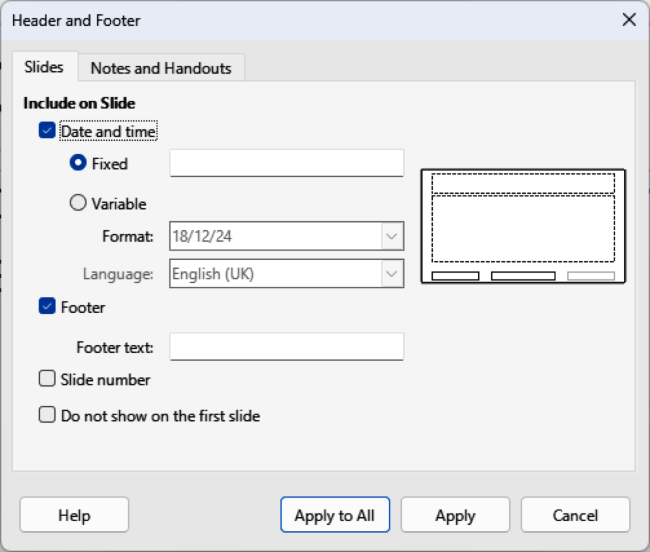
Figure 41: Header and Footer dialog — Slides page
By default, a slide footer consists of three sections, each containing a default field:
Left section — date and time, labeled Date Area. Field name is <date/time>.
Center section — footer text, labeled Footer Area. Field name is <footer>. This section could be the presentation title, file name, or other information.
Right section — slide number, labeled Slide Number Area. Field name is <number>.
The default footer fields are set up as follows using the Header and Footer dialog (Figure 41):
Go to View > Master Slide on the Menu bar to open Master View.
Go to Insert > Header and Footer on the Menu bar to open the Header and Footer dialog.
Click on Slides to open the options available for inserting footers onto a slide.
Select Date and Time for the date and time to appear in the left section of the footer.
For a fixed date and time, select Fixed and enter the date required in the text box.
For a variable date and time, select Variable, then select the format and language in the Format and Language drop-down lists. Using a variable date and time means that each time the presentation is opened, the date and time are updated.
To place text in the footer center section, select Footer and then type or paste the text into the Footer text text box.
To place the slide number in the right section of the footer, select Slide number.
If the footer is not going to appear on the first slide of a presentation, select Do not show on the first slide. The first slide is normally the title slide of a presentation.
Click on Apply to save the changes and close the Header and Footer dialog.
To format the text used for the default footer fields, see the Impress Guide.
Click on Close Master View on the Master View toolbar, or go to View > Normal on the Menu bar and the default footer fields are setup.
Note
The default sections in a footer can be formatted, resized, and repositioned. See “Adding and formatting text” above for more information.
The default fields in a footer section can be replaced with text, or manual fields as follows:
Go to View > Master Slide on the Menu bar to open Master Slide view.
Highlight the default field in the footer section and press the Delete or Backspace key. A flashing text cursor appears in the footer section and the Text Formatting toolbar automatically opens replacing the Line and Filling toolbar.
Type in the required text, or insert a manual field into the footer section. For more information, see “Manual fields” below.
Format the text or manual field placed in the footer section. See “Adding and formatting text” above and the Impress Guide for more information.
Click outside the footer section to close the Text Formatting toolbar and reopen the Line and Filling toolbar.
Click on Close Master View on the Master View toolbar or go to View > Normal on the Menu bar when setting up a custom footer section is completed.
Manual fields can be added as text objects on a master slide or replace one of the default footer fields and are as follows:
Date (fixed)
Date (variable) — updates automatically each time the presentation is opened.
Time (fixed)
Time (variable) — updates automatically each time the presentation is opened and each time a slide is opened more than once during a presentation.
Author — first and last names listed in the LibreOffice user data.
Slide number — the sequence number of the slide, without the word “Slide”.
Slide Title — defaults to Slide 1, Slide 2, and so on if the slides have not been renamed.
Slide Count — the number of slides in the presentation.
File Name
Comments can be created in Impress presentations and are similar to comments available in other LibreOffice modules. For more information about creating comments, see Chapter 2, Getting Started with Writer.
Before using comments, make sure that username and initials are entered into Tools > Options > LibreOffice > User Data (macOS LibreOffice > Preferences > LibreOffice > User Data). The username and initials are used to identify the comment creator and appear in the comment marker and Author field of a comment. If more than one user edits a document, each user is automatically allocated a different background color.
Figure 42: Example Comment
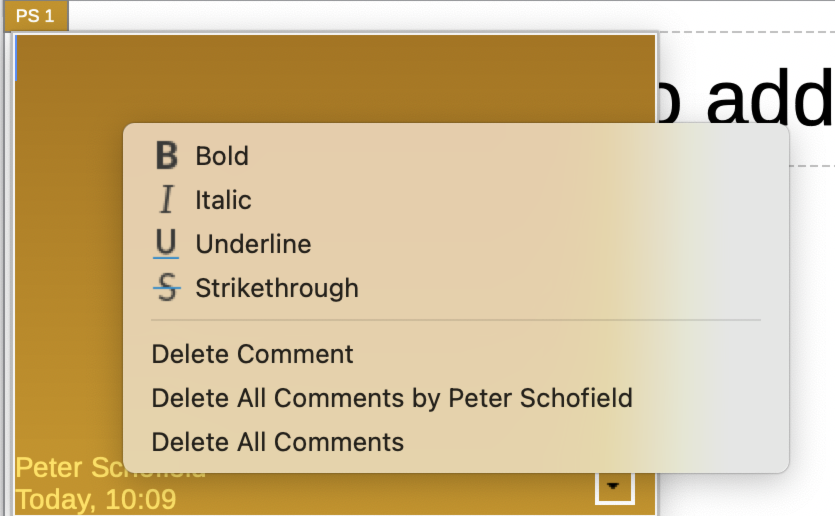
A comment indicator box containing user initials appears in the top left-hand corner of a slide when a comment is added. Clicking on this small box opens a text box for entering the comment details. Impress automatically adds the user name and current date at the bottom of a comment text box.
In Normal View, go to Insert > Comment on the Menu bar, or use the keyboard shortcut Ctrl+Alt+C (macOS ⌥+⌘+C) to open a blank comment (Figure 42).
Type in the required text, or copy and paste the comment details into the comment text box.
Right click on the comment text box to open a context menu. This context menu provides options for basic text formatting and deleting comments.
After entering all the required comment details, click anywhere in the slide to close the comment text box and save the comment details. A comment indicator appears in the top left corner of the slide.
If necessary, click on the comment indicator and drag it to the required position on a slide. Normally, a comment indicator is positioned on or near the text or object being referred to in a comment.
To show or hide the comment markers, go to View > Comments on the Menu bar.
If necessary, select Tools > Options > LibreOffice > User Data (macOS LibreOffice > Preferences > LibreOffice > User Data) to configure the name and initials that appear in comments.
Tip
If required, a Comments toolbar can be opened and includes the necessary tools for inserting and editing comments in a presentation. Go to View > Toolbars > Comments on the main Menu bar and select Comments from the drop-down list.
Handouts are used for distributing copies of presentation slides to each member of the audience. Handouts are only available in View > Handout on the Menu bar and are printed using the printing options in Impress.
The printing of handouts depends on the printer, computer operating system, and how a computer is set up. The following is only an example of how to print handouts.
Go to View > Master Handout on the Menu bar to open the Master Handout Layout in the Workspace. An example of the Master Handout Layout is shown in Figure 43.
Go to Insert > Header and Footer on the Menu bar to open the Header and Footer dialog (Figure 44).
Click on Notes and Handouts and select the required header and footer options as follows:
Select Header then enter text in the Header text: text box.
Select Date and time then select either Fixed or Variable for the date and time.
If a fixed date and time was selected, enter the date and/or time in the text box.
If a variable date and time was selected, select the Format for the date and time in the drop-down list.
Figure 43: Example Master Handout Layout page
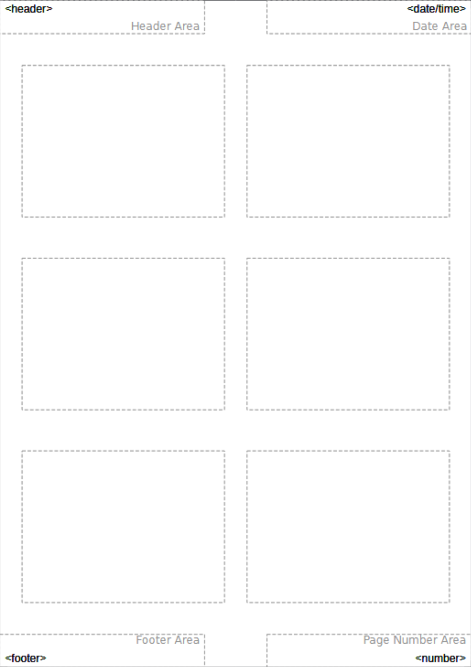
Figure 44: Header and Footer dialog — Notes and Handouts page
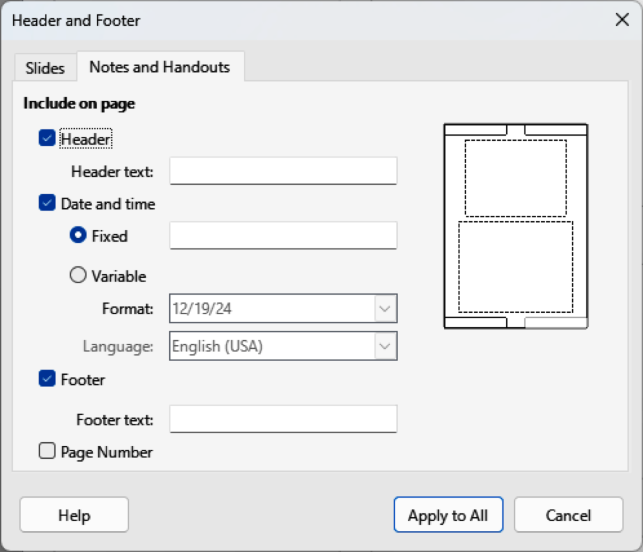
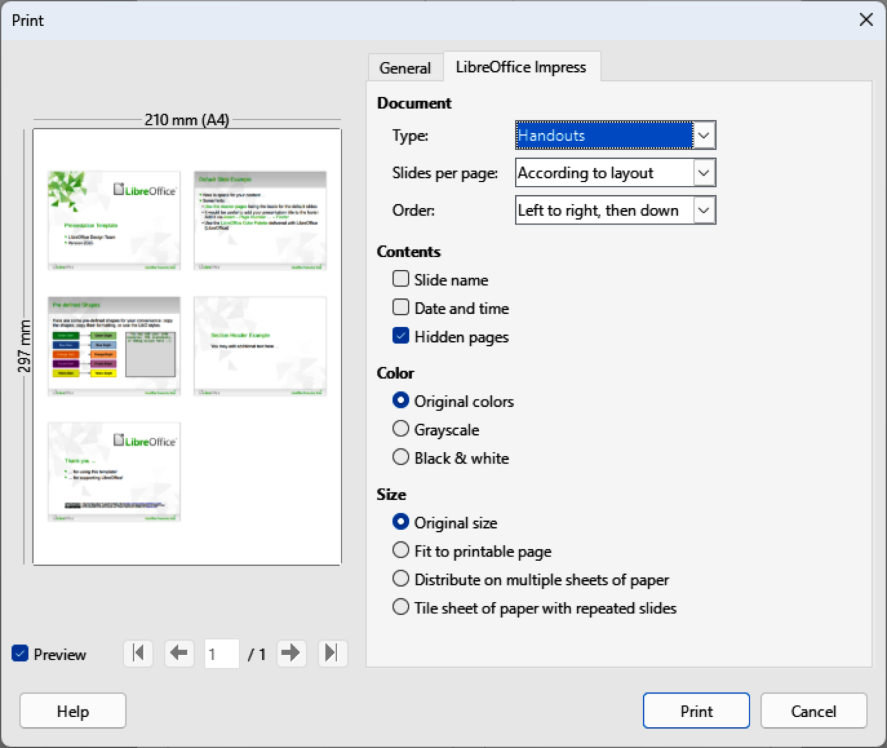
Figure 45: Example Print dialog — LibreOffice Impress page
If a variable date and time was selected, select the Language to set the options for the date and time format in the drop-down list.
Select Footer then enter text in the Footer text: text box.
Select Page Number if the handout pages are to be numbered.
Click on Apply to All to save the options for the handouts and close the Header and Footer dialog.
Go to File > Print on the Menu bar or use the keyboard shortcut Ctrl+P (macOS ⌘+P) to open the Print dialog and click on LibreOffice Impress to open the page for printing options of handouts. An example Print dialog is shown in Figure 45.
In Document, select the required options in the drop-down lists as follows:
Type: – select Handouts in the drop-down list.
Slides per page: – select how many slides are printed on a sheet of paper.
Order: – select the order in which the slides are printed on a sheet of paper.
In Contents, select Slide name, Date and time, and/or Hidden pages if these options are to be printed.
In Color, select how the handouts are printed.
In Size, select the size for how the handouts are printed.
Click on Print to print the handouts and close the Print dialog.
Figure 46: Create Photo Album dialog
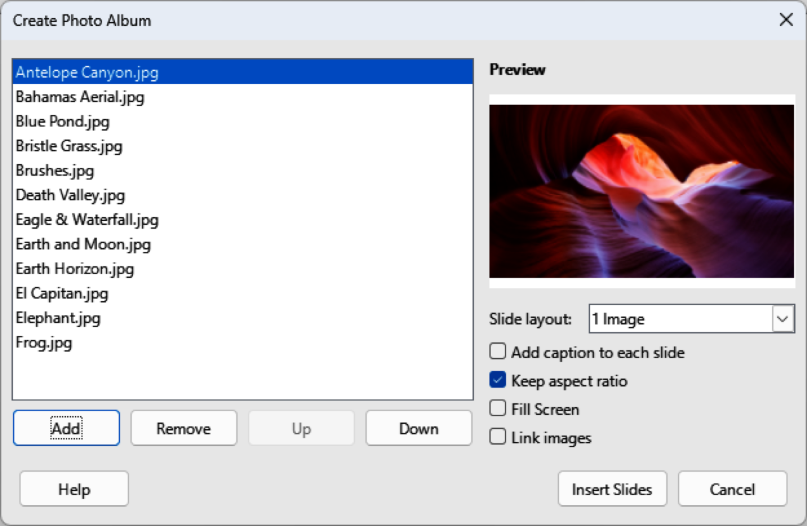
Impress can create a photo album from a set of photographs and images. For example, the photo album can be a multimedia show with vacation pictures and/or graphics and images as a presentation file.
Create a new presentation or open an existing presentation.
Select the slide that is going to precede the photo album. In a new presentation, this will be the first slide.
Go to Insert > Media > Photo Album on the Menu bar to open the Create Photo Album dialog (Figure 46).
Click on Add to open a file browser and navigate to the folder where the images are located.
Select the images required and click Open. This closes the file browser and the selected files appear in the Create Photo Album dialog.
Select the number of images per slide from the Slide layout: drop-down list.
If required, select Add caption to each slide. This inserts a text box on each slide allowing captions to be added to the images.
If required, select Keep aspect ratio to maintain the photo aspect ration if the size of the photo is changed.
If required and there is only one image per slide, select Fill Screen for each image to fill the entire slide.
If required, select Link images to only link the image files to the photo album instead of inserting the image files into the photo album.
Create the required sequence of photos or pictures by moving image files up or down in the list of images.
When the sequence of images is ready, click Insert Slides to create the number of slides required for the photo album. The sequence can be changed later.
If required, copy and paste images between slides as with any other elements that can be placed on a slide.
If required, set up the photo album to run as a presentation. For more information, see “Presentations (slide shows)” below, “Running presentations” below, and the Impress Guide.
Impress uses default settings for presentations, but allows customization of many aspects in a presentation. This section provides an introduction to presentations. For more information on creating, formatting and running presentations, see the Impress Guide.
Most of the tasks are carried out in the Slide Sorter view in the Workspace where the slides in a presentation can be viewed. Go to View > Slide Sorter on the Menu bar, or click on the Slide Sorter tab at the top of the Workspace.
There maybe more slides than the time available for a presentation, or only a brief overview is required first and then a more detailed presentation at a later date. Impress provides two methods for adjusting the number of slides in a presentation: hiding slides and custom slide shows.
Select slides for hiding in the Slides pane, or Slide Sorter view in the Workspace.
Hide the selected slides using one of the following methods. Hidden slides are grayed out in the Slides pane or Slide Sorter view in the Workspace.
Go to Slide > Hide Slide on the Menu bar.
Right-click on the slide thumbnail and select Hide Slide in the context menu.
Click on Hide Slide in the Slide View toolbar.
To show a hidden slide, use one of the following methods.
Go to Slide > Show Slide on the Menu bar.
Right-click on the hidden slide thumbnail and select Show Slide in the context menu.
Click on Show Slide in the Slide View toolbar.
Select the slides required for a custom slide show in the Slides pane or Slide Sorter view in the Workspace.
Go to Slide Show > Custom Slide Show on the Menu bar to open the Custom Slide Shows dialog (Figure 47).
Click on New and the Define Custom Slide Show dialog opens (Figure 48).
Type a name for the new custom slide show in the Name text box.
In the Existing slides list select the slides to include in the slide show.
Figure 47: Custom Slide Shows dialog
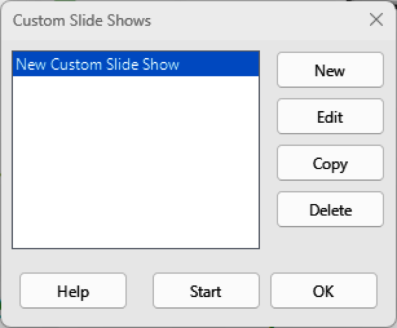
Figure 48: Define Custom Slide Show dialog
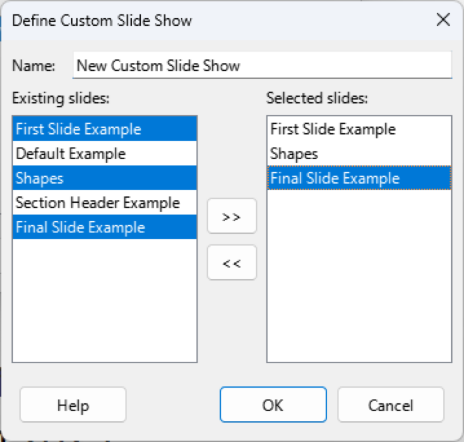
Click on >> to include the slides in the Selected slides list. Several slides can be selected and included at the same time, as follows:
Hold down the Shift key and click the first and last slide in a group to select the required slides as a group.
Hold down the Ctrl key (macOS ⌘)and click on individual slides to select the required slides.
If required, rearrange the slide order in the Selected slides list by clicking on a slide name and dragging the slide to a new position in the list.
Click on OK to save and the custom slide show and close the Define Custom Slide Show dialog.
Select the new custom slide show in the Custom Slide Shows dialog.
Click on Start to test the custom slide show and make sure the custom slide show is correct. If not, repeat the rearrangement of the slides in the Define Custom Slide Show until the slide order is satisfactory.
Click on OK to close the Custom Slide Shows dialog.
Slide transitions are effects and/or sounds that take place between slides when slides change in a presentation. Transitions can add a professional look to a presentation, smoothing the change over between slides. For more information on how to setup slide transitions, modify slide transitions, and to advance slides in a presentation, see the Impress Guide.
Click on Slide Transition in the Sidebar to open the Slide Transition deck (Figure 49).
In the Slides pane or Slide Sorter view in the Workspace, select the slides where slide transitions are going to be applied.
Select a transition from the available options in the Slide Transition panel.
Figure 49: Slide Transition deck in Sidebar
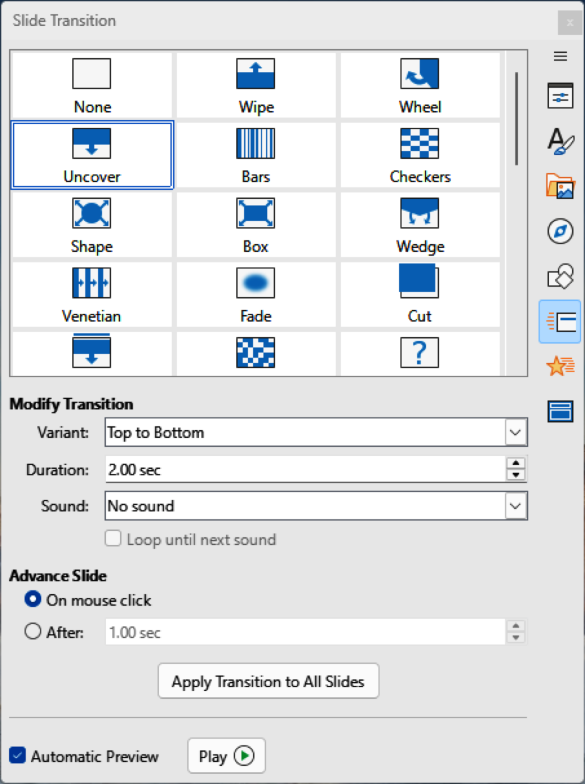
In Modify Transition, select from the following options to modify the selected transition:
Variant — if available, select a slide transition variant from the options available in the drop-down list.
Duration — enter a duration time in seconds for slide transition.
Sound — from the options available in the drop-down list, select a sound or music to be played during slide transition.
To apply the same transition to all slides in the presentation, click on Apply Transition to All Slides at the bottom of the Slides Transition deck.
To check how the transition looks, click on Play at the bottom of the Slides Transition deck.
Alternatively, to automatically preview how the transition looks when it is applied, select Automatic Preview at the bottom of the Slides Transition deck.
In Advance Slide, select how the slides change in a presentation.
On mouse click — each time the mouse is clicked, the presentation advances to the next slide.
Automatically after — enter a time in box to elapse before the next slide in the presentation advances into view.
Sound or music can be played during a presentation as a transition effect. When using music in a presentation, make sure any copyright or license for the music is not being infringed.
Click on Slide Transition on the Sidebar to open the Slide Transition deck.
In the Slides pane, or Slide Sorter view in the Workspace, select the slide to add sound or music.
In Modify Transition, select a sound in the Sound drop-down list.
To play music, use the following steps to select a music file:
Select Other sound in the Sound drop-down list.
In the file browser window that opens, navigate to where the music file is located.
Select the music file required and click Play to make sure that the music is suitable.
If the music is suitable, click Open to add the music to the selected slide and close the file browser window.
To play a sound or music file continuously in the slide show, select the option Loop until next sound. The sound or music file continually plays until the next sound or music file is activated in the slide show.
Notes
Do not select the Apply Transition to All Slides option to prevent the selected sound or music restarting when the next slide is displayed.
The sound or music file is linked to a presentation rather than embedded. If the presentation is going to be displayed on a different computer, remember to make sure that the sound or music file is available on the computer where the presentation will be played. The link to the sound or music file must be established before starting the presentation.
Figure 50: Animation deck in Sidebar
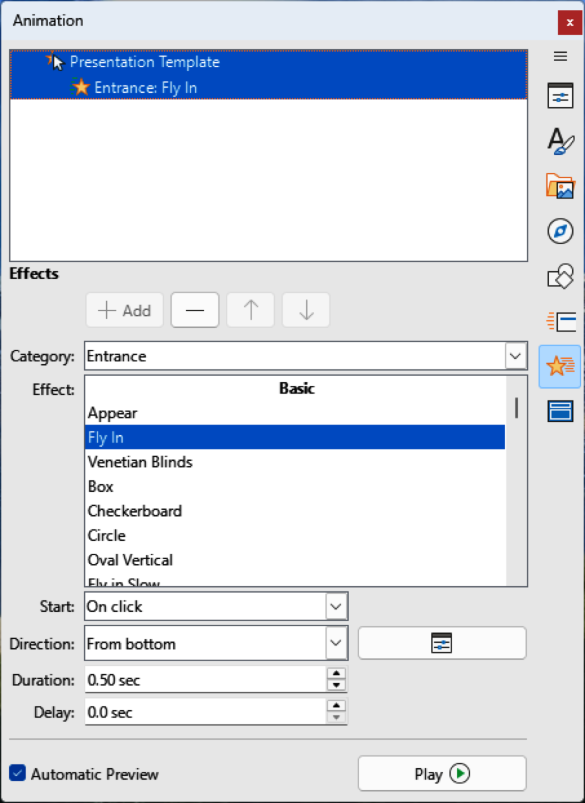
Slide animations are similar to transitions, but are applied to individual elements in a single slide, such as title, chart, shape, or individual bullet point. Animations can make a presentation more lively and memorable. However, as with transitions, heavy use of animations can be distracting and even annoying for an audience expecting a professional presentation.
Animations are best applied using Normal view in the Workspace so that individual objects on a single slide can easily be selected.
On a slide, an element when selected, such as a graphic or text box, selection handles on the element. If a portion of the text in a text box is selected, some selection handles may not be visible. For more information on animation effects, see the Impress Guide.
Go to View > Normal on the Menu bar to open Normal view in the Workspace.
Select an element on a slide for animation.
On the Sidebar, select Animation to open the Animation deck (Figure 50).
Select an element in the Animation panel.
In the Effects panel, click on +Add to open the animation options.
In Category, select an animation category from the drop-down list.
In Effect, select an animation effect from the available options.
In Start, select how the animation starts from the drop-down list.
In Direction, select the direction of the animation from the drop-down list.
In Duration, enter a time in seconds for the animation duration.
In Delay, enter a time in seconds for to create a delay before the animation starts.
Click Play to check the animation effect when applied to a slide element.
If required, select Automatic Preview to automatically check the effect of an animation when it is applied to a slide element.
Open the presentation and start the slide show using one of the following methods:
Use the keyboard shortcut F5 to start from the first slide, or Shift+F5 to start from the current slide.
Go to Slide Show > Start from First Slide, or Start from Current Slide on the Menu bar.
Click on Start from First Slide on the Slide Sorter toolbar.
If the slide transition is set to start after a time delay set in After on the Advance Slide panel, the transition runs after the time delay has elapsed and advances to the next slide.
If the slide transition is set to On mouse click on the Advance Slide panel, use one of the following options to for the transition to work and advance to the next slide:
Click the left mouse button.
Press the down arrow key
Press the right arrow key.
Press the page down key.
Press the space bar.
To navigate backwards through a slide show one slide at a time, use one of the following options:
Press the up arrow key.
Press the left arrow key.
Press the page up key.
To access more navigation options during a slide-show, right-click on a slide and use the options available in the context menu.
When the last slide has displayed, the message Click to exit presentation is displayed on screen. Press the Esc key, or click the left mouse button to exit the slide show.
To exit the slide show and return to the Impress workspace at any time, press the Esc key during the slide show.
Figure 51: Presenter Console — Default view
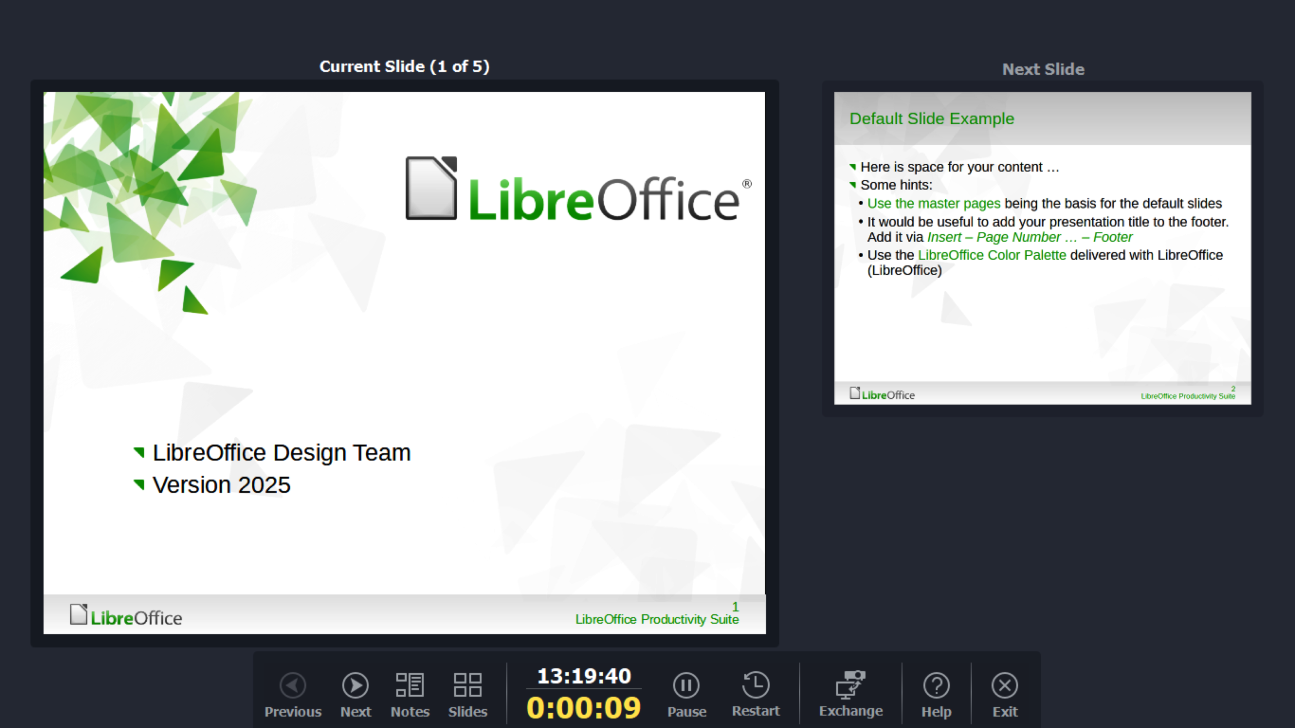
Figure 52: Presenter Console — Notes view
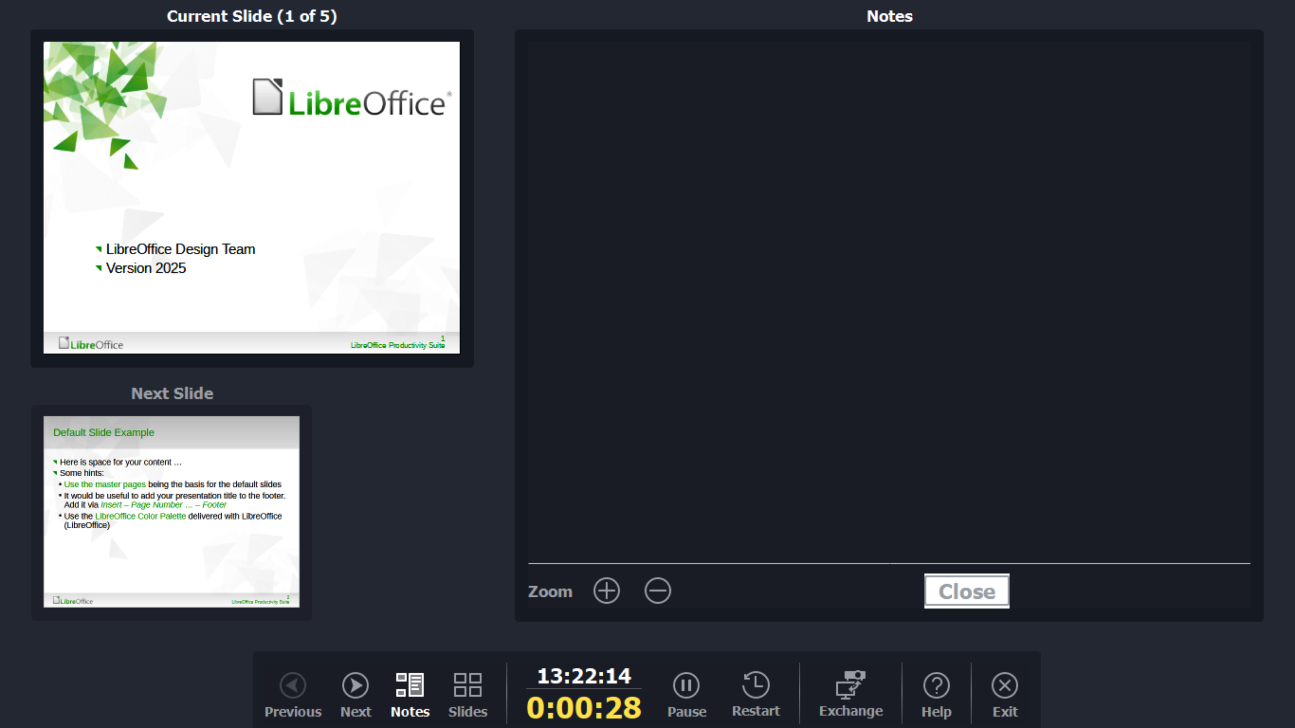
The Presenter Console provides extra control over slide shows when using dual displays, such as a laptop and a large display, or projector, for an audience. The view seen on a laptop display includes the current slide that can be seen by the audience, the next slide in the presentation, any slide notes, and a presentation timer.
Figure 53: Presenter Console — Slides view
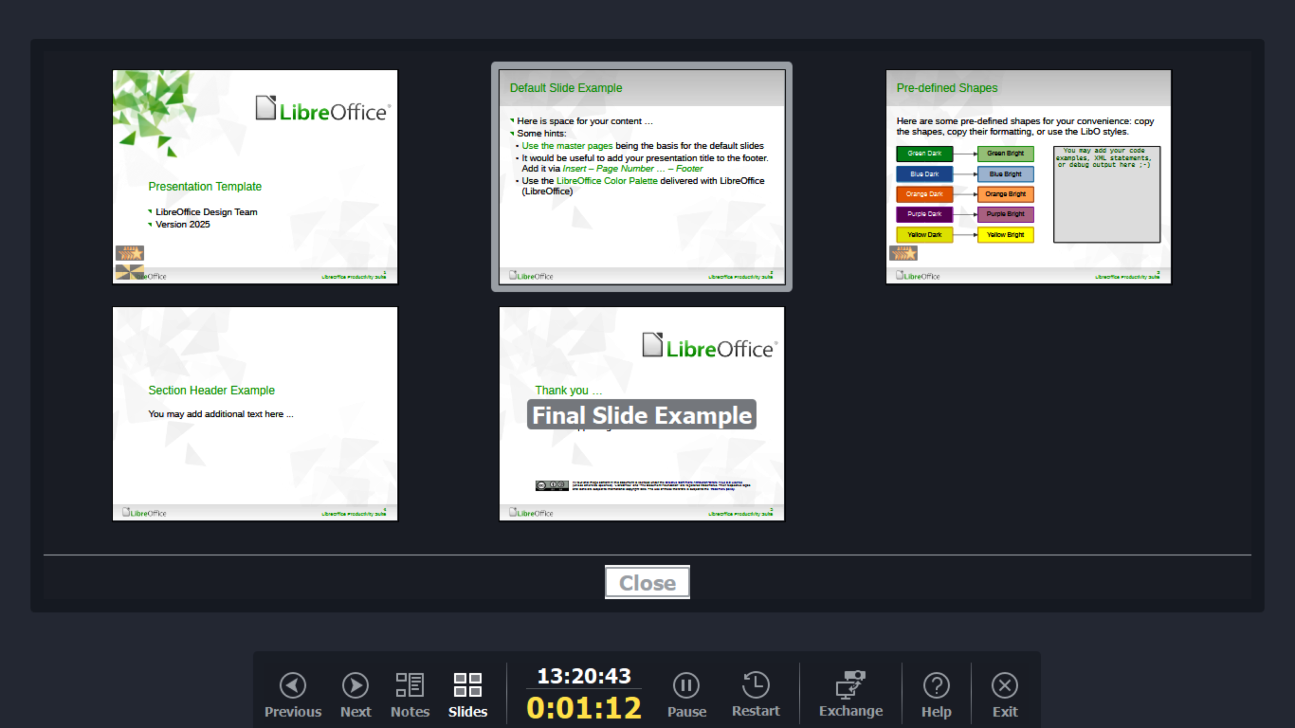
Note
The Presenter Console only works with computers and operating systems that support two displays. When two displays are being used, one display can be a laptop.
Default view
Notes view
Slides view
Exchange