Getting Started Guide 25.2
This document is Copyright © 2025 by the LibreOffice Documentation Team. Contributors are listed below. This document may be distributed and/or modified under the terms of either the GNU General Public License (https://www.gnu.org/licenses/gpl.html), version 3 or later, or the Creative Commons Attribution License (https://creativecommons.org/licenses/by/4.0/), version 4.0 or later. All trademarks within this guide belong to their legitimate owners.
To this edition
Peter Schofield
For previous editions
Bernard Siaud
Christian Kühl
Dave Barton
Florian Reisinger
Frédéric Parrenin
Gisbert Friege
Hazel Russman
Kees Kriek
Jean Hollis Weber
Jochen Schiffers
John A Smith
Laurent Balland-Poirier
Martin Saffron
Mitchell Camfield
Olivier Hallot
Peter Schofield
Rafael Lima
Regina Henschel
Roman Kuznetsov
Skip Masonsmith
Steve Fanning
Winston Min Tjong
Please direct any comments or suggestions about this document to the Documentation Team Forum at https://community.documentfoundation.org/c/documentation/loguides/ (registration is required) or send an email to: loguides@community.documentfoundation.org.
Note
Everything sent to a forum is publicly archived and cannot be deleted. Emails sent to the forum are moderated.
Published July 2025. Based on LibreOffice 25.2 Community.
Other versions of LibreOffice may differ in appearance and functionality.
Some keystrokes and menu items are different on macOS from those used in Windows and Linux. The table below gives some common substitutions used in this document. For a detailed list, see LibreOffice Help.
|
Windows or Linux |
macOS equivalent |
Effect |
|
Tools > Options |
LibreOffice > Preferences |
Access setup options |
|
Right-click |
Control+click, Ctrl+click, or right click depending on computer setup |
Open a context menu |
|
Ctrl or Control |
⌘ and/or Cmd or Command, depending on keyboard |
|
|
Alt |
⌥ and/or Alt or Option depending on keyboard |
Used with other keys |
|
F11 |
⌘+T |
Open the Styles deck in the Sidebar |
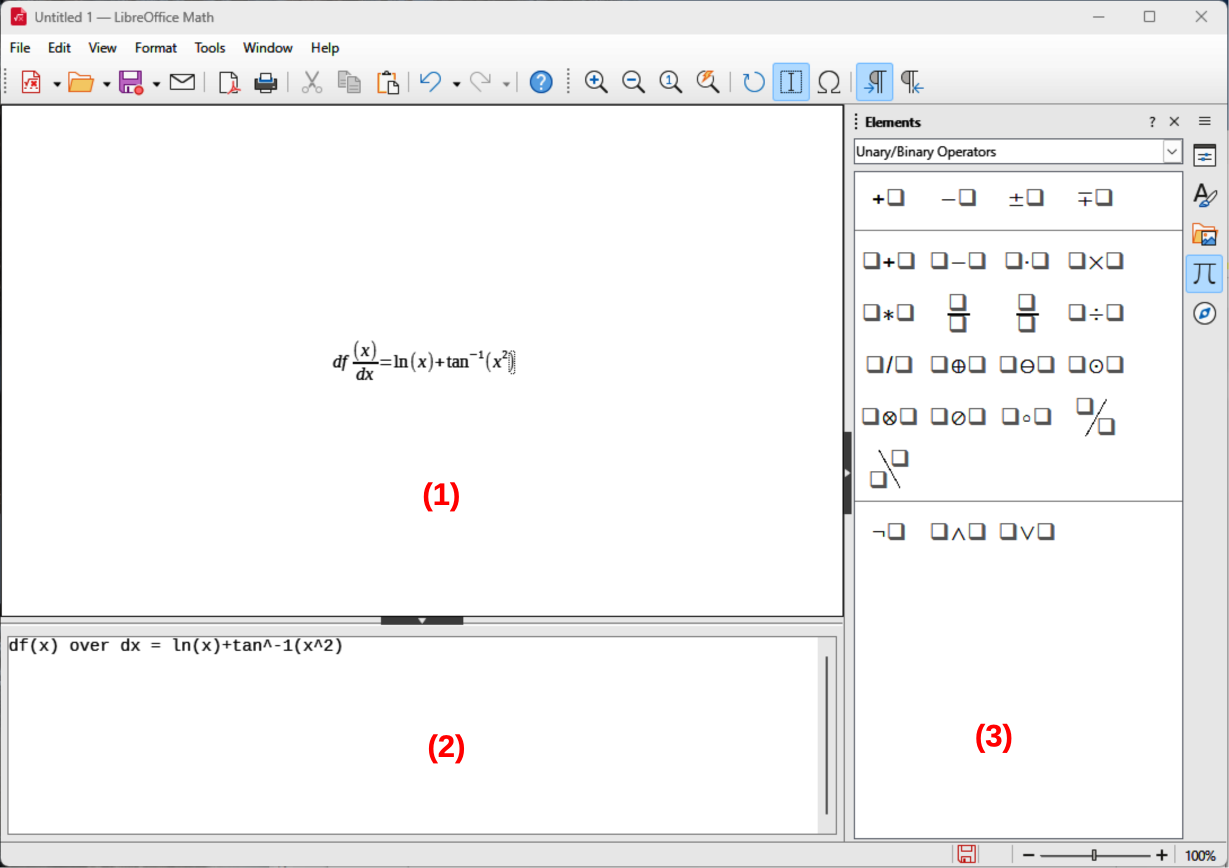
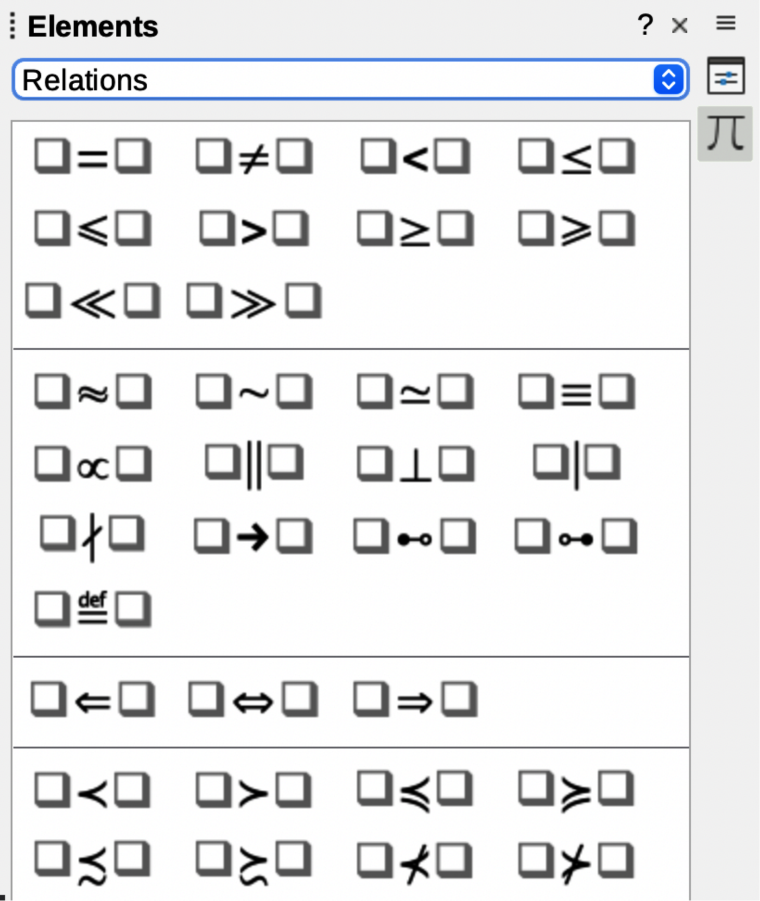
Math is a formula editor included as a separate LibreOffice module and is used to create or edit, in a symbolic form, formulas or equations. These formulas can then be used in LibreOffice documents or as stand-alone objects. An example of the opening window for Math is shown in Figure 1. When using Math, the Elements panel in the Sidebar also opens (Figure 2).
Note
The images used in this document are examples ONLY. Actual images displayed when using Math does depend on computer setup and the computer operating system being used.
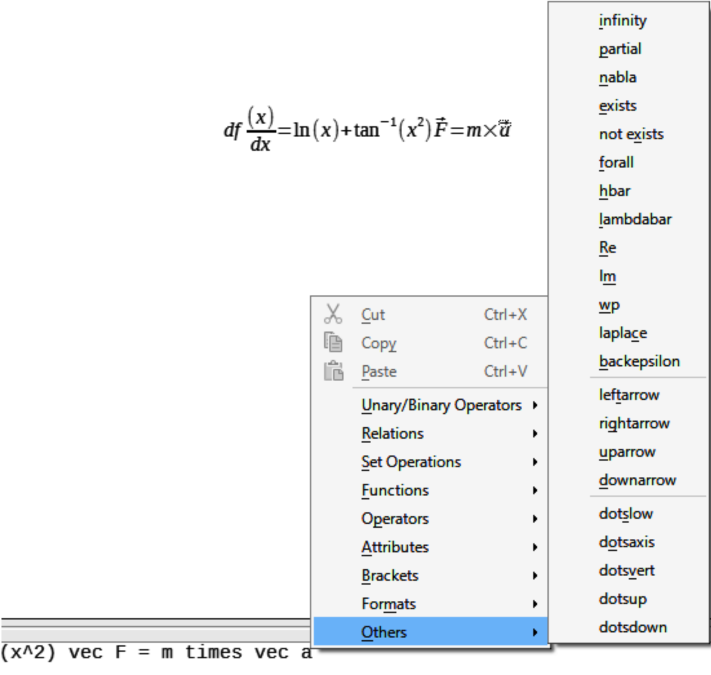
When creating formulas in Math, a markup language is used to represent formulas and this markup language is designed to be easily read wherever possible. For example, when the text df(x) over dx = ln(x)+tan^-1(x^2) into the Formula Editor, the following formula appears in the Formula Preview.
Using the Formula Editor in Math, a formula is created as a separate file for insertion into a formula library. Alternatively, formulas can be directly inserted into a document when using Writer, Calc, Impress, or Draw. For more information on using formulas, see the user guides for the specific LibreOffice module being used.
Figure 2: Elements panel in Sidebar
As characters are entered the markup language in the Formula Editor, the formula being created appears in the Formula Preview window during, as shown in Figure 1. For more information on creating formulas as a separate document or file, see “Creating formulas” below.
Use one of the following methods to create a formula as a separate document or file:
In the LibreOffice Start Center, click on Math Formula.
Go to File > New > Formula on the Menu bar.
On the Standard toolbar, click the triangle to the right of the New icon and select Formula from the context menu.
When Math is open, use the keyboard shortcut Ctrl+N (macOS ⌘+N).
When the formula is completed as a new document or file, save the formula in ODF format.
A formula can also be created and inserted directly into a Writer, Calc, Draw, or Impress document. An example of creating a formula in a Writer document is shown in Figure 3. The formula box is automatically selected ready for a formula to be entered or edited.
Depending on the LibreOffice module being used when inserting a formula, the cursor position changes depending on where the formula is being inserted.
In Writer, click in the paragraph where the formula is being inserted.
In Calc, click in the spreadsheet cell where the formula is being inserted.
In Draw and Impress, the formula is automatically inserted into the center of the drawing or slide.
Formulas are inserted as OLE objects into documents, as follows:
Go to Insert > OLE Object > Formula Object on the Menu bar to open the Formula Editor.
Figure 3: Example of creating a formula in Writer
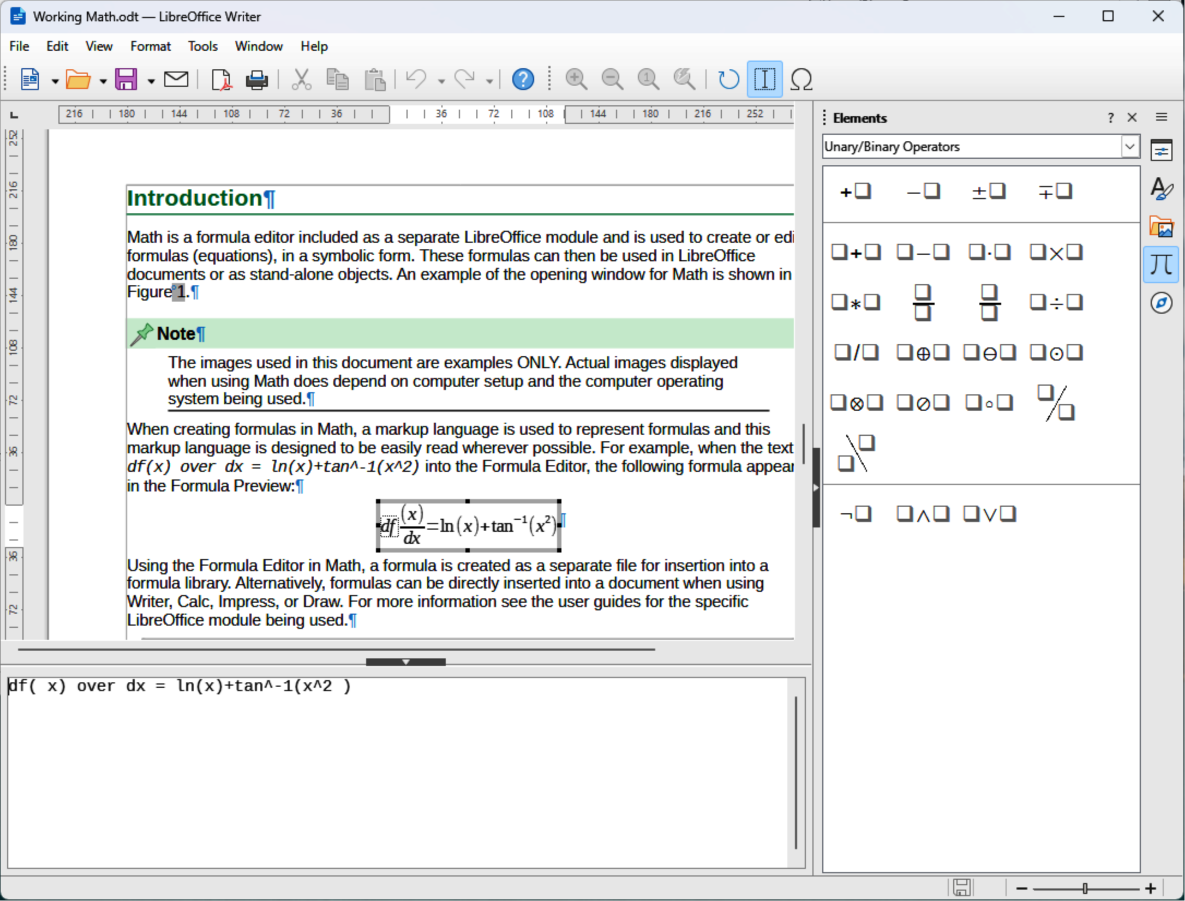
Figure 4: Insert OLE Object dialog
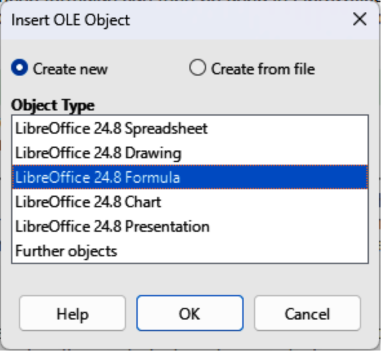
Alternatively, go to Insert > OLE Object > OLE Object on the Menu bar to open the Insert OLE Object dialog (Figure 4).
Select Create new, then select LibreOffice XX Formula in Object Type.
Click OK to open the Formula Editor.
Create or edit the formula in the Formula Editor.
When the formula has been created or edited, close the Formula Editor using one of the following methods:
Press the Esc key.
Click outside the formula in the document. Double-click on the formula in the document to open the Formula Editor again to edit the formula.
Tips
If formulas are frequently inserted into documents, it is recommended to add Formula Object tool to the Standard toolbar, or create a keyboard shortcut. For more information, see Customization below.
Using the Elements panel on the Sidebar, or the context menus to create a formula is a convenient way to learn the markup language used to create formulas.
When using the Elements panel on the Sidebar, it is recommended to have Extended Tips selected in LibreOffice Options. Extended Tips helps in identifying the categories and symbols used in formulas. Go to Tools > Options > LibreOffice > General (macOS LibreOffice > Preferences > LibreOffice > General) on the Menu bar and select Extended Tips in the Help section.
Formulas are created using one of the following methods:
In the Elements panel on the Sidebar (Figure 2), select a category from the context menu, then select a formula element from the available options.
Right-click in the Formula Editor (Figure 1) and select a category from the context menu, then select a formula element from the drop-down list.
Enter markup language directly in the Formula Editor.
The Elements panel on the Sidebar (Figure 2) is a visual tool to help create and edit formulas. It organizes mathematical symbols and operators using categories in a drop-down list. The steps below describe how to enable the Elements panel and navigate its categories and symbols.
Select View > Elements on the Menu bar to open the Elements panel in the Sidebar.
Select the category required for the formula from the Categories drop-down list at the top of the Elements panel.
Select the symbol required from the options available in the Elements panel. The available symbols change according to the selected category.
After selecting a symbol, the symbol appears in Formula Preview and the Formula Editor is updated with the markup language used for the selected symbol.
Figure 5: Examples list in Elements panel on Sidebar
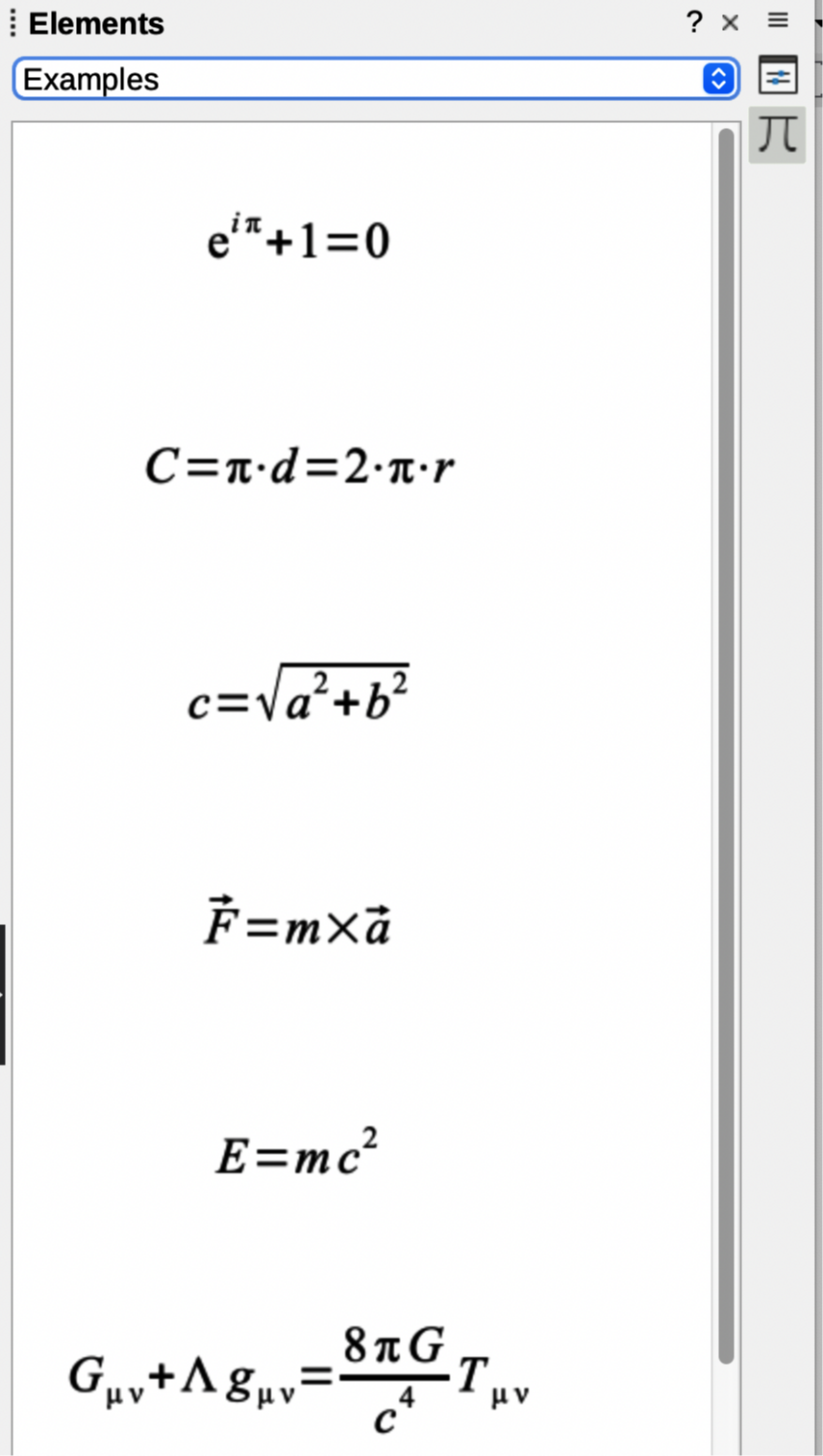
Alternatively, select an example from the Examples list in the Categories drop-down list on the Sidebar (Figure 5).
The Formula Editor also provides a context menu to access categories and markup language options when creating a formula. An example is shown in Figure 6.
Right-click in the Formula Editor to open the context menu.
Select a category from the options listed in the context menu.
Select a markup language option from the options available in the drop-list.
Figure 6: Example of category options in Formula Editor
Note
The Elements panel and the context menu in the Formula Editor provide the most common options and symbols used in formulas. Other options and symbols not listed have to be entered manually using markup language. For a complete list of commands and symbols, see the Math Guide.
Markup language is entered directly into the Formula Editor. For example, typing 5 times 4 into the Formula Editor creates a simple formula. Using markup language is the recommended method for creating formulas. Table 1 shows examples of using markup language to enter commands. For a full list of commands that can be used in the Formula Editor, see the Math Guide.
Table 1: Example commands using markup language
|
Display |
Command |
Display |
Command |
|
|
a = b |
|
sqrt {a} |
|
|
a^2 |
|
a_n |
|
|
int f(x) dx |
|
sum a_n |
|
|
a <= b |
|
infinity |
|
|
a times b |
|
x cdot y |
Greek characters are commonly used in formulas, but cannot be entered into a formula using the Elements panel in the Sidebar (Figure 2), or the context menu in the Formula Editor. Use English names for Greek characters in markup language when entering Greek characters into a formula. See the Math Guide for a list of Greek characters that can be entered using markup language.
For a lowercase Greek character, type a percentage % sign, then type the character name in lowercase using the English name. For example, typing %lambda creates the Greek character .
For an UPPERCASE Greek character, type a percentage % sign, then type the character name in UPPERCASE using English. For example, typing %LAMBDA creates the Greek character .
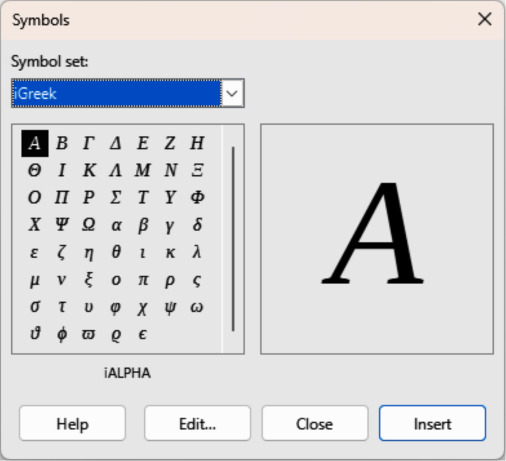
For an italic Greek character, type a percentage % sign followed by the i character, then type the English name of the Greek character in lower or UPPER case. For example, typing %iTHETA creates the italic Greek character .
Figure 7: Tools toolbar

Figure 8: Symbols dialog — Greek
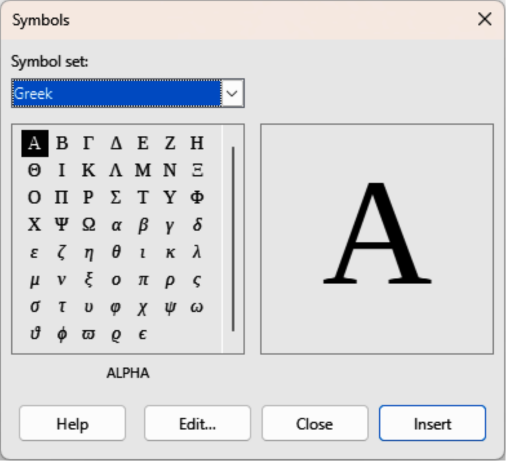
Figure 9: Symbols dialog — iGreek
Greek characters can also be entered into a formula using the Symbols dialog.
Make sure the cursor is at the correct position in the Formula Editor.
Go to Tools > Symbols on the Menu bar, or click Symbols in the Tools toolbar (Figure 7) to open the Symbols dialog.
Select Greek in the Symbol set drop-down list (Figure 8). For italic characters, select iGreek in the Symbol drop-down list (Figure 9).
Double-click the Greek character required, or select the Greek character and click Insert. When selected, the name of the character is shown below the symbol list.
Click on Close to close the Symbols dialog.
In addition to math symbols, special characters can also be part of a formula. The special characters are handled as text in the formula.
Make sure the cursor is in the correct position in the Formula Editor.
Go to Tools > Special Characters on the Menu bar to open the Special Characters dialog. The Special Characters dialog that opens depends on the computer setup and the computer operating system.
Click on Font and select the font required from the drop-down list.
Click on Character block and select the type of special character required from the drop‑down list.
Select the special character required from the character block.
Click on Insert to insert the selected special character into the formula. This also closes the Special Characters dialog.
Example 1
A simple formula is created in Math as follows:
Make sure the cursor is located and flashing in the Formula Editor.
Enter Multiplication symbol using one of the following methods:
Select the category Unary/Binary Operators in the Elements panel on the Sidebar, then select the Multiplication icon.
Right-click in the Formula Editor and select Unary/Binary Operators, then a times b from the context menu.
Using markup language, type 5 times 4 in the Formula Editor.
Note
The first two methods above place the formula text <?> times <?> in the Formula Editor and the symbol  appears in the document. The third method above, using markup language in the Formula Editor, places the formula directly into the document and it is not necessary to carry out the following steps.
Select the first placeholder <?> before the word times in the Formula Editor and replace with the character 5. The formula in the document updates automatically.
Select the second placeholder <?> after the word times in the Formula Editor and replace it with the character 4. The formula in the document updates automatically.
Note
If necessary, to prevent a formula in a document from updating automatically, go to View on the Menu bar and deselect AutoUpdate Display. The formula can be updated manually when necessary. Press the F9 key or select View > Update on the Menu bar.
Example 2
The formula for Pi where value is rounded to 5 decimal places is created as follows. The Greek character (pi) is known, but the required markup language Similar Or Equal symbol is not known.
Make sure the cursor is located and flashing in the Formula Editor.
Enter %pi in the Formula Editor to create the Greek character for Pi (π).
Select the category Relations, then select the symbol Is Similar Or Equal using one of the following methods:
In the Elements panel on the Sidebar, select Relations from the drop-down list and then select the Is Similar Or Equal icon  .
.
Right-click in the Formula Editor and select Relations > a simeq b from the context menu.
Delete the first placeholder symbol <?> before the word simeq in the Formula Editor.
Select the second placeholder symbol <?> after the word simeq in the Formula Editor and enter 3.14159 to delete the second placeholder symbol. The formula now appears in the document.
How a formula is edited after opening changes the formula editing mode depending on whether the formula is in Math or another LibreOffice module.
To select the formula and open Formula Editor using one of the following methods:
In Math, double-click on a formula element in the formula that appears in Formula Preview to select the formula element in the Formula Editor, or directly select a formula element in the Formula Editor.
In Writer, Calc, Impress, or Draw, double-click on the formula, or right-click on the formula and select Edit in the context menu, to open the Formula Editor and enter editing mode. The cursor is positioned at the start of the formula in the Formula Editor.
Note
If a formula element cannot be selected using the cursor, click on Formula Cursor in the Tools toolbar (Figure 7) to activate the formula cursor.
Select the formula element to be changed using one of the following methods:
Click on the formula element in Formula Preview, then position the cursor at the beginning of the formula element in Formula Editor and select the formula element in the Formula Editor.
Double-click on the formula element in Formula Preview to select the formula element in the Formula Editor.
Position the cursor in the Formula Editor at the formula element to edited, then select the formula element.
Double-click directly on the formula element in the Formula Editor to select it.
Make all necessary changes to the selected formula element.
Go to View > Update on the Menu bar, press the F9 key, or click on Update on the Tools toolbar to update the formula.
Save the changes to the formula using one of the following methods:
In Math, save the changes to the formula after editing before closing Math.
In Writer, Calc, Impress, or Draw, click anywhere in the document away from the formula to exit editing mode and save the document.
Math knows does not use order of operation within a formula. Braces (curly brackets) have to be used to define the order of formula operations. The following examples show how braces are used in a formula.
Example 1
Example 2
Example 3
To use a matrix in a formula, the matrix command has to be used.
Example 1
Example 2
Example 3
Tips
Use the commands left[ and right] to obtain square brackets. A list of all brackets available within Math can be found in Appendix A, Commands Reference.
If all brackets are to be scalable, go to Format > Spacing on the Menu bar to open the Spacing dialog. Click on Category and select Brackets from the drop-down list, then select the option Scale all brackets from the drop-down list.
When using brackets in a formula, Math expects that for every opening bracket there will be a closing bracket. If a closing bracket is not used, Math places an inverted question mark next to where the closing bracket should have been placed.
For example, lbrace a; b creates because the right bracket rbrace is missing. This inverted question mark disappears when all brackets are paired. This is corrected by using lbrace a; b rbrace, which creates . However, there are cases where an unpaired bracket is required.
A backslash \ is placed before a non scalable bracket to indicate that the subsequent character is not a bracket, but a literal character.
Example
To create unpaired scalable brackets or braces in a formula, the markup commands left, right, and none are used.
Example
abs x = left lbrace stack {x "for" x
>= 0 # -x "for" x < 0} right none
In the normal installation of Math, Math creates functions using normal characters and variables in italic characters. However, if Math fails to recognize a function, Math can be forced to recognize that a function has been entered. Using the markup command func before a function forces Math to recognize the following text as a function.
Some Math functions have to be followed by a number or variable. If a number or variable is missing, Math places an inverted question mark where the missing number or variable should be. To remove the inverted question mark and correct the formula, enter a number, variable, or pair of empty brackets as a placeholder.
For a full list of functions available in Math, see the Math Guide.
Tip
Navigate through formula errors using the function key F3 to move to the next error, or use the function key combination Shift+F3 to move to the previous error.
When creating a formula that requires more than one line, for example , the first reaction is to use the Enter key. However, when the Enter key is used, the markup language in the Formula Editor goes to a new line, but the resulting formula does not have two lines. To add a new line into a formula, the markup command newline has to be used
Table 2 shows how the markup command newline is used to add a new line to a formula. The first example simply adds an Enter command to break the line in the markup language. This does not create a new line in the formula. The second example uses the newline command. The newline command creates a two-line formula.
Table 2: Multiple line formulas
|
Markup Language |
Resulting Formula |
|
x = 3 |
|
|
x = 3 newline y = 1 |
|
It is not possible in Math to create multiple line formulas when a line ends with an equals sign and continue the formula on a new line. A term on the right side of the equals sign must be entered to create multiple line formulas.
If a multiple line formula is required to have an equals sign at the end of a line without a term after the equals sign, use empty quotes “”, empty braces {}, grave character `, or tilde character ˜.
By default, the alignment of a multiple line formula is center aligned. For more information on alignment using the equals sign, see “Customization” below.
Spacing between elements in a formula is not set by using space characters in the markup language. To add spaces into a formula, use one of the following options:
Grave ` to add a small space.
Tilde ~ to add a large space.
Space characters between quotes “ ”. Space characters are considered as text.
Any spaces at the end of a line in the markup language are ignored by default. For more information, see “Adjusting formula spacing” below.
The sum and int commands are used for summations and integrals with the parameters from and to used to set the lower and upper limits. The parameters from and to can be used singly or together as shown by the following examples. Table 3 shows how to add upper and lower bounds to summations and integrals. Note that brackets are used to define which parts of the formula correspond to the desired bounds. For more information on the sum and int commands, see the Math Guide.
Table 3: Summations and integrals
|
Markup Language |
Resulting Formula |
|
sum from k = 1 to n a_k |
|
|
sum to infinity 2^{-n} |
|
|
sum from{ i=1 } to{ n } sum from{ j=1; i <> j } to{ m } x_ij |
|
|
int from 0 to x f(t) dt |
|
|
int_0^x f(t) dt |
|
|
int from Re f |
|
When adding derivatives to a formula, indicate in Math that it is a fraction by using the over command. The over command is combined with the character d for a total derivative, or the partial command for a partial derivative to achieve the effect of a derivative. Braces {} are used on each side of elements to enclose the elements and make the derivative as shown by the examples in Table 4.
Table 4: Adding derivatives
|
Markup Language |
Resulting Formula |
|
{df} over {dx} |
|
|
{partial f} over {partial y} |
|
|
{partial^2 f} over {partial t^2} |
|
Note
To write function names with primes, as is normal in school notation, add the symbols to the catalog first. For more information, see “Catalog customization” below.
Characters that are used as controls in markup language cannot be entered directly as normal characters. Control characters are: %, {, }, &, |, _, ^ and ". For example, 2% = 0.02 cannot be entered into markup language and expect the same characters to appear in a formula. To overcome this limitation in markup language, use one of the following methods:
Use double quotes to mark that character as text, for example 2"%"= 0.02 displays in a formula as . However, double quotes cannot be used to enter a double quote character as text, see Text in formulas below.
Add the character to the Math Catalog, for example the double quote character.
Use commands, for example lbrace and rbrace for literal braces.
Note
The Special Characters dialog used by other LibreOffice modules is not available in Math. If special characters are required in Math, then it is recommended to add the characters to the Math Catalog. For more information, see “Catalog customization” below.
To include text in a formula, enclose any text in double-quotes, for example x " for " x >= 0 in markup language creates the formula . All characters, except double quotes, can be used in text.
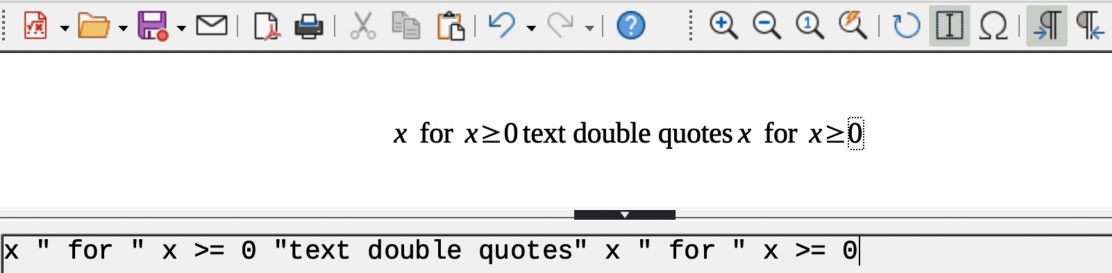
However, if double quotes are required in formula text, any text text created in Writer must be contained within double quotes. The text is then copied and pasted as the text into the Formula Editor as shown in Figure 10.
Figure 10: Example of using double quotes to create formula text
The font used for text in a formula is the default font that has been set in the Fonts dialog. For more information on how to change fonts used in formulas. For more information, see Appendix A, Commands Reference for more information.
By default, text alignment is left-justified in formulas. For more information, see “Adjusting formula alignment” below.
Formatting commands are not interpreted within text used in formulas. To use formatting commands within formula text, the text flow must be broken by using double quotes in the Formula Editor.
Example
The example above shows how markup language is used to change the text color to blue and use bold text for the word “isosceles” in the formula. Note that the commands are applied to any text placed between the double quotes. The formatting command color blue bold is not applied to the rest of the text in the example because it is a separate quote block.
Note
The command color needs to be followed by the name of the desired color or to its RGB or hexadecimal value. Refer to the Math Guide for a list of predefined color names.
Math does not have a command for aligning formulas on a character. However, a matrix can be used to align formulas on the equals sign (=) character. The markup commands alignr, alignl and alignc are used to align each value inside a matrix to the right, left or center, respectively.
Example
|
matrix{ alignr x+y # {}={} # alignl 2 ## alignr x # {}={} # alignl 2-y } |
|
Note
The empty braces each side of the equals sign are required. The equals sign is a binary operator and requires an expression on each side. Spaces, or characters ` or ~ on each side of the equals sign can be used, but it is recommended to use braces because braces are easier to see within markup language.
Note
Only the default font or font size can be changed in a formula. Any formulas that were already inserted into a document will continue to use the previous settings for default font and font size. The font and font size of these previously inserted formulas have to be changed individually to use the new setting for default font and font size.
Tip
The extension Formatting of All Math Formulas can be used to change font name and font size for all or selected formulas in a document. The extension and instructions for use can be downloaded from the LibreOffice website using the following link: https://extensions.libreoffice.org/en/extensions/show/formatting-of-all-math-formulas.
Figure 11: Properties panel in Sidebar
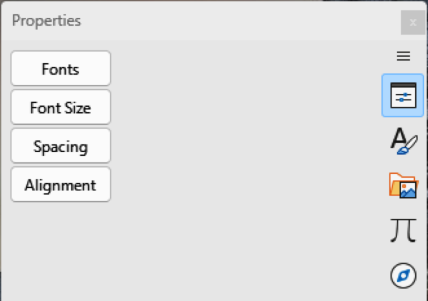
Figure 12: Font Sizes dialog
The Properties panel in the Sidebar provides options to set fonts, fonts size, spacing, and alignment for text in formulas (Figure 11).
To change the font size used in a formula already inserted into a LibreOffice document:
Click in the markup language in the Formula Editor.
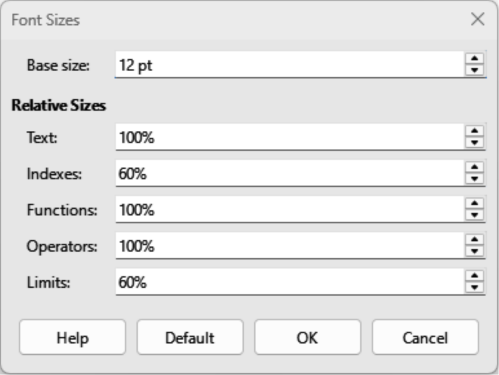
Go to Format > Font size on the Menu bar to open the Font Sizes dialog (Figure 12).
Select a different font size from the options available in Base size, or enter a new font size in the text box.
Click OK to save the changes and close the dialog.
Example
To change the default font size used for all formulas in a LibreOffice document:
Before inserting any formulas into a document, go to Format > Font size on the Menu bar to open the Font Sizes dialog (Figure 12).
Select a different font size from the options available in Base size, or enter a new font size in the text box.
Click on Default and select Yes in the conformation dialog that opens to save the change in font size.
Click on OK to save the changes and close the Font Sizes dialog. Any new formulas created will use the new base size font for formulas.
The Font Sizes dialog (Figure 12) specifies the font sizes used in a formula. Change the base size and all elements in the formula created after the change will use the new base font size.
Base size
Relative Sizes
Text
Select the text size in a formula relative to the base size.
Indexes
Select the relative size for indexes in a formula in proportion to the base size.
Functions
Select the relative size for names and function elements in a formula in proportion to the base size.
Operators
Select the relative size of the mathematical operators used in a formula in proportion to the base size.
Limits
Select the relative size for the limits in a formula in proportion to the base size. This is used to determine the size for commands from and to used in summations and integrals.
Default
The default font used in Math is OpenSymbol, but this can be changed using the following procedures.
Click in the markup language in the Formula Editor.
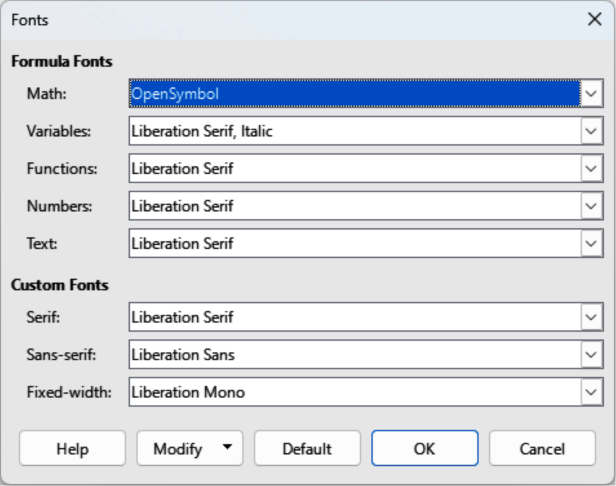
Go to Format > Fonts on the Menu bar to open the Fonts dialog (Figure 13).
Select a new font for each of the various options in the drop-down lists in the Fonts dialog.
If the font required does not appear in the drop-down list, click Modify and select the option from the context menu to open a Fonts dialog.
Select the font required and click OK to add the font to the drop-down list for the selected option.
Click OK to save the changes and close the Fonts dialog.
Figure 13: Fonts dialog
To change the default fonts used for all formulas in a LibreOffice document:
Before inserting any formulas into a document, go to Format > Font size on the Menu bar to open the Fonts dialog (Figure 13).
Select a new font for each the various options from the drop-down lists.
If the font required does not appear in the drop-down list, select Modify and then select an option from the context menu to open a Fonts dialog.
Select the font required and click OK to add the new font to the drop-down list for the selected option.
Click on Default and select Yes in the conformation dialog that opens to save the change in font type.
Click OK to save the changes and close the Fonts dialog.
Formula Fonts
Variables
Selects the fonts used for the variables in a formula.
Functions
Selects the fonts used for the function names and properties.
Numbers
Selects the fonts for the numbers in a formula.
Text
Defines the font used for text in a formula.
Custom Fonts
Serif
Specifies the font used for a serif font format.
Sans
Specifies the font used for a sans font format.
Fixed
Specifies the font used for a fixed font format.
Modify
Default
Notes
When a new font is used for a formula, the old font remains available and can be selected again.
Variables should be written in italics. For all other formula elements, the basic form of a font is used. The font style can be altered in the formula by using the commands italic or bold. To stop using an italic or bold font, use nitalic or nbold after the variable
The alignment settings determine how formula elements located above one another are aligned horizontally relative to each other.
To change the spacing used in the current formula in a LibreOffice document:
Click in the markup language in the Formula Editor.
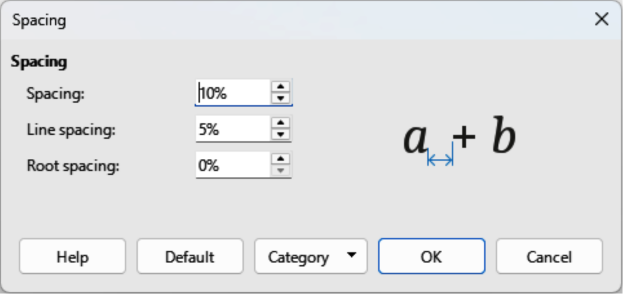
Go to Format > Spacing on the Menu bar to open the Spacing dialog (Figure 14).
Click Category and select one of the options from the drop-down list. The options in the Spacing dialog change depending on which category is selected.
Enter new values for the spacing category and click OK.
Check the spacing format in the formula. If the spacing format is not correct, repeat the steps above.
To change the default spacing used for all formulas in a LibreOffice document:
Before inserting any formulas into a document, go to Format > Spacing on the Menu bar to open the Spacing dialog (Figure 14).
Click Category and select one of the options from the drop-down list. The options in the Spacing dialog change according to the category selected.
Make the required changes to the category option, then click Default and confirm the changes to the formula spacing. Any new formulas created will use the new spacing for formulas.
Click OK to save the changes and close the Spacing dialog.
Figure 14: Spacing dialog
Note
Only new formulas inserted after the change in formula spacing will use the new setting for formula spacing. For any formulas inserted into a document before the default spacing was changed, the new default spacing will not be applied. The formula spacing on each formula already inserted into a document will have to be changed manually.
Use the Category options available in the Spacing dialog (Figure 14) to change the spacing for a formula element. The dialog that opens depends on the selected category. A preview window displays which spacing is being changed.
Category
Spacing
Indexes
Fractions
Fraction Bars
Limits
Brackets
Matrices
Symbols
Symbols
Borders
Preview Field
Default
To determine how formula elements located above one another are aligned horizontally relative to each other, use the alignment settings.
Notes
It is not possible to align formulas on a character and formula alignment cannot be used to align text elements. Text elements are always aligned to the left.
It is possible to align sections of a formula using the commands alignl, alignc and alignr. Using these commands, matrices and text elements in a formula can be aligned.
To change the alignment used for a formula in a LibreOffice document:
Click in the markup language in the Formula Editor.
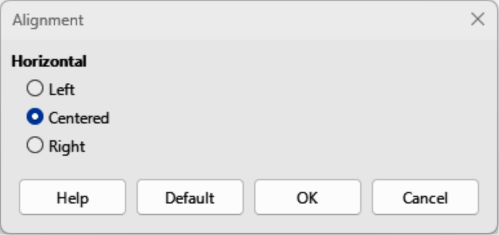
Go to Format > Alignment on the Menu bar to open the Alignment dialog (Figure 15).
Select Left, Centered, or Right for horizontal alignment.
Select OK and check the result in the Formula Preview. If necessary, repeat steps 1 to 3 to correct the formula alignment.
To change the default alignment used for all formulas in a LibreOffice document:
Click in the markup language in the Formula Editor.
Go to Format > Alignment on the Menu bar to open the Alignment dialog (Figure 15).
Select Left, Centered, or Right for horizontal alignment.
Select Default and confirm the changes to the formula alignment. Any new formulas created will use the new formula alignment.
Select OK and check the result in the Formula Preview. If necessary, repeat steps 1 to 4 to correct the formula alignment.
Note
Only formulas inserted after changing in formula alignment use the new default settings. For formulas already inserted into a document before the default alignment was changed, the new default alignment is not applied. The formula alignment on each formula already inserted into a document has to be changed manually.
Figure 15: Alignment dialog
The color of formula characters can be changed using markup language. Use the command color followed by a color name, RGB value, or HTML hex value.
The color command only works if the color command immediately follows the color name, RGB value, or hex value. For example, entering color red 5 times 4 gives the result . Only the number 5 is colored red.
To change the color of the whole formula, the complete formula has to be placed inside brackets. For example, entering color red {5 times 4} gives the result .
For information on the named colors available in Math, see Appendix A. These colors are listed in the Attributes category of the Elements panel on the Sidebar (Figure 2).
RGB (Red, Green and Blue) values for colors are from 0 to 255. To use RGB values, enter the command color rgb R G B followed by the RGB values of the required color.
Example
HTML colors can be used in a formula and these are defined using a hex number. Use the command hex 000000, where 00000 is the corresponding hex number for the color required. For example, using the command color hex FF0000 decision creates the output .
It is not possible to use a background color for formulas. The formula background color is, by default, the same color as the document or frame where the formula has been inserted. In Writer, object properties can be used to change the background color of a formula. For more information, see “Background and borders” below.
If formulas are going to be regularly inserted documents, a formula library can be created using the Formula Editor. Individual formulas are saved as separate files using the ODF format file type ODF, or the MathML format for file type MML. Math, Writer, Calc, Draw, or Impress can be used to create formulas and added to a formula library.
Note
MathML 2.0 stands for Mathematical Markup Language (MathML) Version 2.0. MathML is an XML format that describes mathematical notation and enables the use of mathematics in the World Wide Web. For more information on MathML format, visit the website at https://www.w3.org/TR/MathML2/overview.html.
Create a computer folder to contain formula files and give the folder a memorable name, for example Formula Library.
Go to File > New > Formula on the Menu bar, or click on Math Formula in the Start Center to open LibreOffice Math and the Formula Editor. See “Formulas as separate documents or files” above for more information.
Create the formula required.
Go to File > Save As on the main Menu bar, or use the keyboard shortcut Ctrl+Shift+S (macOS ⌘+Shift+S) to open the Save As dialog.
Navigate to the folder created for a formula library.
Type a memorable name for the formula in the file name or save as box.
Select in the File type drop-down list select ODF Formula (.odf) or MathML 2.0 (.mml) as the file type for the formula.
Click Save to save the formula and close the Save As dialog.
Create a computer folder to contain formula files and give the folder a memorable name, for example Formula Library.
Open a document using Writer, Calc, Draw, or Impress.
Go to Insert > Object > Formula Object on the Menu bar to open the Formula Editor and create a formula. See “Formulas in LibreOffice documents” above for more information.
Right-click on the formula object and select Save Copy as in the context menu to open a Save As dialog.
Navigate to the folder you have created for your formula library.
Type a memorable name for your formula in the File name box.
Select in the File type drop-down list either ODF Formula (.odf) or MathML 2.0 (.mml) as the file type for the formula.
Click Save to save the formula and close the Save As dialog.
A formula in the formula library cannot be inserted into a document by dragging and dropping, or by using Insert > File on the Menu bar. A formula from the formula library must be inserted into a document as an OLE object.
Open a document using Writer, Calc, Draw, or Impress.
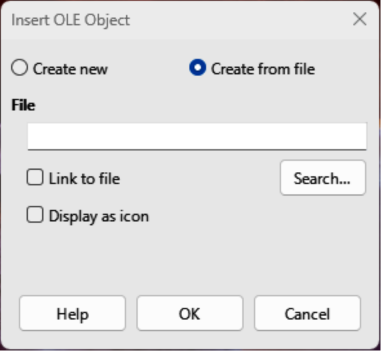
Go to Insert > OLE Object > OLE Object on the Menu bar to open the Insert OLE Object dialog (Figure 16).
Select the option Create from file.
Click Search to open the file browser and navigate to the formula library folder.
Select the file for formula required and click Open in the file browser, or double-click on the formula required.
If required, select the option Link to file or Display as icon.
Figure 16: Insert OLE Object — Create from file page
Click OK to insert the formula as an OLE object in the document and close the Insert OLE Object dialog.
This section explains which options can be changed for a formula within a Writer document. See the Writer Guide for information on how to change the settings for frame styles for OLE objects.
When a formula is inserted into a document, Writer inserts the formula into a frame and treats the formula as an OLE object. For more information on creating and editing formulas, see Creating formulas above and Editing formulas above.
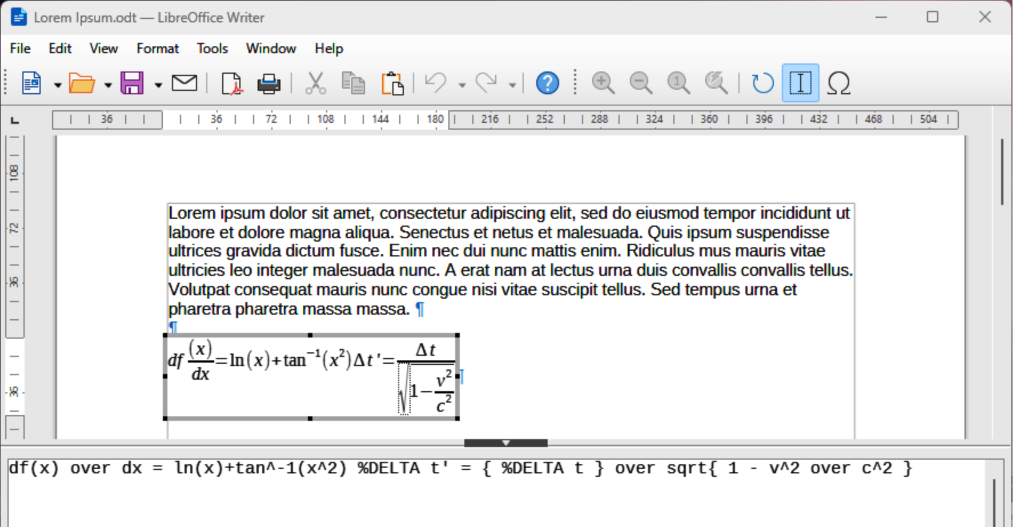
When the formula is selected for editing, the Writer Formula Editor opens, as shown by the example in Figure 17.
Double-clicking on the inserted formula opens Math with the formula selected for editing in the Math Formula Editor.
Figure 17: Example of formula selected for editing in Writer
Automatic numbering of formulas to create formula cross references can only be carried out in Writer. The AutoText entry fn (formula numbered) is used to automatically add a numbered cross reference to formulas.
Start a new line in a document at the required position for the formula.
Type fn and press the F3 key to insert a two column table with no borders. The left column contains a sample formula and the right column contains the cross reference number, as shown by the following example.
Delete the sample formula and insert the required formula into the left column.
|
|
(1) |
Alternatively, first insert the formula into the document, then carry out Steps 1 and 2 above replacing the sample formula with another formula.
Click in the document at the position where a cross reference for a formula is required.
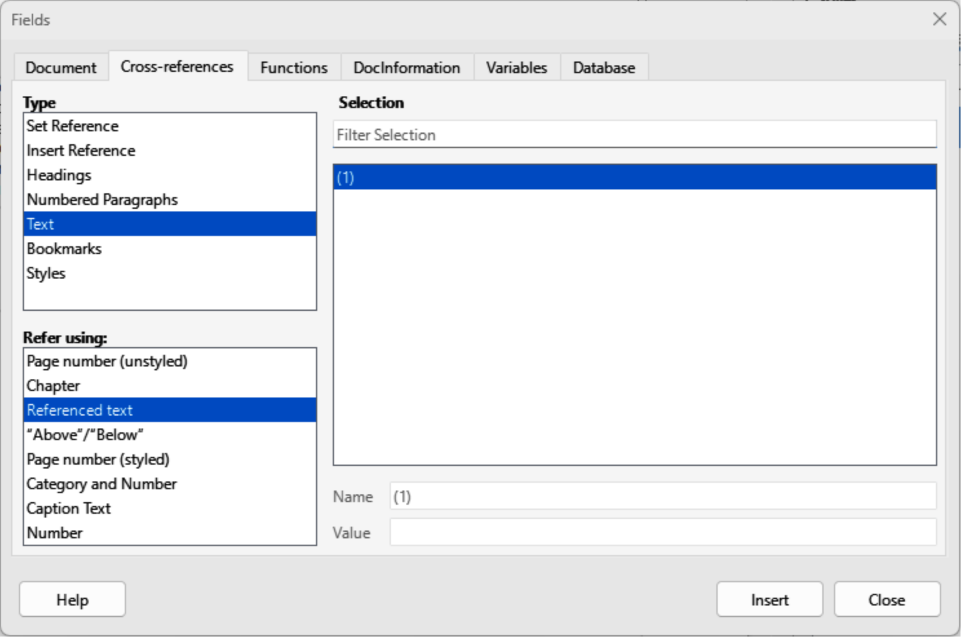
Go to Insert > Cross-reference on the Menu bar to open the Fields dialog (Figure 18).
Click on Cross-references, then select Text in Type.
In Selection, select the formula number required for the cross reference.
In Refer using, select Referenced text, then click on Insert to insert the cross reference for the selected formula.
Click on Close to close the Fields dialog.
Figure 18: Fields dialog — Cross-references — Referenced text
Tip
To insert the cross-reference number without parentheses, select Numbering instead of Reference in the Insert reference to section.
Note
See the Writer Guide for more information on how to use square parentheses instead of curved parentheses, or require the cross reference number to be separated from the formula by tabs instead of using a table.
A formula is an object when inserted into a Writer document. The default anchoring for a formula is As character when inserted into a document. Change the formula anchoring in a document as follows:
Right-click on the selected formula and select Anchor from the context menu.
Select an anchoring option from the context menu. The anchoring options available are To paragraph, To character, or As character.
Alternatively, right-click on the selected formula and select Properties from the context menu, or go to Format > Frame and Object > Properties on the Menu bar to open the Object dialog (Figure 19).
Figure 19: OLE Object dialog — Position and Size page
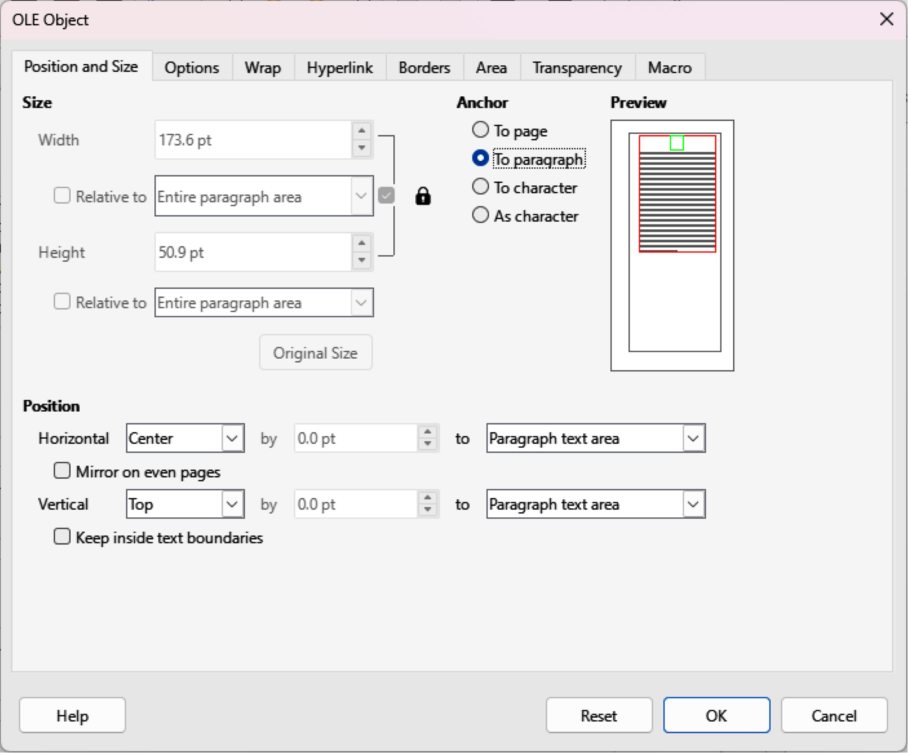
Make sure Position and Size is selected, then select a new anchoring position from the options available in Anchor. The anchoring options available are To page, To paragraph, To character, or As character.
Click OK to save the changes and close the OLE Object dialog.
Note
When making changes to frame style options in Writer, anchoring options are not available in the Object dialog. For more information on how to modify frame styles, see the Writer Guide.
The normal default setting for vertical alignment for formulas in Writer is to use the text base line as a reference. This default setting can be changed by modifying the frame style for formulas, see the Writer Guide for more information.
Make sure the To paragraph or To character option for formula anchoring is selected to change vertical formula alignment. Vertical alignment is NOT available for the As character anchoring option.
Right-click on the selected formula and select Align Objects from the context menu.
Select a vertical alignment option from the context menu. The options available are Align Top to Anchor, Align Middle to Anchor, and Align Bottom to Anchor.
Alternatively, right-click on the selected formula and select Properties from the context menu, or go to Format > Frame and Object > Properties on the Menu bar to open the Object dialog (Figure 19).
Make sure Position and Size is selected, then select a new vertical alignment from the options available in Position Vertical. The vertical alignment options available are Center, Top, Bottom, or From bottom.
If the From bottom option is selected for vertical alignment, enter a plus or minus value for vertical alignment.
Select the type of text alignment from the drop-down list in Position Vertical. The text alignment options available are Base line, Character, and Row.
Click OK to save the changes and close the OLE Object dialog.
Note
If the Position and Size section in the OLE Object dialog (Figure 19) is grayed out and not available, then go to Tools > Options > LibreOffice Writer > Formatting Aids and uncheck the option Math baseline alignment. This setting is stored with the document and applies to all formulas within it. Any new documents created will also use this setting for Math baseline alignment.
The normal default setting for horizontal alignment for formulas is to use the text base line as a reference. This default setting can be changed by modifying the frame style for formulas, see the Writer Guide for more information.
Right-click on the selected formula and select Align Objects from the context menu.
Select a horizontal alignment option from the context menu. The options available are Left, Centered, and Right.
Alternatively, right-click on the selected formula and select Properties from the context menu, or go to Format > Frame and Object > Properties on the Menu bar to open the Object dialog (Figure 19).
Make sure Position and Size is selected, then select a new horizontal alignment from the options available in Position Horizontal. The horizontal alignment options available are Left, Right, Center, or From left.
If the From left option is selected for horizontal alignment, enter a plus or minus value for horizontal alignment.
Select the type of text alignment from the drop-down list in Position Horizontal. The text alignment options available are Entire paragraph area, Left of paragraph text area, Right of paragraph text area, Left of page text area, Right of page text area, Entire page, Page text area, and Character.
Click OK to save the changes and close the OLE Object dialog.
A formula, when inserted into a document, has text wrap and spacing on each side of the formula. The default settings used for wrap and spacing is set within the frame style for formulas. This default settings can be changed by modifying the formula frame style, see the Writer Guide for more information.
To individually adjust the wrap for a formula positioned in a Writer document:
Make sure the To paragraph or To character option for formula anchoring is selected to change object wrap. Object wrap is NOT available for the As character anchoring option.
Right-click on the selected formula and select Wrap from the context menu.
Select a wrap option from the context menu. The options available are None, Parallel, Optimal, Before, After, Through In Background and Edit Contour.
Right-click on the selected formula and select Properties in the context menu, or go to Format > Frame and Object > Properties to open the Object dialog.
Click on Wrap to open the Wrap page in the Object dialog (Figure 20).
Figure 20: OLE Object dialog — Wrap page
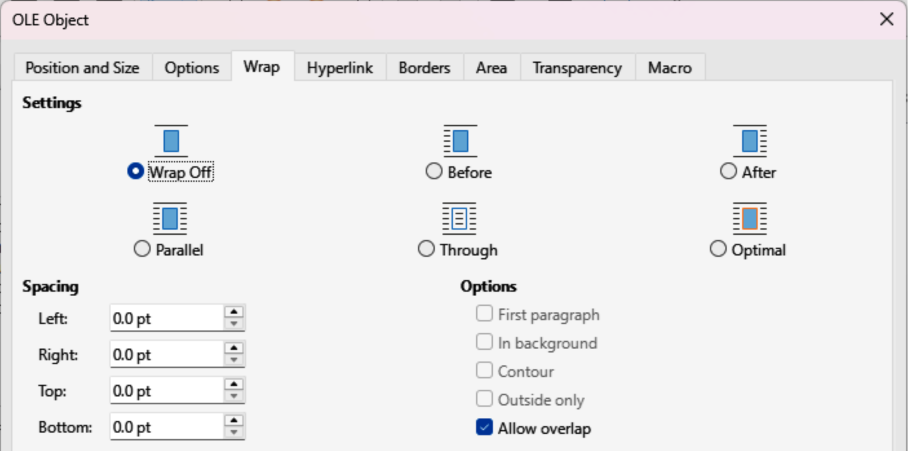
In Settings, select the type of wrap required for the formula. The options available are Wrap Off, Before, After, Parallel, Through and Optimal.
Click OK to save the changes and close the Object dialog.
To individually adjust the spacing for a formula positioned in a Writer document:
Right-click on the selected formula and select Align Objects from the context menu.
Select a horizontal alignment option from the context menu. The options available are Left, Centered, and Right.
Right-click on the selected formula and select Properties in the context menu, or go to Format > Frame and Object > Properties to open the Object dialog.
Click on Wrap to open the Wrap page in the Object dialog (Figure 20).
In Spacing, enter the spacing value for Left, Right, Top, and Bottom spacing.
Click OK to save the changes and close the Object dialog.
When large formulas are placed within a line of text, the formula elements can be higher than the text height. To make large formulas easier to read, it is recommended to always insert large formulas into a separate paragraph to separate a formula from the text.
If it is necessary to place a large formula within a line of text, double-click on the formula to open the Formula Editor and then go to Format > Text Mode on the Menu bar. The Formula Editor reduces the formula size to match text height, as shown in the following example.
The same formula embedded into a line of text using text mode format :
The default setting for background (area fill) and borders for formulas is set by the Formula frame style. For more information on changing the background and borders for Formula frame style, see the Writer Guide. If required, individual formulas in a document can use different backgrounds and borders.
Note
The size of the frame that a formula is placed in when inserted into a document cannot be changed. The frame size for a formula depends on the setting of the formula font size. See “Formula font size” above for more information.
The following example is a formula using background color and borders. Note that the background and border properties are part of the Math OLE object and cannot be defined using markup language.
Select a formula in a document to change the background.
Right-click on the formula and select Properties from the context menu, or go to Format > Frame and Object > Properties on the Menu bar to open the OLE Object dialog.
Click on Area, then select the type of fill required for the formula from the available options (Figure 21). The options available are None, Color, Gradient, Image, Pattern, and Hatch.
After selecting the background type, select the properties for the formula background. The area properties change depending on the type of area fill selected.
Click OK to save the changes and close the OLE Object dialog.
Select a formula in a document to change the borders.
Right-click on the formula and select Properties from the context menu, or go to Format > Frame and Object > Properties on the Menu bar to open the OLE Object dialog.
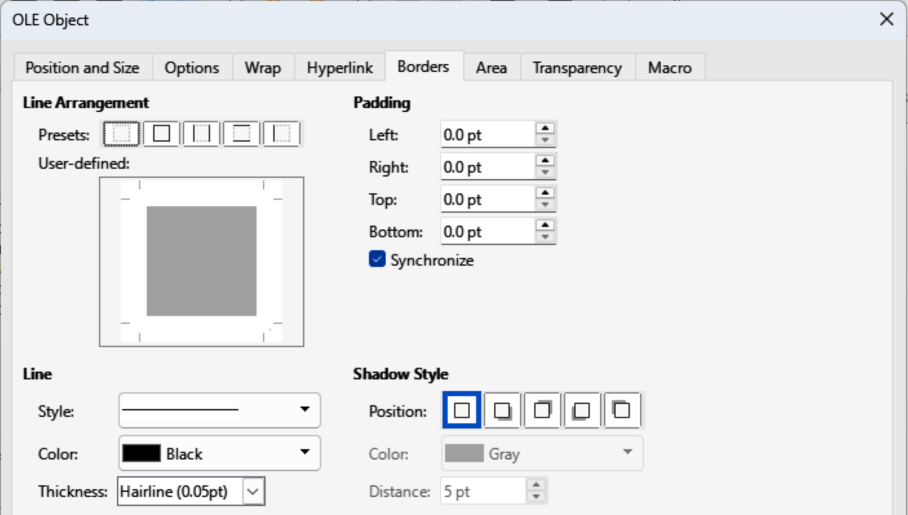
Click on Borders, then select the of border properties required for the formula from the available options (Figure 22). The options available are Line Arrangement, Line, Padding, and Shadow Type.
Click OK to save the changes and close the OLE Object dialog.
Figure 21: OLE Object dialog — Area page
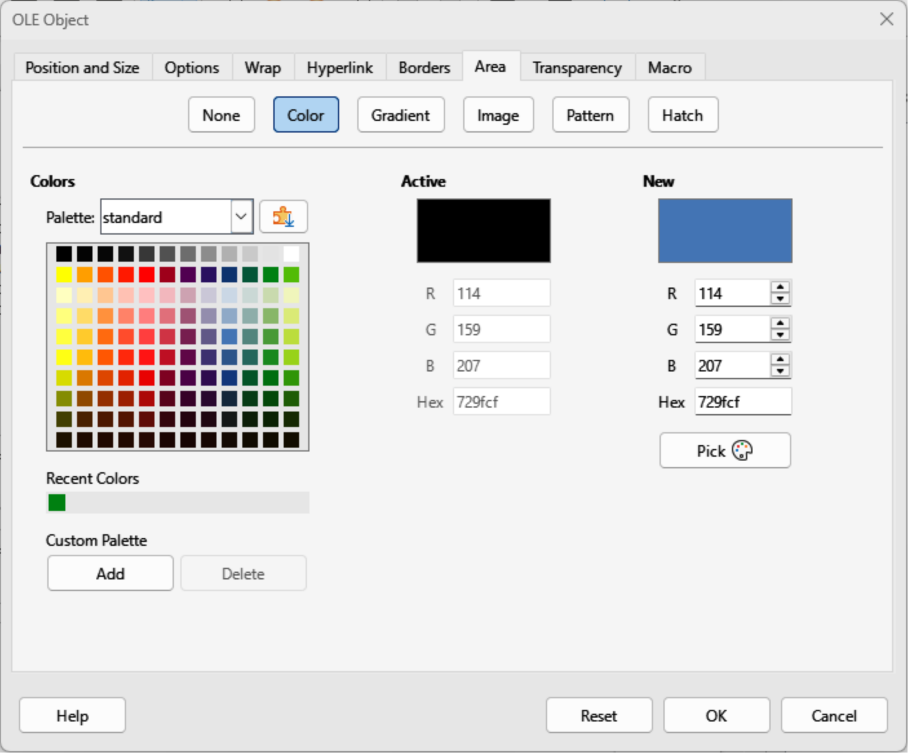
Figure 22: OLE Object dialog — Borders page
ß
If the markup language for a formula is available, the formula can be quickly inserted into a document without opening the Formula Editor:
df(x) over dx = ln(x)+tan^-1(x^2) %DELTA t' = { %DELTA t } over sqrt{ 1 - v^2 over c^2 }
Copy the formula markup language required, then paste into the document at the required position, as shown by the above example.
Select all of the formula markup language.
Go to Insert > OLE Object on the Menu bar and select Formula Object to create a formula using the selected markup language. The formula is inserted replacing formula markup language.
When a formula is inserted into a Calc, Draw, or Impress document, the formula is inserted as an OLE object without any background (area fill) or borders. Each formula is inserted into a spreadsheet, drawing, or slide as follows. For more information on creating and editing formulas, see the Math Guide.
In Calc, formulas are inserted into a selected cell in a spreadsheet with no style assigned to the formula. For more information, see the Calc Guide.
In Draw and Impress, formulas are inserted in a central position on a drawing or slide. By default, formulas are assigned the drawing object style Object with no fill and no line. For more information on how to modify or assign drawing object styles, see the Draw Guide or Impress Guide.
A formula is anchored into a Calc spreadsheet using To Page, which is the default setting when anchoring a formula. Change the anchoring type of formulas in a Calc spreadsheet as follows:
Select the formula in the spreadsheet.
Right-click on the formula and select Anchor from the context menu. The anchoring options available in the context menu are To Cell, To Cell (resize with cell), and To Page.
Alternatively, go to Format > Anchor on the Menu bar and select an anchoring option from To Cell, To Cell (resize with cell), and To Page.
Tip
If a formula is inserted into a Calc spreadsheet and appears out of scale, right click the formula and select Original Size from the context menu.
When a formula is inserted into a drawing or slide, it is inserted as a floating OLE object in the center of a drawing or slide. The inserted formula is not anchored and can be moved to any particular position in a drawing or slide. See the Draw Guide or Impress Guide for information on moving objects in a drawing or slide.
Formulas in Calc, Draw, and Impress can be modified just like any other object that has been placed in a spreadsheet, drawing, or presentation. However, formula size and changing text format in a formula cannot be carried out. For more information on how to change properties, see the Calc Guide, Draw Guide, or Impress Guide. For more information on formula size and formatting formula text, see Chapter 1, Creating and Editing Formulas.
For formula backgrounds, use the options in the Area dialog pages.
For formula borders, use the options in the Line dialog. Note that formula borders are separate from cell borders in a Calc spreadsheet.
To accurately re-position a formula, use the options in the Position and Size dialog.
In Draw and Impress, arrange, align, group, flip, convert, break, combine, and edit points of formula objects.
Text attributes of a formula cannot be changed. The formula text is set when a formula is created using the Formula Editor.
Formula size is set by the formula font size when a formula is created. Formula size is protected in the Position and Size dialog, but this can be deselected if required. However, it is not recommended as resizing a formula using the Position and Size dialog may distort a formula making it difficult to read.
A Calc chart is an OLE object created from a Calc spreadsheet. However, the Formula Editor cannot be used to create and insert a formula directly into a chart. A formula has to be created, then copied and pasted into a chart:
Create the chart using a Calc spreadsheet. For more information, see the Calc Guide.
Click in a spreadsheet cell to deselect a chart.
Insert a formula by clicking on Insert > OLE Object > Formula Object on the Menu bar to open the Formula Editor in Calc.
Create the required formula in the Formula Editor.
Select the formula and copy the formula.
Double-click the chart object to open editing mode, then paste the formula into the chart.
Move the formula to the required position inside the chart.
Note
If a formula has to be edited, the procedure above has to be repeated to create a new formula, or edit the existing formula. The new or edited formula is then pasted into the chart.
The primary purpose of Math is to create mathematical formulas. However, Math can create chemical formulas. Chemical symbols are normally written in uppercase using non-italic characters. The following table shows examples of chemical formulas.
|
Construction |
Example |
Markup Language |
|
Molecules |
|
H_2 SO_4 |
|
Isotopes |
|
U lsub 92 lsup 238 |
|
Ions |
or |
SO_4^{2-{}} or SO_4^{2"-"} |
To create chemical formulas using Math, the font used for variables is changed to a non-italic font. For more information on changing fonts in a formula, see Formula fonts above.
For reversible reactions in chemical formulas, there is no symbol for a double arrow in Math. If there is a font available with symbols for use in chemical formulas, then add these symbols to the Catalog. See Chapter 4, Customization for more information on how to add symbols.
This chapter explains how to customize Math when creating formulas for use in LibreOffice documents. Also, refer to Chapter 13, Customizing LibreOffice for more information on customizing LibreOffice.
Keyboard shortcuts can be added to LibreOffice when creating documents. Following is an example of how to add a keyboard shortcut for inserting a formula into a LibreOffice document. For more information on creating keyboard shortcuts, see Chapter 13, Customizing LibreOffice.
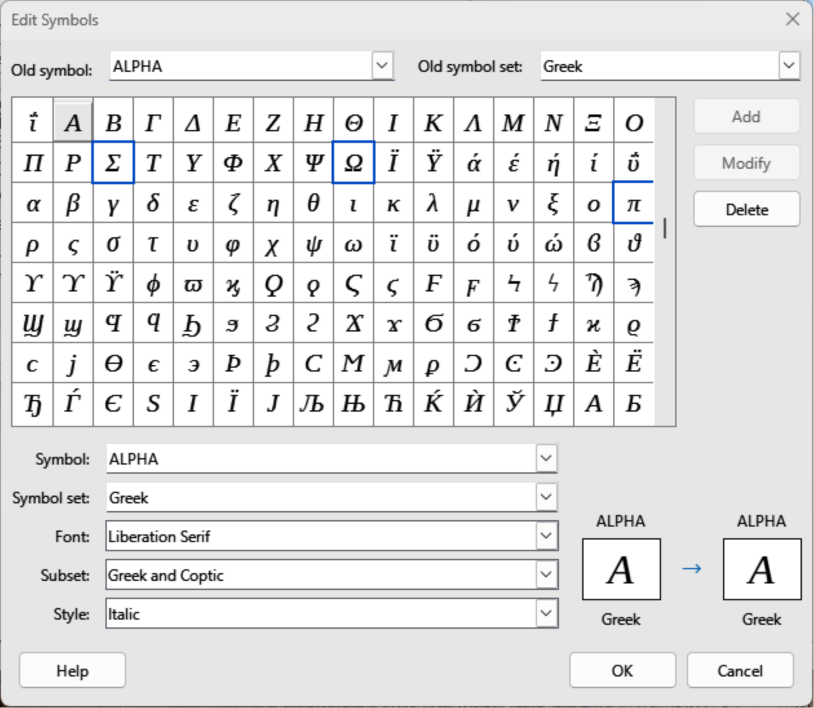
If a symbol is regularly used and is not available in Math, it can be added to the Symbols dialog (Figure 23) using the Edit Symbols dialog (Figure 24). Symbols can be modified, have names assigned, or redefined. For information on customizing the catalog, see the Math Guide.
Figure 23: Symbols dialog
Figure 24: Edit Symbols dialog
Notes
When a new symbol is added to the catalog, a percentage sign (%) followed by the name of the symbol is typed into the markup language in the Formula Editor and the symbol appears in the formula. Symbol names are case sensitive, for example, %prime is a different symbol to %Prime.
There are numerous free fonts available that contain several symbols if the required symbol is not available on the computer. For example, the STIX font was developed for use in mathematical and technical texts. Also, DejaVu and Lucida fonts have a wide range of symbols.
By default, only user defined symbols that are used in the document are stored with the document. It is useful to embed all user defined symbols so that when a document is transferred to another computer it is available for editing. Go to Tools > Options > LibreOffice Math > Settings (macOS LibreOffice > Preferences > LibreOffice Math > Settings) on the Menu bar and uncheck Embed only used symbols (smaller file size) in Miscellaneous Options.
Go to Tools > Symbols on the Menu bar or click on Symbols on the Tools toolbar to open the Symbols dialog (Figure 23).
In Symbol set select a font to use for the new symbol from the available options in the drop-down list.
Click on Edit to open Edit Symbols dialog (Figure 24).
Select the symbol character required and it appears in the preview box. If necessary, scroll down in the preview box to locate the required symbol.
In Symbol, enter a memorable name for the required symbol.
In Symbol set, select a symbol set in the drop-down for the selected symbol, or create a new name for the selected symbol.
In Font and if required, select a font for the selected symbol.
In Subset and if required, select a subset from the available options for the selected symbol.
In Style and if required, select a font style from the available options for the selected symbol.
Click on Add, to add the symbol to Math.
If required, click on Modify after making any changes to an existing symbol.
If required, click on Delete if an existing symbol is no longer required.
Click on OK to close the Edit Symbols dialog. The new symbol and, if created, new symbol set are now available for use.
In the Edit Symbols dialog (Figure 24), select the symbol name that is to be changed in the Old symbol drop-down list. The symbol appears in the left preview box at the bottom of the dialog.
Type a new name for the symbol in the Symbol text box, or select a new name from the Symbol drop-down list. The new symbol name appears in the right preview pane at the bottom.
Click Modify and the symbol name is changed, then click OK to close the Edit Symbols dialog.
In Old symbol set, select the symbol set from the options available in the drop-down list in the Edit Symbols dialog (Figure 24).
Select a symbol from options available in the Old symbol drop-down list. In the left preview box at the bottom of the dialog, the name, symbol, and symbol set are displayed.
In Symbol, select a symbol name from the drop-down list.
In Symbol set, select the required symbol set from the drop-down list. In the right preview box at the bottom of the dialog, the name, symbol, and symbol set are displayed.
If required, select an option from the drop-down lists in Font, Subset, and Style.
Click on Modify and the symbol is moved to the new symbol set.
Click on OK to close the Edit Symbols dialog.
In Old symbol set, select the symbol set from the options available in the drop-down list in the Edit Symbols dialog (Figure 24).
In Old symbol, select the symbol for deletion from the drop-down list. The selected symbol appears in the left preview pane at the bottom of the Edit Symbols dialog.
Click on Delete and the symbol is deleted from the symbol set without any confirmation.
Click on OK to close the Edit Symbols dialog.
Note
To delete a symbol set all of the symbols in the selected set have to be deleted. The last symbol is deleted, the symbol set is also deleted.
The grave accent (`) inserts an additional small space and the tilde (~) inserts an additional large space into formulas. However, in the basic installation of LibreOffice, these symbols are ignored when they occur at the end of a formula. When working with running text in a formula, it may be necessary to also include spacing at the end of formulas. This customization is only required when working with a Math document and is not required when inserting a formula into another LibreOffice module.
To add spacing at the end of formula in Math, go to Tools > Options > LibreOffice Math > Settings (macOS LibreOffice > Preferences > LibreOffice Math > Settings) on the Menu bar and uncheck Ignore ~ and ` at the end of the line in Miscellaneous Options.
By default, the code in the Formula Editor input window is scaled to 100%. To change the scaling factor go to Tools > Options > LibreOffice Math > Settings (macOS LibreOffice > Preferences > LibreOffice Math > Settings) and change the percentage in the Scaling code input window in Miscellaneous Options.
For example, to change the scaling to 150%, the code in the input window appears larger. This setting affects the Formula Editor in all LibreOffice modules. However, the Math options can only be accessed when using Math. It is not available for editing formulas in other LibreOffice modules.
Creating formulas frequently in documents, LibreOffice can be customized by adding extensions that are designed to help in the creation of formulas. Extensions are installed using the Extension Manager. For more information on how to install extensions, see Chapter 13, Customizing LibreOffice.
A commonly used extension is Formatting of All Math Formulas. This extension allows formatting of formulas in Writer, Calc, Draw, or Impress documents. Using this extension the font names and sizes of all formulas used in LibreOffice documents. For more information on this extension, go to https://extensions.libreoffice.org/en/extensions/show/formatting-of-all-math-formulas.
In addition to exporting documents in PDF format, LibreOffice export formulas in the MathML format. This allows formulas to be inserted into documents that were created using other software, for example, Microsoft Office or an internet browser.
Note
Some internet browsers do not fully support the MathML format and a formula may not display correctly when imported.
When working on a formula in Math, go to File > Save as on the Menu bar, or use the keyboard combination Ctrl+Shift+S (macOS ⌘+Shift+S) to open the Save as dialog. Select MathML 2.0 (*.mml) from the list of available file formats in File type to save the formula as MathML.
When working in another LibreOffice module, right-click on the formula object and select Save Copy as as from the context menu to open the Save as dialog. Select MathML 2.0 (*.mml) from the list of available file formats in File type to save the formula as MathML.
In Math, formulas can be imported as in MathML format. Use Tools > Import MathML from Clipboard on the Menu bar.
To control how formulas in Microsoft format are imported and exported using LibreOffice, go to Tools > Options > Load/Save > Microsoft Office (macOS LibreOffice > Preferences > Load/Save > Microsoft Office) on the Menu bar, then select or deselect one or both options for MathType to LibreOffice Math or reverse.
[L]: Load and convert the object
[S]: Convert and save the object
Select this option if Microsoft OLE objects are to be converted into the specified LibreOffice OLE objects when a Microsoft document is opened in LibreOffice. For formulas, any embedded MathType objects must not exceed the MathType 3.1 specifications to be successfully loaded and converted. Information on MathType format can be found at https://docs.wiris.com/en/mathtype/office_tools/microsoft_office.
If a document containing OMML formulas has been saved in docx format and then converted to the older doc format, then any OMML objects are converted into graphics, which are displayed in LibreOffice as graphics.
Select this option if LibreOffice OLE objects are to be converted and saved in Microsoft file format. LibreOffice converts any formulas into a format that can be read and modified by Microsoft Equation Editor and MathType.
When this option is not selected, the formula is treated as an OLE object on conversion into a doc format and remains linked to LibreOffice. A double-click on the object in Microsoft Office opens LibreOffice.