
Getting Started Guide 25.2
Appendix A,
Keyboard Shortcuts
This document is Copyright © 2025 by the LibreOffice Documentation Team. Contributors are listed below. This document may be distributed and/or modified under the terms of either the GNU General Public License (https://www.gnu.org/licenses/gpl.html), version 3 or later, or the Creative Commons Attribution License (https://creativecommons.org/licenses/by/4.0/), version 4.0 or later. All trademarks within this guide belong to their legitimate owners.
Contributors for this edition:
Edward Olson, Olivier Hallot
Contributors for previous editions:
Luciana Motta, B Antonio Fernandez, Jean Hollis Weber, John A Smith, Kees Kriek, Olivier Hallot, Peter Schofield, Rafael Lima, Ron Faile Jr., Skip Masonsmith, Steve Fanning.
Please direct any comments or suggestions about this document to the Documentation Team forum at https://community.documentfoundation.org/c/documentation/loguides/ (registration is required) or send an email to: loguides@community.documentfoundation.org
Note
Everything you send to a mailing list or forum, including your email address and any other personal information that is written in the message, is publicly archived and cannot be deleted.
Published in March 2025. Based on LibreOffice 25.2 Community.
Other versions of LibreOffice may differ in appearance and functionality.
LibreOffice can be used without a pointing device, such as a mouse, touchpad, by using the keyboard shortcuts. Tasks as varied and complex as docking and un-docking toolbars and windows, or changing the size or position of objects can all be accomplished with using keyboard shortcuts. Although LibreOffice has an extensive set of keyboard shortcuts, each LibreOffice module has keyboard shortcuts that are specific to that module.
This appendix lists some of the more common keyboard shortcuts that apply to multiple components of LibreOffice. For shortcuts specific to Writer, Calc, Impress, Draw, Math, or Base, refer to the relevant user guide for each module, or search LibreOffice Help.
To assist a user with identifying keyboard shortcuts, these are indicated by text next to menu items and in tooltips for some tools on toolbars. For example, in Writer some commonly used keyboard shortcuts are as follows:
File > Open on the Menu bar includes text indicating that Ctrl+O (macOS ⌘+O) is a keyboard shortcut.
Align Left tool in the Formatting toolbar has a tooltip indicating that Ctrl+L (macOS ⌘+L) is a keyboard shortcut.
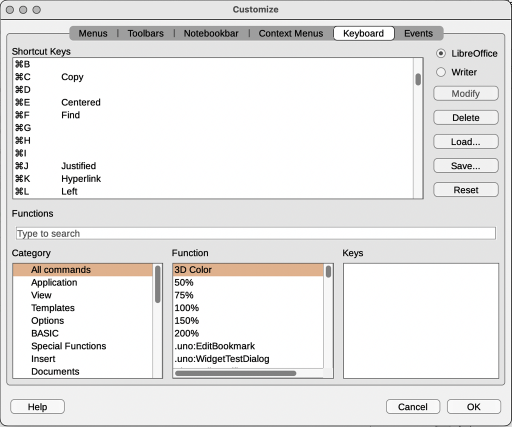
A list of available keyboard shortcuts in LibreOffice can be found in the keyboard tab of the Customize dialog box. Go to Tools > Customize on the Menu bar and click on Keyboard section to open the Keyboard tab. Examples of keyboard shortcuts for Linux and Windows see Figure 1 and for macOS see Figure 2.
Figure 1: Customize dialog — Keyboard tab for Linux/Windows
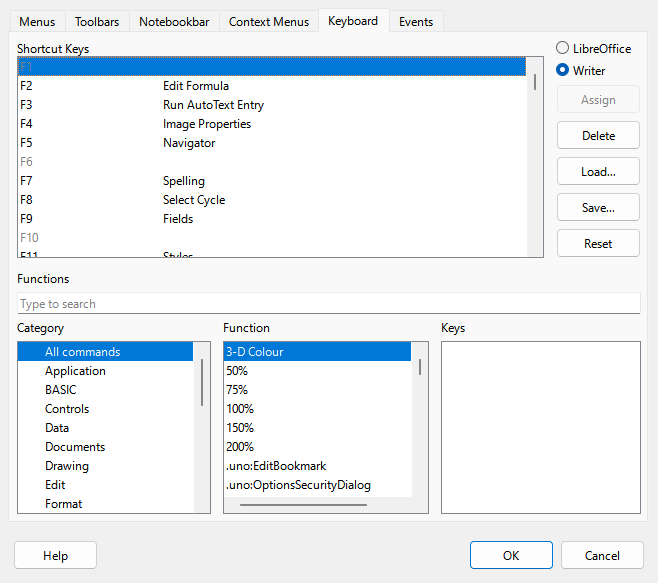
Figure 2: Customize dialog — Keyboard tab for macOS
Note
Some keyboard shortcuts listed may not be available, if the computer operating system uses the same shortcuts as LibreOffice for other tasks. To solve any conflicts, assign different keys to these shortcuts by reconfiguring either LibreOffice (see Chapter 13, Customizing LibreOffice), or the computer operating system (see your operating system documentation or help).
In addition to keyboard shortcuts, LibreOffice supports some assistive technology tools like screen magnification software, screen readers, and on-screen keyboards. Please note that in the macOS and Linux platforms, accessibility support relies on Java technology for communication with assistive technology tools. This means that the first program startup may take a few seconds longer, because the Java runtime environment has to be started as well.
The current list of supported assistive tools can be found at: https://wiki.documentfoundation.org/Accessibility.
Some keystrokes and menu items are different on a macOS computer from those used in Windows or Linux computers. This due to the way the different systems work and the different types of keyboards used. The labeling on keyboards may also vary depending on the age of the computer and style of keyboard being used.
Tables 1, Table 2 and Table 3 show the most common variations in keyboard shortcuts and keyboard labeling. Table 4 shows examples of using macOS keyboard shortcuts. For more information on keyboard shortcuts, see LibreOffice Help.
Table 1: Shift, Control and Alt keys
|
Windows or Linux |
macOS |
|
Control or Ctrl |
⌘ or Cmd or Command |
|
Alt |
⌥ or Option or Alt |
|
Shift or ⇧ |
Shift or ⇧ |
|
Caps Lock |
⇪ or Caps Lock |
|
Control or Ctrl |
⌃ or Control or Ctrl |
Table 2: Home and End keys
|
Windows or Linux |
macOS |
|
Home |
Fn+← |
|
End |
Fn+→ |
Table 3: Page Up and Page Down
|
Windows or Linux |
macOS |
|
Screen Up |
Fn+↑ |
|
Page Up |
⌥ or Option or Alt+Fn+↑ |
|
Screen Down |
Fn+↓ |
|
Page Down |
⌥ or Option or Alt+Fn+↓ |
Table 4: Example of using macOS keyboard shortcuts
|
Windows or Linux |
macOS equivalent |
Effect |
|
Tools > Options |
LibreOffice > Preferences |
Access setup options |
|
Right-click |
Control+click or right‑click depending on computer setup |
Opens a context menu |
|
Ctrl (Control) |
⌘ (Command) |
Used with other keys |
|
Alt |
⌥ (Option) or Alt, depending on keyboard |
Used with other keys |
|
F11 |
⌘+T |
Open Styles deck in Sidebar |
Note
The actual keys available on a macOS keyboard depend on the type of keyboard being used. For example, a macOS laptop keyboard does not have the Delete key, but a macOS keyboard with a numeric keypad does have this key.
Note
Some keyboard shortcuts are not available on computers using macOS. These unavailable keyboard shortcuts are indicated in the following tables by a blank cell.
Some of the shortcut keys may be assigned to the computer operating system and are not available for LibreOffice. Either assign different keys in LibreOffice using Tools > Customize > Keyboard on the Menu bar, or in the computer operating system. For more information, see Chapter 13, Customizing LibreOffice or the documentation/help for the computer operating system.
LibreOffice functions can be used by using keyboard shortcuts. For example, the Ctrl+O (macOS ⌘+O) shortcut is shown next to Open in the File menu on the Menu bar. To use it, press and hold down the Ctrl (macOS ⌘) key and then press the O key. Release both keys together after the dialog opens.
Table 5: Keyboard shortcuts for opening menus and menu items
|
Windows Linux |
macOS |
Effect |
|
Alt+<?> (Windows only) |
Opens a menu where <?> represents an underlined character of the menu being opened. For example, Alt+F opens the File menu. When a menu is opened, there may be sub-menu items with underlined characters. Press the underlined character directly to carry out the action or option. Where two menu items have the same underlined character, press the character key again to move to the next menu item. Menu items that have no underlined character have to be clicked on directly. |
|
|
Esc |
Esc |
Closes an open menu. |
|
F6 |
Repeatedly pressing F6 switches the focus through the following objects: Menu bar. Every toolbar from top to bottom and from left to right. Every free window from left to right. Document. |
|
|
F6 |
Repeatedly pressing F6 switches the focus through the following objects: Each toolbar from top to bottom and from left to right. Sidebar. Document. |
|
|
Shift+F6 |
Shift+F6 |
Switches focus through objects in the opposite direction. |
|
Ctrl+F6 |
⌘+F6 |
Switches the focus to the document. |
|
F10 |
|
Switches focus to the Menu bar and back. |
Press Alt, F6, or F10 to select the first item of the Menu bar (normally the File menu). In macOS, selection is the first tool on the Standard toolbar and this tool is normally New.
Press → to move the selection to the right, or ← to move the selection to the left.
Press the Home key (macOS Fn+←) or End key (macOS Fn+→) to move menu selection to the first or last item on the Menu bar.
Press ↓ to move the selection down the list of menu commands, or press ↑ to move the selection up the list of menu commands.
If necessary, press → to open any sub-menus on the selected menu. Sub‑menus are indicated by a triangle ► or chevron > next to the name of a selected menu item.
If necessary, press ↓ to move the selection down the list of sub-menu commands, or ↑ to move the selection up the list of sub-menu commands.
If necessary, press ← to close a sub-menu.
Press Enter to run the selected menu, or sub-menu command.
Press F6 repeatedly until the first icon on a toolbar is selected.
On a horizontal toolbar, press → to move tool selection to the right. Press ← to move the selection to the left.
On a vertical toolbar, press the up or ↓s to move tool selection upward or downward.
Press the Home key (macOS Fn+←) or End key (macOS Fn+→) to move tool selection to the first or last tool on a toolbar.
Press Enter to action the selected tool on the toolbar.
To insert an object into a drawing or presentation after selecting the required object on the Drawing toolbar, use the key combination Ctrl+Enter (macOS ⌘+Enter) to insert the object in the center of the drawing page or slide.
Note
If a tool on a toolbar has an editable text field, for example Load URL or Line Width, use Tab to move the selection to the next tool to the right on the toolbar. Use Shift+Tab to move the selection onto the next tool to the left on the toolbar.
Navigate through a document using keyboard shortcuts as shown in Table 6.
Table 6: Keyboard shortcuts for navigation
|
Windows Linux |
macOS |
Effect |
|
← |
← |
Moves the cursor one character to the left. |
|
Shift+← |
Shift+← |
Moves the cursor one character to the left and selects the character. |
|
Ctrl+← |
⌥+← |
Moves the cursor to the beginning of the previous word. |
|
→ |
→ |
Moves the cursor one character to the right. |
|
Shift+→ |
Shift+→ |
Moves the cursor one character to the right and selects the character. |
|
Ctrl+→ |
⌥+→ |
Moves the cursor to the beginning of the next word. |
|
↑ |
↑ |
Moves the cursor up one line. |
|
Shift+↑ |
Shift+↑ |
Moves the cursor up one line in the text and selects the lines of text. |
|
Ctrl+↑ |
⌥+↑ |
Moves the cursor to the beginning of the paragraph. |
|
↓ |
↓ |
Moves the cursor down one line. |
|
Ctrl+↓ |
⌘+↓ |
Moves the cursor to the end of the paragraph. |
|
Ctrl+Shift+↓ |
⌥+Shift+↓ |
Moves the cursor to the end of the paragraph. Selects the text in the paragraph from the cursor position to the end of the paragraph. |
|
Home |
Fn+← or Ctrl+A |
Moves the cursor to the beginning of the current line. |
|
Shift+Home |
|
Moves the cursor to the beginning of the line and selects the text from the cursor position. |
|
Ctrl+Home |
⌘+↑ |
Moves the cursor to the beginning of the document. |
|
End |
Fn+→ or Ctrl+E |
Moves the cursor to the end of the current line. |
|
Shift+End |
|
Moves the cursor to the end of the line and selects the text from the cursor position. |
|
Ctrl+End |
⌘+↓ |
Moves the cursor to the end of the document. |
|
Page Up |
Fn+↑ |
Scrolls up one page. |
|
Ctrl+Page Up |
⌘+Fn+↑ |
Moves the cursor to the header. |
|
Page Down |
Fn+↓ |
Scrolls down one page. |
|
Ctrl+Page Down |
⌘+Fn+↓ |
Moves the cursor to the footer. |
Select and delete text using keyboard shortcuts as follows:
Select text while moving the cursor, hold down the Shift key as the cursor is moved.
Double‑click on a word with the cursor to select the word.
Triple‑click in a sentence with the cursor to select the whole of the sentence.
Click four times in a paragraph with the cursor to select the whole of the paragraph.
Select all of the text or objects in a document, use Ctrl+A (macOS ⌘+A).
Use Ctrl+Delete to delete everything from the cursor position to the end of the word.
Use Ctrl+Backspace to delete everything from the cursor position to the beginning of the word.
For macOS, use ⌘+Delete (if the keyboard has a Delete key) to delete everything from the cursor position to the end of the word.
For macOS, use ⌘+Backspace to delete everything from the cursor position to the beginning of the line.
When opening any dialog, one element or option is highlighted indicating that the element or option has focus on it. For example, a button, option field, entry in a list box, or checkbox. How the element or option is highlighted depends on the computer operating system and how the computer is set up.
Table 7: Keyboard shortcuts for controlling dialogs
|
Shortcut Keys |
Result |
|
Enter |
Activates selected button. When no button is selected, Enter is equivalent to clicking OK. |
|
Esc |
Closes dialog without saving any changes made while the dialog was open. Esc is also equivalent to clicking Cancel. When a drop-down list is open and selected, Esc closes the list. |
|
Spacebar |
Checks or clears an empty checkbox. |
|
↑ or ↓ |
Moves focus up or down a list. Increases or decreases value of a variable. Moves focus vertically within a section of dialog. |
|
← or → |
Moves focus horizontally within a section of a dialog. |
|
Tab |
Advances focus to the next section or element of a dialog. |
|
Shift+Tab |
Returns focus to the previous section or element in a dialog. |
|
Alt+↓ |
Shows items in a drop-down list. |
The keyboard shortcuts for controlling documents and windows in LibreOffice are shown in Table 8.
Table 8: Keyboard shortcuts for controlling documents and windows
|
Windows Linux |
macOS |
Effect |
|
Ctrl+O |
⌘+O |
Opens the Open dialog to select and open a document. |
|
Ctrl+S |
⌘+S |
Saves the current document. If the document is a previously unsaved file, the shortcut opens the Save As dialog. |
|
Ctrl+N |
⌘+N |
Creates a new document. |
|
Shift+Ctrl+N |
⌘+Shift+N |
Opens the Templates dialog. |
|
Ctrl+P |
⌘+P |
Opens the Print dialog to print the document. |
|
Ctrl+F |
⌘+F |
Opens the Find toolbar. |
|
Ctrl+H |
⌥+⌘+F |
Opens the Find and Replace dialog. |
|
Ctrl+Shift+F |
|
Searches for the last entered search term. |
|
Ctrl+Shift+J |
|
Toggles the view between full-screen mode and normal mode in Writer or Calc. |
|
Ctrl+Shift+R |
⌘+Shift+R |
Opens and closes the rulers. |
|
F1 |
F1 |
Opens the LibreOffice Help contents in your default browser. If the local Help package is not installed, LibreOffice opens the online Help located at https://help.libreoffice.org. |
|
Shift+F1 |
Shift+F1 |
Turns the cursor into a What’s This? question mark. Shows the tip for an item underneath the cursor. The shortcut does not work with the online help. |
|
Shift+F2 |
Shift+F2 |
Turns on Extended Tips for the currently selected command, icon or control. The shortcut does not work with the online help. |
|
Ctrl+Shift+F10 |
⌘+Shift+F10 |
Docks and undocks floating toolbars, Sidebar and Navigator. |
|
Ctrl+F4 or Alt+F4 |
⌘+F4 |
Closes the current document. Closes LibreOffice when the last open document is closed. |
|
Ctrl+Q |
⌘+Q |
Exits LibreOffice. |
The keyboard shortcuts for editing and formatting documents in LibreOffice are shown in Table 9.
Table 9: Keyboard shortcuts for editing and formatting documents
|
Windows Linux |
macOS |
Effect |
|
Enter |
Enter |
When an OLE object is selected, activates the software used to create the OLE object. When a drawing object is selected, activates text mode. |
|
Ctrl+X |
⌘+X |
Cuts selected text or objects from a document and places them in the clipboard. |
|
Ctrl+C |
⌘+C |
Copies selected text or objects and places them in the clipboard. |
|
Ctrl+V |
⌘+V |
Places text or objects from the clipboard that have copied or cut into the document. |
|
Ctrl+Alt+ |
⌘+⌥+Shift+V |
Pastes unformatted text from the clipboard. The text is pasted using the format that exists at the insertion point. |
|
Ctrl+Shift+V |
⌘+Shift+V |
Opens the Paste Special dialog. |
|
Ctrl+A |
⌘+A |
Selects all text and objects in a document. |
|
Ctrl+Z |
⌘+Z |
Undoes last action. |
|
Ctrl+Y |
⌘+Y |
Redoes last action. |
|
Ctrl+Shift+Y |
⌘+Shift+Y |
Repeats last command. |
|
Ctrl+I |
⌘+I |
Applies the Italic attribute to selected characters and text. |
|
Ctrl+B |
⌘+B |
Applies the Bold attribute to selected characters and text. |
|
Ctrl+U |
⌘+U |
Applies the Underline attribute to selected characters and text. |
|
Ctrl+M |
⌘+M |
Removes direct formatting from selected text or objects. This command is also available in Format > Clear Direct Formatting in the Menu bar. |
The general keyboard shortcuts for using the Sidebar in LibreOffice are shown in Table 10.
Table 10: General keyboard shortcuts for Sidebar
|
Windows Linux |
macOS |
Effect |
|
Tab |
Tab |
Moves the focus in the Sidebar. |
|
Shift+Tab |
Shift+Tab |
Moves the focus in the reverse direction in the Sidebar. |
|
Shift+F10 |
Shift+F10 |
Opens a context menu for the selected element in the Sidebar. |
|
Home |
Fn+← |
Moves focus to first entry. |
|
End |
Fn+→ |
Moves focus to last entry. |
|
↑ or ↓ |
↑ or ↓ |
Moves the selection up or down and opens the panels in the selected deck. |
|
→ |
→ |
Opens any sub-elements in the selected element. |
|
← |
← |
Closes any sub-elements in the selected element. |
|
Ctrl+Enter |
⌘+Enter |
Opens the Properties dialog for the selected element. |
The keyboard shortcuts for the Sidebar Decks for Writer are shown in Table 11. The shortcuts Alt+1 to Alt+4 are common to all modules. The Sidebar is not available for Base and Math.
Table 11: Keyboard shortcuts for the Decks in Writer.
|
Windows and Linux |
macOS |
Effect |
|
Alt+1 |
⌥+1 |
Opens Properties Deck |
|
Alt+2 |
⌥+2 |
Opens Styles Deck |
|
Alt+3 |
⌥+3 |
Opens Gallery Deck |
|
Alt+4 |
⌥+4 |
Opens Navigator Deck |
|
Alt+5 |
⌥+5 |
Opens Page Deck |
|
Alt+6 |
⌥+6 |
Opens Style Inspector Deck |
|
Alt+7 |
⌥+7 |
Opens Manage Changes Deck |
|
Alt+8 |
⌥+8 |
Opens Accessibility Check Deck |
|
Alt+9 |
⌥+9 |
Opens Find Deck |
The keyboard shortcuts for the Gallery on the Sidebar in LibreOffice are shown in Table 12.
Table 12: Keyboard shortcuts for the Gallery
|
Windows Linux |
macOS |
Effect |
|
Ctrl+R |
|
Opens the Enter Title dialog. Only themes added to LibreOffice can be renamed. Themes installed with LibreOffice cannot be renamed. |
|
Ctrl+D |
⌘+D |
Deletes custom themes that have been added to LibreOffice. Themes installed with LibreOffice cannot be deleted. |
|
Insert |
|
Inserts a new theme into the Gallery and opens the Insert of New Theme dialog. |
|
Ctrl+Shift+Insert |
⌘+Shift+Insert |
Inserts the selected object as a linked object into the current document. |
|
Ctrl+I |
Ctrl+I |
Inserts a copy of the selected object into the current document. |
|
Ctrl+P Spacebar Enter |
Ctrl+P Spacebar Enter |
Switches between a view of a list of object previews and a selected object. |
The keyboard shortcuts for using a database table in LibreOffice are shown in Table 13.
Table 13: Keyboard shortcuts for a database table
|
Windows Linux |
macOS |
Effect |
|
Ctrl+Shift+F4 |
⌘+Shift+F4 |
Opens and closes a database table in a document for editing. |
|
Spacebar |
Spacebar |
Toggles row selection, except when the row is in edit mode. |
|
Ctrl+Spacebar |
⌘+Spacebar |
Toggles row selection. |
|
Shift+Spacebar |
Shift+Spacebar |
Selects the current column. |
|
Ctrl+Page Up |
⌘+⌥+Fn+↑ |
Moves the cursor to the first row. |
|
Ctrl+Page Down |
⌘+⌥+Fn+↓ |
Moves the cursor to the last row. |
Keyboard shortcuts for controlling macros in LibreOffice are shown in Table 14. For more information on macros, see Chapter 11, Getting Started with Macros.
Table 14: Keyboard shortcuts for controlling macros
|
Windows Linux |
macOS |
Effect |
|
Ctrl+* |
⌘+* |
Runs a macro field. The multiplication sign is only available on a numeric keypad. |
|
Shift+Ctrl+Q |
⌘+Ctrl+Q |
Stops a running macro. |
Each character in LibreOffice can be entered into a document by typing its Unicode hexadecimal number and then the keyboard shortcut Ctrl+Alt+X (mac OS ⌘+⌥+X) to create it. For example, to enter the copyright sign into text, type U+00A9 followed immediately by Ctrl+Alt+X (macOS ⌘+⌥+X) and the copyright sign © appears at the cursor position in the text.
Note
Unicode hexadecimal numbers in the range U+0000 to U+0020 are not converted into characters using the keyboard shortcut Ctrl+Alt+X (macOS: ⌘+⌥+X).
In addition to using the built-in keyboard shortcuts listed in this appendix, custom keyboard shortcuts can also be defined. For more information, see Chapter 13, Customizing LibreOffice.
To check if a keyboard shortcut is is already in use, open the Keyboard page in the Customize dialog and scroll though the listed keyboard shortcuts. Go to Tools > Customize on the Menu bar to open the Customize dialog.
For help with keyboard shortcuts, or to use LibreOffice with a keyboard only, search LibreOffice Help using the keywords “shortcut keys” or “accessibility”.