Copyright
This document is Copyright © 2026 by the LibreOffice Documentation Team. Contributors are listed below. This document may be distributed and/or modified under the terms of either the GNU General Public License (https://www.gnu.org/licenses/gpl.html), version 3 or later, or the Creative Commons Attribution License (https://creativecommons.org/licenses/by/4.0/), version 4.0 or later. All trademarks within this guide belong to their legitimate owners.
Contributors for this edition:
Peter Schofield
Contributors for previous editions:
Claire Wood, Jean Hollis Weber, Kees Kriek, Peter Schofield, Rachel Kartch, Vasudev Narayanan
Feedback
Please direct any comments or suggestions about this document to the Documentation Team Forum at https://community.documentfoundation.org/c/documentation/loguides/ (registration is required) or send an email to: loguides@community.documentfoundation.org.
-
Note
Everything sent to a forum, including email addresses and any other personal information that is written in the message, is publicly archived and cannot be deleted. Emails sent to the forum are moderated.
Publication date and software version
Published August 2026. Based on LibreOffice 26.2 Community.
Other versions of LibreOffice may differ in appearance and functionality.
What is LibreOffice?
LibreOffice (LO) is a freely available, fully-featured, open-source office productivity suite compatible with other major office suites and available on various platforms. The native file format is the Open Document Format (ODF). LO can also open and save documents in numerous other formats, including those used by Microsoft Office versions. For further information, refer to the Getting Started Guide.
What is in this user guide for?
The Impress user guide introduces the main features of Impress, the presentations (slide shows) LO module. Slides created in Impress can contain text, bulleted and numbered lists, tables, charts, clip art, and other objects. Also, Impress comes with prepackaged styles, slide backgrounds, and templates to help LO users create presentations.
Minimum requirements for LibreOffice
LibreOffice 26.2 requires one of the following operating systems:
-
Linux x64 (deb) and Linux x64 (rpm)
-
Mac OS X (Aarch64/Apple Silicon)
-
macOS x86_64 (10.14 Mojave or higher)
-
Windows x86_64 (Windows 7 or newer required)
For a detailed list of requirements and operating systems supported, see the LibreOffice website, https://www.libreoffice.org/get-help/system-requirements/.
How to get LibreOffice
Computers and laptops
Versions of LibreOffice for Windows, macOS, and Linux are freely available and can be downloaded from the LibreOffice website at https://www.libreoffice.org/download.
LibreOffice is available for Windows in the Microsoft Store and for macOS in the Apple App Store at a low and attractive price. These versions are free software being open source, but the small charge covers the cost of placing LibreOffice in app stores. The profits from sale of LibreOffice are invested to support development of the LibreOffice project.
For Linux users LibreOffice is included free with many of the latest distributions, for example Ubuntu. Linux versions of LibreOffice may differ in some features from the descriptions used in this user guide.
-
Notes
When using the English version of LibreOffice, download and use the US English version. Do not use the British or any other English version. This is to retain language consistency within the LO user guides.
If the computer operating system is Linux, it is recommended not to use the LO version that is included with the Linux distribution. The Linux versions of LibreOffice may have differences in functionality and appearance.
Tablets, iPads and Chromebooks
To use LibreOffice on tablets, iPads, or Chromebooks, a LibreOffice based app has to be downloaded and installed. The app is called Collabora Office, which uses the same technology as LibreOffice and is very similar in operation to LibreOffice. For more information, go to the Collabora Office website at https://www.collaboraoffice.com.
Installing LibreOffice
Information on installing LO on supported operating systems can be found at this web page: https://www.libreoffice.org/get-help/install-howto/. If LO is acquired through official app stores, follow the installation instructions provided by the store.
Setting up and customizing LibreOffice
After installation, change the default settings (options) in LibreOffice to suit working requirements and preferences. Go to Tools > Options on the Menu bar (mac OS LibreOffice > Preferences) and change the settings as required.
Settings are described in LibreOffice Help and the Getting Started Guide. These two sources provide information on how to customize menus, toolbars, and keyboard shortcuts in Impress, add new menus and toolbars, and assign macros to events.
-
Tip
Some settings are intended for power users and programmers. If it is difficult to understand what an option does, LibreOffice recommends leaving an option on its default setting unless instructions in this user guide recommend changing the setting.
Extensions and add-ons
Functionality can be added to LibreOffice with extensions and add-ons. Several extensions are installed with the program and other extensions from the official extensions repository, https://extensions.libreoffice.org/ or various other sources. See the Getting Started Guide for more information on installing extensions and add-ons.
Where to get more help
This user guide, the Help system, and user support systems assumes users are familiar with computers and basic functions such as starting applications, opening and saving files.
Help system
LibreOffice comes with an extensive Help system and is the first line of support. Windows and Linux users can choose to download and install the offline Help for use when not connected to the Internet. Offline Help is installed with the MacOS version of LibreOffice.
To display the LibreOffice Help, press F1 or go to Help > LibreOffice Help on the Menu bar. If the offline help is not installed on a computer, but connected to the Internet, a dialog opens giving the option to Read Help Online. Select this option and the default web browser opens at the LibreOffice online help pages in the LibreOffice website.
The Help menu includes links to other LibreOffice information and support facilities. The Help menu also includes links to other LibreOffice information and support resources.
What's This?
User Guides
Show Tip of the Day
Search Commands
Get Help Online
Send Feedback
Restart in Safe Mode
Get Involved
Donate to LibreOffice
License Information
Check for Updates
About LibreOffice
Other free online support
The LibreOffice community not only develops software, but provides free, volunteer-based support. See Table 1 and the web page https://www.libreoffice.org/get-help/. For comprehensive online support from the community, look at mailing lists and the Ask LibreOffice website, https://ask.libreoffice.org/en/questions/. Other user websites also offer free tips and tutorials.
Table 1: Free support for LibreOffice users
|
Free LibreOffice support |
|
|
FAQs |
Answers to frequently asked questions https://wiki.documentfoundation.org/Faq. |
|
Mailing lists |
Free community support is provided by a network of experienced users https://www.libreoffice.org/get-help/mailing-lists/. |
|
Questions & Answers and Knowledge Base |
Free community assistance is provided in a Question & Answer formatted web service. Search similar topics or open a new one in https://ask.libreoffice.org/en/questions. The service is available in several other languages; just replace /en/ with de, es, fr, ja, ko, nl, pt, tr, and many others in the web address above. |
|
Native language support |
The LibreOffice website in various languages https://www.libreoffice.org/community/nlc/. Mailing lists for native languages https://wiki.documentfoundation.org/Local_Mailing_Lists. Information about social networking https://wiki.documentfoundation.org/Website/Web_Sites_services. |
|
Accessibility options |
Information about available accessibility options. https://www.libreoffice.org/get-help/accessibility/. |
|
OpenOffice Forum |
Another forum that provides support for LibreOffice, among other open source office suites https://forum.openoffice.org/en/forum/. |
Paid support and training
Support and training is available through service contracts from a vendor or consulting firm specializing in LibreOffice. For information about certified professional support, see The Document Foundation website: https://www.documentfoundation.org/gethelp/support/.
For schools, educational and research institutions, and large organizations, see https://www.libreoffice.org/download/libreoffice-in-business/.
What you see may be different
Illustrations
LibreOffice can be used on computers with Windows, Linux, and macOS operating systems. Each operating system can be customized by users (fonts, colors, themes, window managers). The illustrations in this user guide were taken from a variety of computers and operating systems. Therefore, some illustrations may not look exactly the same as displayed on a computer monitor. Also, some of the dialogs may differ because of the settings selected by a LibreOffice user. Either use dialogs from the computer system (default) or dialogs provided by LibreOffice.
-
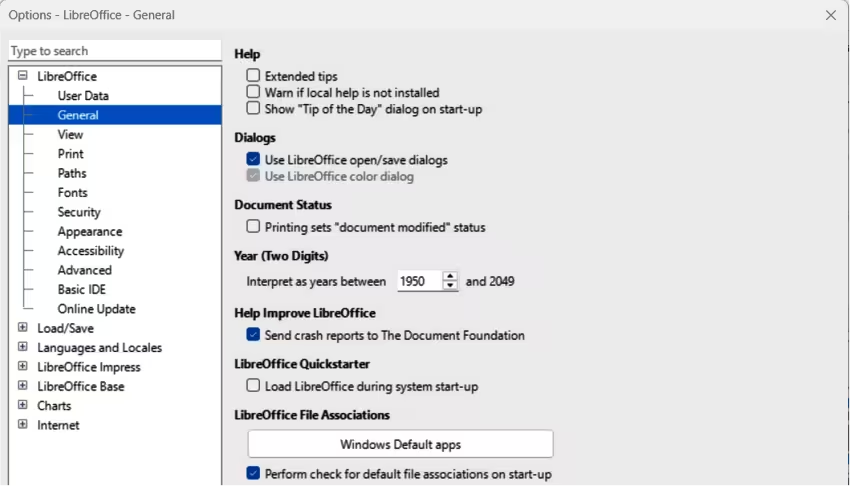
Go to Tools > Options > LibreOffice > General (macOS LibreOffice > Preferences > LibreOffice > General) on the Menu bar to open the dialog page for general options (Figure 1).
Figure 1: Options LibreOffice dialog — General page
-
Select the option Use LibreOffice dialogs in Open/Save dialogs to display the LibreOffice dialogs on a computer display.
-
Click OK to save the settings and close the dialog.
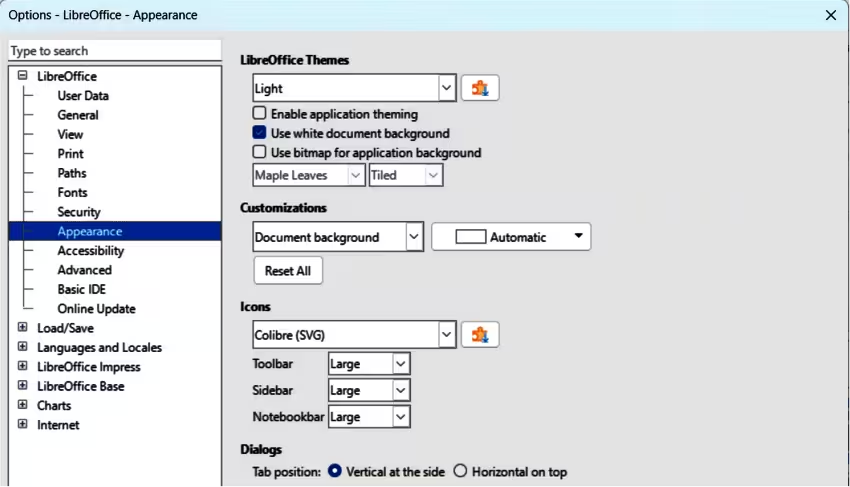
Figure 2: Options LibreOffice dialog — Appearance page
Icons
The LO community has created several sets of icon, for example Breeze, Colibre, and Sifr. LO users can select a preferred set of fonts to use. Icons used to illustrate tools available in LO may differ from ones used in this user guide. The icons used in this user guide have been taken from a LibreOffice installation using the Colibre icon set.
-
On Linux and Windows operating systems, go to Tools > Options > LibreOffice > Appearance (macOS LibreOffice > Preferences > LibreOffice > View) on the Menu bar to open the dialog page for view options (Figure 2).
-
In Icons, select a font from the options available in the drop-down list.
-
In Icons, select the required size from the drop-down lists for Toolbar, Notebookbar and Sidebar.
-
Click OK to save the settings and close the dialog.
-
Notes
Some Linux operating systems, for example Ubuntu, include LibreOffice as part of the installation and may not include the required icon set. Icon sets are downloaded from the software repository for the Linux operating system being used.
Some icon sets are now available only as extensions. Go to https://extensions.libreoffice.org/?Tags%5B%5D=49 or search for a specific icon set. For example, People Gallery https://extensions.libreoffice.org/en/extensions/show/people-gallery.
Using LibreOffice on macOS
Some keystrokes and menu items are different on computers operating macOS from computers using Windows and Linux operating systems. Table 2 gives some common substitutions used in this user guide. For more information on keyboard shortcuts, see LibreOffice Help and Appendix A, Keyboard Shortcuts in this user guide.
Table 2: Example of macOS keyboard shortcuts
|
Windows or Linux |
macOS equivalent |
Effect |
|
Tools > Options |
LibreOffice > Preferences |
Access to setup options |
|
Right-click |
Ctrl+click and/or right-click depending on computer setup |
Opens a context menu |
|
Ctrl or Control |
⌘ and/or Cmd or Command, depending on keyboard |
Used with other keys |
|
Alt |
⌥ and/or Alt or Option depending on keyboard |
Used with other keys |
|
F11 |
⌘+T |
Open the Styles deck in the Sidebar |
Who wrote this user guide?
This user guide was written by volunteers from the LO community. Profits from sales of the printed edition are used to benefit the community.
Frequently asked questions
How is LibreOffice licensed?
Can LibreOffice be distributed to anyone?
Can LibreOffice be sold?
Can LibreOffice be used in a business?
How many computers can LibreOffice be installed on?
Is LibreOffice available in different languages?
How can LibreOffice be freely available?
Can the programming code from LibreOffice be used when developing software?
Why is Java required to run LibreOffice and is it written in Java?
-
Note
If LibreOffice features requiring Java are to be used, it is important that the correct 32-bit or 64-bit edition matches the installed version of LibreOffice. If Java is not to be used, nearly all of the LibreOffice features can still be used.
How can users contribute to LibreOffice?
Can a PDF copy of this user guide be distributed, or printed and copies sold?
What is new in LibreOffice 26.2?
The LibreOffice 26.2 Release Notes are available at this link https://wiki.documentfoundation.org/ReleaseNotes/26.2. Also available at this link are release notes for earlier versions of LibreOffice giving more information on the LibreOffice features.