Copyright
This document is Copyright © 2026 by the LibreOffice Documentation Team. Contributors are listed below. This document may be distributed and/or modified under the terms of either the GNU General Public License (https://www.gnu.org/licenses/gpl.html), version 3 or later, or the Creative Commons Attribution License (https://creativecommons.org/licenses/by/4.0/), version 4.0 or later. All trademarks within this guide belong to their legitimate owners.
Contributors
To this edition
Dione Maddern
To previous editions
Bruce Byfield, Gillian Polack, Hazel Russman, Jean Hollis Weber, John A. Smith, John M. Długosz, Kees Kriek, Ron Faile Jr., Shravani Bellapukonda
Feedback
Please direct any comments or suggestions about this document to the Documentation Team Forum at https://community.documentfoundation.org/c/documentation/loguides/ (registration is required) or send an email to: loguides@community.documentfoundation.org.
-
Note
Everything sent to a forum, including email addresses and any other personal information that is written in the message, is publicly archived and cannot be deleted. Emails sent to the forum are moderated.
Publication date and software version
Published March 2026. Based on LibreOffice 26.2.
Other versions of LibreOffice may differ in appearance and functionality.
Using LibreOffice on macOS
Some keystrokes and menu items are different on macOS from those used in Windows and Linux. The table below gives some common substitutions used in this document. For a detailed list, see LibreOffice Help.
|
Windows or Linux |
macOS equivalent |
Effect |
|
Tools > Options |
LibreOffice > Preferences |
Access setup options |
|
Right-click |
Control+click or right-click depending on computer setup |
Open a context menu |
|
Ctrl (Control) |
⌘ (Command) |
Used with other keys |
|
Alt |
⌥ (Option) or Alt |
Used with other keys |
|
F11 |
⌘+t |
Open Styles deck in Sidebar |
Introduction
This chapter covers the basics of formatting text in Writer, the word-processing component of LibreOffice:
-
Formatting paragraphs and characters
-
Using autoformatting
-
Creating unordered, ordered, and outline lists
It assumes familiarity with the text techniques described in Chapter 2, Working with Text: Basics and Chapter 3, Working with Text: Advanced.
We recommend also following the suggestions in Chapter 20, Customizing Writer, about displaying formatting aids, such as end-of-paragraph marks, and selecting other setup options.
Page formatting is covered in Chapters 5 and 6.
Formatting: direct (manual) or styles
There are two basic ways to format text:
Direct (or Manual) formatting
Styles
Using styles is recommended
Writer is a style-based program. Because styles apply whole groups of formats at the same time, it is easy to format a document consistently and to change the formatting of an entire document with minimal effort. Therefore, the use of paragraph and character styles is highly recommended.
In addition, styles are used by LibreOffice for many other processes. For example, Writer relies on heading styles (or other selected styles) when it compiles a table of contents.
For information on styles and how to use them, see Chapters 8 and 9 in this book.
Applying styles is quick and easy using the Styles deck of the Sidebar.
Removing manual formatting
-
Note
Manual formatting overrides styles and cannot be removed by applying a style.
To remove manual formatting, select the text and choose Format > Clear Direct Formatting on the Menu bar, or right-click and choose Clear Direct Formatting on the context menu, or click the Clear Direct Formatting icon on the Formatting toolbar, or press Ctrl+M on the keyboard.
Formatting paragraphs using styles
Styles can be applied to paragraphs in several ways; see Chapter 8, Introduction to Styles:
-
Set Paragraph Style drop-down list at the left end of the Formatting toolbar and the Formatting (Styles) toolbar
-
Set Paragraph Style drop-down list at the top of the Properties deck of the Sidebar
-
Paragraph Styles tab of the Styles deck on the Sidebar
-
Styles menu on the Menu Bar (limited to common styles)
-
Keyboard shortcuts Ctrl+1 to Ctrl+5 (paragraph styles Heading 1 to Heading 5)
-
Formatting (Styles) toolbar using View > Toolbars > Formatting (Styles); see Figure 1.
Figure 1: Formatting (Styles) toolbar

Formatting paragraphs directly
Many formats can be applied to paragraphs using the icons on the Formatting toolbar and on the Paragraph panel of the Sidebar’s Properties deck (View > Sidebar) or commands on the Format menu on the Menu bar. Other formatting options are provided in the Paragraph dialog.
Formatting toolbar
On the Formatting toolbar, the icons and formats include:
-
Set Paragraph Style (drop-down list)
-
Align Left, Align Center, Align Right, Justified
-
Align Top, Center Vertically, Align Bottom
-
Toggle Unordered List (with a palette of bullet types)
-
Toggle Ordered List (with a palette of numbering types)
-
Select Outline Format (with a palette of outline types)
-
Increase Paragraph Spacing, Decrease Paragraph Spacing
-
Increase Indent, Decrease Indent, Hanging Indent
-
Paragraph (to open the Paragraph dialog)
-
Set Line Spacing (choose from 1, 1.15, 1.5, 2, or custom spacing)
Not all toolbar icons are visible in a standard installation, but you can customize the toolbar to include those you use regularly; see Chapter 1, Introducing Writer.
Sidebar Properties deck
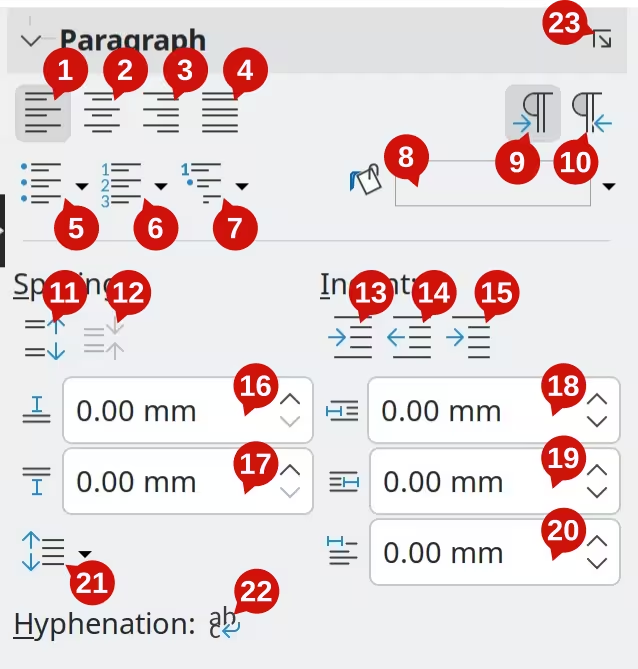
The Sidebar Properties deck (Figure 2) includes panels for applying styles, manually formatting characters, and manually formatting paragraphs. Click the expansion symbol (+ or ▼) to open the panels if necessary.
Style panel
Character panel
Paragraph panel
Each panel’s title bar has a More Options icon on the right, which opens the relevant dialog (Paragraph Style, Character, or Paragraph) containing additional settings. Changing the values of any of these settings affects only the paragraph where the cursor is located, or several paragraphs if more than one are selected. To change the values for many paragraphs of that type, using a paragraph style is better.
Figure 2: Paragraph panel of the Properties deck in the Sidebar
|
Legend |
|
|
|
Alignment options
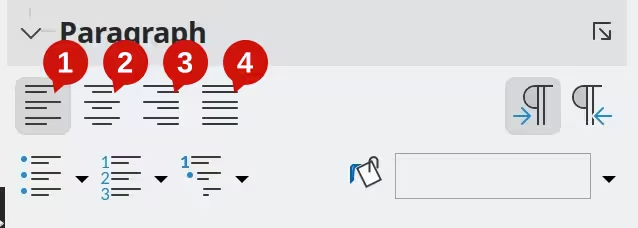
Figure 3: Alignment options in the Paragraph panel of the Properties deck in the Sidebar
|
Legend |
|
|
|
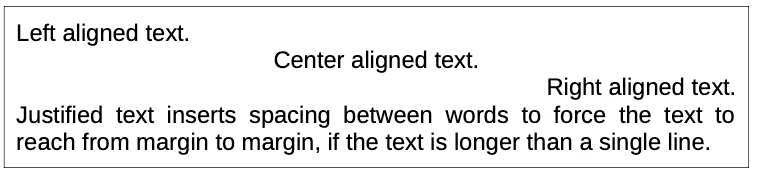
Use the icons labeled (1) Align Left, (2) Align Center, (3) Align Right, and (4) Justified in Figure 3 to choose the alignment of a paragraph. Figure 4 shows examples of the alignment options applied to text.
Figure 4: Text alignment options
The Alignment tab of the Paragraph dialog includes additional alignment options, which give more control over paragraph alignment. This includes options to align paragraphs relative to the text direction, which can be useful when working with multiple languages and writing systems.
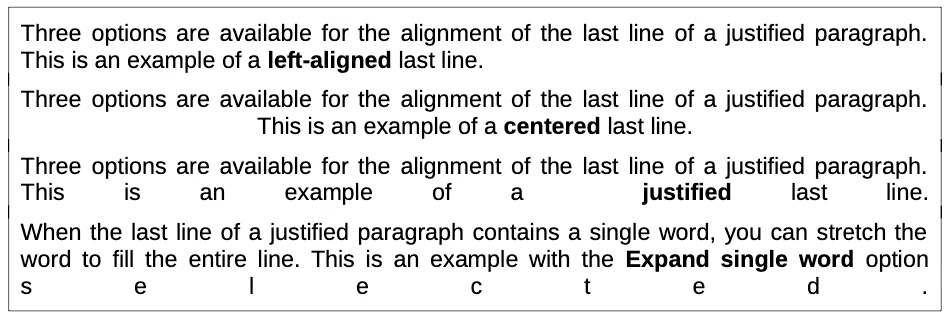
When using justified text, the last line is by default aligned to the left. However, you can also align the last line to the center of the paragraph area or justify it so that spaces are increased between the words in order to fill the whole line. Selecting Expand single word option when the last line of a justified paragraph consists of a single word, stretches the word by increasing the space between characters, so that it occupies the full length of the line.
Figure 5 shows an example of the effect when choosing each of these options for a typical text font. In most cases, leave the setting on the default (left-aligned); but for some dramatic purposes (such as a very large font on a poster), you might prefer one of the other choices.
Figure 5: Examples of choices for the last line of a justified paragraph
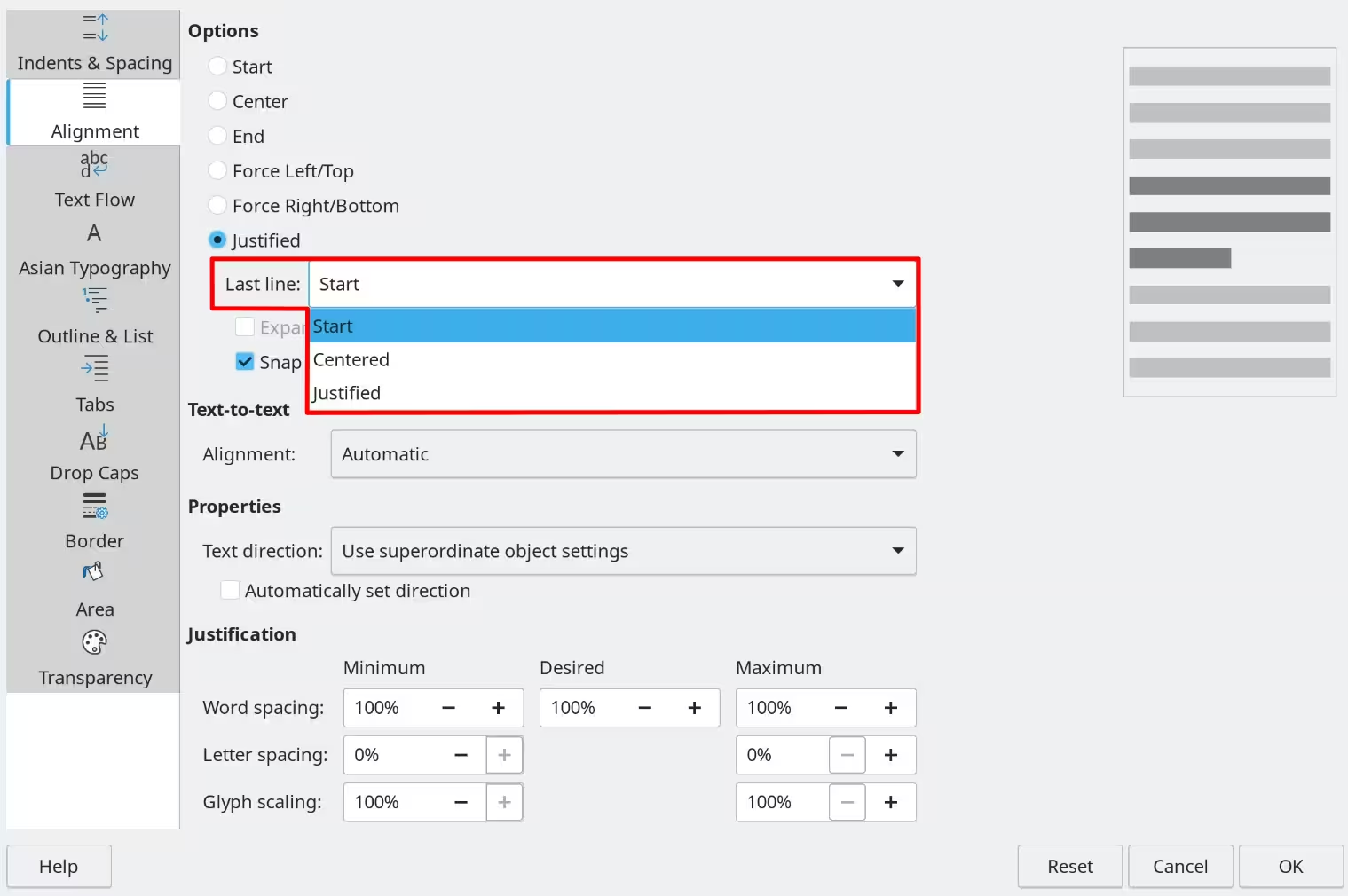
These options are controlled in the Alignment tab of the Paragraph dialog (Figure 6), reached by choosing Format > Paragraph on the Menu bar, or by right-clicking in the paragraph and selecting Paragraph in the context menu, or by clicking the More Options button on the Paragraph panel in the Properties deck of the Sidebar.
Figure 6: Options for the last line of a justified paragraph
Text direction
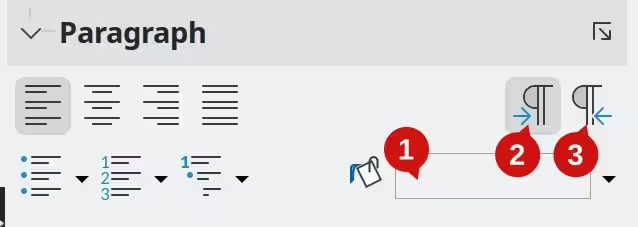
Use the Left-To-Right and Right-To-Left buttons in the Paragraph panel of the Properties deck (see Figure 7) to specify the text direction for a paragraph that uses complex text layout (CTL). This feature is only available if complex text layout support is enabled.
See Choosing language settings in Chapter 20, Customizing Writer, of this guide for more information about CTL and language settings.
Figure 7: Text Direction and Background options in the Paragraph panel of the Properties deck in the Sidebar
|
Legend |
|
|
|
|
|
Paragraph background color
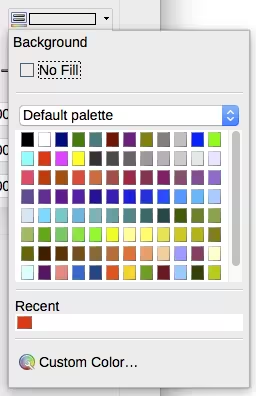
Click the button labeled Background Color in Figure 7 to open a palette and choose a color for the background of the paragraph. In this palette (Figure 15), optionally click Custom Color to open the Pick a Color dialog, where you can define new colors to be added to the palette. See Chapter 20, Customizing Writer, for more information about defining background colors.
-
Note
If the paragraph has been indented from the right or left margin, the background color is not applied to the area of the indent. To extend the color to the margin, use a frame, table, or other method; see Chapter 6, Formatting Pages: Advanced.

Figure 8: Selecting a background color for a paragraph
Line and paragraph spacing
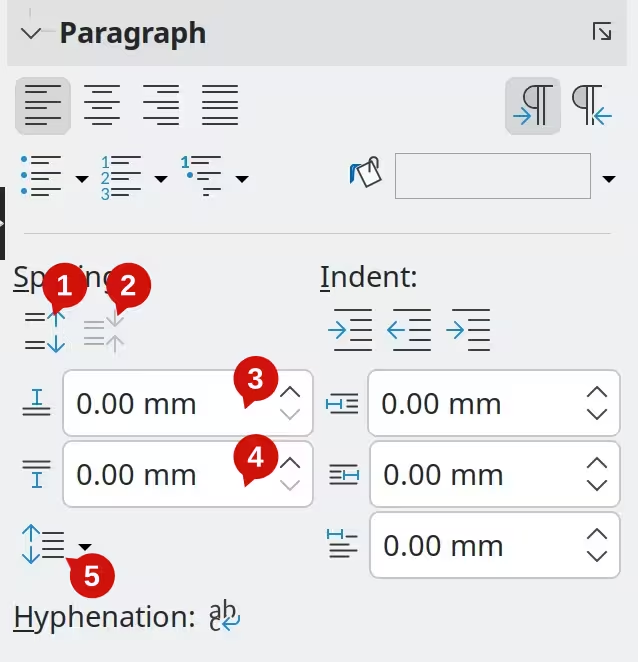
Figure 9: Spacing options in the Paragraph panel of the Properties deck in the Sidebar
|
Legend |
|
|
Paragraph spacing is the vertical spacing between one paragraph and the paragraphs above and below it. As shown in Figure 9, the current values are shown in the Above Paragraph Spacing box and the Below Paragraph Spacing box (See Figure 9). You can change either or both of these settings independently.
-
Tip
Paragraph spacing is often used in computer documentation, such as this book. Paragraph indentation (see next topic) is more commonly used in other documents. For good design, use paragraph spacing or paragraph indentation, never both.
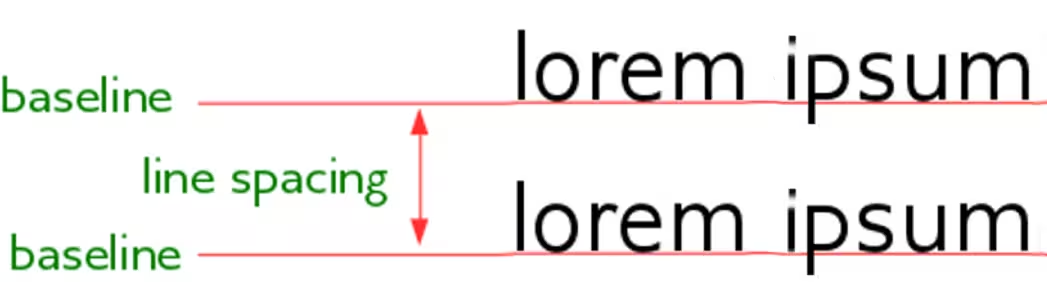
Set Line Spacing (see Figure 9) refers to the distance from one baseline (the imaginary line at the bottom of a letter like n or m) to the next baseline. It is determined by the size of the font, as illustrated in Figure 10.
Figure 10: Line spacing is the distance between two baselines
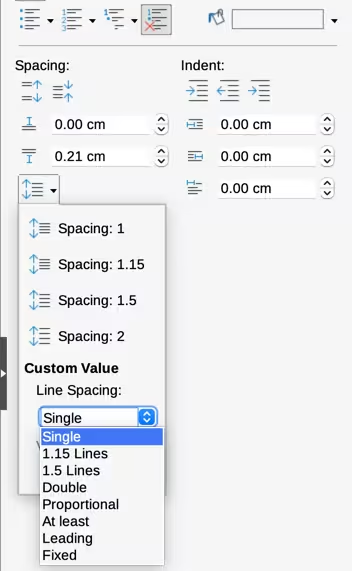
The Line Spacing submenu is shown in Figure 12. Here you can choose among standard spacings or define a custom value:
-
Proportional (for example, 110%)
-
At least (the amount specified in the Value box)
-
Leading
-
Fixed.
To see the differences between these choices, create a few sample paragraphs and change the selections.
Figure 11: Line spacing submenu
-
Note
All options except Fixed or At Least use the font’s default. Use these options to set other spacing, which may be useful at small font sizes to increase readability.
Paragraph indentation
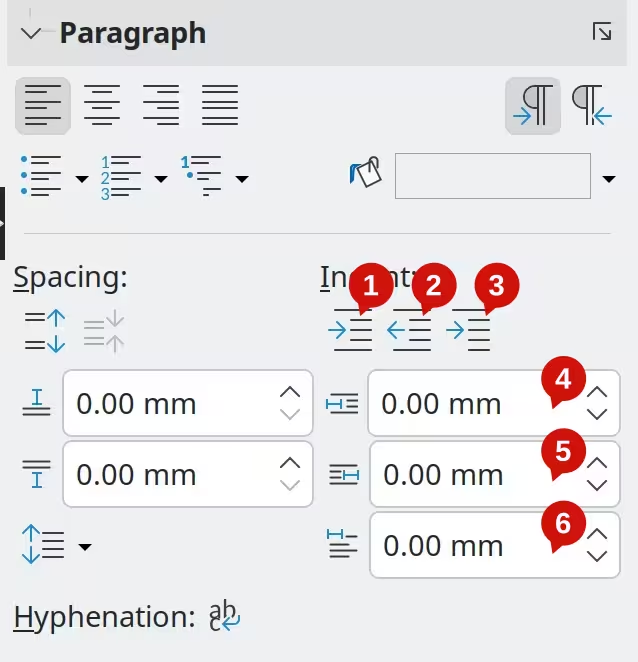
Use the Increase Indent, Decrease Indent, and Hanging Indent settings in the Properties sidebar deck (see Figure 12) to increase the amount of space to leave between the left and right page margins and the paragraph.
The distances are determined by the following settings:
-
Before Text Indent — The distance from the left margin to the text.
-
After Text Indent — The distance from the right margin to the text.
-
First Line Indent — Indents the first line from the left margin, or from the specified indentation from the margin.
Figure 12: Indentation options in the Paragraph panel of the Properties deck in the Sidebar
|
Legend |
|
|
The Hanging Indent button, leaves the first line at the left margin (or the specified indentation from the margin) and indents all the other lines of the paragraph by the amount specified by the First Line Indent box or in the Paragraph dialog.
Figure 13: Examples of first line and hanging indents

-
Note
In right-to-left languages, the behavior of the Before Text and After Text indents is the opposite: “before” is on the right margin; “after” is on the left margin.
Settings on the Paragraph dialog
The Paragraph dialog includes several more tabs:
-
Tabs (covered in Setting tab stops and indents)
-
Borders, Drop Caps, Area (more choices than just color)
-
Transparency, Text Flow, and Outline & List
Choose Format > Paragraph to access the Paragraph dialog.
For more information, see Chapter 8, Introduction to Styles, and Chapter 9, Working with Styles.
Border
Borders are useful for setting a paragraph off from the surrounding text, to include digressions from the main topic. For example, the Tips, Notes, and Cautions in this guide use a border below the text.
Figure 14: Options for paragraph borders
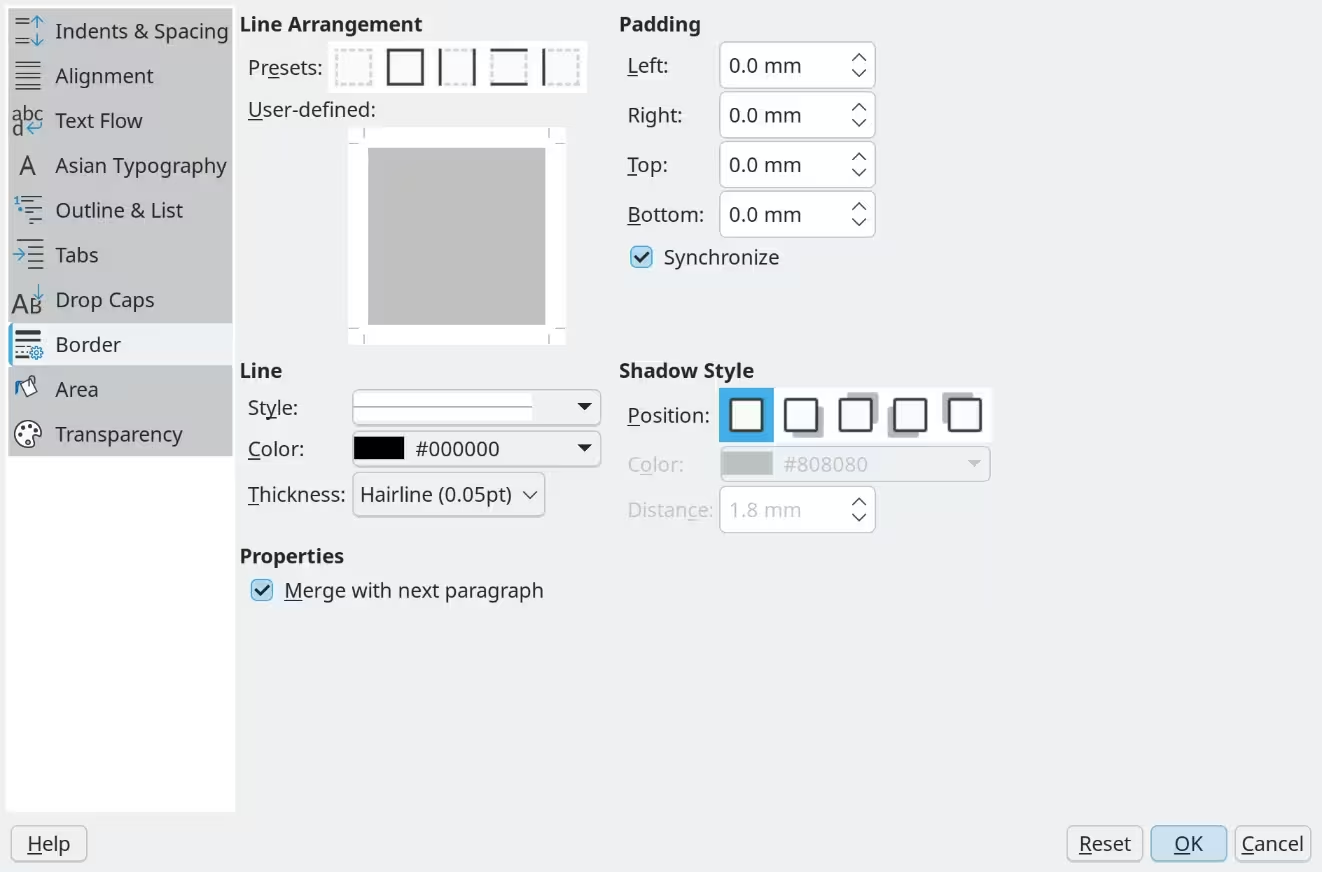
Use the Line Arrangement settings to add borders to any combination of top, bottom, and sides of paragraphs. You can choose the style (solid, dotted, dashed, doubled), width, and color of the lines; these choices apply to all borders on a paragraph. The spacing from each line to the paragraph’s contents can be set individually for the top, bottom, left, and right.
On the Border tab of the Paragraph dialog (Figure 14), you can also choose to apply a shadow to a paragraph; “distance” refers to the width of the shadow.
Select the Merge with next paragraph option to suppress top or bottom lines when the indent, border, and shadow styles of the next paragraph are the same as the current paragraph.
Drop caps
Drop capitals are enlarged letters that mark the start of a new chapter or section. To improve consistency, they are best set up in a paragraph style that you apply to the relevant paragraphs. See Chapter 9, Working with Styles, for details.
Area
Area (also called “fill” and “background” in some parts of LibreOffice) includes five types of fill (background):
-
Color
-
Gradient
-
Image
-
Pattern
-
Hatching
Select a fill type to display the choices available for that type. These choices are covered in more detail in Chapter 5, Formatting Pages: Basics. You can also create your own fills.
Figure 15: Types of fill for paragraph backgrounds

Transparency
Transparency affects the paragraph’s background. It is useful for creating watermarks and making colors or images fainter, which can help to increase contrast with the text. The available choices are shown in Chapter 5, Formatting Pages: Basics, and are covered in detail in the Draw Guide.
Text Flow
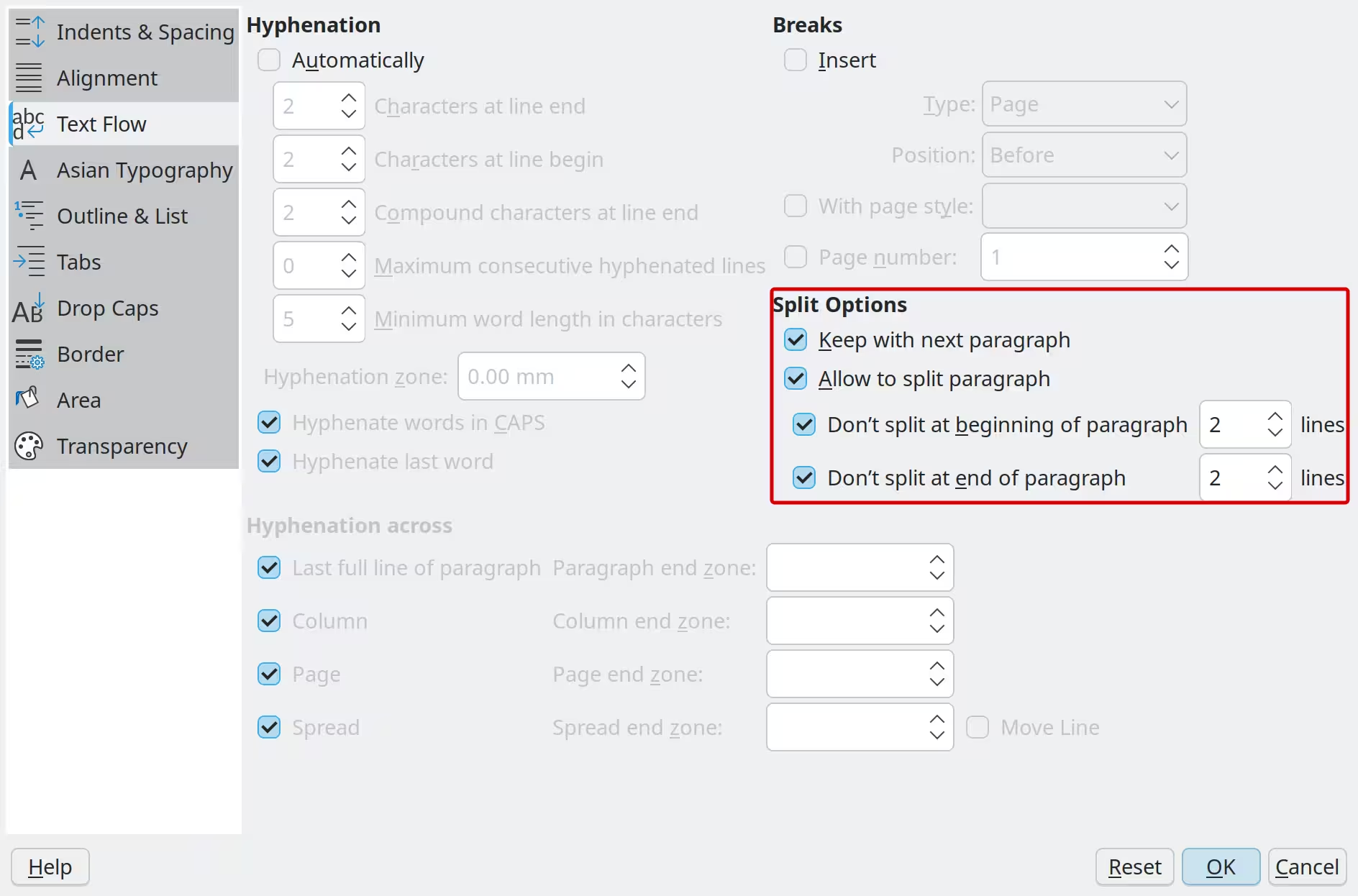
The Text Flow tab (Figure 16) has several sections. Hyphenation is covered in Chapter 2, Working with Text: Basics, and breaks are covered in Chapter 5, Formatting Pages: Basics.
Use the Split Options section to specify how paragraphs are treated at the bottom of a page.
Keep with next paragraph keeps the target paragraph with the next one.
Allow to split paragraph has two sub-options, to keep at least a specified number of lines at the beginning or end of the paragraph together. These options were formerly called Orphan control and Widow control. In typesetting terminology, a single line at the bottom of a page is called an orphan and a single line at the top of a page is called a widow.
Figure 16: Options for text flow: hyphenation, breaks, and keeping text together
Outline & List
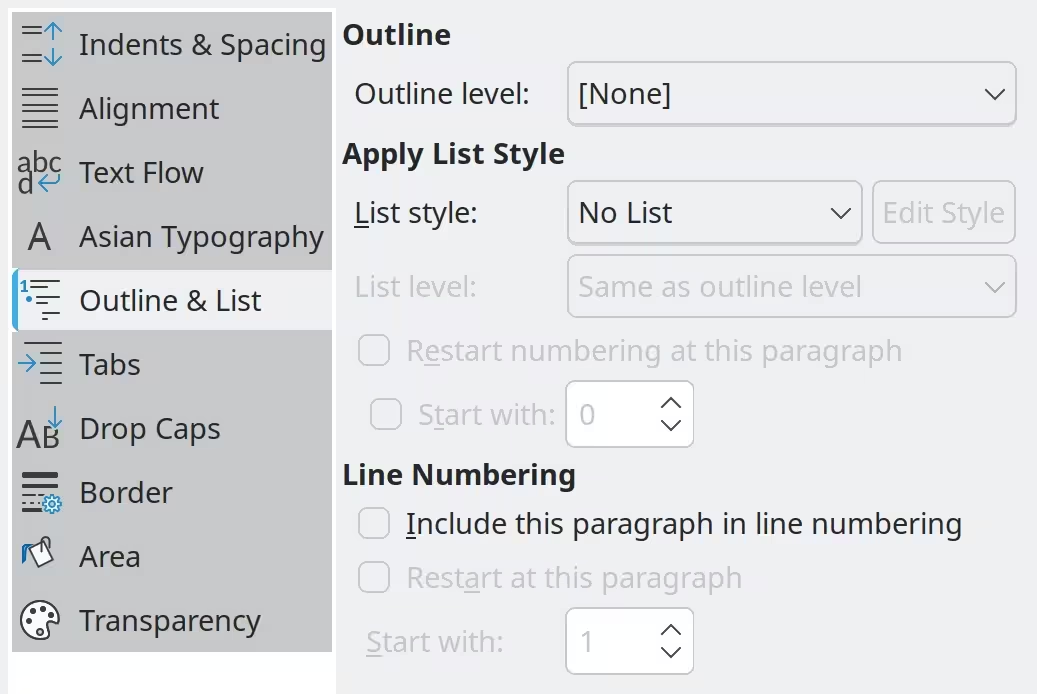
The Outline & List tab in the Paragraph dialog provides options for choosing the outline level of the paragraph and its list style (if any). If the paragraph is part of an ordered list, you can specify that list numbering restarts at the paragraph, and what number to restart with. List styles shown include both inbuilt and custom (user-defined) list styles.
This tab does not cover the same functions as the Heading Numbering dialog (Tools > Heading Numbering), but the Outline level selected here is related to the outline defined there. See Chapter 8, Introduction to Styles, and Chapter 9, Working with Styles, for a discussion of these features.
Line numbering is discussed in Chapter 3, Working with Text: Advanced.
Figure 17: Selecting outline level, list style, and line numbering
Setting tab stops and indents
The horizontal ruler shows the tab stops. Any custom tab stops that you have defined overwrite the default tab stops. Tab settings affect indentation of full paragraphs (using the Increase Indent and Decrease Indent icons on the Formatting toolbar or the Paragraph panel of the Properties deck in the Sidebar) as well as indentation of parts of a paragraph (by pressing the Tab key on the keyboard).
-
Tip
Many indents, for example at the beginning of a paragraph, can be set in the paragraph style, so you don’t need to use the Tab key to activate them.
Using the default tab spacing can cause formatting problems if you share documents with other people. If you use the default tab spacing and then send the document to someone else who has chosen a different default tab spacing, tabbed material will change to use the other person’s settings. Instead of using the defaults, define your own tab settings, as described in this section.
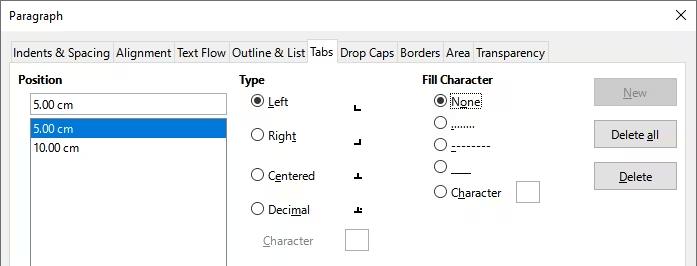
To define indents and tab settings for one or more selected paragraphs, right-click a paragraph and choose Paragraph to open the Paragraph dialog; then select either the Tabs tab (Figure 18) or the Indents & Spacing tab of the dialog. Alternatively, double-click the horizontal ruler to open the Indents & Spacing tab of the Paragraph dialog. A better strategy is to define tabs for the paragraph style. Refer to Chapters 8 and 9 for more about paragraph styles.
Figure 18: Specifying tab stops and fill characters
-
Tip
Using tabs to space out material on a page is not recommended. Depending on what you are trying to accomplish, a table or frame is usually a better choice.
Changing the default tab stop interval
-
Caution
Any changes to the default tab setting will affect the existing default tab stops in any document opened afterward, as well as tab stops inserted after making the change.
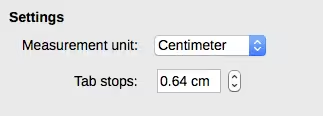
To set the measurement unit and the spacing of default tab stop intervals, go to Tools > Options > LibreOffice Writer > General.
Figure 19: Selecting a default tab stop interval
Changing measurement units for tab stops and rulers
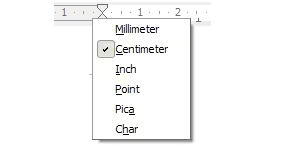
To set or change the measurement unit for rulers in the current document, right-click on the ruler to open a list of units, as shown in Figure 20 for the horizontal ruler. Select one of them to change the ruler to that unit. The selected setting applies only to that ruler.
Figure 20: Changing the measurement unit for a ruler
Formatting characters using styles
To apply a character style, highlight the characters or words and apply the selected character style from any of the following:
-
Character Styles tab of the Styles deck on the Sidebar
-
Styles menu on the Menu bar (limited)
-
Right-click context menu (limited)
-
Formatting (Styles) toolbar (Figure 1)
For more about character styles, refer to Chapter 8, Introduction to Styles, and Chapter 9, Working with Styles.
Formatting characters directly
Many formats can be applied to characters using the icons on the Formatting toolbar and by using the Characters panel of the Properties deck of the Sidebar. Not all toolbar icons are visible in a standard installation, but you can customize the toolbar to include those you use regularly; see Chapter 1, Introducing Writer. These formats include:
-
Font Name, Font Size
-
Bold, Italic, Underline, Double Underline, Overline, Strikethrough, Outline
-
Superscript, Subscript
-
Uppercase, Lowercase
-
Increase Font Size, Decrease Font Size
-
Font Color (with a palette of colors)
-
Background Color / Character Highlighting Color (with a palette of colors)
To change the characteristics of an entire paragraph (for example the font name, size, or color), and for many other purposes, it is highly recommended to use styles rather than manually formatting characters. For information on styles and how to use them, see Chapters 8 and 9. Applying styles is quick and easy using the Styles deck of the Sidebar.
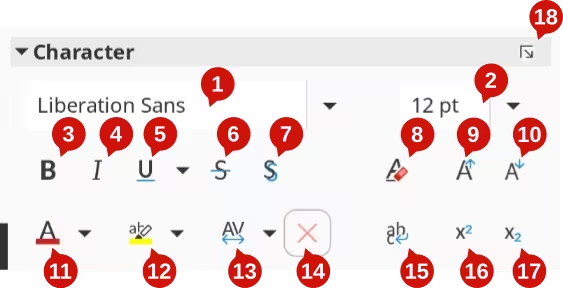
Figure 21 shows the Character panel in the Properties deck of the Sidebar. Click the arrow next to a button to open a palette of further choices, such as font color or character spacing.
Click the More Options button (16) to open the Character dialog, which includes more choices than are available through the Formatting toolbar or the Sidebar.
-
Note
Just as direct paragraph formatting overrides the current paragraph style, applying direct character formatting to characters overrides the current character style formatting.
Font name, size, and effects
To change the font name and size used for selected characters, use the drop-down menus on the Formatting toolbar, the Character panel in the Sidebar, or the Character dialog.
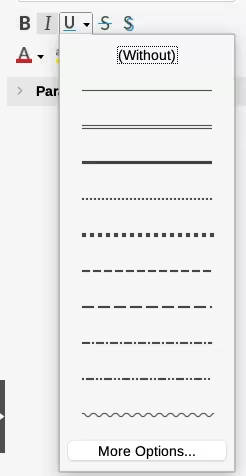
Similarly, to apply bold, italics, underline, strikethrough, or shadow effects to selected characters, use the Formatting toolbar, the Character panel in the Sidebar, or the Character dialog. The Underline effect has a drop-down menu of line types (Figure 22).
The Formatting toolbar includes other effects that are not in the Sidebar: overline and double underline; these icons may not be visible in a default installation.
To choose the color of the font or its highlighting, open the appropriate color palette (numbers 11 or 12); similar to the one shown in Figure 15). The highlighting selection overrides any background color that has been applied to the paragraph.
Figure 21: Character panel in the Properties deck of the Sidebar
|
Legend |
|
|
|
|
|
Figure 22: Selecting the line style for the Underline effect
To increase or decrease the font size of selected characters in preset increments (usually 2 points), click the relevant icons on the Formatting toolbar or the Character panel on the Sidebar. For finer control, use the Font Size drop-down list instead.
To change characters into subscripts or superscripts (using the default values for size and position), select them and click the relevant icons on the Formatting toolbar or the Character panel in the Sidebar. For more control, use the Character dialog.
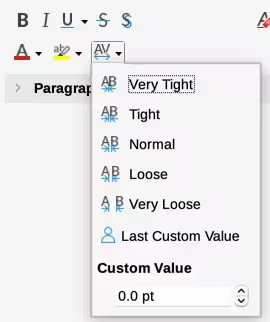
To quickly change the spacing between characters, select them and choose from the Character Spacing drop-down menu in the Sidebar (Figure 23).
Figure 23: Changing character spacing
Settings on the Character dialog
The Character dialog has five tabs, described in this section. Most of these tabs are the same as the tabs on the Character Style dialog (see Chapter 9, Working with Styles).
Font and Font Effects
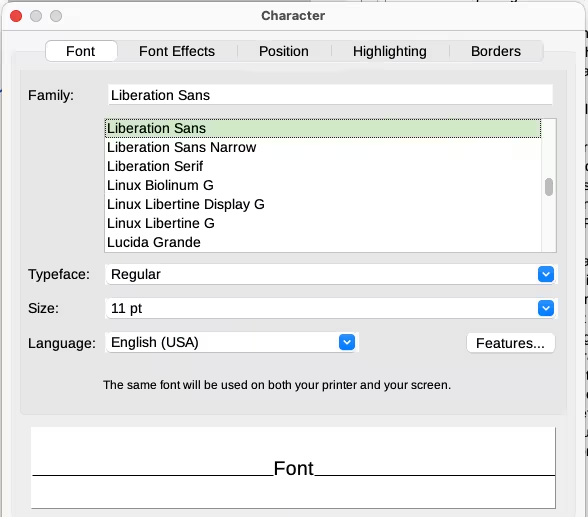
On the Font tab (Figure 24), specify the font’s family, style (choices vary with the font, but typically include regular, bold, and italic), and size; and the language for the paragraph, if it differs from the language for the document. The box at the bottom shows a preview of the selections.
Figure 24: Font tab of the Character dialog
On the Font Effects tab (Figure 25), choose the color of the font and a range of effects, many of which are not suitable for formal documents. Figure 26 and Figure 27 show the choices in some drop‑down lists.
Figure 25: Font Effects tab of the Character dialog
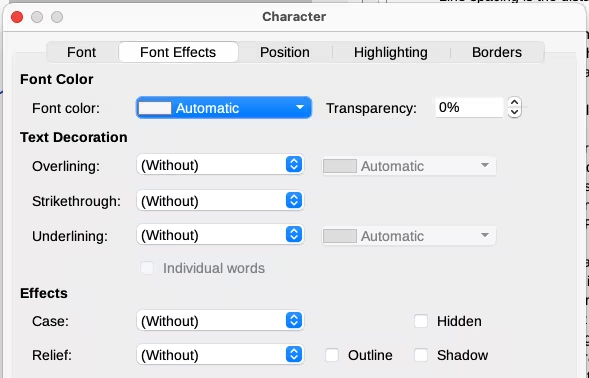
Figure 26: Choices for Case effect
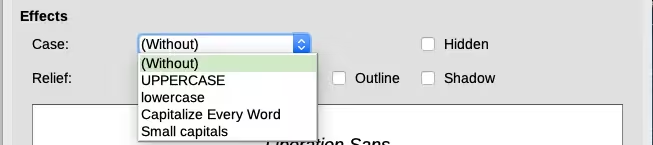
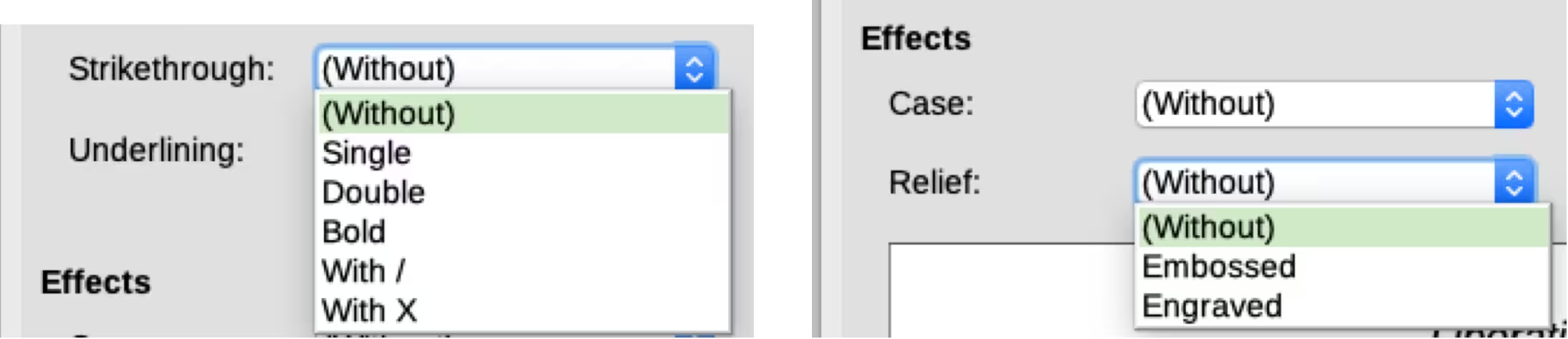
Figure 27: Choices for Strikethrough and Relief
Position
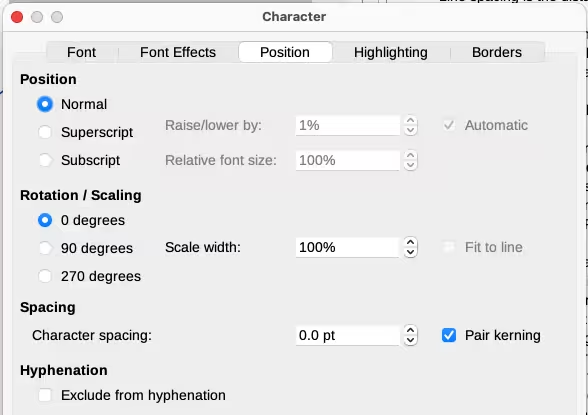
The Position tab (Figure 28) collects the options that affect the position of text on the page. This tab is divided into three sections: Position, Rotation/Scaling, and Spacing.
The Position section controls the appearance of superscripts and subscripts.
The Rotation/Scaling section controls the rotation of the characters. The Scale width box controls the percentage of the font width by which to compress or stretch the rotated text.
The Spacing section controls the spacing between individual characters. The Pair Kerning option (selected by default) automatically adjusts the character spacing for specific letter combinations. Pair Kerning is only available for certain font types and, for printed documents, works only if your printer supports it.
Figure 28: Position tab of the Character dialog
Highlighting
The Highlighting tab controls the background color for selected characters. It is similar to the Highlighting drop-down palette.
Border
The Border tab is the same as the Border tab on the Paragraph dialog. See Border in the Formatting paragraphs directly section of this chapter for more information.
Formatting lists using styles
Whenever possible, use paragraph styles for creating unordered (bulleted) and ordered (numbered) lists. Writer comes with two sets of paragraph styles for this purpose. However, these styles do not include options for settings such as the type of bullet or position of numbers. Those settings come from list styles, which are intended to be attached to paragraph styles. It is recommended to use them together in these ways:
-
Use paragraph styles List 1, List 2, List 3, and so on for creating unordered lists. These styles use Bullet list styles.
-
Use paragraph styles Numbering 1, Numbering 2, Numbering 3, etc, for creating ordered lists. These styles use the list styles called Numbering 1, Numbering 2, etc.
With paragraph styles, you can easily create nested lists, in which list items have sub-items under them, as in an outline. This requires specifying the settings for the additional levels. Once you have set up nested lists, you can readily change the hierarchy of an item. To demote an item one level, position the cursor at the beginning of the line (after the bullet or number) and press the Tab key. To promote an item one level, press Shift+Tab.
For more about creating lists using styles, see Chapter 8, Introduction to Styles, Chapter 9, Working with Styles, and Chapter 12, Lists.
Formatting lists directly
You can directly format ordered or unordered lists in several ways:
-
Use the Bullets and Numbering toolbar (Figure 29).
-
Use the Toggle Unordered List and Toggle Ordered List icons on the Formatting toolbar, the Formatting (Styles) toolbar, or the Paragraph deck of the Properties panel of the Sidebar (Figure 2).
-
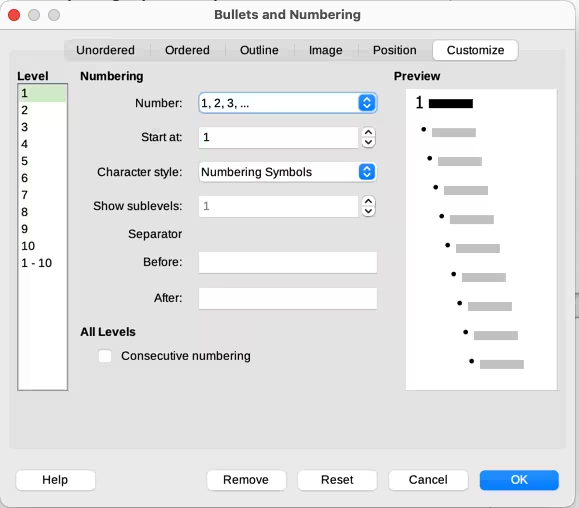
Use the Bullets and Numbering dialog (Figure 31 and Figure 32).
To produce a simple ordered or unordered list, select the paragraphs in the list and then click the appropriate icon on the Paragraph panel on the toolbar.
-
Tip
It is a matter of personal preference whether you type information first, then apply numbering/bullets or apply these as you type.
-
Note
Bullets and numbering applied in these ways cannot be removed with Format > Clear Direct Formatting on the Menu bar, or with the Clear Direct Formatting icon on the Formatting toolbar, or with Clear Direct Formatting in the context menu, or by using Ctrl+M. To turn off or remove them from selected text, toggle the relevant icons on the Formatting toolbar or on the Sidebar Properties deck.
Using the Bullets and Numbering toolbar
To create a nested list (where one or more list items has a sub-list under it, as in an outline), use the icons on the Bullets and Numbering toolbar (Figure 29). You can move items up or down the list, create subpoints, change the style of bullets, add paragraphs without numbers or bullets (for list items that include more than one paragraph), and access the Bullets and Numbering dialog, which contains more detailed controls.
Use View > Toolbars > Bullets and Numbering to display the toolbar.
Figure 29: Bullets and Numbering toolbar

|
Legend |
|
|
|
|
|
-
Tip
You can use keyboard shortcuts to move paragraphs up or down the outline levels. Place the cursor at the beginning of the numbered paragraph and press:
Tab: Down a level or Shift+Tab: Up a level.
-
Tip
To insert a tab stop at the beginning of a numbered paragraph (that is, after the number but before the text), press Ctrl+Tab.
If you create a nested list using the icons on the Bullets and Numbering toolbar, all the levels of the list (up to 10) initially apply the same numbering (or bullet) format. To use a combination of numbering formats and bullets when creating nested lists, you can:
-
Click in each list item and then select one of the choices in the drop-down palettes under the Toggle Unordered List and Toggle Ordered List icons on the Formatting toolbar or the Properties deck of the Sidebar.
-
Use the Bullets and Numbering dialog.
A much better strategy is to define and apply a list style, as discussed in Chapter 12, Lists.
Using the Bullets and Numbering palettes on the Sidebar
On the Paragraph panel on the Properties deck of the Sidebar:
-
Click the arrow next to the Toggle Unordered List control to open a palette of bullet styles.
-
Click the arrow next to the Toggle Ordered List control to open a palette of numbering styles.
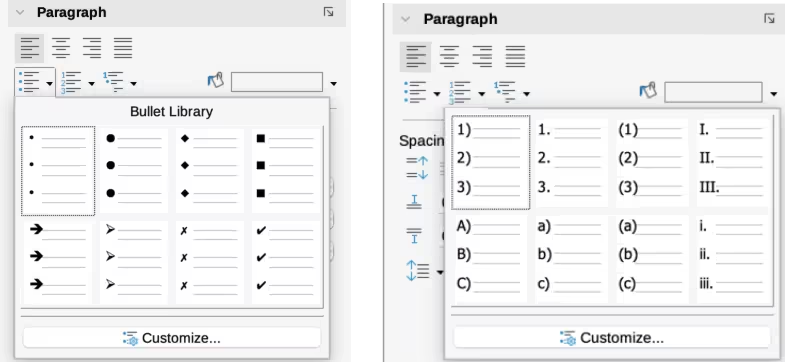
The selections on these palettes (Figure 30) can be used to create nested lists and access the Bullets and Numbering dialog. The Sidebar does not include tools for promoting and demoting items in the list, as found on the Bullets and Numbering toolbar.
Figure 30: Bullets and Numbering choices on the Properties deck of the Sidebar
Using the Bullets and Numbering dialog
The Bullets and Numbering dialog has six tabs. Four tabs provide pre-defined symbols and sequences to choose from:
-
Unordered
-
Ordered
-
Outline (choose from eight standard outline sequences)
-
Image (choose a bullet image)
Two tabs provide detailed options for defining your own lists:
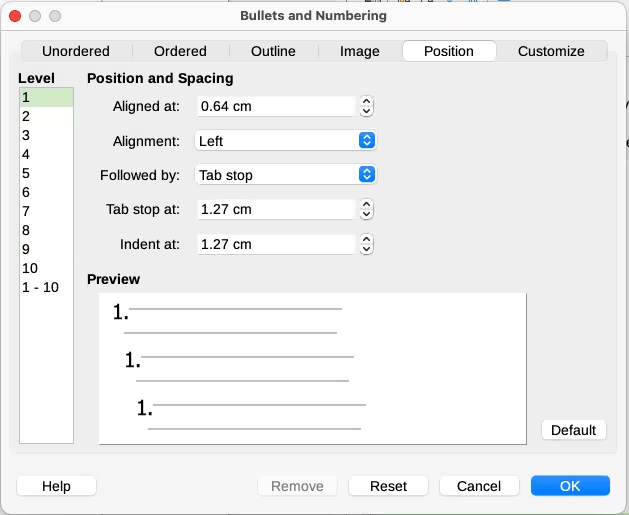
Figure 31: Position tab of the Bullets and Numbering dialog
These are the same as the tabs provided for list styles, discussed in Chapter 12, Lists.
Figure 32: Customize tab of the Bullets and Numbering dialog
Autoformatting
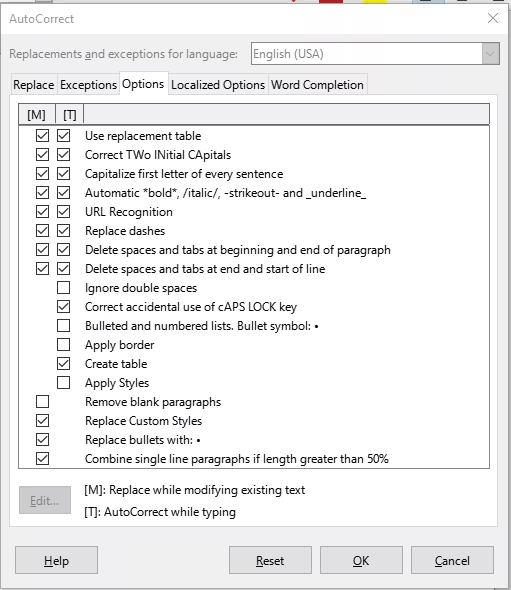
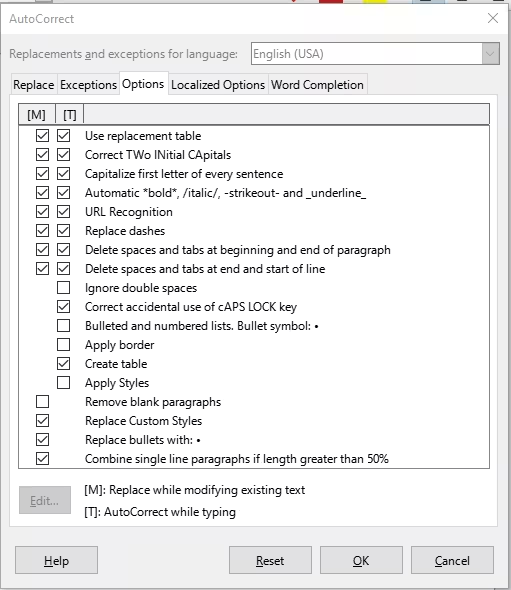
You can set Writer to automatically format parts of a document according to the choices made on the Options and Localized Options tabs of the AutoCorrect dialog (Tools > AutoCorrect > AutoCorrect Options). The Help describes each of these choices and how to activate the autoformats.
-
Tip
If unexpected formatting changes occur in a document, this is a good place to look for the cause.
To automatically format the file according to the options set, choose Tools > AutoCorrect and select or deselect the items on the submenu.
While Typing
Apply
Apply and Edit Changes
AutoCorrect Options
The Localized Options tab (Figure 33) controls the formatting of quotation marks and apostrophes (which look like a closing single quote). Most fonts include curly quotation marks (also known as “smart quotes”), but for some purposes (such as marking minutes and seconds of latitude and longitude) you may wish to format them as straight quotes.
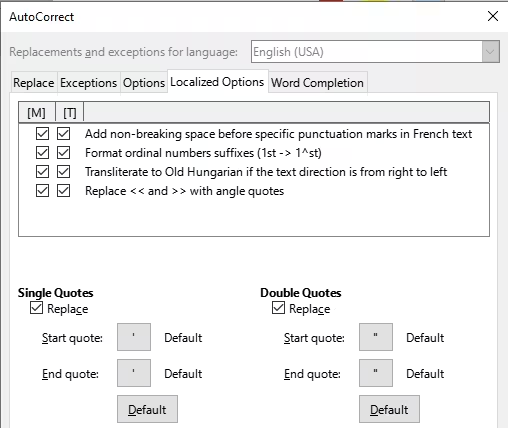
Figure 33: Autoformatting quotation marks
-
Tip
Most people keep the AutoCorrect setting for smart quotes and use the Special Characters dialog to insert straight quotes when needed. See Chapter 2, Working with Text: Basics.
Figure 34: Autoformatting choices on the Options tab