Copyright
This document is Copyright © 2026 by the LibreOffice Documentation Team. Contributors are listed below. This document may be distributed and/or modified under the terms of either the GNU General Public License (https://www.gnu.org/licenses/gpl.html), version 3 or later, or the Creative Commons Attribution License (https://creativecommons.org/licenses/by/4.0/), version 4.0 or later. All trademarks within this guide belong to their legitimate owners.
Contributors
To this edition
To previous editions
Feedback
Please direct any comments or suggestions about this document to the Documentation Team Forum at https://community.documentfoundation.org/c/documentation/loguides/ (registration is required) or send an email to: loguides@community.documentfoundation.org.
-
Note
Everything sent to a forum, including email addresses and any other personal information that is written in the message, is publicly archived and cannot be deleted. Emails sent to the forum are moderated.
Publication date and software version
Published March 2026. Based on LibreOffice 26.2.
Other versions of LibreOffice may differ in appearance and functionality.
Using LibreOffice on macOS
Some keystrokes and menu items are different on macOS from those used in Windows and Linux. The table below gives some common substitutions used in this document. For a detailed list, see LibreOffice Help.
|
Windows or Linux |
macOS equivalent |
Effect |
|
Tools > Options |
LibreOffice > Preferences |
Access setup options |
|
Right-click |
Control+click or right-click depending on computer setup |
Open a context menu |
|
Ctrl (Control) |
⌘ (Command) |
Used with other keys |
|
Alt |
⌥ (Option) or Alt |
Used with other keys |
|
F11 |
⌘+t |
Open Styles deck in Sidebar |
What are styles?
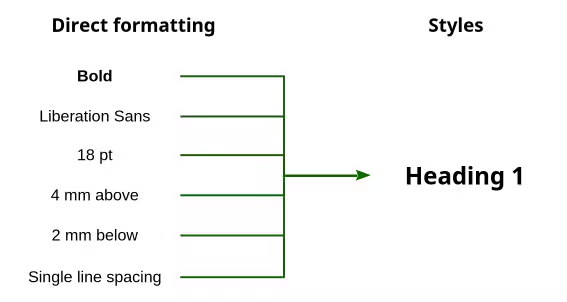
Most people are used to writing documents according to physical attributes. For example, you might specify the font family, font size, and weight (for example: Helvetica 12pt, bold). In contrast, styles are logical attributes. For example, you can define a set of font characteristics and call it Title or Heading 1. In other words, styles mean that you shift the emphasis from what the text looks like to what the text is.
Figure 1: Direct formatting vs Styles
Why use styles?
There are a number of advantages to using Styles instead of direct formatting:
-
Styles help improve consistency in a document.
-
Styles can apply complex formatting changes in a single action. For example, Figure 1 shows how multiple formatting elements can by applied by using the style Heading 1.
-
Styles make major formatting changes easy. For example, you might decide to change the indentation of all paragraphs or change the font of all titles. For a long document, this simple task could be prohibitive.
-
Writer uses styles for other purposes, such as compiling a table of contents; see Using paragraph styles to define a hierarchy of headings below.
Style categories
LibreOffice Writer has six style categories:
-
Paragraph styles affect entire paragraphs and are also used for purposes such as compiling a table of contents.
-
Character styles affect a block of text inside a paragraph; they provide exceptions to paragraph styles.
-
Page styles affect page formatting (page size, margin, and the like).
-
Frame styles affect frames and images.
-
List styles affect outlines, ordered (numbered) lists, and unordered (bulleted) lists.
-
Table styles affect the appearance of tables of data.
Paragraphs are the building blocks of every document: headings are paragraphs; headers, footers, and items in numbered lists are also paragraphs. Paragraph styles are, therefore, the most frequently used styles and are the ones treated in most detail in this chapter.
-
Note
Manual formatting (also called direct formatting) overrides styles. You cannot get rid of manual formatting by applying a style to it.
To remove manual formatting, select the text and choose Format > Clear Direct Formatting on the Menu bar, or right-click and choose Clear Direct Formatting in the context menu, or press Ctrl+M.
Understanding style inheritance
Writer offers a comprehensive set of styles to address a wide range of document formatting needs. While each style can be customized individually, the effort required to format them one by one is minimized through the concept of style inheritance.
Inheritance is a mechanism by which certain style properties applied to a parent element are automatically passed down to its child elements. This means that if you set a property on a parent element, its children will inherit that property unless explicitly overridden. The advantages are:
-
Inheritance Chain: If a child element does not have a specific property defined, it will look up the parent tree to find the nearest ancestor with that property defined.
-
Overriding Inheritance: You can override inherited values by explicitly setting a property on a child element (Table 1).
Table 1: Example of style inheritance for headings
|
Heading |
Heading 1 |
MyHeading 1 |
|
Font color: Black Font size: 14 pt Font name: Liberation Sans Font Style: Regular |
Font color: (inherited) Font size: 18 pt (overridden) Font name: (inherited) Font style: Bold (overridden) |
Font color: Green (overridden) Font size: 16 pt (overridden) Font name: (inherited) Font style: Bold (inherited) |
-
Note
Inheritance applies to paragraph, character and frame styles only.
The Styles deck in the Sidebar
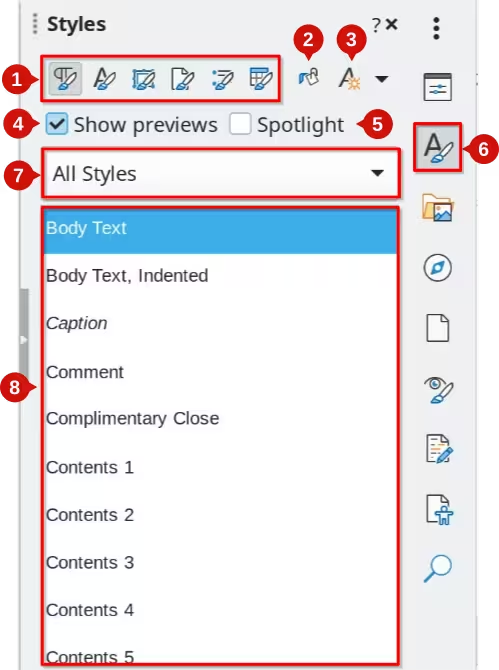
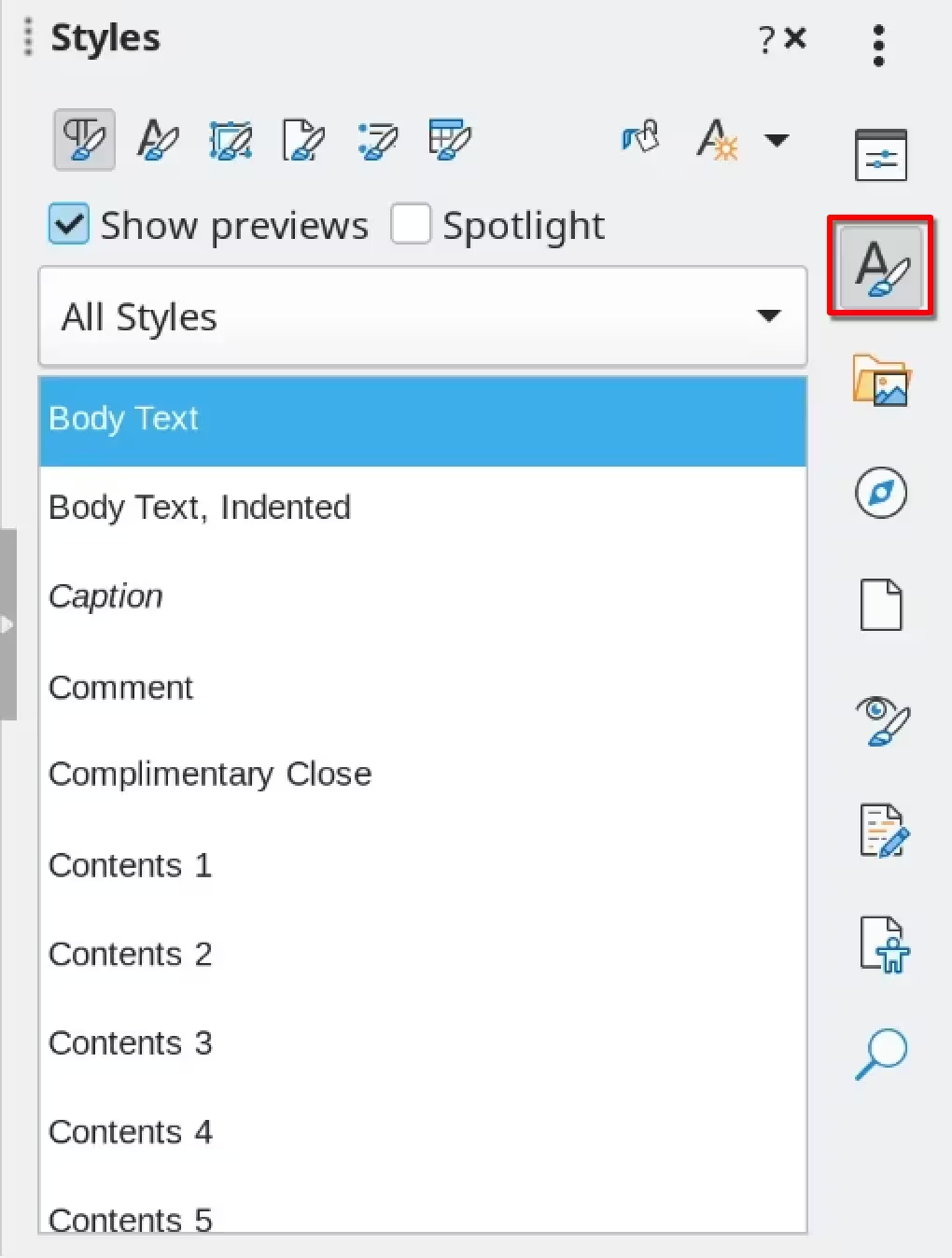
Styles management is primarily available through the Styles deck in the Sidebar (Figure 2). Here you can apply styles, modify styles, and create new styles.
To open the Styles deck, do any of the following:
-
Click the Styles icon on the Sidebar (see Figure 2).
-
Choose Styles > Manage Styles on the Menu bar.
-
Press Alt+2.
Figure 2: The Styles deck of the sidebar
|
Legend |
|
|
|
|
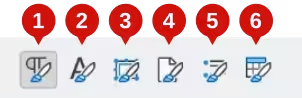
Figure 3: Style category icons in the Styles sidebar deck
|
Legend |
|
|
|
|
|
Fill Format Mode
-
New Style From Selection
-
Update Selected Style
-
Load Styles from Template
At the beginning of the writing process, you may want to have access to all the available styles (by selecting All Styles), and then hide some of them (right-click a style and select Hide in the context menu). As the document develops, it is quicker to reduce the list displayed to only the styles already in use (by selecting Applied Styles). If you want to apply custom styles only, select instead Custom Styles. The Hierarchical view is most useful when modifying styles as it reveals which styles are linked together; see Chapter 9, Working with Styles.
-
Hierarchical – Shows styles hierarchically, according to the style they inherit their attributes from. For example, the Heading 1 style inherits its attributes from the Heading style.
-
All Styles – Shows all styles of the selected category that are available in the current document.
-
Hidden Styles – Shows styles that have been hidden in the Styles window.
-
Applied Styles – Shows only the styles that have been applied to the current document.
-
Custom Styles – Shows only user-defined styles.
In the Paragraph Styles view, the drop-down menu contains several more filtering options:
-
Automatic – Automatically displays styles appropriate to the current context.
-
Text Styles – Shows styles for formatting text, such as the Default Paragraph, Body Text and Code styles. Not to be confused with Character styles.
-
Document Structure – Shows styles for document structure, including titles, subtitles, headings and chapter titles.
-
List Styles – Shows styles for ordered and unordered lists.
-
Index Styles – Shows styles for formatting indexes and tables of contents.
-
Special Styles – Shows styles for formatting headers, footers, footnotes, endnotes, captions, and tables
-
HTML Styles – Shows styles available for HTML documents.
-
Conditional Styles – Shows user‑defined conditional styles. See Chapter 9, Working with Styles for more information on creating and using conditional styles.
Styles window
The Styles window displays available styles. Use the Styles window to quickly apply or edit styles. If Show previews is enabled, the styles are displayed as an example of their formatting.
Applying styles
Styles can be applied easily using the Styles deck on the Sidebar. Some styles can also be applied using other methods, as explained in this topic.
Applying paragraph styles
Paragraph styles can be applied in several ways:
-
Paragraph Styles tab of the Styles deck on the Sidebar
-
Styles menu on the Menu Bar (limited to common styles)
-
Context menu (limited)
-
Set Paragraph Style drop-down list at the left end of the Formatting toolbar and the Formatting (Styles) toolbar
-
Set Paragraph Style drop-down list at the top of the Properties deck of the Sidebar
-
Formatting (Styles) toolbar (Figure 8); limited to common styles
-
Fill Format Mode icon on the Styles deck on the Sidebar
-
Keyboard shortcuts Ctrl+1 to Ctrl+5 (Heading 1 to Heading 5), or custom shortcuts
Using the Styles deck on the Sidebar
To apply a style using the Styles sidebar deck:
-
Choose View > Sidebar or press Ctrl+F5 to open the sidebar.
-
Click the Styles icon in the sidebar (see Figure 4) or press Alt+2 to open the Styles deck.
-
Place the cursor in a paragraph or select multiple paragraphs, to apply the style to. See Chapter 2, Text Basics for more information on selecting text, including non-consecutive paragraphs.
-
Double-click on a style in the Styles deck f
Figure 4: The Styles sidebar deck
Using the Styles menu
To apply a style using the Styles menu in the menu bar:
-
Place the cursor in a paragraph or select multiple paragraphs, to apply the style to. See Chapter 2, Text Basics for more information on selecting text, including non-consecutive paragraphs.
-
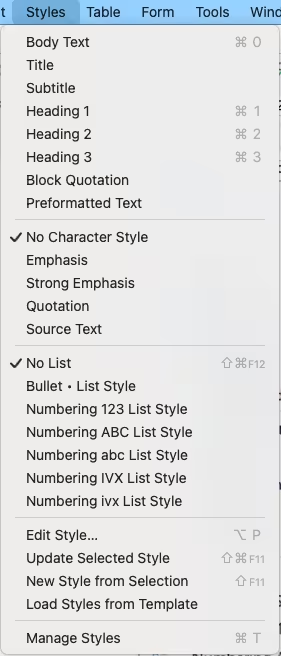
Click on Styles in the menu bar to open the Styles menu.
-
Click on a style to apply it to the selection.
The Styles menu shows the most commonly used paragraph, character, and list styles by default, plus quick links to create, edit, and manage styles. See Chapter 20, Customizing Writer for instructions on how to add additional styles to the Styles menu.
Figure 5: The Styles menu
Using the context (right-click) menu
To apply a style using the context menu:
-
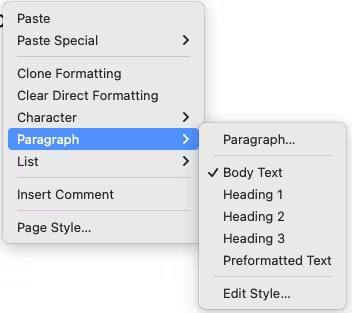
Right-click anywhere in a paragraph to open the context menu (Figure 6).
-
Choose Paragraph to open the Paragraph Styles submenu.
-
Click on a style to apply it to the selected paragraph(s).
The submenu shows the most commonly used paragraph, character, and list styles by default. See Chapter 20, Customizing Writer for instructions on how to add additional styles to the context menu
Figure 6: Context menu, Paragraph submenu
Using the Set Paragraph Style list
When a paragraph style is in use in a document, the style name appears on the Set Paragraph Style list near the left end of the Formatting toolbar (see Figure 7), the Formatting (Styles) toolbar, and the top of the Properties deck on the Sidebar.
Figure 7: The Set Paragraph Style list on the Formatting toolbar
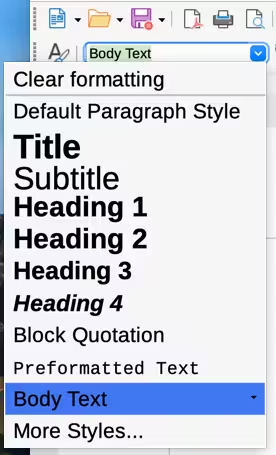
To apply a style from this list, put the cursor in the paragraph to change, and then click the arrow to drop down the list of styles and click the desired style; or drop down the list and use the up or down arrow keys to move through the list, then press Enter to apply the highlighted style.
-
Tip
If the Sidebar Styles deck is not open, selecting More Styles at the bottom of the Set Paragraph Style list opens it.
Using the Formatting (Styles) toolbar
The Formatting (Styles) toolbar (Figure 8) includes common paragraph, character, and list styles. Use View > Toolbars > Formatting (Styles) on the Menu bar to display it.
To apply a paragraph style, put the cursor in the paragraph and click the relevant button on the toolbar. You can add styles to this toolbar; see Chapter 20, Customizing Writer.
Figure 8: Formatting (Styles) toolbar

Using Fill Format Mode
You can use Fill Format Mode to apply a style to many areas quickly without having to go back to the Styles deck and double-click each time. This method is useful for formatting scattered paragraphs, words, or other items with the same style, and it may be easier to use than making multiple selections first and then applying a style to all of them.
-
Open the Styles deck on the Sidebar (Figure 4).
-
Select a style to copy, and then click the Fill Format Mode icon at the top right.
-
To apply a paragraph, page, or frame style, hover the mouse over the paragraph, page, or frame and click. To apply a character style, hold down the mouse button while selecting the characters. Clicking on a word applies the character style to that word.
-
Repeat step 3 until you have made all the changes for that style.
-
To quit Fill Format mode, click the icon again or press the Esc key.
Using keyboard shortcuts
Some keyboard shortcuts for applying styles are predefined. For example, Ctrl+0 applies the Body Text style, Ctrl+1 applies the Heading 1 style, and Ctrl+2 applies the Heading 2 style. You can modify these shortcuts and create your own; see Chapter 20, Customizing Writer.
A full list of preset shortcuts is available in Appendix A to this guide.
Applying character styles
To apply a character style, select the characters or words and apply the character style from any of the following:
-
Styles menu on the Menu bar (limited)
-
Character Styles tab of the Styles deck on the Sidebar
-
Right-click context menu (limited)
-
Formatting (Styles) toolbar (Figure 8)
-
Tip
To remove direct formatting before applying character styles, select the text, then choose Format > Clear Direct Formatting on the Menu bar, or right-click and choose Clear Direct Formatting from the context menu, or press Ctrl+M.
Using the Styles menu
The Styles menu on the Menu bar (Figure 5) provides the most commonly used paragraph, character, and list styles, plus quick links to create and edit styles. To apply a character style, select the characters and click Styles > [name of character style]. You can add styles to the Styles menu; see Chapter 20, Customizing Writer.
Using the Styles deck on the Sidebar
Open the Styles deck and click the Character Styles icon at the top. The list of available character styles is displayed. To apply a character style:
-
Select the text, or put the cursor into a single word, where you wish to apply the style. See Chapter 2, Text Basics for more information on selecting text.
-
Choose View > Sidebar or press Ctrl+F5 to open the sidebar.
-
Click the Styles icon in the sidebar (see Figure 4) or press Alt+2 to open the Styles deck.
-
Select the Character styles icon in the Styles deck (See Figure 3)
-
Double-click on a style in the Styles deck.
-
Note
To apply a character style to more than a single word, select all of the text to be changed. To apply the style to a single word, place the cursor in the word. In contrast, paragraph styles are applied to the whole of the paragraph in which the cursor is placed.
Using the context (right-click) menu
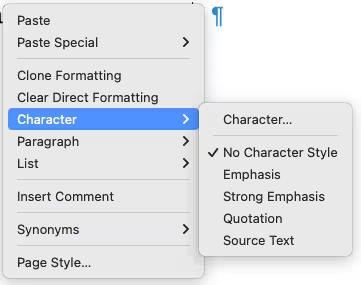
Select the block of text, or put the cursor into the single word, then right-click to open the context menu. Choose Character. The submenu (Figure 9) includes some commonly used character styles. You can add character styles to this submenu; see Chapter 20, Customizing Writer.
Figure 9: Context menu, Character submenu
Using the Formatting (Styles) toolbar
The Formatting (Styles) toolbar (Figure 8) includes common paragraph, character, and list styles. If it is not visible, use View > Toolbars > Formatting (Styles) on the Menu bar to display it.
To apply a character style, select the text or put the cursor in a word and click the relevant icon on the toolbar. See Chapter 20, Customizing Writer for instructions on adding styles to this toolbar.
-
Tip
The Formatting (Styles) toolbar is a good replacement for character direct formatting toolbar using styles.
Table 2 illustrates the default equivalence between direct character formatting and character style formatting.
Table 2: Common styles for character direct formatting replacement
|
Formatting Style |
Direct formatting |
Results |
|
A |
|
Remove applied character style in selection. The font properties are those of the current paragraph style. |
|
E |
Italic |
Apply Emphasis style (Italic characters). |
|
S |
Bold |
Apply Strong style (Bold characters). |
|
</> |
monospace font |
Apply Code style (monospaced font). |
|
A/ |
|
Clear direct formatting in selection. The font properties are returned to those of the current paragraph style. |
Removing or replacing character styles
To remove the character style formatting from some text, or change the character style to a different style, do this:
-
Select the text.
-
In the Styles deck on the Sidebar, click the Character Styles icon in the top bar.
-
Double-click the required character style, or double-click No Character Style to remove the character style.
Applying frame styles
When an object (such as a graphic) is inserted into a document, Writer automatically places an invisible frame around it. Some designers like to add frame styles to introduce variety. For example, you could have one frame style for photographs and a different frame style for other graphics such as line drawings. The one for photographs might have a border with a drop shadow, while the one for drawings might have only a border.
To apply a style to a frame:
-
Select the frame.
-
Choose View > Sidebar or press Ctrl+F5 to open the sidebar.
-
Click the Styles icon in the sidebar (see Figure 4) or press Alt+2 to open the Styles deck.
-
Select the Frame styles icon in the Styles deck (See Figure 3).
-
Double-click the required frame style.
Having applied a style to a frame, you can now modify the frame to be just how you want it. Most of a frame’s design can be set in a style, but the following options must be set manually:
-
Arrangement: the frame’s position in a stack of objects (Format > Arrange). See Chapter 11, Images and Graphics, for details on arranging images, frames, and other objects.
-
Adding a hyperlink: so that a click on the frame opens a web page or another document (Insert > Hyperlink).
When a frame is selected, the Frame toolbar shows up, and the context menu has items for anchoring, arrangement, wrap, and alignment.
Applying page styles
Put the cursor anywhere on the page. The applied page style is shown on the Status bar.
Figure 10: The current page style is displayed on the Status bar

To apply a different page style:
-
Right-click on the style on the status bar and select a style from the context menu, or
-
Open the Styles deck on the Sidebar, select the Page Styles icon at the top (see Figure 3), and then double-click the desired page style.
-
Caution
Changing a page style may also cause the style of subsequent pages to change. The results may not be what you want. To change the style of only one page, you may need to insert a manual page break, as described in Chapter 5, Formatting Pages: Basic
As discussed in Chapter 5, Formatting Pages: Basic, a correctly set up page style will, in most cases, contain information on what the page style of the next page should be. For example, when you apply a Left Page style to a page, you can indicate in the page style settings that the next page must have a Right Page style; a First Page style could be followed by either a Left Page style or a Default Page Style; or any sequence you prefer.
Applying list styles
List styles define properties such as indentation, numbering style (for example, 1,2,3; a,b,c; or bullets), and punctuation after the number, but they do not by themselves define properties such as font, borders, text flow, and so on. The latter are properties of paragraph styles.
Although you can apply list styles using the Styles menu or the Styles deck in the Sidebar, those methods are not recommended.
Whenever possible, use paragraph styles for creating bulleted and numbered lists. Writer comes with two sets of paragraph styles for this purpose. It is recommended to use list styles and paragraph styles together in these ways:
-
Use paragraph styles List 1, List 2, List 3, and so on for creating unordered (bulleted) lists. These styles use Bullet list styles.
-
Use paragraph styles Numbering 1, Numbering 2, Numbering 3, etc, for creating ordered (numbered) lists. These styles use the list styles called Numbering 1, Numbering 2, etc.
See Applying paragraph styles in this chapter for instructions on applying paragraph styles.
Writer has several predefined list styles, which use different bullet symbols or number sequences (123, abc, ABC, and so on). As with any style, you can redefine the properties of these styles, for example the numbering or bullet symbol and the indentation. You can also define other list styles in these series or create your own series. For more information, see Chapter 9, Working with Styles. Much more information about list styles is in Chapter 12, Lists.
Applying table styles
Table styles define properties such as the font, paragraph spacing, number of columns, borders, and background color.
To apply a table style, position the cursor anywhere in the table, go to the Styles deck on the Sidebar, choose Table Styles, then double-click the name of a style on the list.
See Chapter 13, Tables, for information on creating a table style.
Creating and modifying styles
Writer provides many predefined styles, which are useful when sharing a document to another machine, especially one with a different language version of LibreOffice, but you may find that they do not fit your preferences. You can modify the predefined styles or build your own library of custom styles to use in addition to or in place of the predefined ones.
-
Note
New custom styles and changes to existing styles are available only within the document they belong to. Styles always stay with a document.
To reuse modified or new styles in other documents, either save the styles in a template (see Chapter 10, Working with Templates) or copy the styles into the other documents, as described in Load Styles (from a template or document).
Writer provides these methods to modify both predefined and custom (user-created) styles:
-
Create or update a style from a selection
-
Load or copy styles from another document or template
-
Change a style using the Style dialog
-
Use Automatic update from document (paragraph and frame styles only)
-
Use AutoFormat (table styles only); see Chapter 13, Tables
Creating a style
Creating a style with the Style dialog
This section explains the basics of creating a new style from the Style dialog. See Creating custom (new) styles in Chapter 9, Working with Styles for information on the more advanced aspects of creating and configuring styles.
To create a new style with the Style dialog:
-
Open the Styles deck of the sidebar (See The Styles deck in the Sidebar).
-
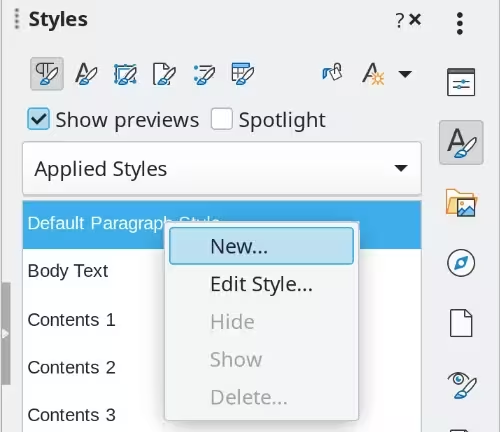
Right‑click on the style that the new style is to be based on and select New from the context menu (Figure 11). In this example, the new style is based on the Default Paragraph Style.
-
In the General tab of the Style dialog, use the Name field give the style a name. It is good practice to give the style a simple, descriptive name.
-
Set the other style attributes as required. These are described in detail in Chapter 9, Working with Styles.
-
Click OK to save the style.
Figure 11: The New style option in the Context menu of the Styles sidebar deck
Creating and adding styles with the Styles actions menu
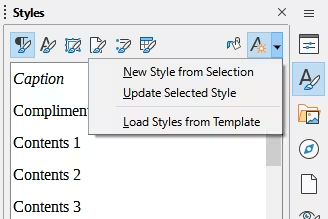
The last icon at the top of the Styles deck, Styles actions, provides three functions: New Style from Selection, Update Selected Style, and Load Styles from Template (Figure 12). These functions are also available from the Styles menu on the Menu bar.
Figure 12: Styles Actions menu in Sidebar
Use New Style from Selection to create a new style from the formatting of an item in the current document. For example, you can change the formatting of a paragraph until it appears as you like, and then you can turn that formatting into a new style. This procedure can save time because you do not have to remember all the formatting settings you want, as is necessary when creating a new style with the Style dialog. In addition, you can immediately see how the item will look when formatted with the style you are creating.
Follow these steps to create a new style from a selection:
-
In the document, change the formatting of the object (paragraph, frame, and so on) to your liking. Select the item to save as a style.
-
Open the Styles deck in the Sidebar and choose the category of style to create (paragraph, character, and so on) from the tabs at the top.
-
Click the Styles actions icon, then select New Style from Selection (Figure 12).
-
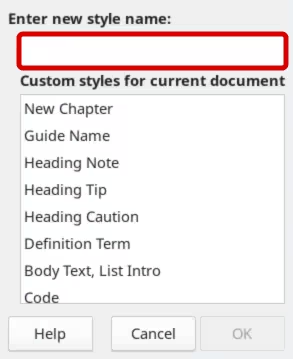
The New Style from Selection dialog that opens shows the names of any existing custom styles of the selected type. Type a name for the new style in the Enter new style name field (Figure 13)and click OK to save it.
Figure 13: New Style From Selection dialog
Follow these steps to update a paragraph style from a selection:
-
Create a new paragraph (or select an existing paragraph) and edit all the properties you want to alter in the style, such as indentation, font properties, alignment, and others.
-
Note
Make sure that the properties in this paragraph are uniform. For example, if there are two different font sizes in the paragraph, that property will not be updated.
-
Click anywhere in the paragraph.
-
On the Styles deck of the Sidebar, select the style to update (single-click, not double-click)
-
Click the Styles actions icon and select Update Selected Style (Figure 12).
The procedure to update another category of style (character, page, or frame styles) is the same: select the item in question, modify it, select the style you want to update, and choose Update Selected Style from the Styles actions icon.
Load Styles (from a template or document)
The last option under the Styles actions icon is Load Styles from Template, which is used to copy styles into the current document by loading them from a template or another document. Using this method, you can copy all styles, or groups of styles, at one time.
-
Open the document to copy styles into.
-
On the Styles deck, click the Styles actions icon and then Load Styles from Template (Figure 12).
-
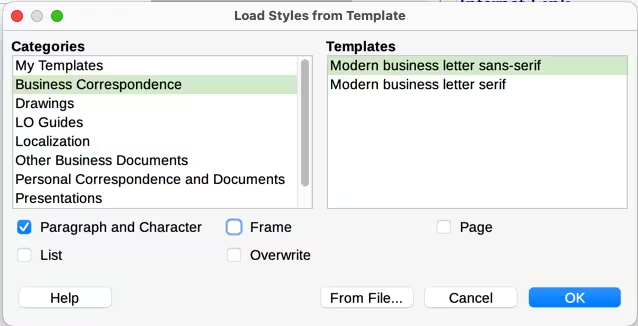
On the Load Styles from Template dialog (Figure 14), find and select the template to copy styles from.
Figure 14: Loading styles from a template
-
Select the options for the types of styles to be copied: Paragraph and Character, Frame, Page, or List.
-
Click OK to copy the styles.
-
Caution
If you select Overwrite, all the styles of the type being copied will replace all styles with the same names in the target document.
If the required styles are contained in a text document rather than a template:
-
Select the type of styles to be copied.
-
Click the From File button to open a file browser (see Figure 14). Select the required document.
-
Click Open to copy the styles to the open document.
Drag-and-drop a selection to create a style
Another way to create a new style is to drag-and-drop a text selection into the Styles deck.
-
Open the Styles deck on the Sidebar.
-
Select the style category you are going to create (for example a character style) using one of the icons near the top of the deck.
-
Select the object on which you want to base the style and drag it to the Styles deck. The cursor changes to indicate whether the operation is possible.
-
In the Create Style dialog, type a name for the new style and click OK to save the style.
-
Note
The drag-and-drop method does not work for creating new page styles or table styles. Table styles work differently from other types of styles in Writer. Table styles are discussed in more detail in Chapter 13, Tables.
Modifying styles
Changing a style using the Style dialog
To change a style (but not a table style) using the Style dialog,
-
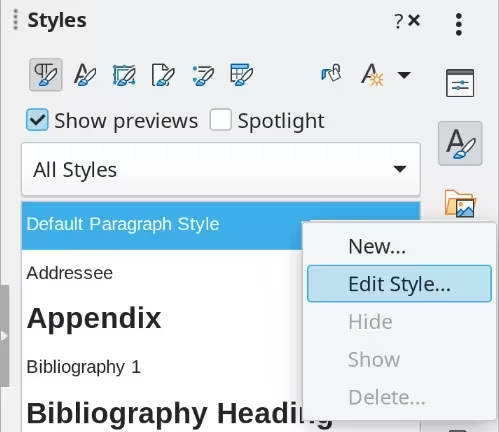
Right-click the style in the Styles deck.
-
Select Edit Style in the context menu.
Figure 15: The Edit style option in the Context menu of the Styles sidebar deck
The dialog displayed depends on the type of style selected. Each style’s dialog has several tabs. The properties on these dialogs are described in Chapter 9, Working with Styles.
See Chapter 13, Tables, for information on changing a table style.
Using Automatic Update
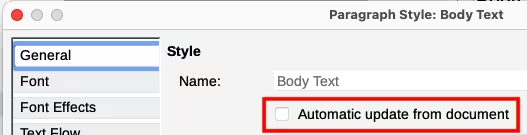
On the General tab of the Paragraph Style and Frame Style dialogs is an Automatic update from document option (marked in Figure 16). If this option is selected, Writer applies to the style any modification made manually to a paragraph formatted with that style.
-
Caution
If you are in the habit of manually overriding styles in your document, be sure that Automatic Update is not enabled, or you may suddenly find whole sections of your document reformatting unexpectedly.
Figure 16: Automatic update option on the General tab of the Paragraph Style dialog
Deleting styles
It is not possible to delete LibreOffice’s predefined styles from a document or template, even if they are not in use. However, custom styles can be deleted.
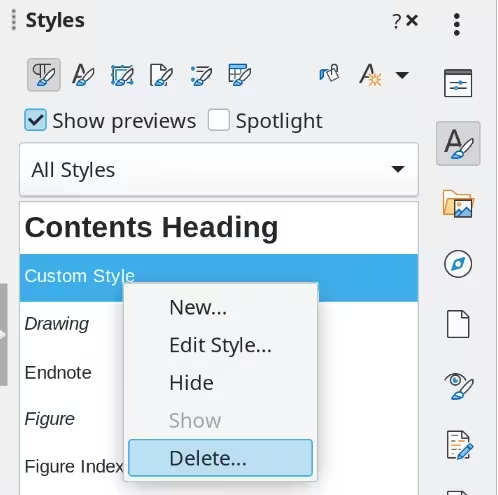
To delete any unwanted styles using the Styles deck of the Sidebar,
-
Select each style to be deleted in the Styles window (hold Ctrl while selecting multiple styles)
-
Right-click and select Delete in the context menu (Figure 17).
Figure 17: The Delete style option in the Context menu of the Styles sidebar deck
If the style is in use, a message appears warning you that the style is in use and asking you to verify that you really want to delete the style. If the style is not in use, it is deleted immediately, without confirmation.
-
Note
If you delete a style that is in use, all objects with that style will return to the style it was based on (inherited from) but may retain some of the deleted style’s formatting as manual formatting.
-
Tip
If an unwanted paragraph style is in use, use Find and Replace to replace it with a substitute style before deleting it. See Chapter 3, Working with Text: Advanced.
Using paragraph styles to define a hierarchy of headings
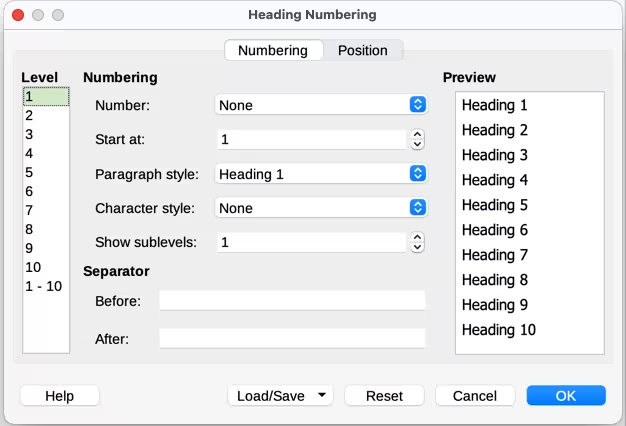
Paragraph styles are the key to Writer’s table of contents feature. Tools > Heading Numbering defines the hierarchy of headings in a document. The default paragraph styles assigned to heading levels are the heading styles supplied with Writer: Heading 1, Heading 2, and so on. However, you can substitute any styles you wish, including custom (user-defined) styles.
The headings defined using the heading numbering feature can be used for more than the table of contents (described in Chapter 15, Tables of Contents, Indexes, Bibliographies). For example, fields are commonly used to display section headings in headers and footers of pages (see Chapter 17, Fields).
Choosing paragraph styles for heading levels
If you are using the default heading styles for the headings in your outline, and you do not want to use heading numbering, you do not need to do anything on the Heading Numbering dialog. The default outline numbering scheme uses the default heading styles.
To use custom styles in place of one or more of the default heading styles:
-
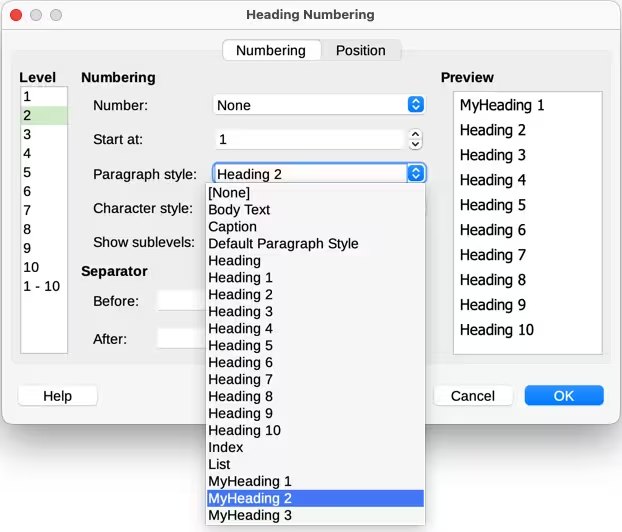
Choose Tools > Heading Numbering to open the dialog (Figure 18).
-
On the Numbering tab, click the number in the Level box corresponding to the heading for which you want to change the paragraph style.
-
In Numbering: Paragraph Style, choose in the drop-down list the paragraph style to assign to that heading level. In this example, My Heading 1 is to replace Heading 1 and for Level 2, My Heading 2 is to replace Heading 2.
-
Repeat for each numbering level that you want to change. Click OK when done.
Figure 18: Choosing paragraph styles for heading levels
Assigning outline levels to other styles
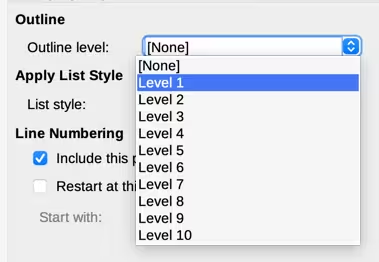
In Writer, you can assign an outline level to any paragraph style. This feature enables you to create a table of contents that includes those headings along with the headings using styles listed in the Heading Numbering dialog. For example, you might use a different sequence of styles for appendixes, but you want the appendix headings and subheadings to appear in the table of contents at the same levels as the chapter headings and subheadings.
To assign an outline level to a paragraph style, go to the Outline & List tab for the style, and select the required outline level from the drop-down list. Click OK to save this change.
Figure 19: Specifying an outline level for a paragraph style
Setting up heading numbering
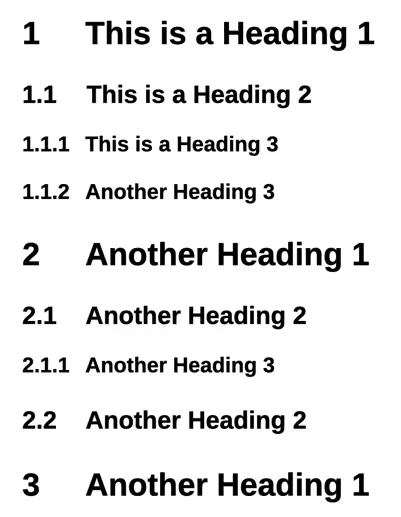
If you want one or more heading levels to be numbered, many choices are available; this example defines a scheme to create headings that look like those in Figure 20.
Figure 20: The numbering scheme to be set up
Use the Numbering tab of the Heading Numbering dialog to define the numbering scheme and its appearance. Figure 21 shows the default settings.
-
In the Level list, choose 1. In the Number list, choose 1, 2, 3, ….
-
In the Level list, choose 2. In the Number list, choose 1, 2, 3, …. The Show sublevels field is now active; it should show 2 (if not, choose 2).
-
In the Level list, choose 3. In the Number list, choose 1, 2, 3, …. The Show sublevels field should show 3 (if not, choose 3).
Figure 21: Default settings on the Heading Numbering dialog